

Sign-in methods
How users sign in with a passkey, from another device, with a login code or by email, and the passkey policies admins can set.
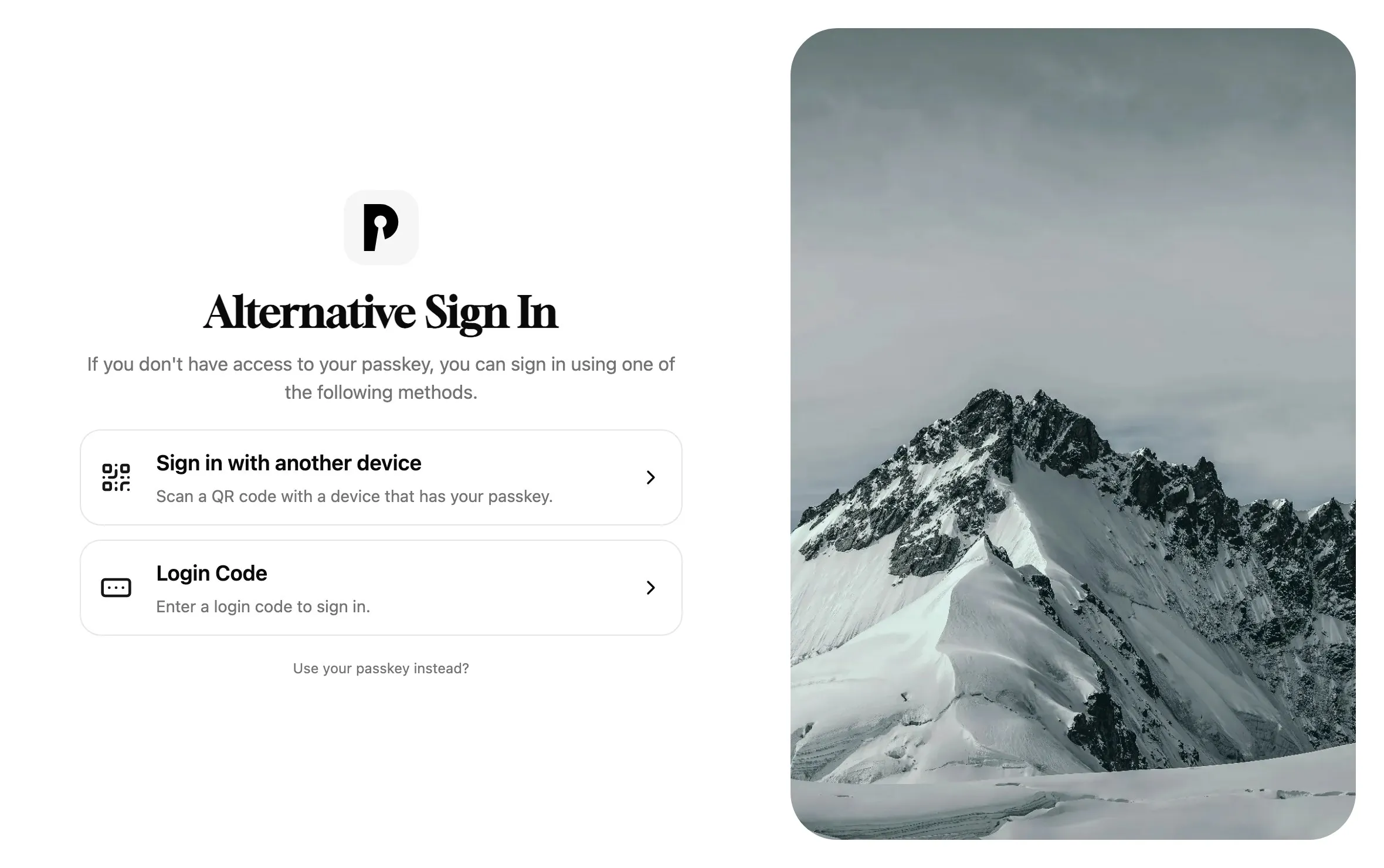
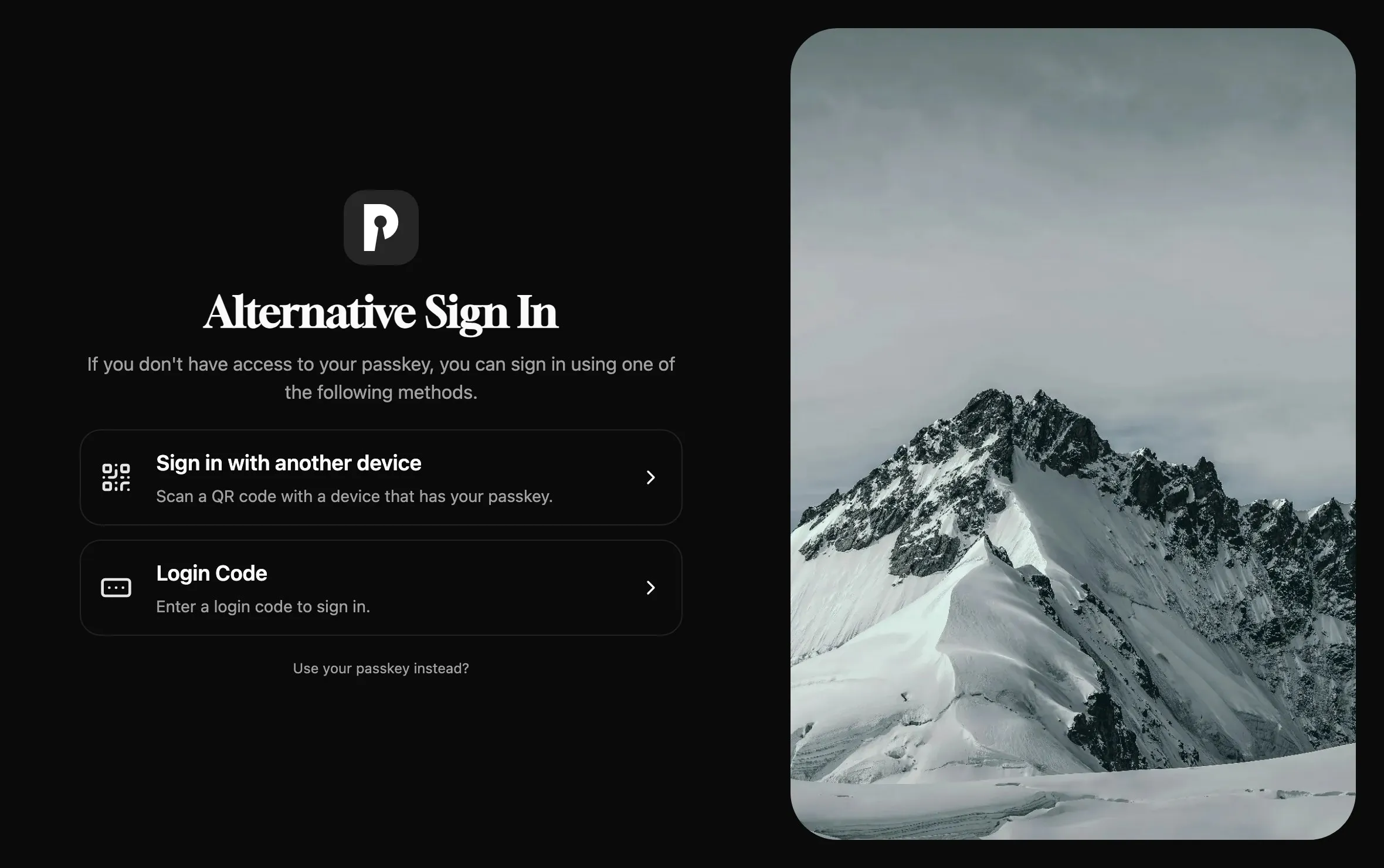
Users sign in to Pocket ID with a passkey. When they don’t have one at hand, Alternative Sign In Methods on the sign-in page offers the other ways:
Passkey
Section titled “Passkey”A passkey is a key pair: the private half stays on the user’s device, password manager or security key, and Pocket ID only stores the public half. The user unlocks it with a fingerprint, face scan or PIN, and it only works on the domain it was created for, which makes phishing it close to impossible.
Admins decide which passkeys are allowed under Application Configuration → Passkeys:
| Setting | Effect |
|---|---|
| User verification | Required makes every sign-in ask for a fingerprint, face scan or PIN, Preferred also allows touch-only security keys |
| Allow synced passkeys | Allows passkeys that sync between devices, such as those in iCloud Keychain or a password manager |
| Allowed authenticator type | Any passkey, Device passkeys only or External security keys only, such as USB or NFC keys |
User verification applies to every sign-in, while the other two settings only apply to passkeys added from then on.
Sign in with another device
Section titled “Sign in with another device”Users can sign in on a device without their passkey, such as a borrowed laptop or a TV, by approving the sign-in on their phone:
- On the new device, choose Alternative Sign In Methods → Sign in with another device.
- Scan the QR code with the phone that has the passkey, or open the shown address there and enter the code.
- Sign in on the phone with the passkey if it asks, check the device and location it shows, and click Approve.
Only approve requests you started yourself, since approving one signs that device in to your account.
Login code
Section titled “Login code”An admin can create a login code that signs a user in once, to add a first passkey or to get back in after losing all of them. User management shows how to create one in the admin UI, and Account recovery how to create one from the command line.
The user enters it under Alternative Sign In Methods → Login Code, or opens the link that comes with it.
Login code by email
Section titled “Login code by email”With SMTP set up under Application Configuration → Email, turn on Email Login Code Requested by User. Alternative Sign In Methods then also offers Email Login, where users request a login code for their email address.