

User management
Create users, get them to their first passkey with a login code or a signup link, and organize them in groups.
Every person who signs in with Pocket ID has a user account with one or more passkeys. Only the user can add a passkey to their account, so getting someone started takes two steps: create the account, then let them in once to add their passkey.
Create users
Section titled “Create users”There are four ways to get accounts into Pocket ID:
- By hand: open Administration → Users, click Add User and fill in the username, email address and name.
- From LDAP: Pocket ID syncs users and groups from your directory.
- Through signups: users create their own account, with a signup link or freely.
- Through the API:
POST /api/userswith an API key.
Turn on Admin Privileges for a user to give them access to the admin pages, and Account Disabled to block their sign-in without deleting the account.
Add the first passkey
Section titled “Add the first passkey”Send a new user a login code, which signs them in once without a passkey. Pocket ID then asks them to set up a passkey, and they click Add Passkey.
In Administration → Users, open the ⋯ menu of the user, choose Login Code, pick how long it stays valid and click Show Code:
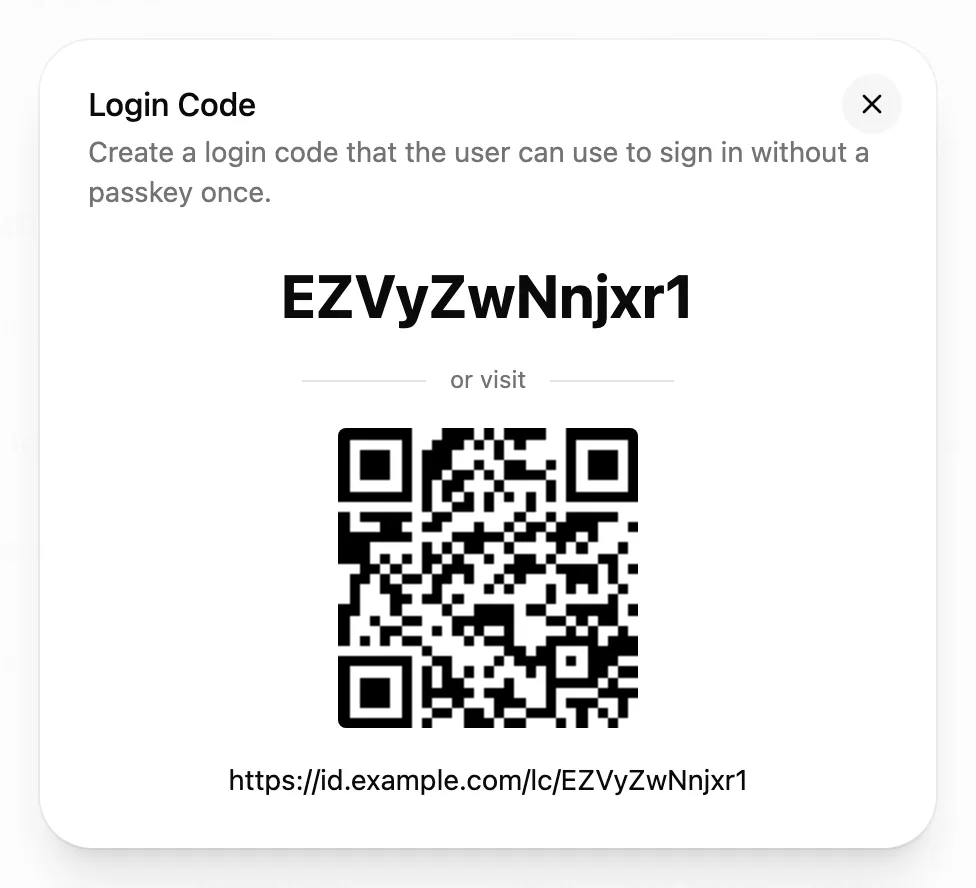
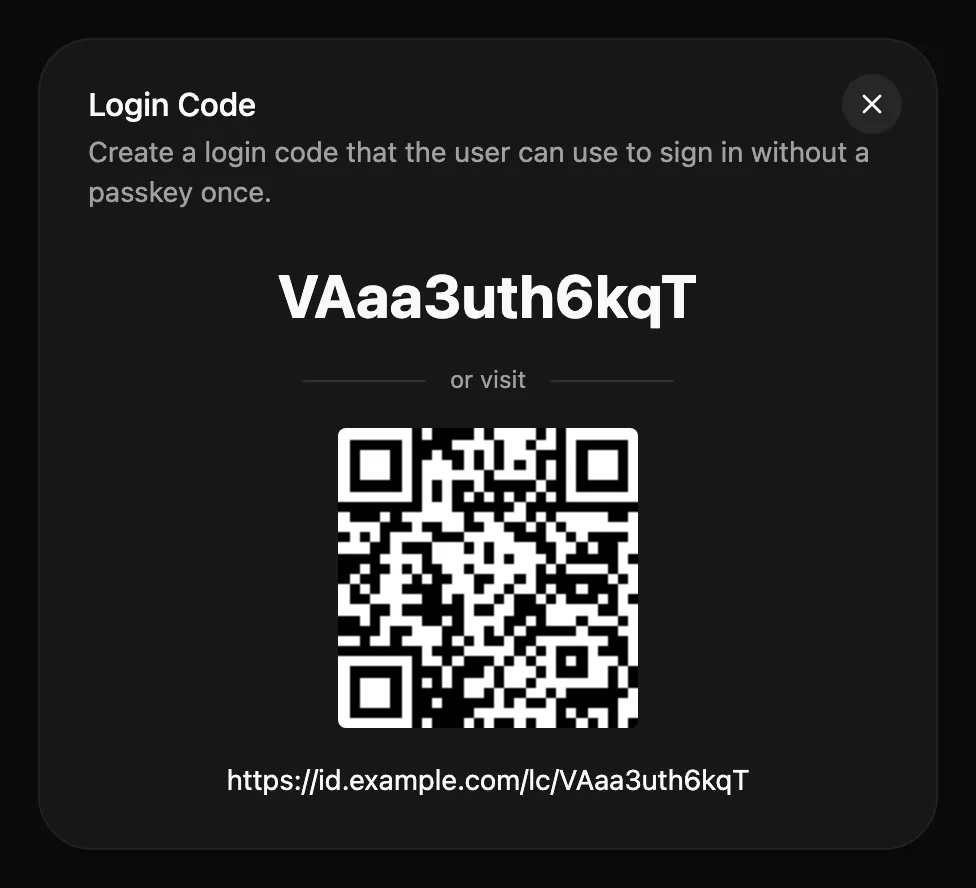
The user enters the code under Alternative Sign In Methods → Login Code, scans the QR code, or opens the link. With SMTP set up and Email Login Code from Admin turned on under Application Configuration → Email, Send Email mails the code instead.
A login code is as good as a passkey until it expires, so send it to the person only, and keep the lifetime short. The same works for users who lost their passkeys, as Account recovery describes.
Passkeys can live in a password manager such as Bitwarden or 1Password, in iCloud Keychain or Google Password Manager, or on a hardware key such as a YubiKey. Users can add several, one per device or manager, under My Account.
Signup links
Section titled “Signup links”Signup links let people create their own account and passkey, without an admin entering their details.
- Open Application Configuration → User Creation and set Enable User Signups to Signup with token.
- In Administration → Users, open the Add User menu and choose Create Signup Token.
- Choose when the token expires, how many accounts it may create and, optionally, the groups new accounts join.
- Send the link to the people who should sign up.
View Active Signup Tokens in the same menu lists the tokens and revokes them.
Open Signup lets anyone who reaches Pocket ID create an account, so only use it when the instance isn’t public. Under User Creation, you can also add every new account to groups and give it custom claims.
Groups
Section titled “Groups”Groups decide who may sign in to which OIDC client, and apps receive them in the groups claim to assign roles.
Create them under Administration → User Groups.
A group has a friendly name for the admin UI and a name that apps see in the token, such as Media and media.
Groups can carry custom claims, which every member’s tokens include.