This is the full developer documentation for Pocket ID
# Introduction
> A self-hosted OpenID Connect Certified™ and OAuth 2.0 provider that lets your users sign in to every app you host with a passkey instead of a password.
Pocket ID is the one place where your users sign in, for every app you connect to it through OpenID Connect (OIDC). It’s made for small teams, startups and homelabs that find [Keycloak](https://www.keycloak.org) or [Authentik](https://goauthentik.io) too much for what they need.
Pocket ID only supports passwordless authentication methods, primarily [passkeys](https://www.passkeys.io), so there are no passwords to reuse, leak or phish. A passkey can live in a password manager, on a phone or on a hardware key such as a YubiKey, and it unlocks with a fingerprint, face scan or PIN.

You can try it on the [demo instance](https://demo.pocket-id.org).
## How sign-in works
[Section titled “How sign-in works”](#how-sign-in-works)
Any app that offers sign-in with OpenID Connect, often labeled as SSO, OAuth or OIDC, can use Pocket ID. You register the app in Pocket ID as an **OIDC client**, and the app sends its users to Pocket ID when they sign in.
If you are interested in the technical details, the diagram below shows the typical sign-in flow with Pocket ID. No worries though, you don’t have to understand how OIDC and OAuth 2.0 work to use it.
The browser carries the user between the app and Pocket ID, while the app fetches the tokens from Pocket ID directly, so both the browser and the app need to reach Pocket ID.
Pocket ID only lets a user through when their passkey checks out and, if you restricted the client to some groups, when they’re a member of one of them. The app then receives tokens with the user’s name, email address and groups, and creates its own session from them.
Apps without OIDC support, and apps that only support LDAP or SAML, can still sit behind Pocket ID with an authentication proxy, as [Proxy services](/docs/guides/proxy-services) shows.
## Concepts
[Section titled “Concepts”](#concepts)
* **Users** sign in with their passkeys, and an admin can let a user in once with a **login code**, such as to add their first passkey.
* **Groups** decide which users may sign in to which client, and the apps you connect receive them in the token to assign roles.
* **OIDC clients** are the apps that use Pocket ID for sign-in, each with its own client ID, secret and callback URLs.
* **APIs** are your own backends that accept access tokens from Pocket ID, which you only need for [API access](/docs/guides/apis). This is a more advanced use case.
## Next steps
[Section titled “Next steps”](#next-steps)
[Install Pocket ID](/docs/setup/installation)Start Pocket ID with Docker Compose or as a single binary.
[Put it behind HTTPS](/docs/setup/reverse-proxy)Passkeys only work over HTTPS, so Pocket ID needs a reverse proxy.
[Connect your first app](/docs/setup/connect-an-app)Create an OIDC client and give the app the values it asks for.
[Client examples](/docs/client-examples)Step-by-step setup for nearly a hundred apps, from Immich to Proxmox.
## Videos
[Section titled “Videos”](#videos)
* [Use a custom OIDC and passkeys to log in to Tailscale with Pocket ID](https://www.youtube.com/watch?v=sPUkAm7yDlU) by Tailscale
* [Improving Security with Hardware Keys - Authentik & Pocket-ID](https://www.youtube.com/watch?v=QC5IUmu7cgw) by Jim’s Garage
* [Protect your MCP Server with OAuth 2.1 in just 5 minutes with Pocket ID](https://www.youtube.com/watch?v=JjoXz2u5r3Y)
# Connect an app
> Create an OIDC client for an app, give the app its client ID, secret and discovery URL, and choose who may sign in.
Every app that signs in with Pocket ID is an **OIDC client**. You create the client in Pocket ID, and the app gets three values from it: a client ID, a client secret and the discovery URL.
[Client examples](/docs/client-examples) has the exact steps for nearly a hundred apps. This page explains the steps they share, here for [Immich](/docs/client-examples/immich) at `https://photos.example.com`.
## Create the client
[Section titled “Create the client”](#create-the-client)
1. Find the app’s **callback URL**, which some apps call the redirect URI. Pocket ID sends users back to it after they signed in, and only to the URLs you list. The app’s OIDC documentation names it, such as `https://photos.example.com/auth/login` for Immich.
2. In Pocket ID, open **Administration → OIDC Clients** and click **Add OIDC Client**. Enter a name, pick the client type and add the callback URL:
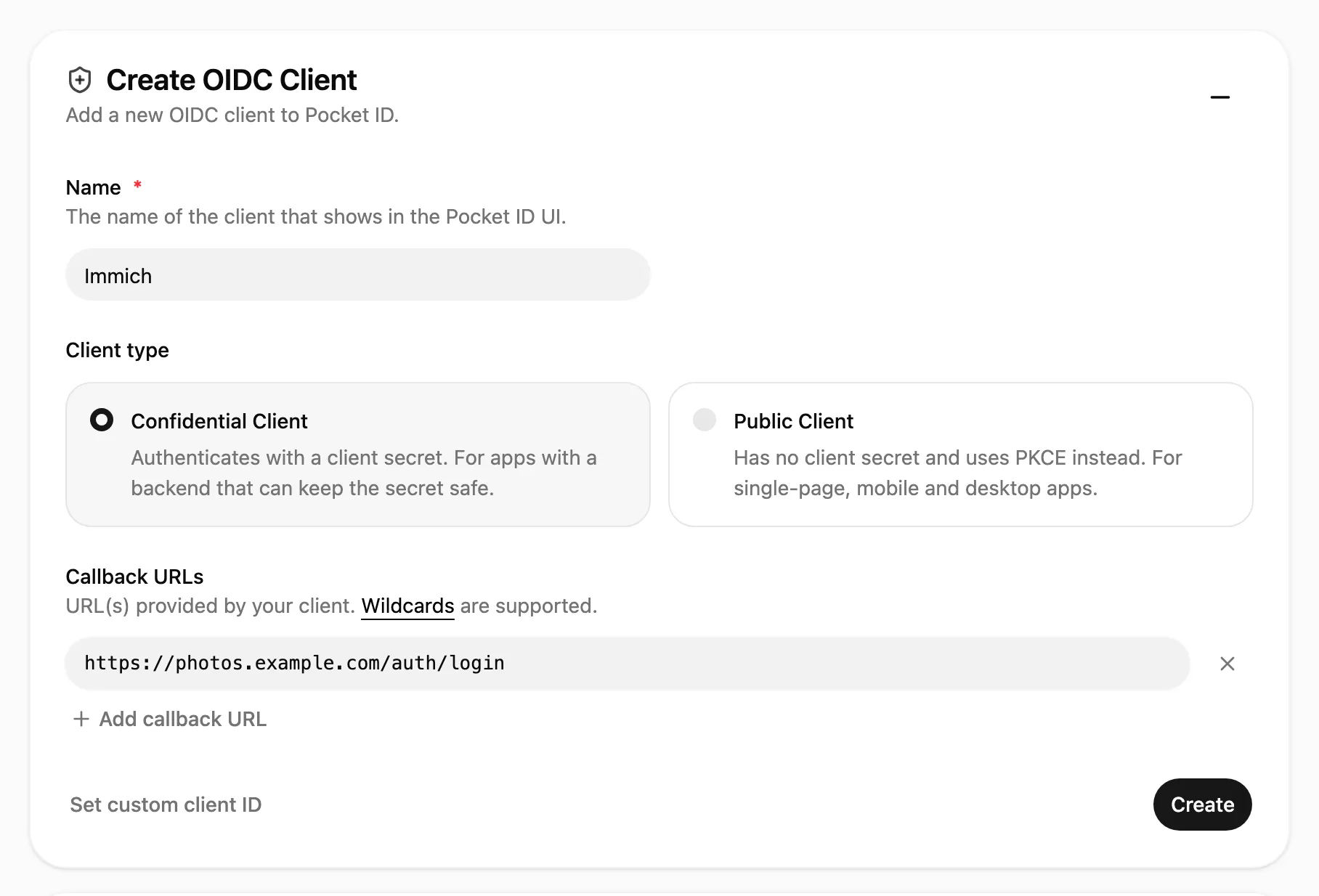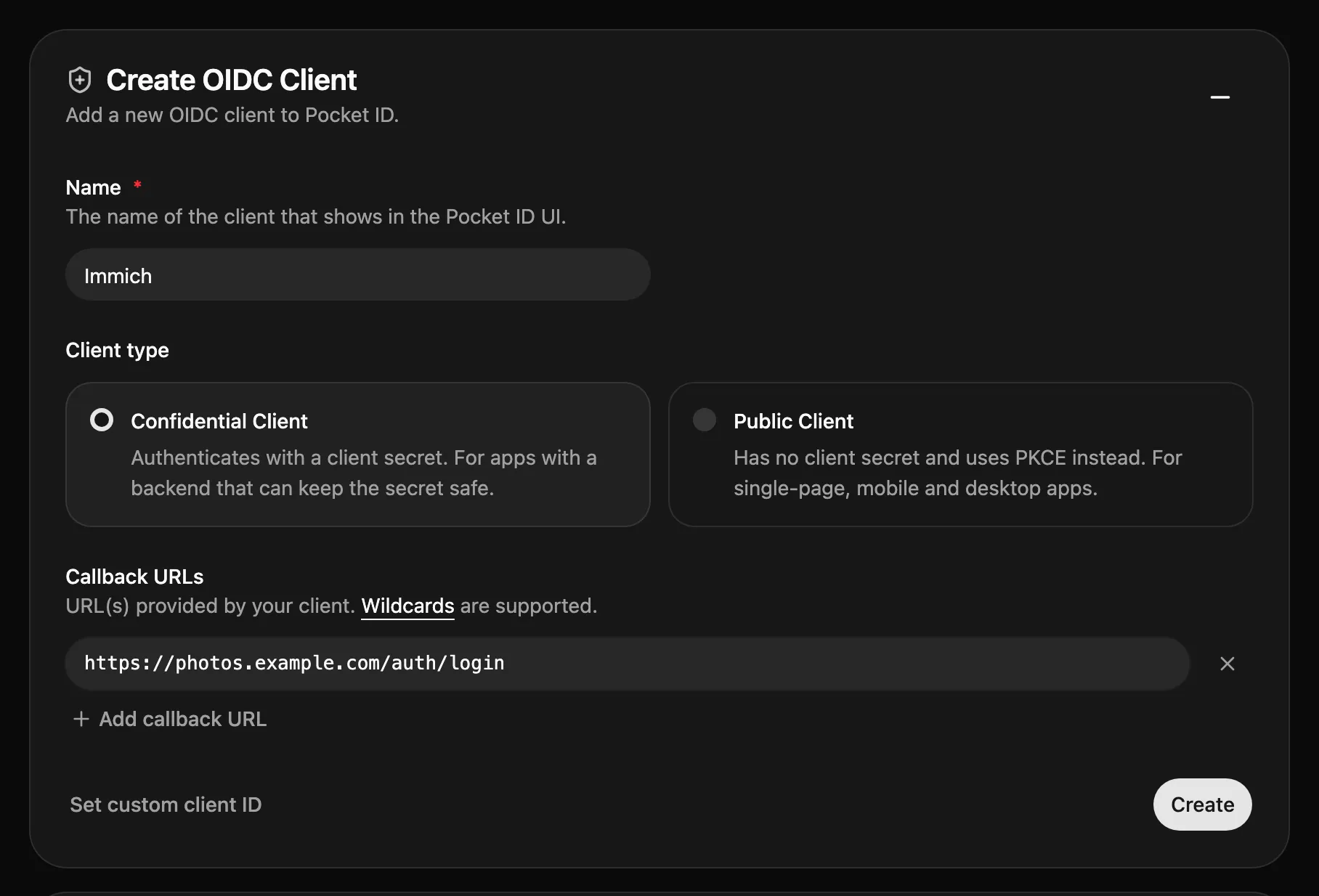
Most self-hosted apps have a backend, so they’re **confidential clients** that sign their requests with the client secret. Choose **public client** for single-page, mobile and desktop apps, which can’t keep a secret and use PKCE instead.
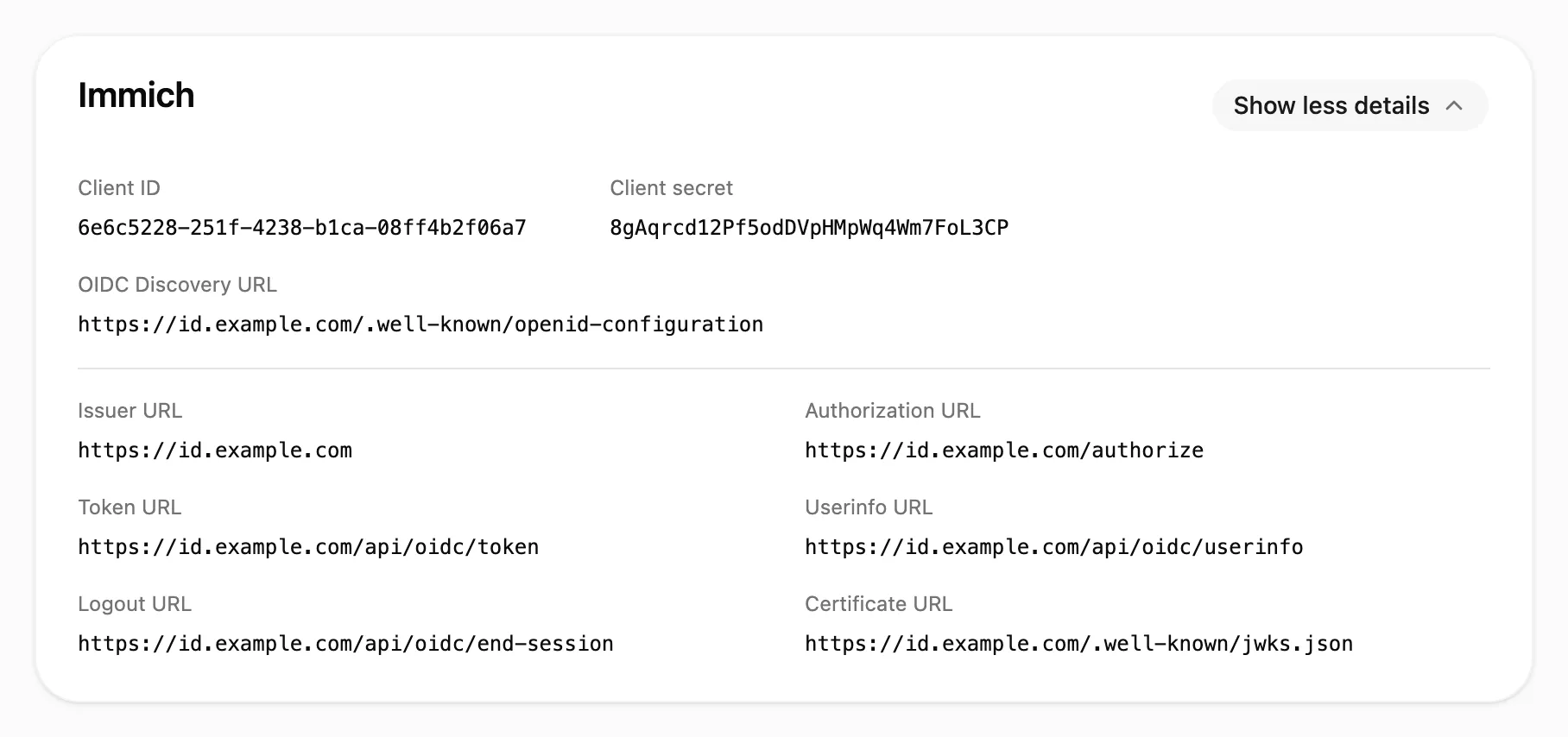
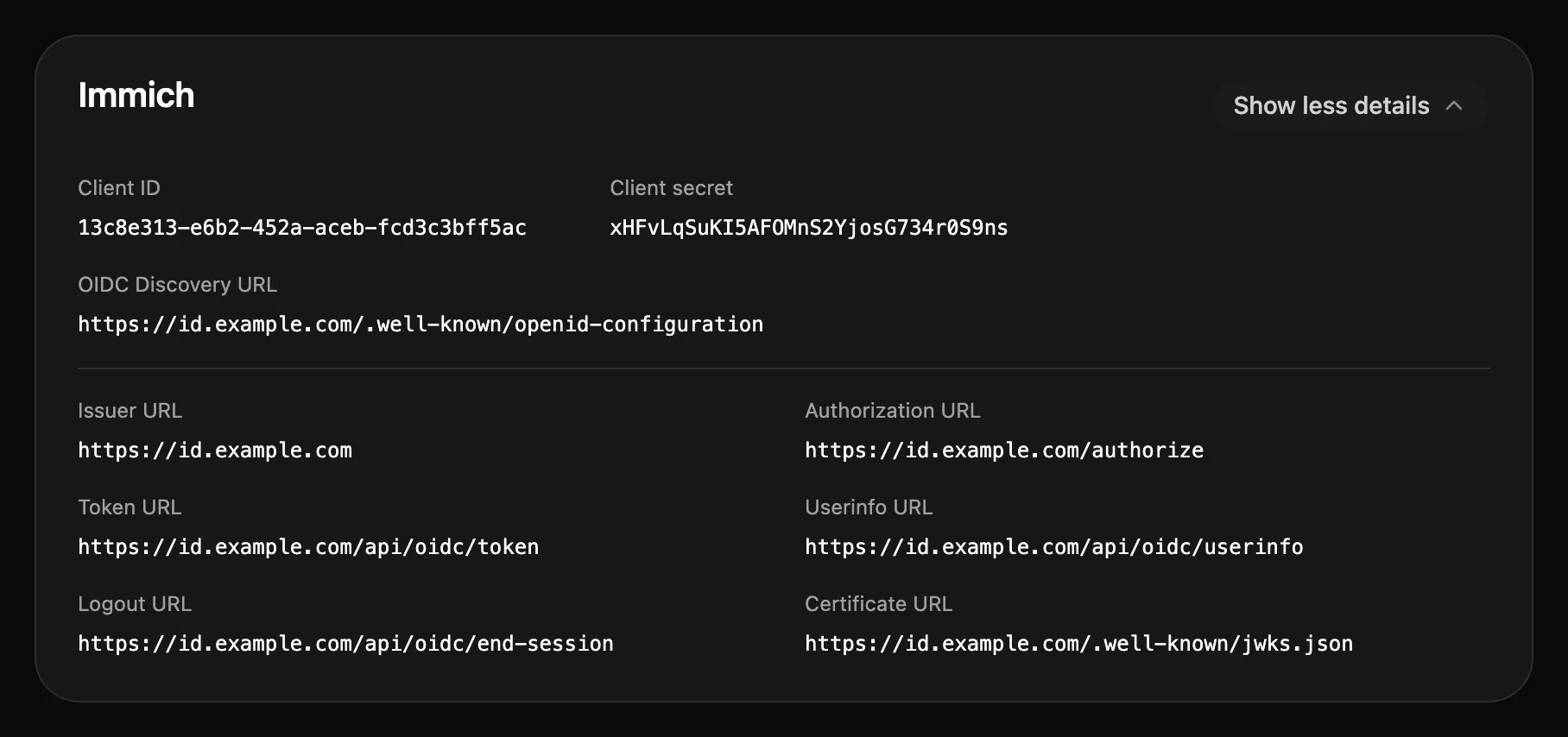
3. Click **Create**. The client’s page shows the values the app needs:
Caution
The client secret is only shown now, so copy it before you leave the page. If you lose it, add a new one under **Credentials**.
## Choose who may sign in
[Section titled “Choose who may sign in”](#choose-who-may-sign-in)
A new client lets nobody in until you choose who may use it. On the client’s **Access** tab, select the groups whose members may sign in, or choose **All Users**:
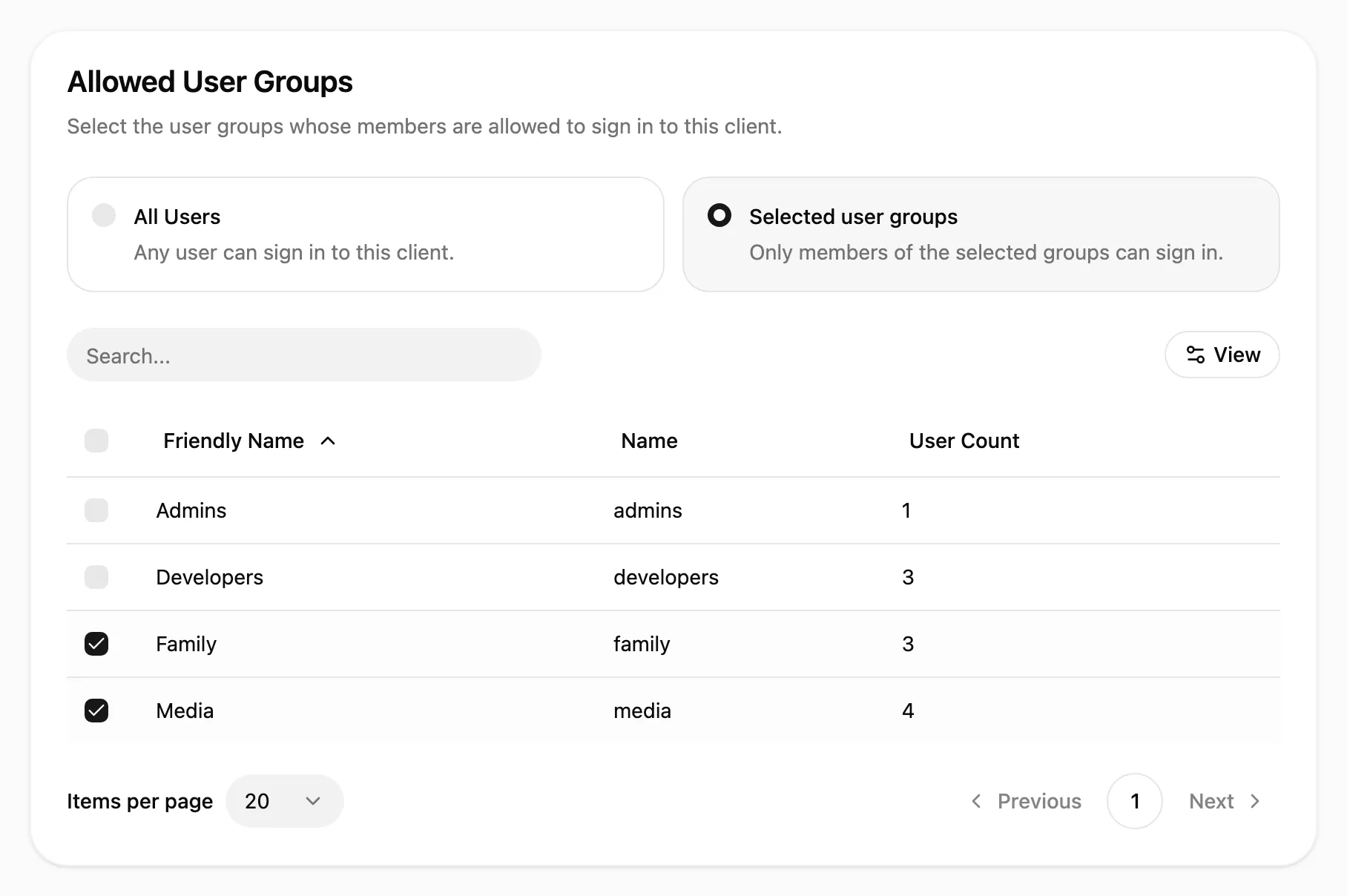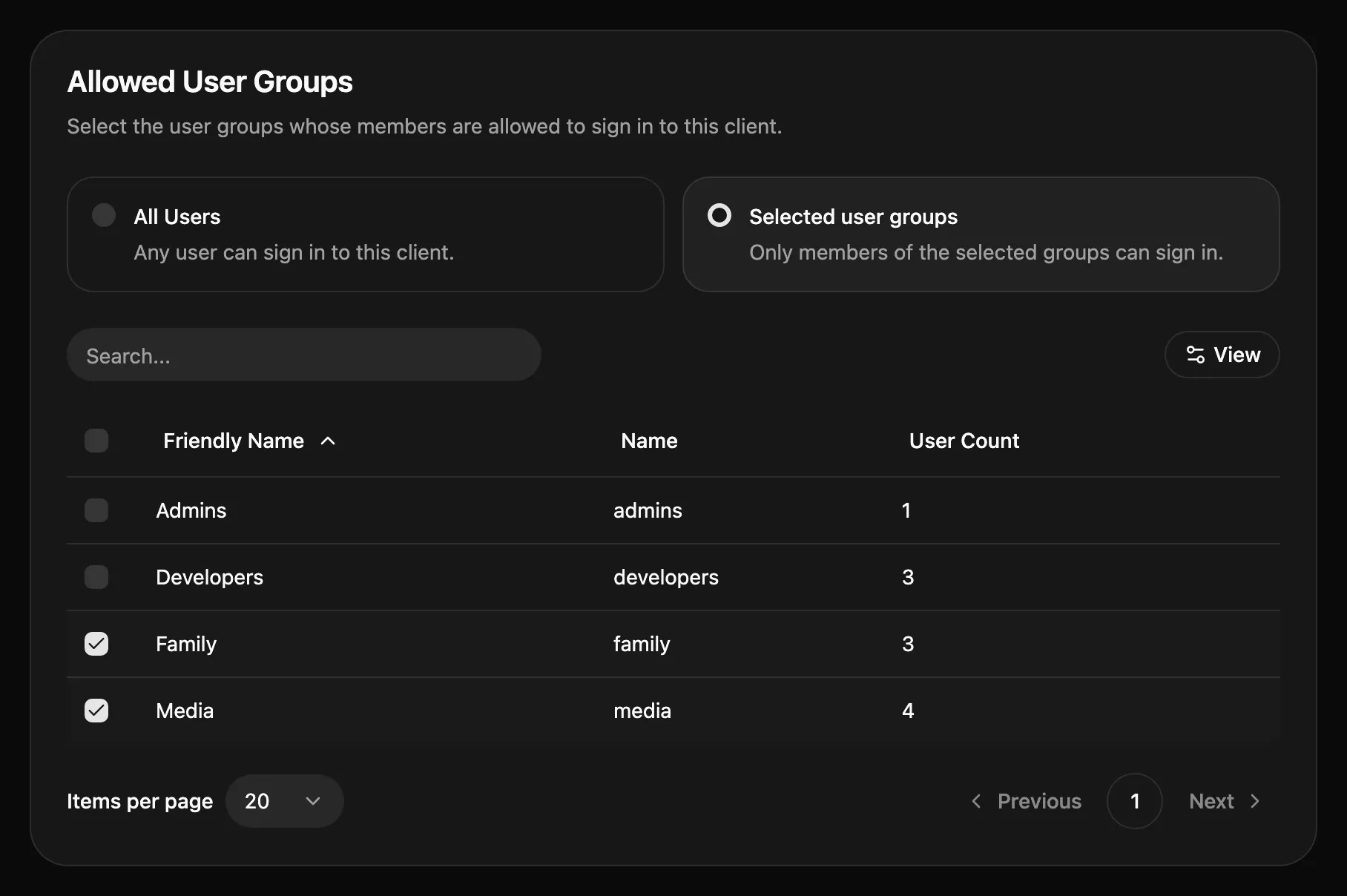
Everyone else gets “You are not allowed to access this service” when they try to sign in. [Allowed user groups](/docs/configuration/allowed-groups) has the details.
## Configure the app
[Section titled “Configure the app”](#configure-the-app)
Enter the values from the client’s page in the app’s OIDC or SSO settings. Apps name the fields differently, but they map like this:
| The app asks for | Enter |
| ------------------------------------------ | ----------------------------------------------------------------------- |
| Issuer, provider URL or authority | `https://id.example.com`, which is your `APP_URL` |
| Discovery, well-known or configuration URL | `https://id.example.com/.well-known/openid-configuration` |
| Client ID | The **Client ID** |
| Client secret | The **Client secret**, or nothing for a public client |
| Scopes | `openid profile email`, plus `groups` if the app assigns roles by group |
Some apps don’t read the discovery URL and ask for each endpoint instead. **Show more details** on the client’s page lists them, and [Endpoints](#endpoints) below has their paths.
The app’s server fetches tokens from Pocket ID directly, so the issuer URL has to work from the app’s container too, not only in your browser.
## Test the sign-in
[Section titled “Test the sign-in”](#test-the-sign-in)
Sign in to the app with its OIDC or SSO button. The first time you sign in to a client, Pocket ID asks whether to share your details with it:
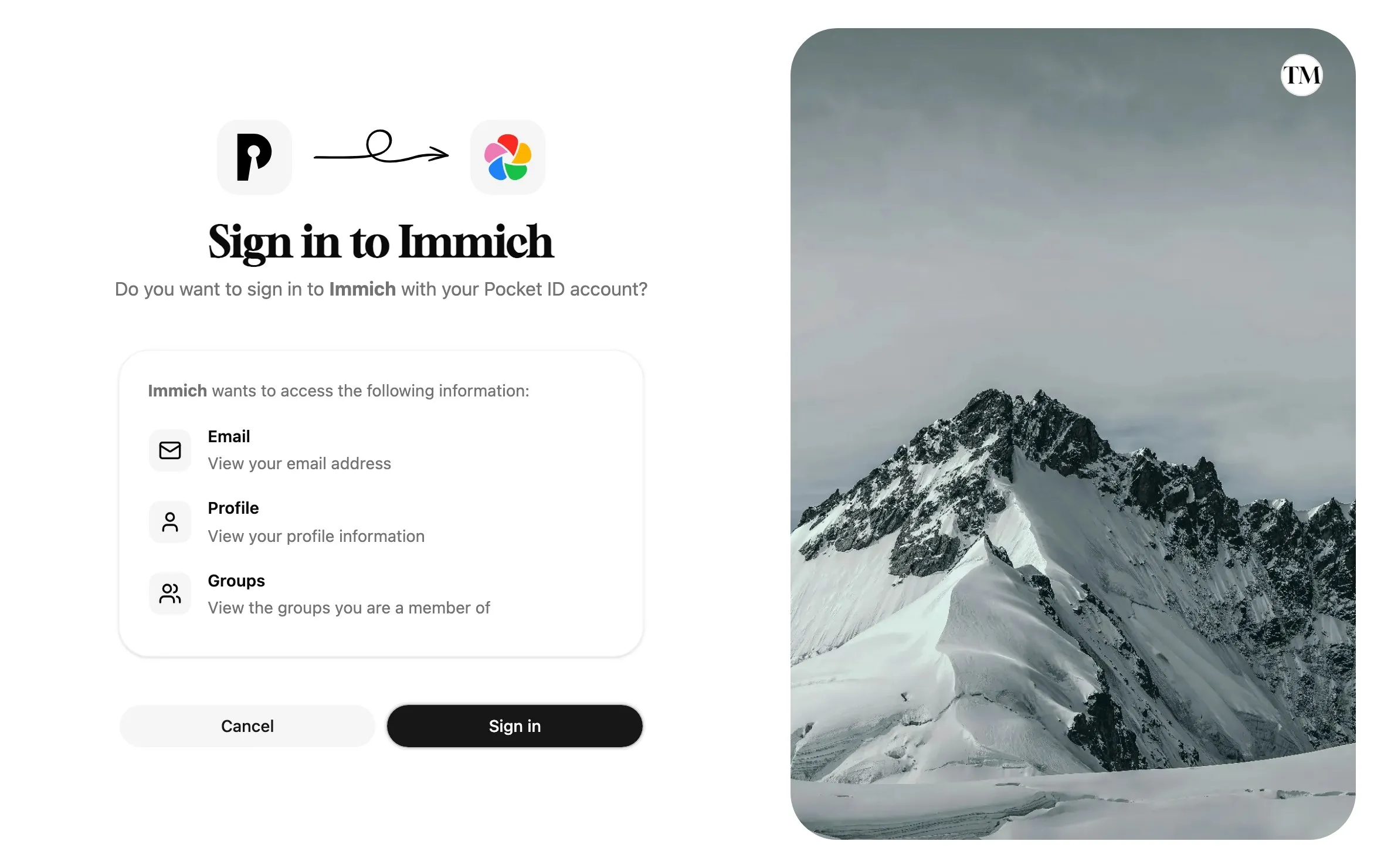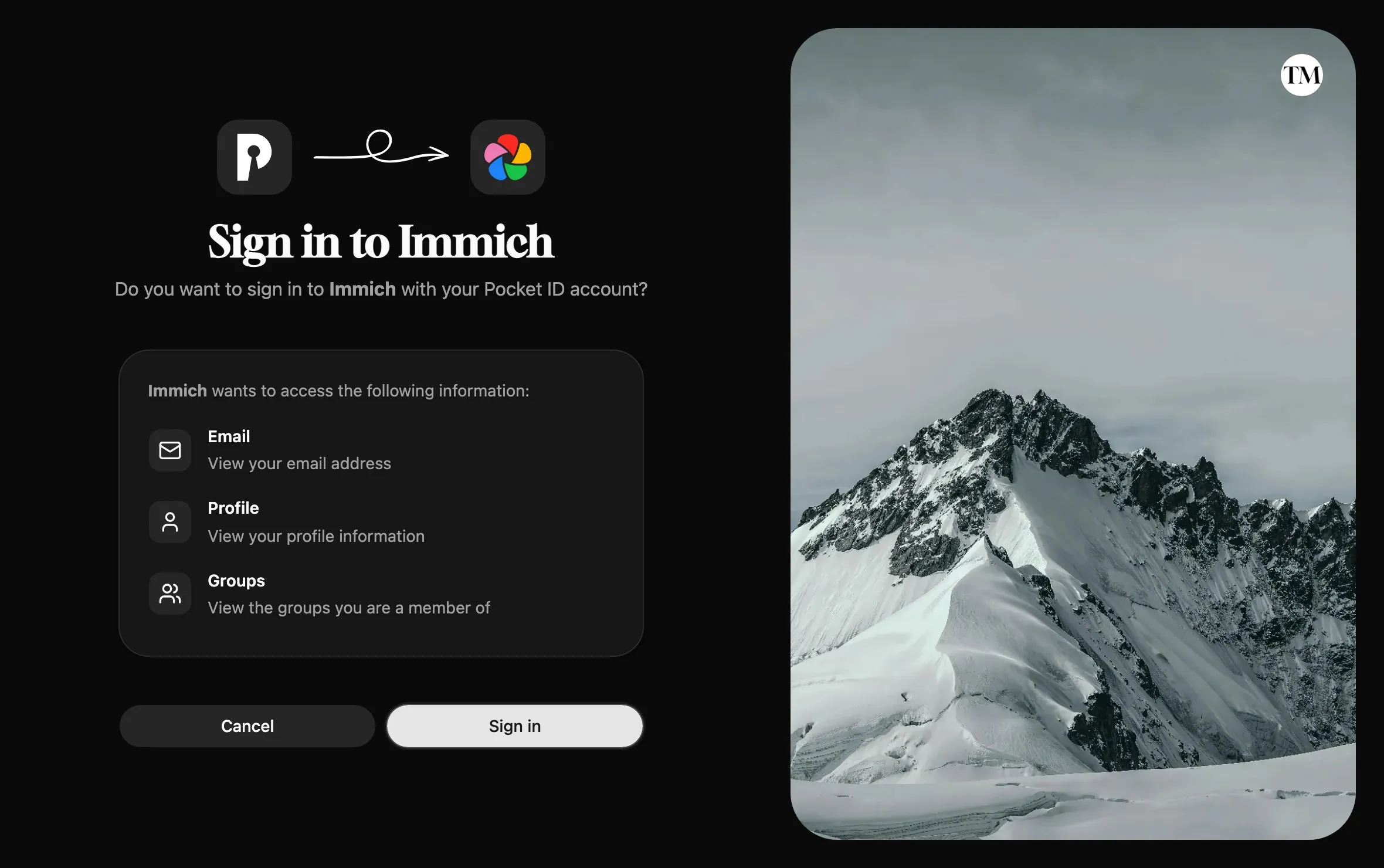
Pocket ID remembers the answer, and only asks again when the app requests more than before. Users can revoke it under **My Apps**, and you can turn the screen off for trusted clients with **Skip Consent Screen** on the client’s **General** tab.
If the sign-in fails, [Common issues](/docs/troubleshooting/common-issues) covers the usual causes, such as a callback URL that doesn’t match.
## Endpoints
[Section titled “Endpoints”](#endpoints)
Every endpoint is relative to your `APP_URL`, and the discovery document lists them all:
| Endpoint | Path |
| ----------------------------- | ----------------------------------- |
| Discovery | `/.well-known/openid-configuration` |
| Authorization | `/authorize` |
| Token | `/api/oidc/token` |
| Userinfo | `/api/oidc/userinfo` |
| Signing keys (JWKS) | `/.well-known/jwks.json` |
| End session (logout) | `/api/oidc/end-session` |
| Token introspection | `/api/oidc/introspect` |
| Device authorization | `/api/oidc/device/authorize` |
| Pushed authorization requests | `/api/oidc/par` |
The token, userinfo, introspection, JWKS and pushed authorization endpoints use `INTERNAL_APP_URL` instead of `APP_URL` when you set it, for apps that reach Pocket ID at another address than browsers do.
[Scopes and claims](/docs/guides/scopes-and-claims) describes what the tokens contain.
# Data export and import
> Learn how to export and import your Pocket ID data for backup or migration
The Pocket ID CLI lets you export and import your Pocket ID data. This is useful when creating backups, moving an installation to another instance, or switching database providers.
Caution
This feature is experimental and may not work correctly. Please create a backup before importing data and report any issues you encounter.
## Exporting Data
[Section titled “Exporting Data”](#exporting-data)
Use the `export` command to create a backup file:
```bash
pocket-id export --path ./path/to/export.zip
```
### Exporting to standard output
[Section titled “Exporting to standard output”](#exporting-to-standard-output)
You can pass `--path -` to write the export to standard output. This is helpful when piping the archive or working with Docker:
```bash
pocket-id export --path - > ./path/to/export.zip
```
### Export with Docker
[Section titled “Export with Docker”](#export-with-docker)
Exporting to standard output is often the simplest approach when running Pocket ID in Docker:
```bash
docker compose exec -T pocket-id ./pocket-id export --path - > ./path/to/export.zip
```
## Importing Data
[Section titled “Importing Data”](#importing-data)
1. Shut down your Pocket ID instance.
2. Use the import command to restore a previously exported archive:
```bash
pocket-id import --path ./path/to/export.zip
```
### Importing from standard input
[Section titled “Importing from standard input”](#importing-from-standard-input)
Like export, you can use `--path -` to read from standard input:
```bash
pocket-id import --yes --path - < ./path/to/export.zip
```
When importing from standard input, you must include `--yes` to confirm the operation without a prompt. The following prompt cannot be shown when reading from standard input:
```plaintext
WARNING: This feature is experimental and may not work correctly. Please create a backup before proceeding and report any issues you encounter.
WARNING: Import will erase all existing data at the following locations:
Database: /app/data/pocket-id.db
Uploads Path: /app/data/uploads
Do you want to continue? [y/N]:
```
### Import with Docker
[Section titled “Import with Docker”](#import-with-docker)
When using Docker, importing from standard input is often the easiest method:
```bash
cat ./export.zip | docker compose run -T pocket-id ./pocket-id import --yes --path -
```
The `-T` flag disables TTY allocation. Without it, Docker fails with `the input device is not a TTY` when piping data into the container, and binary output from the export may be corrupted.
# Installation
> Run Pocket ID with Docker Compose or as a single binary, then create the admin account and its passkey.
Pocket ID is a single program with a built-in SQLite database, so one container or one binary is all it needs.
HTTPS is required
Browsers only allow passkeys on HTTPS pages, or on `localhost` while you try Pocket ID out. Plan for a domain such as `id.example.com` and a [reverse proxy](/docs/setup/reverse-proxy) in front of Pocket ID.
## Install
[Section titled “Install”](#install)
* Docker Compose
1. Download the Compose file and the example `.env` file:
```bash
curl -O https://raw.githubusercontent.com/pocket-id/pocket-id/main/docker-compose.yml
curl -o .env https://raw.githubusercontent.com/pocket-id/pocket-id/main/.env.example
```
2. Set the address you’ll open Pocket ID at and an encryption key in `.env`:
.env
```ini
APP_URL=https://id.example.com
# Generate one with: openssl rand -base64 32
ENCRYPTION_KEY=
```
[Environment variables](/docs/configuration/environment-variables) lists every other option.
3. Start Pocket ID:
```bash
docker compose up -d
```
Pocket ID listens on port 1411 and keeps its database and uploads in `./data`. The images are published as `ghcr.io/pocket-id/pocket-id` and `pocketid/pocket-id` on Docker Hub.
* Binary
1. Download the binary for your system from the [latest release](https://github.com/pocket-id/pocket-id/releases/latest), named `pocket-id__`, such as `pocket-id_linux_amd64`:
```bash
curl -fL -o pocket-id https://github.com/pocket-id/pocket-id/releases/latest/download/pocket-id_linux_amd64
chmod +x pocket-id
```
Releases cover Linux, macOS, Windows, FreeBSD and OpenBSD on amd64 and arm64, and Linux on 386 and armv7.
2. Download the example `.env` file next to the binary and set `APP_URL` and `ENCRYPTION_KEY` in it, as in the Docker Compose steps:
```bash
curl -o .env https://raw.githubusercontent.com/pocket-id/pocket-id/main/.env.example
```
3. Start Pocket ID:
```bash
./pocket-id
```
Pocket ID reads the `.env` file from the directory it runs in, listens on port 1411 and keeps its data in a `data` directory next to it. To run it as a service, start it with systemd or your platform’s equivalent.
## Create the admin account
[Section titled “Create the admin account”](#create-the-admin-account)
Open `https://id.example.com/setup` and fill in your username, email address and name.
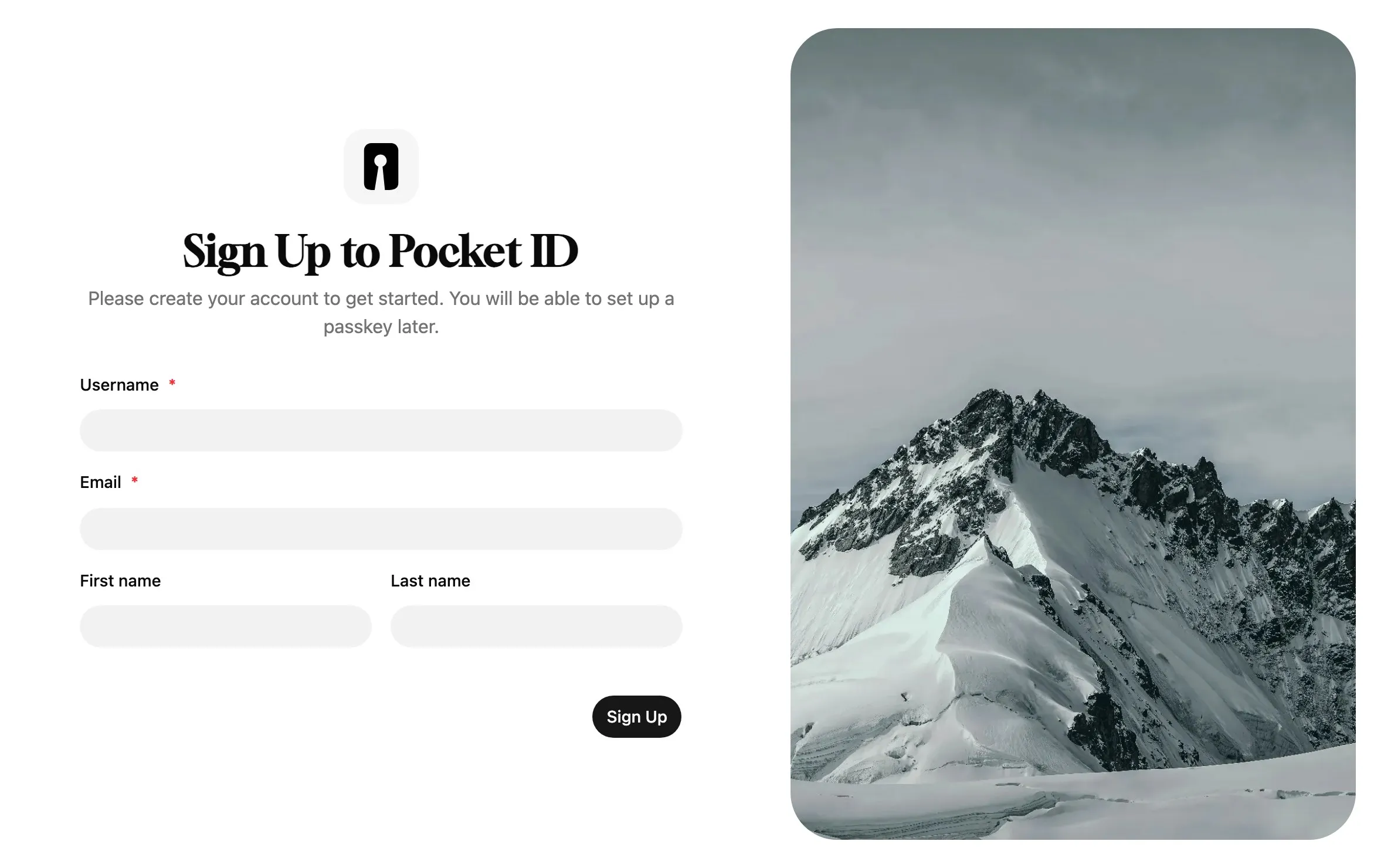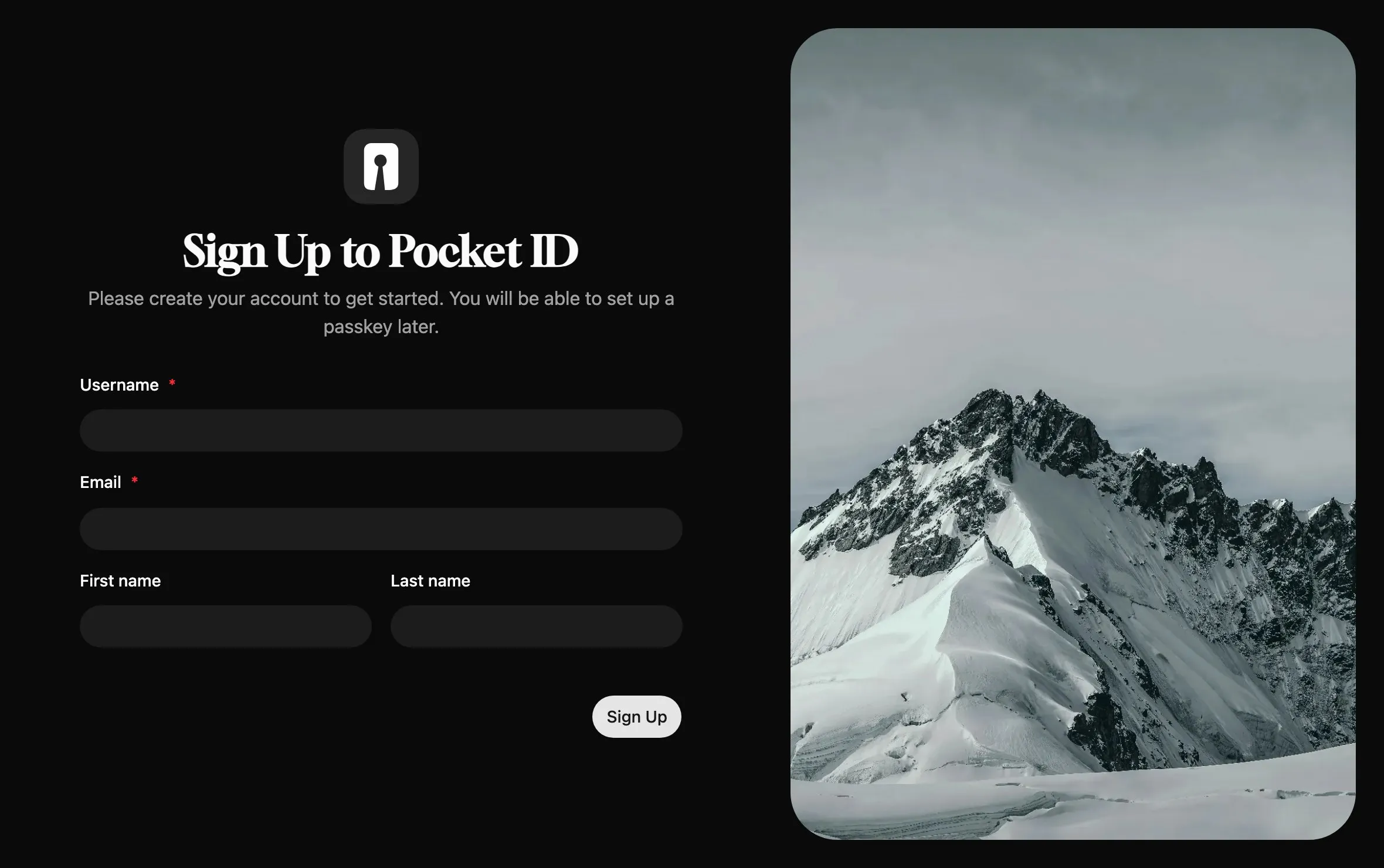
After **Sign Up**, Pocket ID asks you to set up a passkey: click **Add Passkey**, since that’s how you sign in from now on. The setup page only works until the first account exists.
Next, [connect your first app](/docs/setup/connect-an-app), or [add users](/docs/setup/user-management).
## Offline use
[Section titled “Offline use”](#offline-use)
Pocket ID makes three kinds of outgoing requests, which you can turn off for air-gapped servers:
* `VERSION_CHECK_DISABLED=true` stops the check for new releases on GitHub.
* `ANALYTICS_DISABLED=true` stops the daily [heartbeat](/docs/configuration/analytics) that counts running instances.
* `ICON_LIBRARY_URL=disabled` stops the icon search for client logos, which loads the [selfh.st icons](https://selfh.st/icons) from jsDelivr.
## Community installation methods
[Section titled “Community installation methods”](#community-installation-methods)
Caution
These methods are maintained by the community, not by the Pocket ID team, and may lag behind releases.
### Podman Quadlet
[Section titled “Podman Quadlet”](#podman-quadlet)
For rootless Podman, save this as `~/.config/containers/systemd/pocket-id.container`. For rootful Podman, save it in `/etc/containers/systemd/` and change `WantedBy` to `multi-user.target`.
pocket-id.container
```ini
[Container]
Image=ghcr.io/pocket-id/pocket-id:v2
PublishPort=1411:1411
Volume=pocket-id:/app/data:Z
# Optional: updates the image automatically, needs podman-auto-update.timer
AutoUpdate=registry
HealthCmd=/app/pocket-id healthcheck
HealthInterval=1m30s
HealthTimeout=5s
HealthRetries=2
HealthStartPeriod=10s
Environment=APP_URL=https://id.example.com
# A file with the key, generated with: openssl rand -base64 32
Environment=ENCRYPTION_KEY_FILE=/path/to/encryption_key
[Service]
Restart=always
[Install]
WantedBy=default.target
```
### Proxmox
[Section titled “Proxmox”](#proxmox)
Run the [community helper script](https://community-scripts.github.io/ProxmoxVE/scripts?id=pocketid) as root in the Proxmox shell:
```bash
bash -c "$(wget -qLO - https://github.com/community-scripts/ProxmoxVE/raw/main/ct/pocketid.sh)"
```
The script installs Pocket ID as a service in `/opt/pocket-id`, with its configuration in `/opt/pocket-id/.env`.
### Kubernetes
[Section titled “Kubernetes”](#kubernetes)
* [Helm chart](https://github.com/hobbit44/pocket-id-helm) by @hobbit44
* [Helm chart](https://artifacthub.io/packages/helm/anza-labs/pocket-id) by anza-labs
* [Kubernetes operator](https://github.com/aclerici38/pocket-id-operator) by @aclerici38
### Other platforms
[Section titled “Other platforms”](#other-platforms)
* **Unraid:** install Pocket ID from the Community Apps store.
* **NixOS:** enable the module with `services.pocket-id.enable = true;`, and see its [options](https://search.nixos.org/options?channel=unstable\&query=pocket-id).
* **Homebrew:** `brew install pocket-id`
## Build from source
[Section titled “Build from source”](#build-from-source)
Building from source needs [Go](https://go.dev/doc/install) 1.27 or newer, [Node.js](https://nodejs.org) 24 or newer with [pnpm](https://pnpm.io), and Git:
```bash
git clone https://github.com/pocket-id/pocket-id
cd pocket-id
git checkout "$(git describe --tags "$(git rev-list --tags --max-count=1)")"
# The frontend builds into the backend, which embeds it into the binary
pnpm install
pnpm --filter pocket-id-frontend build
cd backend
go build -o ../pocket-id ./cmd
```
Then create a `.env` file next to the binary and start it as in the binary steps above.
# Migrate to v1
> The breaking changes in Pocket ID v1.0, from the new default port to renamed environment variables, and how to upgrade.
Caution
v1.0 is a major release that includes breaking changes. Please read this migration guide carefully before upgrading.
We hate breaking changes as much as you do, but we decided to bundle them all into the v1.0 release to make future upgrades easier. This guide will help you understand the changes and how to migrate your existing Pocket ID installation.
## Breaking Changes
[Section titled “Breaking Changes”](#breaking-changes)
### Port
[Section titled “Port”](#port)
* **Default Port Change**: The default port for Pocket ID has changed from `80` to `1411`.
* **New Port Variable**: As Caddy has been removed and the frontend is now served directly by the backend, you no longer need to set `CADDY_PORT` or `BACKEND_PORT`. Instead, you must use the new `PORT` environment variable to specify the port on which Pocket ID listens.
### Environment Variables
[Section titled “Environment Variables”](#environment-variables)
| Previous Variable | New Variable | Notes |
| ---------------------------- | ---------------------- | ---------------------------------------------------------------------------------------- |
| `PUBLIC_APP_URL` | `APP_URL` | Variable renamed |
| `PUBLIC_UI_CONFIG_DISABLED` | `UI_CONFIG_DISABLED` | Variable renamed |
| `CADDY_DISABLED` | Removed | Not necessary anymore |
| `CADDY_PORT` | `PORT` | Use new `PORT` variable |
| `BACKEND_PORT` | `PORT` | Use new `PORT` variable |
| `POSTGRES_CONNECTION_STRING` | `DB_CONNECTION_STRING` | Variable renamed. See [Database Configuration](#database-configuration) |
| `SQLITE_DB_PATH` | `DB_CONNECTION_STRING` | Now uses connection string format. See [Database Configuration](#database-configuration) |
| `INTERNAL_BACKEND_URL` | Removed | Not necessary anymore |
### Database Configuration
[Section titled “Database Configuration”](#database-configuration)
#### SQLite Configuration
[Section titled “SQLite Configuration”](#sqlite-configuration)
* The `SQLITE_DB_PATH` environment variable has been removed (**deprecated** since [v0.45.0](https://github.com/pocket-id/pocket-id/releases/tag/v0.45.0))
* You must now use the `DB_CONNECTION_STRING` with SQLite connection string format:
* Old: `SQLITE_DB_PATH=data/pocket-id.db`
* New: `DB_CONNECTION_STRING=file:data/pocket-id.db?_pragma=journal_mode(WAL)&_pragma=busy_timeout(2500)&_txlock=immediate`
#### PostgreSQL Connection
[Section titled “PostgreSQL Connection”](#postgresql-connection)
* `POSTGRES_CONNECTION_STRING` has been removed (**deprecated** since [v0.45.0](https://github.com/pocket-id/pocket-id/releases/tag/v0.45.0))
* You must now use the `DB_CONNECTION_STRING`. The PostgreSQL connection string format remains the same:
* Old: `POSTGRES_CONNECTION_STRING=postgresql://username:password@host:port/database`
* New: `DB_CONNECTION_STRING=postgresql://username:password@host:port/database`
### Reverse Proxy Configuration
[Section titled “Reverse Proxy Configuration”](#reverse-proxy-configuration)
This releases removes the integrated Caddy server, which was used for reverse proxying and serving the frontend. **There are no actions required if you haven’t disabled Caddy with `CADDY_DISABLED=true`.**
If you previously disabled Caddy, you likely had path mappings in your reverse proxy configuration. With v1.0:
* Path mappings to `/api/` and `/.well-known` are no longer necessary
* Your reverse proxy should now point directly to Pocket ID on port 1411 (or the port set with the `PORT` variable)
## Migration Steps
[Section titled “Migration Steps”](#migration-steps)
Follow the following steps to migrate from previous versions to v1.0.
### Docker
[Section titled “Docker”](#docker)
1. Adapt your `docker-compose.yml` for the new version:
* **Change the port**: Update the internal port to `1411`
* **Change the volume path**: Update the target path for the volume to `/app/data`
* **Update the healthcheck**: Change the port in the healthcheck to `1411`
```yaml
services:
pocket-id:
image: ghcr.io/pocket-id/pocket-id:latest
ports:
- '1411:1411' # Change the port
volumes:
- ./data:/app/data # Update the volume path
healthcheck:
test: 'curl -f http://localhost:1411/healthz' # Update the port in the healthcheck
interval: 1m30s
timeout: 5s
retries: 2
start_period: 10s
```
2. Adapt the environment variables [mentioned above](#environment-variables) in your `.env` file.
3. Apply the changes by running:
```bash
docker compose up -d
```
### Standalone
[Section titled “Standalone”](#standalone)
While you still can build Pocket ID from source, it’s now much easier to install and upgrade Pocket ID by using the prebuilt binaries. To migrate from previous versions to v1.0 and use the prebuilt binaries, follow these steps:
1. Stop Pocket ID if it’s currently running.
2. Create a backup of the folder that contains your Pocket ID installation.
```bash
cp -r /path/to/pocket-id /path/to/pocket-id-old
```
3. Download the latest binary from the [releases page](https://github.com/pocket-id/pocket-id/releases/latest).
Make sure to download the correct version for your operating system. The binary names follow this pattern:
* `pocket-id--`
* Example: `pocket-id-linux-amd64`
You can use curl to download the binary directly. For example, for Linux on AMD64 architecture:
```bash
curl -L -o pocket-id-linux-amd64 https://github.com/pocket-id/pocket-id/releases/latest/download/pocket-id-linux-amd64
```
4. Rename the binary and make it executable:
```bash
mv pocket-id-- pocket-id
chmod +x pocket-id
```
5. If you haven’t edited the default paths where data is stored, like `UPLOAD_PATH`, `DB_CONNECTION_STRING`, `GEOLITE_DB_PATH` and `KEYS_PATH` everything is stored in the `data` directory. Because of that you have to move the `data` directory to the same folder as the new binary.
Copy the `data` directory from the old Pocket ID installation to the same folder as the new binary:
```bash
cp -r /path/to/pocket-id-old/data /path/to/pocket-id/data
```
6. Create a `.env` file in the same directory as the binary. Previously you had two `.env` files, one in the `frontend` directory and one in the `backend` directory.
You have to merge these two files into one `.env` file in the same directory as the binary. Make sure to also adapt the environment variables like [mentioned above](#environment-variables)
Enjoy Pocket ID v1.0! We’re grateful for your ongoing support and contributions that made this milestone release possible.
# Migrate to v2
> The breaking changes in Pocket ID v2.0, such as the mandatory encryption key, and how to upgrade from v1.
If you’re on a version before 1.0, follow the [migration guide to v1](/docs/setup/major-releases/migrate-v1) first.
If you are using Docker, you have to change the image tag in your `docker-compose.yml` from `v1` to `v2`:
```yaml
services:
pocket-id:
image: ghcr.io/pocket-id/pocket-id:v2
# ...
```
## Breaking Changes
[Section titled “Breaking Changes”](#breaking-changes)
Caution
v2.0 is a major release that includes breaking changes. Please read this migration guide carefully before upgrading.
### Environment Variables
[Section titled “Environment Variables”](#environment-variables)
* The `ENCRYPTION_KEY` environment variable is now **mandatory**. You must set this variable to a random string of at least 16 characters. You can generate a secure random string using `openssl rand -base64 32`.
* `KEYS_STORAGE` and `KEYS_PATH` have been removed. JWKs are now always stored in the database. See [JWKs on Disk](#jwks-on-disk) for more information.
* `LDAP_ATTRIBUTE_ADMIN_GROUP` has been renamed to `LDAP_ADMIN_GROUP_NAME`.
* `DB_PROVIDER` has been removed. We will now automatically detect the database type from the `DB_CONNECTION_STRING`.
### New Locking Mechanism
[Section titled “New Locking Mechanism”](#new-locking-mechanism)
v2.0 introduces a new locking mechanism which prevents multiple instances of Pocket ID from running simultaneously on the same database. This is to avoid data corruption and ensure data integrity.
If you are running multiple instances of Pocket ID connected to the same database, you will need to update your deployment to ensure that only one instance is running at a time.
### JWKs on Disk
[Section titled “JWKs on Disk”](#jwks-on-disk)
Pocket ID used to store JWKs on the disk by default, unless `KEYS_STORAGE=database` was set.
Since v2.0, JWKs are always stored in the database. **No action is required, but your users may need to re-authenticate** after the upgrade, as new keys will be generated and the old keys will no longer be available.
The folder at `KEYS_PATH` (default: `data/keys`) is no longer used and can be deleted.
### Wildcards in Callback URLs
[Section titled “Wildcards in Callback URLs”](#wildcards-in-callback-urls)
This version makes wildcards in callback URLs more strict. If you were using wildcard callback URLs, please ensure they conform to the [new rules](/docs/advanced/callback-url-wildcards).
# Reverse proxy
> Serve Pocket ID over HTTPS with Caddy, nginx, Traefik or a Cloudflare Tunnel, and let it see your users' real IP addresses.
Browsers only create and use passkeys in a [secure context](https://developer.mozilla.org/en-US/docs/Web/Security/Secure_Contexts), so Pocket ID has to be served over HTTPS, except when you open it at `localhost`. Pocket ID listens on plain HTTP on port 1411, and a reverse proxy in front of it adds the HTTPS.
Browsers and the apps you connect both reach Pocket ID at its public HTTPS URL, which is APP_URL. The proxy terminates TLS and forwards every path to port 1411.
Point a domain such as `id.example.com` at your server, then set it as the public URL in your `.env` file:
.env
```ini
APP_URL=https://id.example.com
```
`APP_URL` has to be the exact address you open Pocket ID at. Passkeys are bound to its domain, and Pocket ID builds every URL it hands to your apps from it.
## Proxy configuration
[Section titled “Proxy configuration”](#proxy-configuration)
* Caddy
Caddy fetches a certificate for the domain on its own:
Caddyfile
```txt
id.example.com {
reverse_proxy pocket-id:1411
}
```
`pocket-id:1411` works when Caddy runs in the same Docker network as Pocket ID. For Caddy on the host, use `localhost:1411`.
* nginx
This server block assumes certificates from Certbot and Pocket ID’s port published on `127.0.0.1`:
/etc/nginx/conf.d/pocket-id.conf
```nginx
server {
listen 443 ssl;
server_name id.example.com;
ssl_certificate /etc/letsencrypt/live/id.example.com/fullchain.pem;
ssl_certificate_key /etc/letsencrypt/live/id.example.com/privkey.pem;
location / {
proxy_pass http://127.0.0.1:1411;
proxy_set_header Host $host;
proxy_set_header X-Forwarded-For $proxy_add_x_forwarded_for;
proxy_set_header X-Forwarded-Proto $scheme;
# Pocket ID sends larger response headers than nginx buffers by default
proxy_busy_buffers_size 512k;
proxy_buffers 4 512k;
proxy_buffer_size 256k;
}
}
```
Without the larger buffers, some pages fail with `502 Bad Gateway` and `upstream sent too big header` in nginx’s error log.
* Traefik
Labels on the Pocket ID service route the domain to port 1411. They assume a Traefik instance on a Docker network it shares with Pocket ID, with an entry point named `websecure` and a certificate resolver named `letsencrypt`:
docker-compose.yml
```yaml
services:
pocket-id:
# image, env_file and volumes as before
labels:
traefik.enable: "true"
traefik.http.routers.pocket-id.rule: Host(`id.example.com`)
traefik.http.routers.pocket-id.entrypoints: websecure
traefik.http.routers.pocket-id.tls.certresolver: letsencrypt
traefik.http.services.pocket-id.loadbalancer.server.port: "1411"
```
* Cloudflare Tunnel
Add a public hostname to your tunnel, such as `id.example.com`, with the service `http://pocket-id:1411`, or `http://localhost:1411` when `cloudflared` runs on the host. Cloudflare adds the HTTPS, so nothing on your server needs a certificate.
Turn off **Rocket Loader** for the domain, since it rewrites the page’s scripts and breaks Pocket ID’s [Content Security Policy](/docs/troubleshooting/common-issues#content-security-policy-errors).
## Client IP addresses
[Section titled “Client IP addresses”](#client-ip-addresses)
Pocket ID records the IP address and location of each sign-in in the audit log, and its rate limits count requests per IP address. Behind a proxy, every request comes from the proxy’s address, so tell Pocket ID which proxies it can trust to pass the real one on:
.env
```ini
# The address or network of the proxy, such as the Docker network it shares with Pocket ID
TRUST_PROXY=172.18.0.0/16
```
Behind Cloudflare, read the address from the header Cloudflare sets instead:
.env
```ini
TRUSTED_PLATFORM=CF-Connecting-IP
```
[Environment variables](/docs/configuration/environment-variables#reverse-proxy-settings) explains both options, and `PROXY_PROTOCOL` for load balancers that send the PROXY protocol.
## Check the setup
[Section titled “Check the setup”](#check-the-setup)
Open `https://id.example.com` and create your admin account on `/setup`, as [Installation](/docs/setup/installation) describes. If your browser refuses to create the passkey, the page isn’t served over HTTPS or `APP_URL` doesn’t match the address in the address bar.
# Upgrading
> Update Pocket ID with Docker Compose or the binary, and what to check before a major release.
Pocket ID migrates its database on its own when a new version starts. Within a major version, such as 2.x, upgrades don’t need any changes to your setup.
Read the [changelog](/changelog) before you upgrade, and back up the `data` folder, or your PostgreSQL database, so you can go back if something goes wrong. [Data export and import](/docs/setup/data-export-import) can create the backup.
* Docker Compose
The `v2` image tag follows the latest 2.x release, so pulling it gets the update:
```bash
docker compose pull
docker compose up -d
```
To stay on one version, use a full version tag such as `ghcr.io/pocket-id/pocket-id:v2.17.0`, and change it to upgrade.
* Binary
Stop Pocket ID, replace the binary with the one for your system from the [latest release](https://github.com/pocket-id/pocket-id/releases/latest), and start it again:
```bash
curl -fL -o pocket-id https://github.com/pocket-id/pocket-id/releases/latest/download/pocket-id_linux_amd64
chmod +x pocket-id
./pocket-id
```
Pocket ID refuses to start an older version on a database that a newer one already migrated, unless you set `ALLOW_DOWNGRADE=true`.
## Major releases
[Section titled “Major releases”](#major-releases)
A major release can change settings or behavior, so it comes with a migration guide:
* [Migrate to v2](/docs/setup/major-releases/migrate-v2), from 1.x
* [Migrate to v1](/docs/setup/major-releases/migrate-v1), from 0.x
# User management
> Create users, get them to their first passkey with a login code or a signup link, and organize them in groups.
Every person who signs in with Pocket ID has a user account with one or more passkeys. Only the user can add a passkey to their account, so getting someone started takes two steps: create the account, then let them in once to add their passkey.
## Create users
[Section titled “Create users”](#create-users)
There are four ways to get accounts into Pocket ID:
* **By hand:** open **Administration → Users**, click **Add User** and fill in the username, email address and name.
* **From LDAP:** Pocket ID [syncs users and groups](/docs/configuration/ldap) from your directory.
* **Through signups:** users create their own account, with a [signup link](#signup-links) or freely.
* **Through the API:** `POST /api/users` with an [API key](/docs/api).
Turn on **Admin Privileges** for a user to give them access to the admin pages, and **Account Disabled** to block their sign-in without deleting the account.
## Add the first passkey
[Section titled “Add the first passkey”](#add-the-first-passkey)
Send a new user a **login code**, which signs them in once without a passkey. Pocket ID then asks them to set up a passkey, and they click **Add Passkey**.
In **Administration → Users**, open the **⋯** menu of the user, choose **Login Code**, pick how long it stays valid and click **Show Code**:
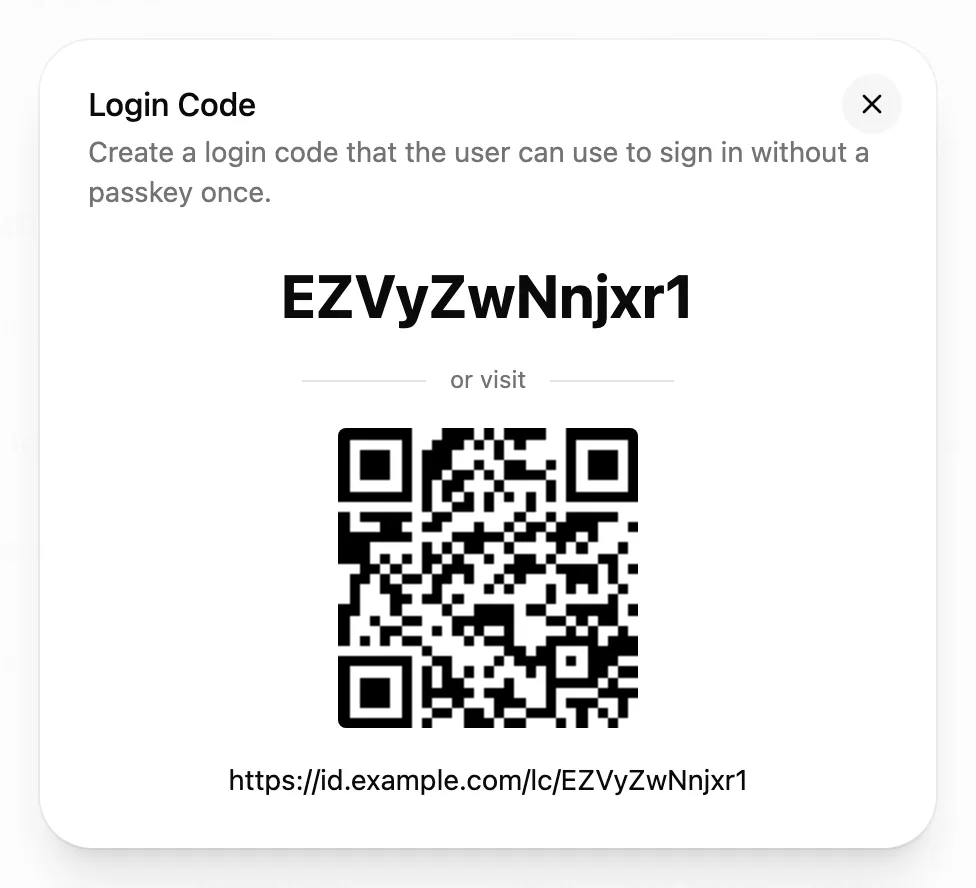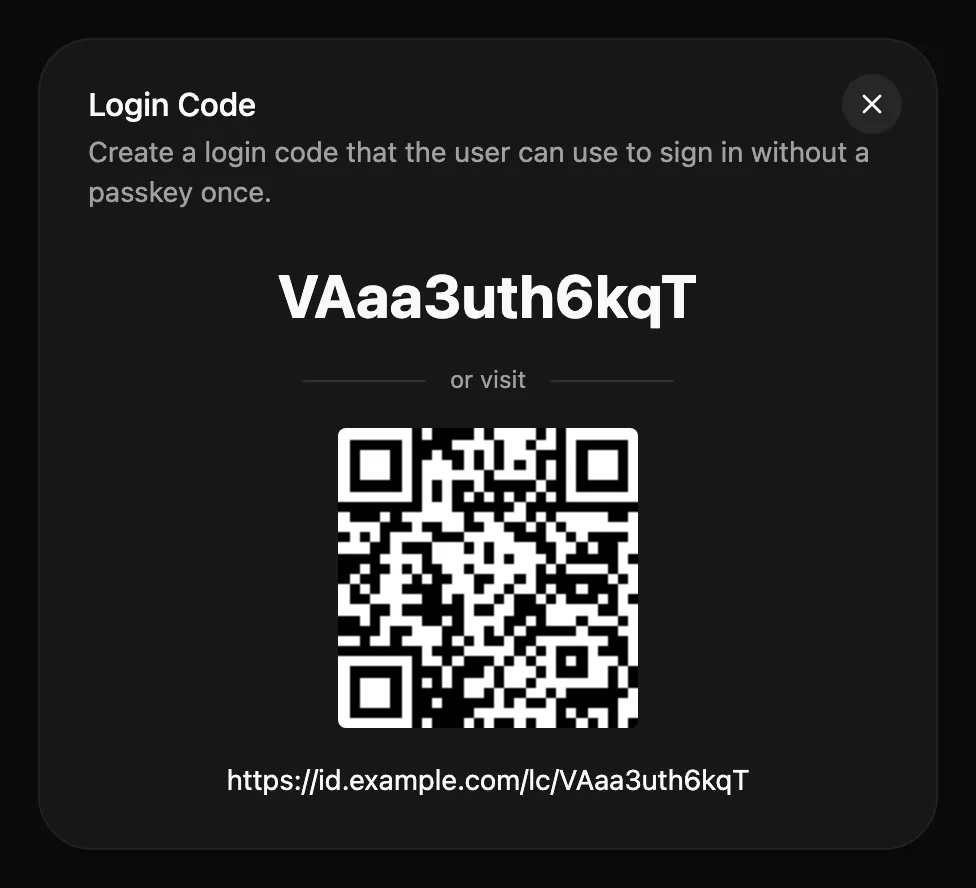
The user enters the code under **Alternative Sign In Methods → Login Code**, scans the QR code, or opens the link. With SMTP set up and **Email Login Code from Admin** turned on under **Application Configuration → Email**, **Send Email** mails the code instead.
A login code is as good as a passkey until it expires, so send it to the person only, and keep the lifetime short. The same works for users who lost their passkeys, as [Account recovery](/docs/troubleshooting/account-recovery) describes.
Passkeys can live in a password manager such as Bitwarden or 1Password, in iCloud Keychain or Google Password Manager, or on a hardware key such as a YubiKey. Users can add several, one per device or manager, under **My Account**.
## Signup links
[Section titled “Signup links”](#signup-links)
Signup links let people create their own account and passkey, without an admin entering their details.
1. Open **Application Configuration → User Creation** and set **Enable User Signups** to **Signup with token**.
2. In **Administration → Users**, open the **Add User** menu and choose **Create Signup Token**.
3. Choose when the token expires, how many accounts it may create and, optionally, the groups new accounts join.
4. Send the link to the people who should sign up.
**View Active Signup Tokens** in the same menu lists the tokens and revokes them.
**Open Signup** lets anyone who reaches Pocket ID create an account, so only use it when the instance isn’t public. Under **User Creation**, you can also add every new account to groups and give it custom claims.
## Groups
[Section titled “Groups”](#groups)
Groups decide who may sign in to which [OIDC client](/docs/configuration/allowed-groups), and apps receive them in the `groups` claim to assign roles. Create them under **Administration → User Groups**.
A group has a **friendly name** for the admin UI and a **name** that apps see in the token, such as `Media` and `media`. Groups can carry [custom claims](/docs/guides/scopes-and-claims#custom-claims), which every member’s tokens include.
# Allowed user groups
> Choose which user groups may sign in to each OIDC client, and what happens to users who aren't in one of them.
Each OIDC client decides who may sign in to it. Open the client under **Administration → OIDC Clients** and go to its **Access** tab:

* **Selected user groups** lets only members of the ticked groups sign in. Tick or untick groups and click **Save** in the bar at the bottom.
* **All Users** lets every user sign in, and removes the client’s group selection.
A client you create in the admin UI starts with **Selected user groups** and no group ticked, so nobody can sign in until you choose. Clients created through the API are open to all users unless the request restricts them.
## For users outside the groups
[Section titled “For users outside the groups”](#for-users-outside-the-groups)
Users who aren’t in one of the groups get “You are not allowed to access this service” instead of being sent back to the app. Apps they already signed in to lose access at their next token refresh, since Pocket ID checks the groups again every time.
The groups also decide which apps a user sees on their [app dashboard](/docs/configuration/appdashboard), and, with [SCIM](/docs/configuration/scim), which users Pocket ID provisions to the app.
You can also set the clients of a group from the other side, on the group’s **Allowed OIDC Clients** tab under **Administration → User Groups**.
# Analytics
> What the anonymous daily heartbeat of a Pocket ID instance contains, and how to turn it off.
By default Pocket ID sends a heartbeat to our analytics server once every 24 hours. Seeing how many active Pocket ID instances are out there genuinely motivates our team to keep developing and maintaining the project. The instance count is also displayed on the [Pocket ID website](https://pocket-id.org).
## What We Collect
[Section titled “What We Collect”](#what-we-collect)
Only minimal, non-identifiable data is collected:
* **Instance ID**: A random UUID (not linked to any personal information)
* **Version**: Your Pocket ID version
* **Heartbeat timestamps**: When your instance was first/last seen
We do not log or store IP addresses, user agents, or any other potentially identifiable information. The source code of the [analytics server](https://github.com/pocket-id/analytics) is open source.
## Opting Out
[Section titled “Opting Out”](#opting-out)
Analytics can be disabled at any time by setting the environment variable `ANALYTICS_DISABLED` to `true`. When disabled, no data is sent to our servers.
## Public Statistics
[Section titled “Public Statistics”](#public-statistics)
Aggregated instance counts are displayed on our homepage. The API is publicly accessible, the docs can be found in the [analytics server repository](https://github.com/pocket-id/analytics).
# App dashboard
> The My Apps page lists the apps a user can sign in to, with a link to launch each one and a way to revoke their access.
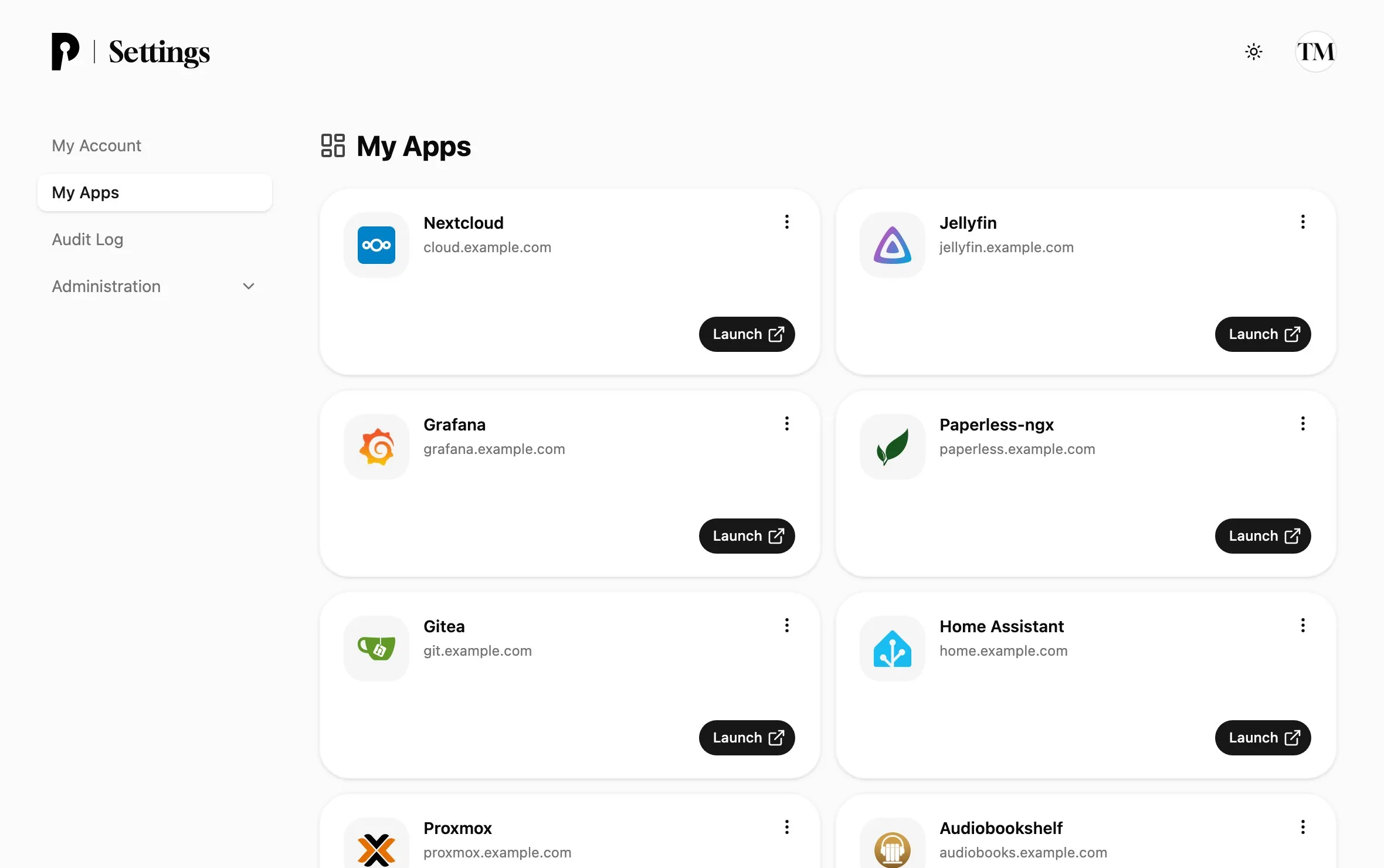
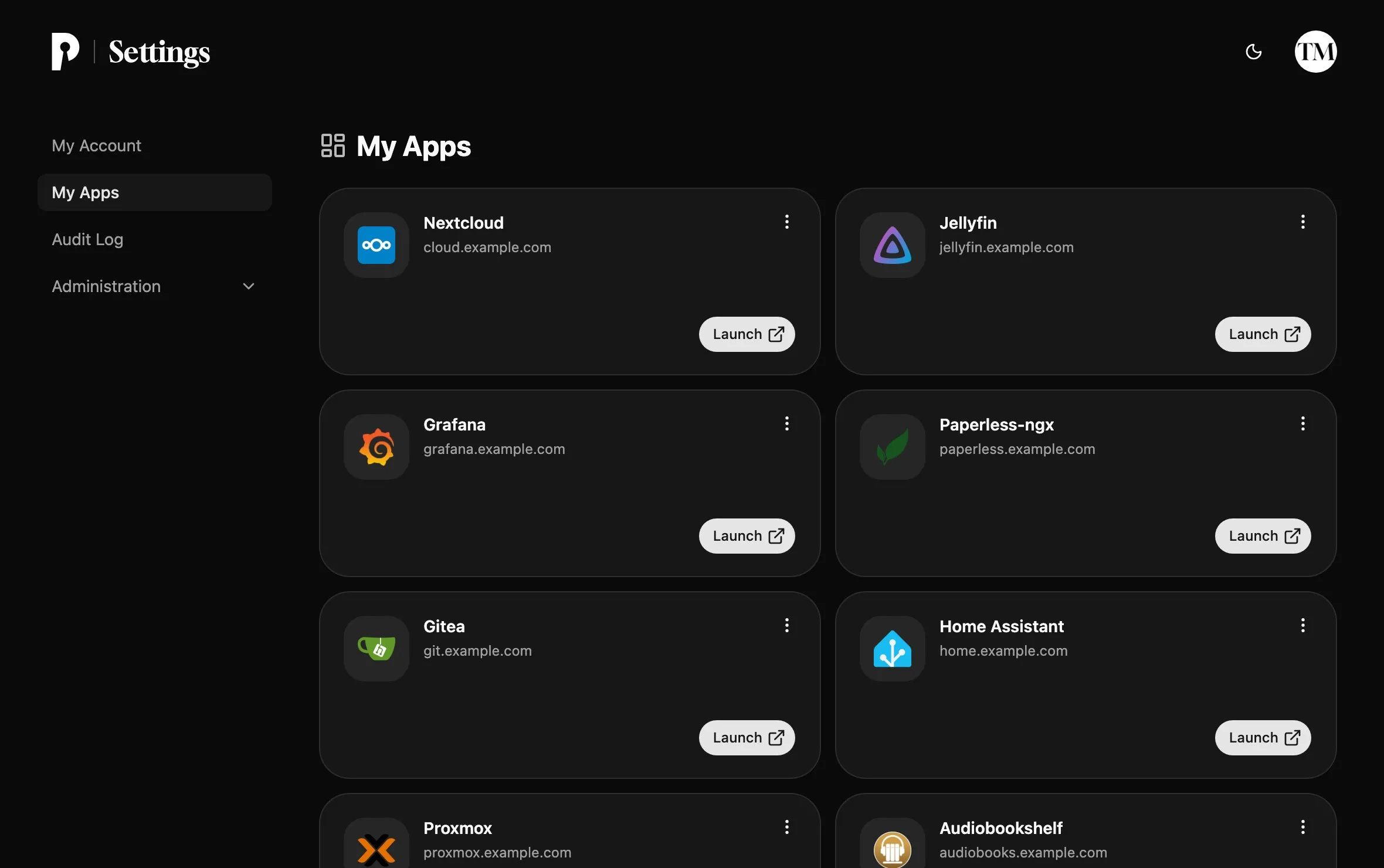
**My Apps** lists the OIDC clients a user may sign in to, so it doubles as a start page for everything behind Pocket ID. Users open it from the sidebar after signing in to Pocket ID.
## Add an app to the dashboard
[Section titled “Add an app to the dashboard”](#add-an-app-to-the-dashboard)
A client appears on the dashboard once it has a **Client Launch URL**, which is the address **Launch** opens. Set it on the client’s **General** tab under **Administration → OIDC Clients**, together with a logo for the tile.
The dashboard only shows clients that the user’s groups [allow](/docs/configuration/allowed-groups). **Show all apps** also lists the clients without a launch URL that the user signed in to before.
## Revoke access
[Section titled “Revoke access”](#revoke-access)
When a user signs in to a client for the first time, they agree to share their details with it. To take that back, they open the client’s **⋯** menu on the dashboard and choose **Revoke Access**, and Pocket ID asks again on their next sign-in.
# Environment variables
> Every environment variable Pocket ID reads, with its default, grouped by topic, plus the variables that replace the settings of the admin UI.
Pocket ID reads its configuration from environment variables, and from a `.env` file in the directory it runs in. Only `ENCRYPTION_KEY` is required, and `APP_URL` has to be set for anything beyond trying Pocket ID on `localhost`.
Variables that hold secrets also accept a `_FILE` variant with the path of a file that contains the value, which works with Docker secrets: `ENCRYPTION_KEY_FILE`, `DB_CONNECTION_STRING_FILE`, `STATIC_API_KEY_FILE`, `S3_SECRET_ACCESS_KEY_FILE` and `MAXMIND_LICENSE_KEY_FILE`. The file wins over the plain variable.
## Essentials
[Section titled “Essentials”](#essentials)
| Variable | Default | Description |
| --------------------- | ----------------------- | ------------------------------------------------------------------------------------------------------------------------------------------------------------------------------------------ |
| `APP_URL` | `http://localhost:1411` | The address you open Pocket ID at, such as `https://id.example.com`, without a path. Passkeys are bound to its domain. |
| `ENCRYPTION_KEY` | | Encrypts sensitive data such as the token signing keys, at least 16 bytes. See [Encryption keys](#encryption-keys). |
| `TRUST_PROXY` | `false` | The reverse proxies to take the client IP from. See [Reverse proxy settings](#reverse-proxy-settings). |
| `MAXMIND_LICENSE_KEY` | | A free [MaxMind](https://www.maxmind.com/en/geolite2/signup) key, which lets Pocket ID download the GeoLite2 database to show locations in the audit log. |
| `PUID`, `PGID` | `1000` | The user and group the Docker container runs Pocket ID as, and which owns `/app/data`. They have no effect on the `-distroless` images or when the container already runs as another user. |
## Network
[Section titled “Network”](#network)
| Variable | Default | Description |
| ------------------------------- | --------- | ----------------------------------------------------------------------------------------------------------------------------------------------------------------- |
| `PORT` | `1411` | The port Pocket ID listens on. |
| `HOST` | `0.0.0.0` | The address Pocket ID listens on. |
| `UNIX_SOCKET` | | Listen on this Unix socket path instead of `HOST` and `PORT`. |
| `UNIX_SOCKET_MODE` | | The socket’s permissions in octal, such as `0660`. |
| `SYSTEMD_SOCKET` | `false` | Use the socket systemd passes in with socket activation, on Linux. Can’t be combined with `UNIX_SOCKET`. |
| `TRUSTED_PLATFORM` | | The header your platform puts the client IP in, such as `CF-Connecting-IP`. See [Reverse proxy settings](#reverse-proxy-settings). |
| `PROXY_PROTOCOL` | `false` | The load balancers that send the PROXY protocol. See [Reverse proxy settings](#reverse-proxy-settings). |
| `INTERNAL_APP_URL` | `APP_URL` | The base URL of the token, userinfo, introspection and JWKS endpoints in the discovery document, for apps that reach Pocket ID at another address than browsers. |
| `TLS_CERT_FILE`, `TLS_KEY_FILE` | | Paths of a PEM certificate and key, to serve HTTPS directly. Pocket ID reloads them when they change. |
| `TLS_CERT`, `TLS_KEY` | | The PEM certificate and key as values, instead of files. They can’t be combined with the file variables. |
| `LOCAL_IPV6_RANGES` | | Comma-separated IPv6 ranges, such as `2001:db8:1::/48`, that Pocket ID treats as local network, in the audit log and for [outbound requests](#outbound-requests). |
## Database and file storage
[Section titled “Database and file storage”](#database-and-file-storage)
| Variable | Default | Description |
| ------------------------------------------ | ------------------- | ----------------------------------------------------------------------------------------------------------------------------------------------------------- |
| `DB_CONNECTION_STRING` | `data/pocket-id.db` | The SQLite database file or a PostgreSQL URL. See [Database connection string](#database-connection-string). |
| `FILE_BACKEND` | `filesystem` | Where uploads such as logos and profile pictures go: `filesystem`, `database` or `s3`. |
| `UPLOAD_PATH` | `data/uploads` | The uploads folder for `filesystem`, or the key prefix inside the bucket for `s3`. |
| `S3_BUCKET` | | The bucket, for `FILE_BACKEND=s3`. |
| `S3_REGION` | | The bucket’s region. |
| `S3_ENDPOINT` | | The S3 endpoint, for storage other than AWS, such as MinIO or Cloudflare R2. |
| `S3_ACCESS_KEY_ID`, `S3_SECRET_ACCESS_KEY` | | The S3 credentials. |
| `S3_FORCE_PATH_STYLE` | `false` | Address the bucket in the path instead of the host name, which MinIO and some other providers need. |
| `S3_DISABLE_DEFAULT_INTEGRITY_CHECKS` | `false` | Turn off the checksums newer AWS SDKs send, for providers that reject them. |
| `ALLOW_DOWNGRADE` | `false` | Let an older version start on a database that a newer version already migrated, by downloading and running the newer version’s down migrations from GitHub. |
## Security
[Section titled “Security”](#security)
| Variable | Default | Description |
| ------------------------------ | ------- | ------------------------------------------------------------------------------------------------------------------------------------------------------------------------------ |
| `ALLOW_INSECURE_CALLBACK_URLS` | `true` | Allow `http://` callback URLs on hosts other than `localhost`. Set it to `false` unless a client needs one. |
| `DISABLE_RATE_LIMITING` | `false` | Turn off the built-in rate limits. Only do this when your reverse proxy limits requests instead. |
| `STATIC_API_KEY` | | An API key of at least 16 characters with admin rights, for declarative setups. It acts as a user named “Static API User”. Prefer [regular API keys](/docs/api) where you can. |
| `AUDIT_LOG_RETENTION_DAYS` | `90` | How many days the audit log keeps events. |
## Outbound requests
[Section titled “Outbound requests”](#outbound-requests)
Some features send requests to URLs that admins or other people choose. So that such a URL can’t reach services on Pocket ID’s own network, such as a router’s admin page or a cloud metadata endpoint, each feature only connects to public addresses, plus what its variable allows.
| Variable | Default | Requests |
| ------------------------------------------- | ------------------ | -------------------------------------------------------------------------------------------- |
| `OUTBOUND_ALLOWED_HOSTS_SCIM` | `private,loopback` | The **SCIM Endpoint** of [SCIM](/docs/configuration/scim) clients. |
| `OUTBOUND_ALLOWED_HOSTS_BACKCHANNEL_LOGOUT` | `private,loopback` | The **Back-Channel Logout URL** of OIDC clients. |
| `OUTBOUND_ALLOWED_HOSTS_FEDERATED_JWKS` | `private,loopback` | The **JWKS URL** of [federated client credentials](/docs/guides/oidc-client-authentication). |
| `OUTBOUND_ALLOWED_HOSTS_CLIENT_LOGO` | `none` | Logo URLs of OIDC clients. The host of `ICON_LIBRARY_URL` is always allowed. |
| `OUTBOUND_ALLOWED_HOSTS_CLIENT_METADATA` | `none` | [Client ID metadata documents](/docs/guides/client-id-metadata-documents). |
| `OUTBOUND_ALLOWED_HOSTS_LDAP_PICTURE` | `none` | Profile pictures that [LDAP](/docs/configuration/ldap) provides as a URL. |
Each value is a comma-separated list of these entries:
* `private`: `10.0.0.0/8`, `172.16.0.0/12`, `192.168.0.0/16`, `100.64.0.0/10` (Tailscale), `fc00::/7` and `LOCAL_IPV6_RANGES`.
* `loopback`: `127.0.0.0/8` and `::1`.
* An IP address or CIDR range, such as `10.0.3.7` or `172.18.0.0/16`.
* A hostname, such as `scim-app`, or `*.internal` for all subdomains of `internal`, trusted whatever address it resolves to.
* `none`, which allows public addresses only.
## Locations
[Section titled “Locations”](#locations)
Pocket ID shows where a sign-in came from in the audit log and in new-device emails.
| Variable | Default | Description |
| ----------------------------- | ------------------------- | ------------------------------------------------------------------------------------------------------------------------------ |
| `MAXMIND_LICENSE_KEY` | | Enables downloading and updating the GeoLite2 database. |
| `GEOLITE_DB_PATH` | `data/GeoLite2-City.mmdb` | Where the GeoLite2 database is stored. You can also place a database there yourself. |
| `GEOLITE_DB_URL` | MaxMind’s download URL | A different download URL, where `%s` stands for the license key. A custom URL works without a key. |
| `CLOUDFLARE_LOCATION_HEADERS` | `false` | Take locations from Cloudflare’s headers instead of GeoLite2. See [Cloudflare location headers](#cloudflare-location-headers). |
## Logging
[Section titled “Logging”](#logging)
| Variable | Default | Description |
| ---------------- | ------- | -------------------------------------------------------------------------------------------------------------------------------------------- |
| `LOG_LEVEL` | `info` | `debug`, `info`, `warn` or `error`. |
| `LOG_JSON` | `false` | Write logs as JSON. |
| `LOG_QUERY_ARGS` | `false` | Include the values of database queries in debug logs and traces. They can contain personal data, so only turn this on while troubleshooting. |
[Observability](#observability) covers metrics and traces.
## Other
[Section titled “Other”](#other)
| Variable | Default | Description |
| -------------------------------- | ------------------------------ | -------------------------------------------------------------------------------------------------------------------------------------------------------------------------------------------------------------------------------------------- |
| `UI_CONFIG_DISABLED` | `false` | Take the settings of **Application Configuration** from environment variables. See [Overriding the UI configuration](#overriding-the-ui-configuration). |
| `ANALYTICS_DISABLED` | `false` | Turn off the daily [heartbeat](/docs/configuration/analytics) that counts running instances. |
| `VERSION_CHECK_DISABLED` | `false` | Turn off the check for new releases on GitHub. |
| `ICON_LIBRARY_URL` | The selfh.st icons on jsDelivr | Where the logo picker of OIDC clients searches for icons. A mirror needs the layout of the [selfh.st icons](https://github.com/selfhst/icons) repository and may be on your local network. Set it to `disabled` to turn the icon search off. |
| `DISMISS_SQLITE_STORAGE_WARNING` | | Set to `i accept the risks` to hide the admin warning about a SQLite database on a network share. |
| `ACTORS_PORT`, `ACTORS_HOST` | `1414`, `0.0.0.0` | The UDP port and address of Pocket ID’s internal task runtime. Only change the port if 1414 is taken. |
## Database connection string
[Section titled “Database connection string”](#database-connection-string)
Pocket ID supports SQLite and PostgreSQL and picks one from `DB_CONNECTION_STRING`: a URL that starts with `postgres://` or `postgresql://` is PostgreSQL, and anything else is a path to a SQLite file.
### SQLite
[Section titled “SQLite”](#sqlite)
SQLite needs no setup, and the default `data/pocket-id.db` is fine for most installations. Pocket ID adds the connection parameters it needs, such as write-ahead logging and a busy timeout, and you can pass a full `file:` connection string to change them.
Danger
Don’t store the SQLite database on a network share, such as NFS or SMB. If you have to, and know the [risks](https://www.sqlite.org/useovernet.html), add `_journal_mode=DELETE` to the connection string and keep backups. Pocket ID warns about this in the admin UI, which `DISMISS_SQLITE_STORAGE_WARNING` hides.
### PostgreSQL
[Section titled “PostgreSQL”](#postgresql)
Use a PostgreSQL URL:
```ini
DB_CONNECTION_STRING=postgres://pocketid:password@localhost:5432/pocketid
```
Pocket ID creates its tables on the first start. Only one Pocket ID instance may use a database at a time.
## Encryption keys
[Section titled “Encryption keys”](#encryption-keys)
Pocket ID encrypts sensitive data, such as the keys it signs tokens with, using `ENCRYPTION_KEY`. The key must be at least 16 bytes, and a random 32-character string is a good choice:
```bash
openssl rand -base64 32
```
Set it as `ENCRYPTION_KEY`, or save it in a file and point `ENCRYPTION_KEY_FILE` at it. Pocket ID reads the file as it is, so a trailing newline becomes part of the key: write it with `printf '%s' "" > encryption_key` rather than `echo`.
To change the key, re-encrypt the data with the new one, then update the variable and restart Pocket ID:
```bash
# With Docker Compose
docker compose exec pocket-id /app/pocket-id encryption-key-rotate --new-key
# With the binary
./pocket-id encryption-key-rotate --new-key
```
## Reverse proxy settings
[Section titled “Reverse proxy settings”](#reverse-proxy-settings)
Behind a [reverse proxy](/docs/setup/reverse-proxy), every request reaches Pocket ID from the proxy’s address. Pocket ID needs the client’s real IP for the audit log and its rate limits, and there are three ways to pass it on.
### `TRUST_PROXY`
[Section titled “TRUST_PROXY”](#trust_proxy)
A comma-separated list of the proxies’ IP addresses or CIDR ranges, such as `10.0.0.10,172.18.0.0/16`. Requests from these addresses may set the client IP in `X-Forwarded-For` or `X-Real-IP`.
* `false`, the default, trusts no proxy.
* `true` trusts every address, so only use it when Pocket ID can’t be reached without going through your proxy.
### `TRUSTED_PLATFORM`
[Section titled “TRUSTED_PLATFORM”](#trusted_platform)
The name of a header that a CDN or platform sets to the client IP, which Pocket ID then reads directly instead of `X-Forwarded-For`:
* `CF-Connecting-IP` for Cloudflare
* `Fly-Client-IP` for Fly.io
* `X-Appengine-Remote-Addr` for Google App Engine
* any header your own proxy sets
Tip
Prefer `TRUSTED_PLATFORM` behind a CDN that sets such a header, since it’s simpler and more reliable than listing the CDN’s addresses.
### `PROXY_PROTOCOL`
[Section titled “PROXY_PROTOCOL”](#proxy_protocol)
A comma-separated list of the load balancers that send the [PROXY protocol](https://www.haproxy.org/download/2.9/doc/proxy-protocol.txt) header, which carries the client address in front of the HTTP connection. Connections from the listed addresses must send the header, and connections from other addresses are rejected, except from `localhost`, so the health check keeps working. `true` expects the header from every address.
It needs a TCP listener, so it can’t be combined with `UNIX_SOCKET`.
## Cloudflare location headers
[Section titled “Cloudflare location headers”](#cloudflare-location-headers)
With `CLOUDFLARE_LOCATION_HEADERS=true`, Pocket ID takes the country and city of sign-ins from Cloudflare’s `CF-IPCountry` and `CF-IPCity` headers instead of the GeoLite2 database, so it needs no MaxMind key. Turn on Cloudflare’s [Add visitor location headers](https://developers.cloudflare.com/rules/transform/managed-transforms/reference/#add-visitor-location-headers) managed transform, and let Pocket ID read the client IP from Cloudflare too:
```ini
CLOUDFLARE_LOCATION_HEADERS=true
TRUSTED_PLATFORM=CF-Connecting-IP
```
Pocket ID trusts these headers without checking where a request came from, so only use this when Pocket ID is reachable through Cloudflare alone. Locations are only known for the client of the current request, so a sign-in request from another device shows no location in this mode.
## Overriding the UI configuration
[Section titled “Overriding the UI configuration”](#overriding-the-ui-configuration)
The settings under **Application Configuration** are stored in the database. To manage them as environment variables instead, set `UI_CONFIG_DISABLED=true`. The admin UI then shows a notice that the settings come from the environment, and every setting you don’t set keeps its default.
Booleans must be exactly `true` or `false`, and a variable set to an empty value counts as set, so leave out the ones you don’t use. `SMTP_PASSWORD` and `LDAP_BIND_PASSWORD` also accept a `_FILE` variant.
### General
[Section titled “General”](#general)
| Variable | Default | Description |
| -------------------------------- | ------------------- | ------------------------------------------------------------------------------------------------------------------------------------------------- |
| `APP_NAME` | `Pocket ID` | The name shown in the UI and in emails, up to 30 characters. |
| `SESSION_DURATION` | `60` | How many minutes a Pocket ID session lasts before users sign in again. |
| `HOME_PAGE_URL` | `/settings/account` | The page users land on after signing in to Pocket ID itself. |
| `ACCENT_COLOR` | `default` | The UI’s accent color, as any CSS color. |
| `DISABLE_ANIMATIONS` | `false` | Turn off the UI’s animations. |
| `ALLOW_OWN_ACCOUNT_EDIT` | `true` | Let users edit their own name and email address. |
| `AUTO_CREATE_OIDC_CLIENT_SECRET` | `true` | Create a secret that doesn’t expire for every new confidential client. |
| `CIMD_URL_ALLOWLIST` | `[]` | A JSON array of the [Client ID Metadata Document](/docs/guides/client-id-metadata-documents) URLs Pocket ID accepts. Empty turns the feature off. |
### Users and signups
[Section titled “Users and signups”](#users-and-signups)
| Variable | Default | Description |
| ------------------------------- | ---------- | ----------------------------------------------------------------------------------------------------- |
| `REQUIRE_USER_EMAIL` | `true` | Require an email address on every account. Users without one can’t use features that send email. |
| `EMAILS_VERIFIED` | `false` | Mark email addresses as verified when users sign up or change them. |
| `ALLOW_USER_SIGNUPS` | `disabled` | `disabled`, `withToken` for [signup links](/docs/setup/user-management#signup-links), or `open`. |
| `SIGNUP_DEFAULT_USER_GROUP_IDS` | `[]` | A JSON array of group IDs that new accounts join, such as `["a3888f2b-4c00-4b23-9c85-a3c8d685eb1f"]`. |
| `SIGNUP_DEFAULT_CUSTOM_CLAIMS` | `[]` | Custom claims for new accounts, such as `[{"key":"plan","value":"free"}]`. |
### Passkeys
[Section titled “Passkeys”](#passkeys)
| Variable | Default | Description |
| ----------------------------------- | ---------- | --------------------------------------------------------------------------------------- |
| `WEBAUTHN_USER_VERIFICATION` | `required` | `required` or `preferred`, which also allows touch-only security keys. |
| `WEBAUTHN_ALLOW_SYNCED_PASSKEYS` | `true` | Allow passkeys that sync between devices. |
| `WEBAUTHN_AUTHENTICATOR_ATTACHMENT` | `any` | `any`, `platform` for device passkeys only, or `cross-platform` for security keys only. |
[Sign-in methods](/docs/guides/sign-in-methods#passkey) explains these settings.
### Email
[Section titled “Email”](#email)
| Variable | Default | Description |
| -------------------------------------------------- | ------- | ---------------------------------------------------------------------------------------------------- |
| `SMTP_HOST`, `SMTP_PORT` | | The SMTP server. |
| `SMTP_FROM` | | The sender address, such as `id@example.com`. |
| `SMTP_USER`, `SMTP_PASSWORD` | | The SMTP credentials. |
| `SMTP_TLS` | `none` | `none`, `starttls` or `tls`. |
| `SMTP_SKIP_CERT_VERIFY` | `false` | Accept self-signed certificates. |
| `EMAIL_LOGIN_NOTIFICATION_ENABLED` | `false` | Email users when they sign in from a new device. |
| `EMAIL_ONE_TIME_ACCESS_AS_ADMIN_ENABLED` | `false` | Let admins email a login code to a user. |
| `EMAIL_ONE_TIME_ACCESS_AS_UNAUTHENTICATED_ENABLED` | `false` | Let users request a login code by email. Anyone with access to their email can then sign in as them. |
| `EMAIL_API_KEY_EXPIRATION_ENABLED` | `false` | Email users before their API keys expire. |
| `EMAIL_VERIFICATION_ENABLED` | `false` | Email users a link to verify their address when they sign up or change it. |
### LDAP
[Section titled “LDAP”](#ldap)
| Variable | Default | Description |
| ----------------------------------------------------------------- | ---------------------------- | --------------------------------------------------------------------- |
| `LDAP_ENABLED` | `false` | Sync users and groups from LDAP. |
| `LDAP_URL` | | The server’s URL, such as `ldaps://ldap.example.com:636`. |
| `LDAP_BIND_DN`, `LDAP_BIND_PASSWORD` | | The account Pocket ID searches LDAP with. |
| `LDAP_BASE` | | The base DN of the search. |
| `LDAP_USER_SEARCH_FILTER` | `(objectClass=person)` | Which entries are users. |
| `LDAP_USER_GROUP_SEARCH_FILTER` | `(objectClass=groupOfNames)` | Which entries are groups. |
| `LDAP_SKIP_CERT_VERIFY` | `false` | Accept self-signed certificates. |
| `LDAP_SOFT_DELETE_USERS` | `true` | Disable users who disappear from LDAP instead of deleting them. |
| `LDAP_ATTRIBUTE_USER_UNIQUE_IDENTIFIER` | | The attribute that identifies a user, whose value must never change. |
| `LDAP_ATTRIBUTE_USER_USERNAME` | | The username attribute. |
| `LDAP_ATTRIBUTE_USER_EMAIL` | | The email attribute. |
| `LDAP_ATTRIBUTE_USER_FIRST_NAME`, `LDAP_ATTRIBUTE_USER_LAST_NAME` | | The name attributes. |
| `LDAP_ATTRIBUTE_USER_DISPLAY_NAME` | `cn` | The display name attribute. |
| `LDAP_ATTRIBUTE_USER_PROFILE_PICTURE` | | The profile picture attribute. |
| `LDAP_ATTRIBUTE_GROUP_MEMBER` | `member` | The attribute that lists a group’s members. |
| `LDAP_ATTRIBUTE_GROUP_UNIQUE_IDENTIFIER` | | The attribute that identifies a group, whose value must never change. |
| `LDAP_ATTRIBUTE_GROUP_NAME` | | The group name attribute. |
| `LDAP_ADMIN_GROUP_NAME` | | The group whose members become admins. |
[LDAP](/docs/configuration/ldap) explains these settings.
## Observability
[Section titled “Observability”](#observability)
Pocket ID writes logs, and can export metrics and traces through [OpenTelemetry](https://opentelemetry.io). The standard `OTEL_*` [environment variables](https://opentelemetry.io/docs/specs/otel/configuration/sdk-environment-variables/) configure it, and every exporter is off by default.
To send logs, metrics and traces to a collector:
```ini
OTEL_LOGS_EXPORTER=otlp
OTEL_METRICS_EXPORTER=otlp
OTEL_TRACES_EXPORTER=otlp
OTEL_EXPORTER_OTLP_ENDPOINT=http://localhost:4318
```
Traces include the database queries, without their values unless `LOG_QUERY_ARGS=true`. When traces go to an OTLP/HTTP endpoint, Pocket ID also traces page views and API calls in the browser and sends them through its own `/internal/telemetry/traces` endpoint, so the collector stays private.
### Prometheus
[Section titled “Prometheus”](#prometheus)
To let Prometheus scrape metrics instead, set `OTEL_METRICS_EXPORTER=prometheus`. Pocket ID then serves `/metrics` on a second port, `localhost:9464` by default, which `OTEL_EXPORTER_PROMETHEUS_HOST` and `OTEL_EXPORTER_PROMETHEUS_PORT` change.
# LDAP
> Sync users and groups from lldap, OpenLDAP, Active Directory or another LDAP server, set up in the admin UI or with environment variables.
Pocket ID can sync users and groups from an LDAP server, such as lldap, OpenLDAP or Active Directory. The sync only reads from LDAP: users still sign in with passkeys, and Pocket ID doesn’t serve LDAP to other apps.
* Pocket ID syncs a few seconds after it starts and then every hour, and **Sync now** starts one right away.
* Synced users and groups are read-only in Pocket ID, so change them in LDAP.
* By default, users who disappear from LDAP are disabled rather than deleted, which **Keep disabled users from LDAP** controls.
## Set up LDAP in the admin UI
[Section titled “Set up LDAP in the admin UI”](#set-up-ldap-in-the-admin-ui)
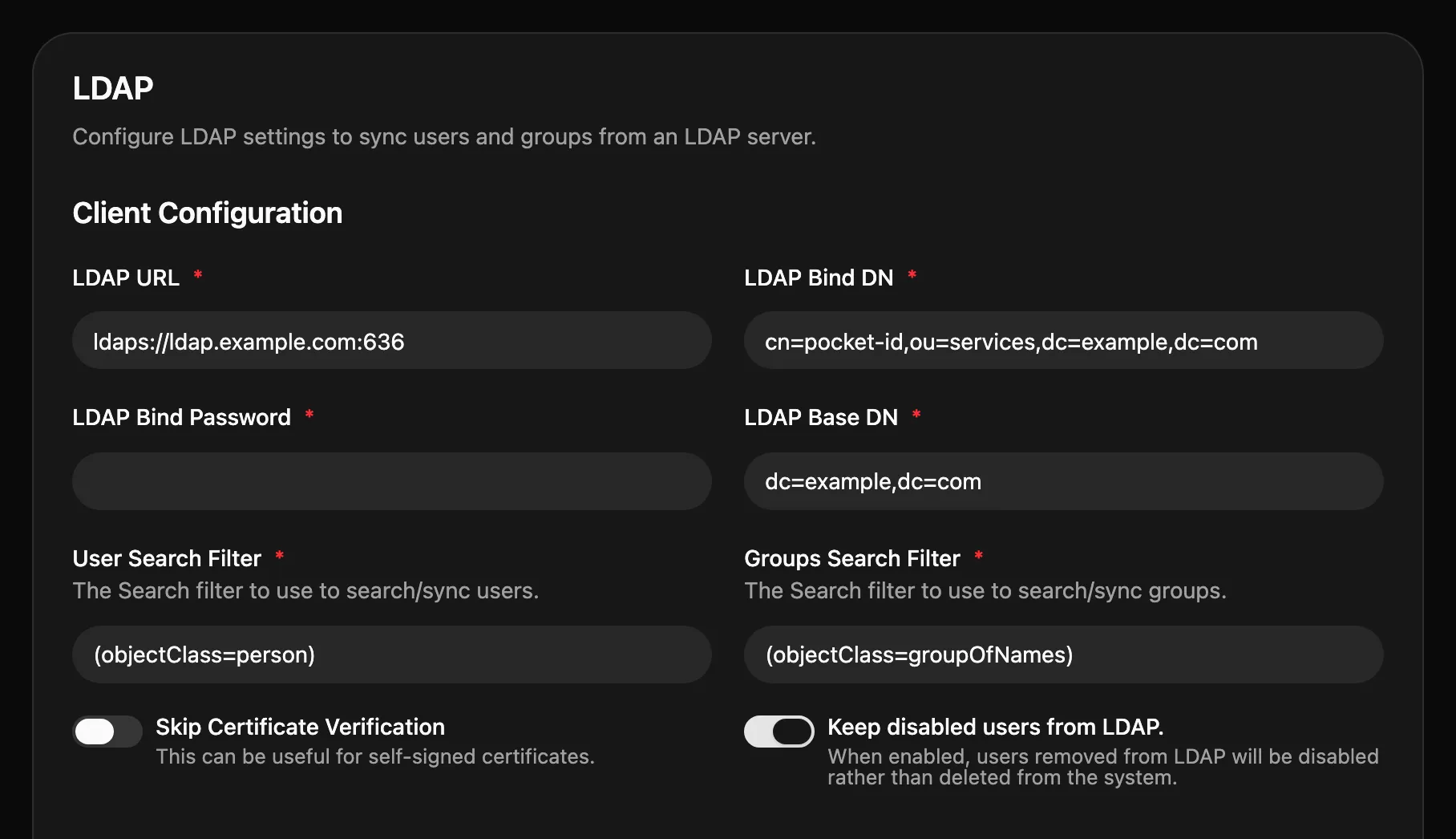
Open **Application Configuration → LDAP**, fill in the connection and the attribute mapping, and click **Enable**.
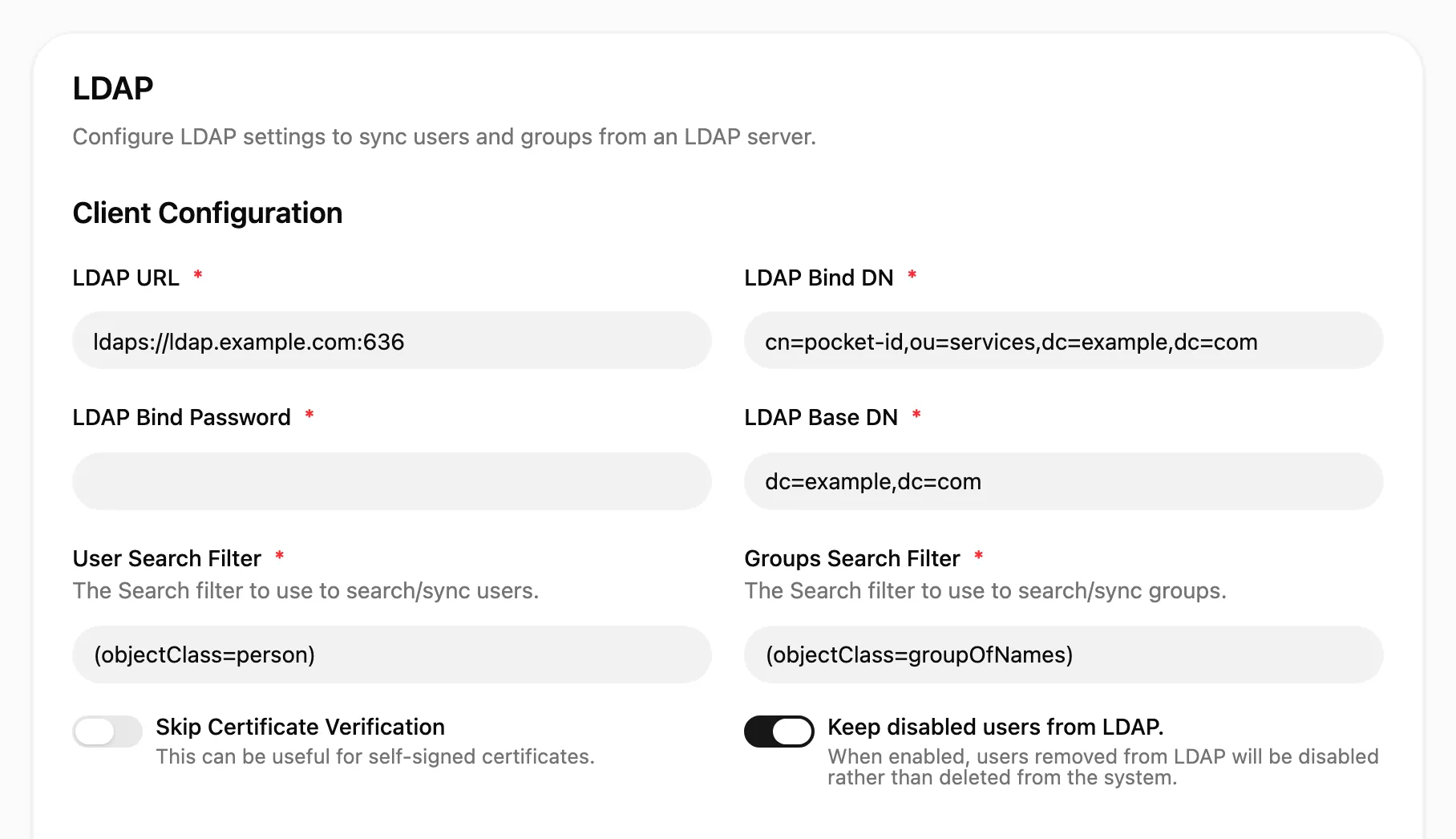
| Setting | Example | Description |
| ------------------------ | -------------------------------------------- | -------------------------------------------- |
| **LDAP URL** | `ldaps://ldap.example.com:636` | The server’s URL with its port |
| **LDAP Bind DN** | `cn=pocket-id,ou=services,dc=example,dc=com` | The account Pocket ID searches LDAP with |
| **LDAP Bind Password** | | That account’s password |
| **LDAP Base DN** | `dc=example,dc=com` | Where the search for users and groups starts |
| **User Search Filter** | `(objectClass=person)` | Which entries are users |
| **Groups Search Filter** | `(objectClass=groupOfNames)` | Which entries are groups |
Under **Attribute Mapping**, map the LDAP attributes to Pocket ID’s fields:
| Setting | Example | Description |
| ------------------------------------- | ------------------------------- | --------------------------------------------------------------- |
| **User Unique Identifier Attribute** | `entryUUID`, `objectGUID` in AD | Identifies a user across syncs, so its value must never change |
| **Username Attribute** | `uid`, `sAMAccountName` in AD | The username |
| **User Mail Attribute** | `mail` | The email address |
| **User First Name Attribute** | `givenName` | The first name |
| **User Last Name Attribute** | `sn` | The last name |
| **Display Name Attribute** | `cn` | The display name, `cn` by default |
| **User Profile Picture Attribute** | `jpegPhoto` | A URL, binary image or base64 image |
| **Group Members Attribute** | `member` | The attribute that lists a group’s members |
| **Group Unique Identifier Attribute** | `entryUUID` | Identifies a group across syncs, so its value must never change |
| **Group RDN Attribute** | `cn` | The group’s name, as used in its DN |
| **Admin Group Name** | `pocket-id-admins` | Members of this group become Pocket ID admins |
## Set up LDAP with environment variables
[Section titled “Set up LDAP with environment variables”](#set-up-ldap-with-environment-variables)
To keep the configuration in files, set `UI_CONFIG_DISABLED=true` and the `LDAP_*` variables from [Environment variables](/docs/configuration/environment-variables#overriding-the-ui-configuration), with `LDAP_ENABLED=true`. With the UI configuration disabled, every setting of **Application Configuration** comes from the environment.
Since nobody has a passkey yet when you start this way, sign in as an admin from LDAP with a login code:
1. Make sure at least one user is in the group from `LDAP_ADMIN_GROUP_NAME`.
2. Start Pocket ID and wait for `LDAP sync completed` in its logs.
3. Create a login code for that user and open the link it prints:
```bash
docker compose exec pocket-id /app/pocket-id one-time-access-token
```
4. Add a passkey on your account page.
# SCIM provisioning
> Keep the users and groups of an app in sync with Pocket ID through SCIM, so new users exist before they sign in and removed users are gone.
OIDC only tells an app who signs in, so an app learns about a user at their first sign-in and never hears when they’re deleted. With [SCIM](https://scim.cloud), Pocket ID pushes its users and groups to the app instead, so the app creates, updates and removes them as you change them in Pocket ID.
The app has to offer a SCIM endpoint, and its documentation names the URL and how to get a token for it.
## Enable SCIM for a client
[Section titled “Enable SCIM for a client”](#enable-scim-for-a-client)
1. Open the client under **Administration → OIDC Clients** and go to its **SCIM Provisioning** tab.
2. Enter the **SCIM Endpoint** and **SCIM Token** from the app.
3. Click **Enable**.
4. Click **Sync now** to sync right away and check the setup.
## What gets synced
[Section titled “What gets synced”](#what-gets-synced)
Pocket ID syncs the users who may sign in to the client and their groups. For a client restricted to [some groups](/docs/configuration/allowed-groups), that’s the members of those groups, and for a client open to all users, it’s everyone. When you change the groups, users who lose access are removed from the app at the next sync.
## When it syncs
[Section titled “When it syncs”](#when-it-syncs)
* Five minutes after the last change to users or groups, so a batch of changes goes out in one sync.
* Every hour, even without changes.
* Whenever you click **Sync now**.
## Troubleshooting
[Section titled “Troubleshooting”](#troubleshooting)
First check whether the data reached the app, by listing its users and groups through its SCIM API:
```bash
curl -H "Authorization: Bearer " "/Users"
curl -H "Authorization: Bearer " "/Groups"
```
If they’re there, the sync works and the problem lies in the app. If they’re missing, look for SCIM errors in Pocket ID’s logs. An error saying the connection is blocked means the endpoint resolves to an address that `OUTBOUND_ALLOWED_HOSTS_SCIM` doesn’t allow, which [Outbound requests](/docs/configuration/environment-variables#outbound-requests) explains how to change. Otherwise, [open an issue](https://github.com/pocket-id/pocket-id/issues/new/choose) if you think Pocket ID is at fault.
# Page not found
> The page you're looking for doesn't exist, or it moved when the docs were reorganized. Search the docs, or start from the introduction.
# Callback URLs
> How Pocket ID matches callback and logout URLs, and the wildcard patterns they support.
Pocket ID only redirects users to the **Callback URLs** of a client after sign-in, and to its **Logout Callback URLs** after sign-out. Every client needs at least one callback URL, since Pocket ID doesn’t save the first URL an app sends anymore.
* A URL has to match exactly, unless it contains a wildcard.
* An `http://` URL on `localhost` or a loopback address such as `127.0.0.1`, registered without a port, matches on any port, for desktop and command-line apps that pick a free one.
* `http://` URLs on other hosts work while `ALLOW_INSECURE_CALLBACK_URLS` is `true`, its default for now.
* If a client has exactly one callback URL, apps may leave out `redirect_uri`.
## Wildcards
[Section titled “Wildcards”](#wildcards)
Both kinds of URLs support wildcard patterns, for apps whose callback URL changes, such as preview deployments.
Caution
If possible, prefer exact URLs instead of wildcards for better security.
Two types of wildcards are supported: Single Wildcards (`*`) and Globstars (`**`).
### Single wildcard (`*`)
[Section titled “Single wildcard (\*)”](#single-wildcard-)
Matches **any characters inside a single segment**, such as:
* one hostname label
* the port value
* a single path segment
* a single query parameter value
It will not cross segment boundaries, so it won’t consume `/`, `:`, `@`, `.`, or `[]` when those characters separate URL components. For example, `*.example.com` can match `auth.example.com`, but it cannot match `auth.eu.example.com` because that would require crossing multiple dot-separated host labels.
Examples:
```plaintext
https://*.example.com/oauth/callback
https://app.example.com:*/oauth/callback
https://user:*@example.com/oauth/callback
https://example.com/oauth/*/callback
https://example.com/oauth/callback?env=prod*&code=*
```
### Globstars (`**`)
[Section titled “Globstars (\*\*)”](#globstars-)
Matches across multiple path segments, including `/`. **Globstars are only supported in path segments.**
For example `https://example.com/**/callback` matches:
```plaintext
https://example.com/callback
https://example.com/oauth/callback
https://example.com/api/v1/oauth/callback
```
# Custom signing keys
> Rotate the key Pocket ID signs tokens with, or switch to a larger RSA key, ECDSA or EdDSA.
By default, Pocket ID generates a RSA-2048 private key upon first startup, which is used to sign all tokens. You can optionally use a key with a different RSA key size (e.g. 3072 or 4096), or even a different algorithm (e.g. ECDSA with P-256, or EdDSA with Ed25519).
Caution
Rotating/re-generating the private key will invalidate all tokens signed by Pocket ID.
You will need to restart Pocket ID for the new key to be picked up. Additionally, you may need to restart all applications that consume tokens issued by Pocket ID.
Pocket ID includes a command that can be used to generate a new key, which replaces the existing one and also allows rotating the private key:
```sh
pocket-id key-rotate
```
When running in a container, use a command similar to:
```sh
docker compose exec pocket-id /app/pocket-id key-rotate
```
You can specify the key algorithm using the `--alg / -a` flag. Supported values include:
* `RS256`: RSA (PKCS#1 v1.5) with a 2048-bit key and SHA-256 (default)
* `RS384`: RSA (PKCS#1 v1.5) with a 3072-bit key and SHA-384
* `RS512`: RSA (PKCS#1 v1.5) with a 4096-bit key and SHA-512
* `ES256`: ECDSA with curve P-256 and SHA-256
* `ES384`: ECDSA with curve P-384 and SHA-384
* `ES512`: ECDSA with curve P-521 and SHA-512
* `EdDSA`: EdDSA with the curve specified with the `--crv / -c` flag; supported values: `Ed25519`
For example:
```sh
# Generates an ES256 token signing key
pocket-id key-rotate --alg ES256
# Generates an EdDSA token signing key with Ed25519
pocket-id key-rotate --alg EdDSA --crv Ed25519
```
Note
Note that the private key is used for all OAuth2 clients. If choosing an algorithm different than RS256 (RSA), make sure that your clients support that.
# Container hardening
> Secure your Pocket ID deployment with distroless containers and hardening.
By default, the Pocket ID container starts as the root user, which is used to set permissions on the file system before dropping its privileges and starting the main process. This is done for convenience, while still running the Pocket ID binary as non-root. If you prefer, you can run the Pocket ID container as a **non-root** user entirely and even ensure it uses a **read-only root file system**.
Additionally, you can also switch to a **distroless** container, which is leaner and has a smaller potential attack surface.
## System requirements
[Section titled “System requirements”](#system-requirements)
Make sure that the Pocket ID data volume is writable by the chosen user. This is the volume/folder mounted in the container at `/app/data`.
For example, if running the container as user `1000` and group `1000`, use a command similar to this to change the owner of the data folder:
```sh
# Set the owner to user 1000 and group 1000
chown -R 1000:1000 ./data
# Set permissions on all folders to 0700
find ./data -type d -exec chmod 0700 {} \;
# Set permissions on all files to 0600
find ./data -type f -exec chmod 0600 {} \;
```
Note
Alternatively, you can start up the regular (non-distroless) Pocket ID container with the default configuration once (where it starts as root before dropping privileges), and it will create the directories and set permissions automatically.
## Container configuration
[Section titled “Container configuration”](#container-configuration)
To run the container as non-root and with a read-only root file system, use one of the options below.
* **Docker CLI**: Add the `--user 1000:1000 --read-only` flags to the `docker run` command.
* **Docker Compose**: Set these options in the `pocket-id` service:
* `read_only: true`
* `user: "1000:1000"`
Example:
```yaml
services:
pocket-id:
# ...
read_only: true
user: '1000:1000'
```
## Distroless container
[Section titled “Distroless container”](#distroless-container)
Distroless containers are based on a minimal image, which includes “just enough” to run Pocket ID. These images are leaner, resulting in faster pulls, and because they do not include a shell or other system libraries, they also have a reduced potential attack surface.
To use distroless container, append `-distroless` to the container image, for example:
```plaintext
ghcr.io/pocket-id/pocket-id:v2-distroless
```
You can also use a specific version (such as `v2.x.x-distroless`) or branch (`v2.x-distroless`).
Note that distroless containers are non-root by default and ignore `PUID` and `PGID`. You will need to **set permissions on the mountpoints** as described in the [System requirements](#system-requirements) section.
Note
Distroless containers do not include a shell, so you will not be able to enter into the container (e.g. with `docker exec`) for debugging purposes.
## Docker Compose
[Section titled “Docker Compose”](#docker-compose)
This `docker-compose.yml` includes a full example of using Pocket ID’s distroless containers, with non-root user and a read-only root filesystem.
```yaml
services:
pocket-id:
image: ghcr.io/pocket-id/pocket-id:v2-distroless
restart: unless-stopped
env_file: .env
ports:
- 1411:1411
volumes:
- './data:/app/data'
read_only: true
user: '1000:1000'
# Optional healthcheck
healthcheck:
test: ['CMD', '/app/pocket-id', 'healthcheck']
interval: 1m30s
timeout: 5s
retries: 2
start_period: 10s
```
# REST API
> Automate Pocket ID with its REST API, authenticated with an API key, and handle its errors.
Everything the admin UI does goes through the Pocket ID REST API, so you can script it, such as to create users or OIDC clients from your provisioning tools. [API endpoints](/docs/api/endpoints) lists every route with its parameters and response fields.
## Create an API key
[Section titled “Create an API key”](#create-an-api-key)
1. Open **Administration → API Keys** and click **Add API Key**.
2. Enter a **Name**, an optional **Description**, and the date the key **Expires At**.
3. Click **Create API Key** and copy the key, which is only shown once.
A key acts with the rights of the admin who created it. For declarative setups, such as a Kubernetes operator, `STATIC_API_KEY` sets a fixed key through an [environment variable](/docs/configuration/environment-variables#security) instead.
## Send requests
[Section titled “Send requests”](#send-requests)
Send the key in the `X-API-KEY` header:
```bash
curl -H "X-API-KEY: " https://id.example.com/api/users
```
List endpoints take `pagination[page]` and `pagination[limit]` query parameters and answer with the items under `data` and the totals under `pagination`.
## Errors
[Section titled “Errors”](#errors)
Failed requests answer with an HTTP error status and a JSON body:
```json
{
"error": "User not found",
"code": "user_not_found",
"request_id": "d3fe340d-fa44-43c4-828d-893bb616ed29"
}
```
`code` is stable, so check it rather than the message, and `request_id` finds the request in Pocket ID’s logs. Validation errors, with the code `validation_failed`, list each failing field under `details.fields`.
## Custom dashboards
[Section titled “Custom dashboards”](#custom-dashboards)
[pocket-id-portal](https://github.com/pocket-id/pocket-id-portal) is an example of a custom portal built on the API.
# APIs and permissions
> Let applications get access tokens for your APIs with only the permissions they need.
Pocket ID can issue access tokens that an application can use to call your API. This is useful when, for example, a web app signs a user in and then needs to load data from its backend.
You define:
* the **API** that will receive the token;
* the **permissions** that can be included in the token; and
* which **OIDC clients** may request those permissions.
Your API can then trust the token without creating its own login session.
Note
An API in this guide means a service that you built or operate. It is different from the built-in Pocket ID API and its API keys.
## A simple example
[Section titled “A simple example”](#a-simple-example)
Imagine you have an order management app:
* the frontend is an OIDC client named `Orders App`;
* the backend is an API identified by `https://api.orders.example.com`; and
* the API has the permissions `read:orders` and `write:orders`.
The frontend asks Pocket ID for an access token for the Orders API. The token says which API it is for and which actions are allowed. The backend checks the token before returning or changing any orders.
The app asks for a token for one API and the permissions it needs. The API accepts the token only after checking its signature, its audience and the permission the request needs.
## Create an API
[Section titled “Create an API”](#create-an-api)
1. Open **Administration → APIs**.
2. Select **Add API**.
3. Enter a friendly name, such as `Orders API`.
4. Enter a unique resource, such as `https://api.orders.example.com`.
5. Save the API.
The resource is the permanent identifier for your API. It usually looks like a URL, but it does not need to be a page that exists. Choose it carefully because it cannot be changed later. Pocket ID removes trailing slashes, so `https://api.orders.example.com` and `https://api.orders.example.com/` identify the same resource. Issued tokens use the version without the trailing slash in their `aud` claim.
## Add permissions
[Section titled “Add permissions”](#add-permissions)
Open the API you created and add the actions that clients may request. Each permission has:
* a **permission key** used in token requests, such as `read:orders`;
* a friendly **name** shown to users, such as `Read orders`; and
* an optional **description** explaining what it allows.
Keep each permission focused on one action. This lets you give every client only the access it needs.
## Allow an OIDC client to use the API
[Section titled “Allow an OIDC client to use the API”](#allow-an-oidc-client-to-use-the-api)
1. Open **Administration → OIDC Clients**.
2. Select the client that will call the API and go to its **Access** tab.
3. Under **API access**, click **Add API** and choose the API.
4. Select the permissions the client may request.
5. Save the changes.
There are two access types:
* **User-delegated access**: the client calls the API on behalf of the signed-in user. This is the usual choice for web, mobile, and desktop apps.
* **Client access (M2M)**: the client calls the API as itself, without a user. This is useful for background jobs and server-to-server integrations.
Public clients cannot use client access because they cannot safely keep a client secret.
## Allow metadata-document clients to use the API
[Section titled “Allow metadata-document clients to use the API”](#allow-metadata-document-clients-to-use-the-api)
You can grant user-delegated access to every client registered through a [Client ID Metadata Document](/docs/guides/client-id-metadata-documents):
1. Open **Administration → APIs** and select the API.
2. Under **API access**, select **Metadata document clients**.
3. Enable **Allow all metadata document clients**.
4. Select the permissions these clients may request.
5. Save the API.
The grant applies to current and future metadata-document clients. It does not grant client access (M2M), because these clients are public. Manage this API-wide grant on the API rather than on an individual client.
## Request an access token for a user
[Section titled “Request an access token for a user”](#request-an-access-token-for-a-user)
Use your application’s normal authorization code flow. Add the API resource and the permissions you need to the authorization request:
```text
resource=https://api.orders.example.com
scope=openid read:orders
```
Most OIDC libraries let you add `resource` as an extra authorization parameter. Continue using the regular Pocket ID discovery URL and the authorization code flow as before.
The user may be asked to approve the requested permission. After sign-in, use the returned **access token** when calling the API:
```http
Authorization: Bearer
```
Do not send the ID token to the API. The ID token tells the client who signed in; the access token grants access to the API.
## Request a token without a user
[Section titled “Request a token without a user”](#request-a-token-without-a-user)
A confidential client can use the client credentials grant for background jobs or server-to-server calls:
```bash
curl --request POST "https://id.example.com/api/oidc/token" \
--form "grant_type=client_credentials" \
--form "client_id=" \
--form "client_secret=" \
--form "resource=https://api.orders.example.com" \
--form "scope=read:orders"
```
Replace the URL and credentials with your own values. The requested permission must be enabled under **Client access (M2M)** for that OIDC client.
If you do not want to store a client secret, see [OIDC Client Authentication](/docs/guides/oidc-client-authentication) for other supported authentication methods.
## Validate the token in your API
[Section titled “Validate the token in your API”](#validate-the-token-in-your-api)
Use a standard JWT or OAuth library in your backend. Before accepting a request, verify that:
* the token’s signature is valid using the keys published by Pocket ID;
* the issuer (`iss`) is your Pocket ID instance;
* the audience (`aud`) contains your API’s resource;
* the token has not expired; and
* the token contains the permission required for the action.
For example, an endpoint that returns orders should require `read:orders`, while an endpoint that changes an order should require `write:orders`.
Caution
Checking only that the token is signed is not enough. Always check the audience and the required permission too.
# Client ID metadata documents
> Let public OAuth clients provide their configuration from an HTTPS URL
Client ID Metadata Documents (CIMD) let an OAuth client use an HTTPS URL as its client ID. Pocket ID fetches the JSON document at that URL and creates the client configuration when it is first used, so an administrator does not need to register every client manually.
This feature follows the [OAuth Client ID Metadata Document Internet-Draft](https://datatracker.ietf.org/doc/draft-ietf-oauth-client-id-metadata-document/). The specification is still a draft and may change.
## Enable metadata-document clients
[Section titled “Enable metadata-document clients”](#enable-metadata-document-clients)
Metadata-document clients are disabled by default.
1. Open **Application Configuration → OIDC**.
2. Add the exact metadata document URLs that Pocket ID should accept.
3. Save the configuration.
[Wildcard URL patterns](/docs/advanced/callback-url-wildcards) are supported, but exact URLs are safer. An empty allowlist blocks all metadata-document clients.
When the allowlist is not empty, Pocket ID advertises `client_id_metadata_document_supported: true` in its OpenID Connect discovery document.
## Create the metadata document
[Section titled “Create the metadata document”](#create-the-metadata-document)
Usually you don’t have to create a metadata document yourself. The client developer should host it at a public HTTPS URL. If you are building your own client, you can create a document like this:
Host a JSON document at the HTTPS URL that the client will use as its `client_id`:
```json
{
"client_id": "https://app.example.com/oauth/client-metadata.json",
"client_name": "Example App",
"redirect_uris": ["https://app.example.com/oauth/callback"],
"post_logout_redirect_uris": ["https://app.example.com/"],
"token_endpoint_auth_method": "none",
"grant_types": ["authorization_code", "refresh_token"],
"response_types": ["code"]
}
```
Serve it with a `200 OK` response and a JSON content type such as `application/json`. The `client_id` in the document must exactly match the URL used to fetch it.
Pocket ID supports these metadata-document clients:
* The client ID must be an HTTPS URL with a path. User information, query strings and fragments are not accepted, and private or local network destinations only when [`OUTBOUND_ALLOWED_HOSTS_CLIENT_METADATA`](/docs/configuration/environment-variables#outbound-requests) allows them.
* Only public clients are supported, so `token_endpoint_auth_method` must be `none`. PKCE is enabled automatically.
* Supported grant types are `authorization_code`, `urn:ietf:params:oauth:grant-type:device_code`, and `refresh_token`. At least `authorization_code` or the device code grant is required. If `grant_types` is omitted, only `authorization_code` is enabled.
* The only supported response type is `code`.
* Redirect and post-logout redirect URIs must be absolute URLs. Wildcards are not accepted in document-provided redirect URIs.
The client sends the document URL as the `client_id` in its OAuth requests. Pocket ID downloads and caches the document, then shows the resulting client under **Administration → OIDC Clients** with the type **Metadata Document**.
## Refresh and manage a client
[Section titled “Refresh and manage a client”](#refresh-and-manage-a-client)
Pocket ID follows the document’s HTTP caching headers. Without an explicit cache lifetime, it refreshes the document after one hour; the maximum cache lifetime is 24 hours. Responses with `Cache-Control: no-store` cannot be used because Pocket ID must persist the resolved client.
Use **Refresh** in the OIDC client list to fetch a document immediately. Fields supplied by the document are read-only in Pocket ID, while local policies such as allowed user groups, API access, and token lifetimes remain configurable.
## Grant API access
[Section titled “Grant API access”](#grant-api-access)
An administrator can grant an API to every current and future metadata-document client:
1. Open **Administration → APIs** and select the API.
2. Under **API access**, select **Metadata document clients**.
3. Enable access and select the permissions that these clients may request.
4. Save the API.
This grants user-delegated access only. Metadata-document clients are public clients and cannot use client access (M2M). See [APIs and Permissions](/docs/guides/apis) for the complete API setup and token request flow.
# OIDC client authentication
> Let workloads on Kubernetes, Azure, GitLab CI or a tailnet authenticate as OIDC clients with tokens from their platform instead of a client secret.
A confidential client proves who it is when it calls the token endpoint, usually with its client secret. A secret is shared between the app and Pocket ID, so it has to be stored, rotated and kept from leaking, which is where most of its risk lies.
With **federated client credentials**, the client proves who it is with a token that its own platform issued instead, such as a Kubernetes service account token. Pocket ID trusts that token when its issuer, audience and subject match what you configured, so no long-lived secret exists at all:
The workload proves who it is with a token its platform issued. Pocket ID checks that token against the issuer, audience and subject you configured, so no client secret is stored anywhere.
The app needs to support JWT client assertions. Instead of `client_secret`, it sends these two parameters to the token endpoint:
```txt
client_assertion_type=urn:ietf:params:oauth:client-assertion-type:jwt-bearer
client_assertion=
```
## Configure a client
[Section titled “Configure a client”](#configure-a-client)
Open the client under **Administration → OIDC Clients**, go to its **Credentials** tab and click **Add Federated Client Credential**:
| Field | Description |
| --------------------- | ------------------------------------------------------------------------------------------------------------------------------------------------------------------------------------ |
| **Issuer** | The `iss` claim of the platform’s tokens. Required. |
| **Subject** | The `sub` claim of the tokens. Defaults to the client ID. |
| **Audience** | The `aud` claim of the tokens. Defaults to your `APP_URL`. |
| **Signing keys** | Where Pocket ID gets the keys to verify the tokens: a **JWKS URL**, which defaults to `/.well-known/jwks.json`, or **Public keys** you paste in. Use HTTPS for the JWKS URL. |
| **Replay Protection** | Accepts each token only once. Turn it off if the platform hands out the same token several times. |
A client can have several federated credentials, such as one per environment. The platforms below each need slightly different values.
## Kubernetes service account tokens
[Section titled “Kubernetes service account tokens”](#kubernetes-service-account-tokens)
Using Kubernetes 1.21 or higher, you can use Projected Token Volumes to have the Kubernetes API server issue a token for the audience of your choice, and make it available to your app as projected volume.
Configuration values for using Kubernetes are:
* **Issuer**: Value of the Kubernetes’ API server’s issuer (this is generally passed as the value of the `--service-account-issuer` flag for `kube-apiserver`).
* **Audience**: Value of the `audience` option specified when creating the Service Account for the Pod. While you can set this to any value, a good option is to use the public URL of Pocket ID.
* **Subject**: The value is in the format `system:serviceaccount::`. E.g. for a *ServiceAccount* resource named `my-sa` in the namespace `myappns`, the value is `system:serviceaccount:myappns:my-sa`.
* **JWKS URL** (optional): The URL where the JWKS of the Kubernetes API server can be retrieved from. The default value is `/.well-known/jwks.json`.
Inside your application, you can obtain a JWT token to use as client assertion by reading the file where the projected token volume is mounted.
Additional resources:
* Kubernetes docs: [Configure Service Accounts for Pods](https://kubernetes.io/docs/tasks/configure-pod-container/configure-service-account/)
* Kubernetes docs: [Projected Volumes for `serviceAccountToken`](https://kubernetes.io/docs/concepts/storage/projected-volumes/#serviceaccounttoken)
## Microsoft Azure
[Section titled “Microsoft Azure”](#microsoft-azure)
On Microsoft Azure, you can use Microsoft Entra Workload ID (e.g. Managed Identity or Workload Identity) to federate with Pocket ID.
Set up steps for Azure:
1. Assign an identity to your application, such as a System-assigned or User-assigned Identity. [Instructions](https://learn.microsoft.com/en-us/entra/identity/managed-identities-azure-resources/overview) are specific to each service being used.
* For workloads running on Azure Kubernetes Service, you may want to use [Workload Identity](https://learn.microsoft.com/en-us/azure/aks/workload-identity-overview)
2. Create an application in Microsoft Entra ID ([docs](https://learn.microsoft.com/en-us/entra/identity-platform/quickstart-register-app))
* Take note of the client ID of this app, which will be a UUID
* Configure the Entra ID app with Federated credentials for the Managed Identity created for your resource ([docs](https://learn.microsoft.com/en-us/entra/workload-id/workload-identity-federation))
Configuration values for Federated Client Credentials in Pocket ID:
* **Issuer**: `https://sts.windows.net//` where `` is the UUID of your Microsoft Entra ID tenant
* **Audience**: The client ID of the Entra ID application created above
* **Subject**: The object ID of the managed identity (note: this is the *object* (or *principal*) ID, not a client ID)
* **JWKS URL**: Constant value `https://login.microsoftonline.com/common/discovery/keys`
Inside your application, you can [obtain a token](https://learn.microsoft.com/en-us/entra/identity/managed-identities-azure-resources/how-to-use-vm-token) from the Managed Identity by:
* Recommended: using one of the Azure SDKs to get a token from Managed Identity, with the requested *resource* as the client ID of the Entra ID application. SDKs work on all Azure services automatically.
* Manually invoking the endpoint metadata service. The endpoint can be different depending on the Azure service; in the case of an Azure Virtual Machine, the URL is `http://169.254.169.254/metadata/identity/oauth2/token?api-version=2018-02-01&resource=` (where `` is the client ID of the Entra ID application); make sure to also set the HTTP header `Metadata:true` in the request.
## Tailscale with tsiam
[Section titled “Tailscale with tsiam”](#tailscale-with-tsiam)
If your application is running on a node that is joined to a Tailscale network (“tailnet”), you can use the third-party [tsiam](https://github.com/ItalyPaleAle/tsiam) application to provide workload identity.
When requesting a workload identity token from tsiam, it’s recommended to set as resource the endpoint of Pocket ID, for example `https://pocketid.example.com`
Configuration values for Federated Client Credentials in Pocket ID:
* **Issuer**: The URL of your tsiam instance inside the tailnet, for example `https://tsiam.tail.ts.net`
* **Audience**: The value of the resource used when requesting a token from tsiam; recommended to use the endpoint of Pocket ID (e.g. `https://pocketid.example.com`)
* **Subject**: The full name of the node in the tailnet, e.g. `.tail.ts.net`
* **JWKS URL**: Leave empty to use the default value
## GitLab CI
[Section titled “GitLab CI”](#gitlab-ci)
When running jobs in GitLab Pipelines, your job can authenticate as an OIDC client with Pocket ID using [GitLab ID tokens](https://docs.gitlab.com/ci/secrets/id_token_authentication/).
Configuration values for Federated Client Credentials in Pocket ID:
* **Issuer**: `https://gitlab.com` (or your self-hosted GitLab domain)
* **Audience**: `https://pocketid.example.com` - recommended to use the Pocket ID endpoint as the audience.
* **Subject**: `project_path:my-group/my-project:ref_type:branch:ref:main` - replace `my-group/my-project` with the project you will be running the pipeline on. If working on a branch, change `main` to your branch name. Currently, wildcards are not supported, so if you need to authenticate from pipelines running on different branches, you will need to create a Federated Client Credential for each branch.
* **JWKS URL**: `https://gitlab.com/oauth/discovery/keys` - if self-hosting, replace `gitlab.com`.
Here’s an example GitLab job that authenticates as an OIDC client:
.gitlab-ci.yml
```yaml
example-job:
image: alpine:3.23.3
id_tokens:
GL_PIPELINE_TOKEN:
aud: "$POCKET_ID_URL" # must match the `Audience` configured in Pocket ID.
script:
- apk update
- apk add --no-cache curl jq
- responsefile=$(mktemp)
- |
curl -SsfX POST --url "$POCKET_ID_URL/api/oidc/token" \
-F "grant_type=client_credentials" \
-F "client_id=$POCKET_ID_CLIENT_ID" \
-F "client_assertion_type=urn:ietf:params:oauth:client-assertion-type:jwt-bearer" \
-F "client_assertion=$GL_PIPELINE_TOKEN" \
-o "$responsefile"
- access_token=$(jq '.access_token' -r < "$responsefile")
- echo "Successfully obtained token with subject: client-$POCKET_ID_CLIENT_ID"
```
The only variables you need to define are:
* `POCKET_ID_URL`: The base URL of your pocket ID instance, such as `https://pocketid.example.com`. In the job above this URL is also used as the Audience of the Federated Client Credential.
* `POCKET_ID_CLIENT_ID`: the client ID of the OIDC Client configured in Pocket ID.
In the job above the `client_credentials` grant type is used, which means that the final token will have a subject of the form `client-[client_id]` (as opposed to a uuid identifying a user).
# Authentication proxies
> Put apps without OIDC support behind Pocket ID with Tinyauth, caddy-security, OAuth2 Proxy or Traefik forward auth.
Pocket ID only provides OpenID Connect, so it can’t protect an app that has no OIDC support by itself. An authentication proxy closes that gap: it sits in front of the app as the OIDC client, and only lets requests through once the visitor signed in with Pocket ID.
The authentication proxy is the OIDC client. It sends visitors without a session to Pocket ID, and only forwards requests to the app once they signed in.
Most proxies also forward the user’s name, email address and groups to the app in HTTP headers, which some apps use to sign the user in. Use [allowed user groups](/docs/configuration/allowed-groups) on the proxy’s client to decide who gets through.
The proxies below work with Pocket ID, and most other reverse proxies offer something similar in their documentation.
## Tinyauth
[Section titled “Tinyauth”](#tinyauth)
[Tinyauth](https://tinyauth.app/) is a lightweight authentication middleware designed specifically for homelabs. Currently it integrates with Traefik, Caddy and Nginx Proxy Manager.
Refer to the official [Tinyauth Pocket ID documentation](https://tinyauth.app/docs/guides/pocket-id) for detailed instructions on how to set up Tinyauth with Pocket ID.
## Caddy
[Section titled “Caddy”](#caddy)
[caddy-security](https://github.com/greenpau/caddy-security) adds OIDC sign-in to Caddy.
1. Create an OIDC client in Pocket ID with the callback URL `https:///caddy-security/oauth2/generic/authorization-code-callback`, and note its client ID and secret.
2. Add the plugin to Caddy:
```bash
caddy add-package github.com/greenpau/caddy-security
```
3. Configure the identity provider, the portal and a policy, and protect your service with them:
Caddyfile
```txt
{
# Port to listen on
http_port 443
# Configure caddy-security.
order authenticate before respond
security {
oauth identity provider generic {
delay_start 3
realm generic
driver generic
client_id client-id-from-pocket-id # Replace with your own client ID
client_secret client-secret-from-pocket-id # Replace with your own client secret
scopes openid email profile
base_auth_url https:// #Replace
metadata_url https:///.well-known/openid-configuration #Replace
}
authentication portal myportal {
crypto default token lifetime 3600 # Seconds until you have to re-authenticate
enable identity provider generic
cookie insecure off # Set to "on" if you're not using HTTPS
# cookie domain service.example.com - If using multiple clients/portals you have to set the cookie domain for each one so they do not conflict when trying to refresh the session.
trust login redirect uri domain exact service.example.com path prefix /
transform user {
match realm generic
action add role user
}
}
authorization policy mypolicy {
set auth url /caddy-security/oauth2/generic
allow roles user
inject headers with claims
}
}
}
https:// {
@auth {
path /caddy-security/*
}
route @auth {
authenticate with myportal
}
route /* {
authorize with mypolicy
reverse_proxy http://: # Replace with your own service
}
}
```
4. Start Caddy:
```bash
caddy run --config Caddyfile
```
The [caddy-security documentation](https://docs.authcrunch.com/docs/intro) covers the other options.
## OAuth2 Proxy
[Section titled “OAuth2 Proxy”](#oauth2-proxy)
[OAuth2 Proxy](https://oauth2-proxy.github.io/oauth2-proxy/) runs next to the app and forwards signed-in requests to it, here for [Uptime Kuma](https://github.com/louislam/uptime-kuma).
1. Create an OIDC client in Pocket ID with the callback URL `https:///oauth2/callback`, and note its client ID and secret.
2. Add OAuth2 Proxy to the app’s `docker-compose.yml`:
```yaml
# Example with Uptime Kuma
# uptime-kuma:
# image: louislam/uptime-kuma
oauth2-proxy:
image: quay.io/oauth2-proxy/oauth2-proxy:v7.6.0
command: --config /oauth2-proxy.cfg
volumes:
- './oauth2-proxy.cfg:/oauth2-proxy.cfg'
ports:
- 4180:4180
```
3. Create `oauth2-proxy.cfg` next to it:
oauth2-proxy.cfg
```ini
# Replace with your own credentials
client_id="client-id-from-pocket-id"
client_secret="client-secret-from-pocket-id"
oidc_issuer_url="https://"
# Replace with a secure random string
cookie_secret="random-string"
# Upstream servers (e.g http://uptime-kuma:3001)
upstreams="http://:"
# Additional Configuration
provider="oidc"
scope = "openid email profile groups"
# If you are using a reverse proxy in front of OAuth2 Proxy
reverse_proxy = true
# Email domains allowed for authentication
email_domains = ["*"]
# If you are using HTTPS
cookie_secure="true"
# With HTTPS use "__Host-" or "__Secure-" prefix, otherwise leave blank
cookie_name="__Host-oauth2-proxy"
# Listen on all interfaces
http_address="0.0.0.0:4180"
```
4. Start the services:
```bash
docker compose up -d
```
Visitors now reach the app through OAuth2 Proxy on port 4180, which your reverse proxy should forward the app’s domain to. Without Docker the setup is the same, and the [OAuth2 Proxy documentation](https://oauth2-proxy.github.io/oauth2-proxy/configuration/overview) covers the other options.
## Traefik
[Section titled “Traefik”](#traefik)
[Traefik](https://traefik.io/traefik/) does not have built-in support for OpenID Connect, but can be integrated in two ways.
Note: Traefik Enterprise has an [OIDC middleware](https://doc.traefik.io/traefik-enterprise/middlewares/oidc/) out of the box if you happen to be using that.
### Using forward auth
[Section titled “Using forward auth”](#using-forward-auth)
Using forward auth, for example with [traefik-forward-auth v4](https://github.com/ItalyPaleAle/traefik-forward-auth), involves running a separate service alongside Traefik (as a “sidecar” configured in the Docker Compose file or Pod spec). Traefik invokes the forward auth service behind the scenes to authorize requests, redirecting the user to it if it needs to authenticate. traefik-forward-auth v4 includes support for Pocket ID and other authentication providers.
See the documentation for [configuring traefik-forward-auth](https://traefik-forward-auth.italypaleale.me/docs/quickstart/) and [integrating it](https://traefik-forward-auth.italypaleale.me/providers/pocket-id/) with Pocket ID.
### Using a Traefik plugin
[Section titled “Using a Traefik plugin”](#using-a-traefik-plugin)
Traefik includes experimental support for plugins that run in-process.
[Traefik OpenID Connect Middleware](https://plugins.traefik.io/plugins/66b63d12d29fd1c421b503f5/oidc-authentication) works with Pocket ID. See the [Pocket ID configuration docs](https://traefik-oidc-auth.sevensolutions.cc/docs/identity-providers/pocket-id) for Pocket ID specific instructions, and [Getting Started](https://traefik-oidc-auth.sevensolutions.cc/docs/getting-started) for more details on how to apply the configuration to a specific endpoint.
# Scopes and claims
> The scopes Pocket ID supports, the claims each one adds to the ID token and userinfo, custom claims, and how long tokens last.
An app chooses what it learns about a user through the scopes it requests. Pocket ID puts the matching claims into the ID token and returns the same claims from the userinfo endpoint.
## Scopes
[Section titled “Scopes”](#scopes)
| Scope | Claims |
| ---------------- | ------------------------------------------------------------------------------------------------------------------------------------ |
| `openid` | `sub`, the user’s ID, which never changes. Every sign-in needs this scope. |
| `profile` | `name`, `given_name`, `family_name`, `preferred_username`, `display_name`, `picture`, and the user’s [custom claims](#custom-claims) |
| `email` | `email` and `email_verified`, when the user has an email address |
| `groups` | `groups`, the names of the user’s groups as an array |
| `offline_access` | No claims, since Pocket ID issues refresh tokens without it |
`preferred_username` is the username, and `name` is the first and last name, or the display name or username when the user has no name set. `picture` is a URL of the user’s profile picture. Pocket ID ignores scopes it doesn’t know, except the permissions of [your APIs](/docs/guides/apis).
Groups appear by their **name**, such as `media`, not by the friendly name shown in the admin UI. Apps that map groups to roles, such as Grafana or Jellyfin, need these names.
## Custom claims
[Section titled “Custom claims”](#custom-claims)
Custom claims add your own values to the tokens, such as a role or a quota for one app. Set them on a user or a group under **Administration → Users** or **User Groups**, on the **Custom Claims** tab.
* They’re released with the `profile` scope, in the ID token and the userinfo response, but not in the access token.
* A value that is valid JSON, such as `["admin"]` or `42`, is added as JSON, and anything else as a string.
* A user’s own claim wins over a group’s claim with the same name. If several of the user’s groups set the same claim, which one wins isn’t defined, so give every group its own names.
* Standard claim names such as `email`, `groups`, `name` or `sub` are reserved and can’t be used.
To check what an app will receive, open the client and click **OIDC Data Preview**, which shows the ID token, the access token and the userinfo response for any user.
## Tokens
[Section titled “Tokens”](#tokens)
| Token | Format | Lifetime |
| ------------------ | --------------------------------------------------------------- | ---------------------------------------------- |
| ID token | Signed JWT | 1 hour |
| Access token | Signed JWT ([RFC 9068](https://www.rfc-editor.org/rfc/rfc9068)) | 60 minutes, configurable per client |
| Refresh token | Opaque | 30 days of inactivity, configurable per client |
| Authorization code | Opaque | 15 minutes |
Change a client’s lifetimes under **Token lifetimes** on its **General** tab. A refresh token’s lifetime restarts whenever the app uses it, so an app that refreshes regularly stays signed in.
Pocket ID checks at every refresh that the user still exists, isn’t disabled and is still in one of the client’s allowed groups, so removing someone from a group ends their access at the app’s next refresh.
The access token’s audience (`aud`) is the client ID, or the API’s resource when the app asked for one of [your APIs](/docs/guides/apis). Tokens are signed with RS256 by default, and [Custom signing keys](/docs/advanced/custom-keys) switches to another algorithm.
# Sign-in methods
> How users sign in with a passkey, from another device, with a login code or by email, and the passkey policies admins can set.
Users sign in to Pocket ID with a passkey. When they don’t have one at hand, **Alternative Sign In Methods** on the sign-in page offers the other ways:
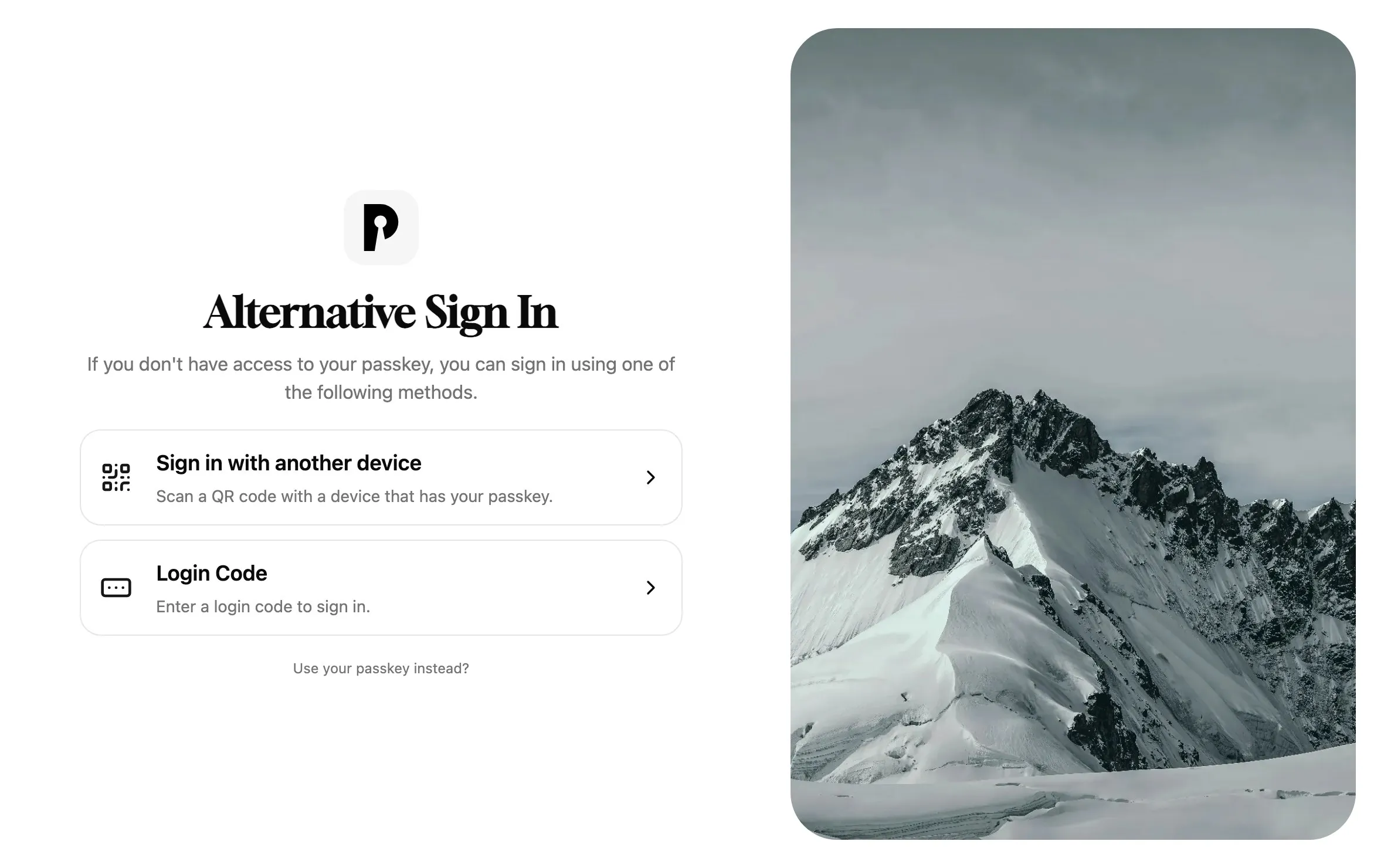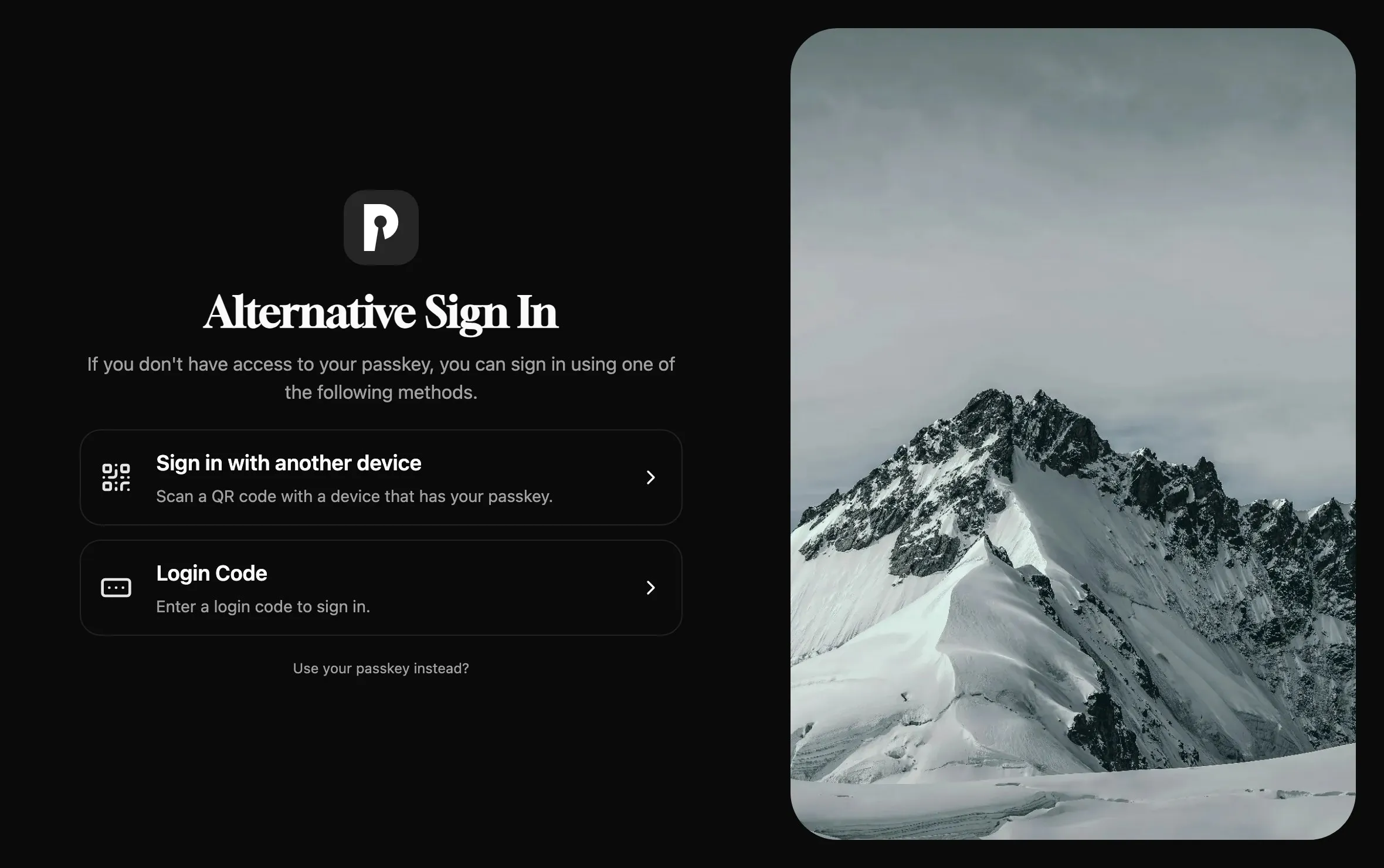
## Passkey
[Section titled “Passkey”](#passkey)
A passkey is a key pair: the private half stays on the user’s device, password manager or security key, and Pocket ID only stores the public half. The user unlocks it with a fingerprint, face scan or PIN, and it only works on the domain it was created for, which makes phishing it close to impossible.
Admins decide which passkeys are allowed under **Application Configuration → Passkeys**:
| Setting | Effect |
| ------------------------------ | ---------------------------------------------------------------------------------------------------------------------------- |
| **User verification** | **Required** makes every sign-in ask for a fingerprint, face scan or PIN, **Preferred** also allows touch-only security keys |
| **Allow synced passkeys** | Allows passkeys that sync between devices, such as those in iCloud Keychain or a password manager |
| **Allowed authenticator type** | **Any passkey**, **Device passkeys only** or **External security keys only**, such as USB or NFC keys |
User verification applies to every sign-in, while the other two settings only apply to passkeys added from then on.
## Sign in with another device
[Section titled “Sign in with another device”](#sign-in-with-another-device)
Users can sign in on a device without their passkey, such as a borrowed laptop or a TV, by approving the sign-in on their phone:
The new device shows a QR code and waits. Once you approve the request with your passkey on your phone, the new device is signed in. The request expires after 5 minutes.
1. On the new device, choose **Alternative Sign In Methods → Sign in with another device**.
2. Scan the QR code with the phone that has the passkey, or open the shown address there and enter the code.
3. Sign in on the phone with the passkey if it asks, check the device and location it shows, and click **Approve**.
Only approve requests you started yourself, since approving one signs that device in to your account.
## Login code
[Section titled “Login code”](#login-code)
An admin can create a login code that signs a user in once, to add a first passkey or to get back in after losing all of them. [User management](/docs/setup/user-management#add-the-first-passkey) shows how to create one in the admin UI, and [Account recovery](/docs/troubleshooting/account-recovery) how to create one from the command line.
The user enters it under **Alternative Sign In Methods → Login Code**, or opens the link that comes with it.
## Login code by email
[Section titled “Login code by email”](#login-code-by-email)
Weakens your security
With this method, anyone who can read a user’s email can sign in as them, so their email account becomes as valuable as their passkey.
With SMTP set up under **Application Configuration → Email**, turn on **Email Login Code Requested by User**. **Alternative Sign In Methods** then also offers **Email Login**, where users request a login code for their email address.
# Contributing
> How to report bugs, propose features and set up a development environment for Pocket ID.
Contributions are welcome, from bug reports and ideas to translations and code.
## Report a bug or suggest a feature
[Section titled “Report a bug or suggest a feature”](#report-a-bug-or-suggest-a-feature)
Open an [issue on GitHub](https://github.com/pocket-id/pocket-id/issues/new/choose), or ask on [Discord](https://discord.gg/8wudU9KaxM) first if you’re not sure it’s a bug. Before you start working on a feature, open an issue or comment on an existing one, so the implementation can be agreed on before you spend time on it.
## Contribute code
[Section titled “Contribute code”](#contribute-code)
[The contribution guidelines](https://github.com/pocket-id/.github/blob/main/CONTRIBUTING.md) describe the rules for pull requests, including how AI tools may be used. See [Development](/docs/helping-out/development) for the development setup, formatting, and tests.
To improve these docs, see [Documentation](/docs/helping-out/documentation), and to translate Pocket ID, see [Translating](/docs/helping-out/translating).
# Development
> Set up the Pocket ID development environment, format the code, and run tests.
Follow the [shared contribution guidelines](https://github.com/pocket-id/.github/blob/main/CONTRIBUTING.md) before submitting a pull request.
## Formatting
[Section titled “Formatting”](#formatting)
Run `pnpm format` from the repository root before submitting a pull request.
## Development Environment
[Section titled “Development Environment”](#development-environment)
Pocket ID consists of a frontend and backend. In production the frontend gets statically served by the backend, but in development they run as separate processes to enable hot reloading.
There are two ways to get the development environment setup:
### 1. Install required tools
[Section titled “1. Install required tools”](#1-install-required-tools)
#### With Dev Containers
[Section titled “With Dev Containers”](#with-dev-containers)
If you use [Dev Containers](https://code.visualstudio.com/docs/remote/containers) in VS Code, you don’t need to install anything manually, just follow the steps below.
1. Make sure you have [Dev Containers](https://marketplace.visualstudio.com/items?itemName=ms-vscode-remote.remote-containers) extension installed
2. Clone and open the repo in VS Code
3. VS Code will detect .devcontainer and will prompt you to open the folder in devcontainer
4. If the auto prompt does not work, hit `F1` and select `Dev Containers: Open Folder in Container.`, then select the pocket-id repo root folder and it’ll open in container.
#### Without Dev Containers
[Section titled “Without Dev Containers”](#without-dev-containers)
If you don’t use Dev Containers, you need to install the following tools manually:
* [Node.js](https://nodejs.org/en/download/) >= 24
* [Go](https://golang.org/doc/install) >= 1.27
* [Git](https://git-scm.com/downloads)
### 2. Setup
[Section titled “2. Setup”](#2-setup)
#### Backend
[Section titled “Backend”](#backend)
The backend is built with [Gin](https://gin-gonic.com) and written in Go. To set it up, follow these steps:
1. Open the `backend` folder
2. Copy the `.env.development-example` file to `.env` and edit the variables as needed
3. Start the backend with `go run -tags exclude_frontend ./cmd`
#### Frontend
[Section titled “Frontend”](#frontend)
The frontend is built with [SvelteKit](https://kit.svelte.dev) and written in TypeScript. To set it up, follow these steps:
1. Open the `pocket-id` project folder
2. Copy the `frontend/.env.development-example` file to `frontend/.env` and edit the variables as needed
3. Install the dependencies with `pnpm install`
4. Start the frontend with `pnpm dev`
You’re all set! The application is now listening on `localhost:3000`. The backend gets proxied trough the frontend in development mode.
## Testing
[Section titled “Testing”](#testing)
If you are contributing to a new feature please ensure that you add tests for it.
### End-to-end tests
[Section titled “End-to-end tests”](#end-to-end-tests)
We are using [Playwright](https://playwright.dev) for end-to-end testing.
The tests are located in the `tests` folder at the root of the project.
The tests can be run like this:
1. Install the dependencies from the root of the project `pnpm install`
2. Visit the setup folder by running `cd tests/setup`
3. Start the test environment by running `docker compose up -d --build`
4. Go back to the test folder by running `cd ..`
5. Run the tests with `pnpm dlx playwright test` or from the root project folder `pnpm test`
If you make any changes to the application, you have to rebuild the test environment by running `docker compose up -d --build` again.
### Unit tests
[Section titled “Unit tests”](#unit-tests)
In the backend we are using unit tests with the built-in Go testing framework. The tests are located in the same folder as the code they are testing and have the `_test.go` suffix.
To run the tests, simply run `go test -tags=exclude_frontend,unit ./...` from the root of the `backend` folder.
# Documentation
> Run the Pocket ID website locally, write or edit a docs page, and add a setup guide for an app.
The website is built with [Astro](https://astro.build) and [Starlight](https://starlight.astro.build), and lives in the [pocket-id/website](https://github.com/pocket-id/website) repository.
## Run it locally
[Section titled “Run it locally”](#run-it-locally)
```bash
pnpm install
pnpm dev
```
The dev server runs at `http://localhost:4321` and reloads when you save a page.
The API endpoints page is generated from the backend’s code with [swag](https://github.com/swaggo/swag), and a workflow keeps the generated spec in the repository up to date. To see endpoint changes before that, run `pnpm openapi` with Go installed and a checkout of [pocket-id/pocket-id](https://github.com/pocket-id/pocket-id) next to the website repository, or point `POCKET_ID_DIR` at a checkout somewhere else.
## Add or edit a page
[Section titled “Add or edit a page”](#add-or-edit-a-page)
Pages are Markdown files in `src/content/docs/docs/`, and the path of a file is its address: `src/content/docs/docs/setup/installation.md` is served at `/docs/setup/installation`. Each page starts with a title and a description:
```md
---
title: My feature
description: One sentence about what the page helps with, shown in search results.
---
```
Add a new page to the `sidebar` in `astro.config.mjs`, except client examples, which the sidebar lists automatically.
Use `.mdx` instead of `.md` when a page needs components, such as [tabs](https://starlight.astro.build/components/tabs/) or [steps](https://starlight.astro.build/components/steps/).
## Add a client example
[Section titled “Add a client example”](#add-a-client-example)
A client example is a file in `src/content/docs/docs/client-examples/`, named like the app’s icon in [selfh.st icons](https://selfh.st/icons), such as `immich.md`. It appears on the overview with that icon automatically.
Describe the OIDC client in the frontmatter, and the `::create-client` line turns it into the steps for Pocket ID, so you only write how to configure the app:
```md
---
title: Immich
description: Sign in to the Immich photo library with Pocket ID.
client:
callbackUrls:
- https://immich.example.com/auth/login
---
::create-client
## Configure Immich
1. In Immich, open **Administration → Settings → Authentication Settings → OAuth**.
```
| Field | What it does |
| -------------------- | ------------------------------------------------------------------------------------------------------------------------------------------------------------------------------------------------------------------------- |
| `callbackUrls` | The app’s callback URLs, required |
| `logoutCallbackUrls` | Where the app sends users after signing out |
| `public` | `true` for apps that can’t keep a client secret, such as single-page and mobile apps |
| `pkce` | `true` to turn on PKCE for a confidential client |
| `customClientId` | A fixed client ID the app expects |
| `launchUrl` | The address the app opens from **My Apps** |
| `allowedGroups` | The groups the guide created for the app, which then may sign in instead of groups the reader chooses |
| `values` | What the app asks for, from `clientId`, `clientSecret`, `discoveryUrl`, `issuerUrl`, `authorizationUrl`, `tokenUrl`, `userinfoUrl`, `logoutUrl` and `certificateUrl`, the client ID, secret and discovery URL if left out |
Use `https://id.example.com` for Pocket ID and `https://.example.com` for the app, and the app’s exact field names in bold.
## Callouts
[Section titled “Callouts”](#callouts)
```md
:::note
Something worth knowing.
:::
:::caution
Something that can go wrong.
:::
```
The types are `note`, `tip`, `caution` and `danger`.
## Images
[Section titled “Images”](#images)
Put images under `public/img/` and reference them with an absolute path and alt text:
```md

```
### Screenshots of Pocket ID
[Section titled “Screenshots of Pocket ID”](#screenshots-of-pocket-id)
Screenshots of Pocket ID itself come in a light and a dark version, and the `Screenshot` component shows the one matching the reader’s theme:
```mdx
import Screenshot from '../../../../components/Screenshot.astro';
```
`pnpm screenshots` recreates all of them in `src/assets/screens/` from a fresh Pocket ID container with demo data, so they stay consistent when the UI changes. It needs Docker and Playwright’s Chromium, which `pnpm exec playwright install chromium` installs.
### Diagrams
[Section titled “Diagrams”](#diagrams)
Diagrams are inline SVG components in `src/components/diagrams/`, drawn with the shared classes in `classes.ts` so they follow the theme. Request flows only need a list of parties and messages for the `Sequence` component, as `SignInFlow.astro` shows.
## Submit your changes
[Section titled “Submit your changes”](#submit-your-changes)
Open a pull request with a title that follows [Conventional Commits](https://www.conventionalcommits.org), such as `docs: add Vikunja example`. Each pull request gets a preview deployment.
# Sponsors
> The companies and people who sponsor Pocket ID, and how to support its maintainers on GitHub Sponsors.
## GitHub Sponsors
[Section titled “GitHub Sponsors”](#github-sponsors)
Thanks to everyone who supports Pocket ID by becoming a sponsor! You truly don’t know how much that means to us and how much it helps support the behind the scenes functions for the project. If you would like to sponsor us, you can do so on GitHub:
* Elias SchneiderCreator and maintainer[Sponsor](https://github.com/sponsors/stonith404)
* Kyle MendellMaintainer[Sponsor](https://github.com/sponsors/kmendell)
## Tools
[Section titled “Tools”](#tools)
Thanks to these companies for giving the project their tools for free.
* [Free All Products Pack subscriptions for open source maintainers.](https://jb.gg/OpenSource)
* [Fast CI/CD pipelines, free for open source projects.](https://depot.dev)
* [Free licenses that help keep Pocket ID secure.](https://snyk.io)
* [Free hosting for this website trough the Vercel OSS program.](https://vercel.com)
* [OrbStackFree OrbStack Pro license for lightweight container development on macOS.](https://orbstack.dev)
* [Free Codex access through the Codex for Open Source program.](https://developers.openai.com/community/codex-for-oss)
* [Free Claude Max access through the Claude for Open Source program.](https://claude.com/contact-sales/claude-for-oss)
# Translating
> Help translate the Pocket ID interface into your language on Crowdin, or add a language that is missing.
Help us make Pocket ID accessible in your language by contributing translations.
## Guidelines
[Section titled “Guidelines”](#guidelines)
* Use informal language for translations
## Get started
[Section titled “Get started”](#get-started)
1. Visit our [Crowdin project page](https://crowdin.com/project/pocket-id).
2. Choose the language you wish to translate into.
3. Open the `en.json` source file.
4. Now you can start translating the strings.
## Add a new language
[Section titled “Add a new language”](#add-a-new-language)
Is your language missing from Crowdin? You can [request its addition](https://github.com/pocket-id/pocket-id/issues/new?assignees=\&labels=language-request\&projects=\&template=language-request.yml\&title=%F0%9F%8C%90+Language+request%3A+%3Clanguage+name+in+english%3E).
## Get help
[Section titled “Get help”](#get-help)
Encountering issues while translating? Join the [Localization discussion](https://github.com/pocket-id/pocket-id/discussions/370) to seek help and share experiences.
# Account recovery
> Let a user back in who lost their passkeys, or yourself when you lost the last admin passkey, with a one-time login code.
A user who lost all their passkeys signs in once with a **login code** and adds a new passkey.
## A user lost their passkeys
[Section titled “A user lost their passkeys”](#a-user-lost-their-passkeys)
An admin creates the login code in **Administration → Users**, from the **⋯** menu of the user with **Login Code**, as [User management](/docs/setup/user-management#add-the-first-passkey) shows. The user opens the link or enters the code under **Alternative Sign In Methods → Login Code**, then adds a passkey on their account page.
If they still have a passkey on another device, they don’t need a code: [Sign in with another device](/docs/guides/sign-in-methods#sign-in-with-another-device) gets them in with it.
## You lost the admin passkey
[Section titled “You lost the admin passkey”](#you-lost-the-admin-passkey)
Without access to the admin UI, create the login code on the server instead:
```bash
# With Docker Compose
docker compose exec pocket-id /app/pocket-id one-time-access-token
# With the binary
./pocket-id one-time-access-token
```
The command prints a link that signs the user in once within the next hour:
```txt
A one-time access token valid for 1 hour has been created for "taylor".
Use the following URL to sign in once: https://id.example.com/lc/YCvmQgrJbX0zEZbh
```
Anyone with the link can sign in as that user, so only send it to the person it’s for.
# Common issues
> Fixes for the problems people run into most often, from passkeys that won't register to callback URL and group errors.
## Passkeys don’t work
[Section titled “Passkeys don’t work”](#passkeys-dont-work)
The browser refuses to create or use a passkey, or shows “Passkeys are not configured correctly for this domain”.
* Pocket ID has to be served over HTTPS, except on `localhost`, as [Reverse proxy](/docs/setup/reverse-proxy) shows.
* `APP_URL` has to match the address in the browser exactly, such as `APP_URL=https://id.example.com`. Passkeys are bound to that domain, so a passkey created for one domain doesn’t work on another, and changing the domain later means adding new passkeys.
A passkey prompt that fails with “Your passkey couldn’t verify you” comes from a security key without a PIN, while **User verification** is set to **Required**. Set a FIDO2 PIN on the key, or choose **Preferred** under [Application Configuration → Passkeys](/docs/guides/sign-in-methods#passkey).
## The setup page is gone
[Section titled “The setup page is gone”](#the-setup-page-is-gone)
`/setup` only works until the first account exists. If you created an account but never added a passkey, sign in with a login code from the [command line](/docs/troubleshooting/account-recovery#you-lost-the-admin-passkey) and add one.
## The redirect_uri is not registered for this client
[Section titled “The redirect_uri is not registered for this client”](#the-redirect_uri-is-not-registered-for-this-client)
Pocket ID only sends users back to the callback URLs listed on the client, and the URL the app sent doesn’t match any of them. The error shows the URL the app sent, so add exactly that one to the client’s **Callback URLs**.
A common cause is an app behind a reverse proxy that thinks it runs on `http://` and sends an `http://` callback URL. Configure the app to know its public `https://` address, or as a last resort, add both versions of the URL.
## You are not allowed to access this service
[Section titled “You are not allowed to access this service”](#you-are-not-allowed-to-access-this-service)
The user isn’t in any of the groups the client allows, and a new client allows no group at all. Add the user to a group on the client’s **Access** tab, or allow all users, as [Allowed user groups](/docs/configuration/allowed-groups) describes.
## The app can’t reach Pocket ID
[Section titled “The app can’t reach Pocket ID”](#the-app-cant-reach-pocket-id)
Sign-in starts, but the app fails after the redirect back, often with a timeout, a connection error or a TLS error in its logs. The app’s server fetches the discovery document and the tokens from Pocket ID directly, so it has to reach `APP_URL` from where it runs:
* `https://id.example.com` has to resolve inside the app’s container, which split-horizon DNS or a missing hairpin NAT on the router can break.
* A self-signed or private certificate has to be trusted by the app too.
* If the app can only reach Pocket ID at another address, such as `http://pocket-id:1411`, set `INTERNAL_APP_URL` to it. The discovery document then sends the app’s server to that address for tokens, user info and signing keys, while browsers keep using `APP_URL`. The app still has to load the discovery document itself, so give it `http://pocket-id:1411/.well-known/openid-configuration` if it lets you set the discovery URL.
## Content Security Policy errors
[Section titled “Content Security Policy errors”](#content-security-policy-errors)
The browser console shows an error like this, and parts of Pocket ID don’t load:
> Content-Security-Policy: The page’s settings blocked an inline script (script-src-elem) from being executed because it violates the following directive: “script-src ‘self’ …
Something in front of Pocket ID injects its own scripts or styles into the page, such as Cloudflare’s **Rocket Loader**. Turn off that feature for the Pocket ID domain.
## nginx returns 502 Bad Gateway
[Section titled “nginx returns 502 Bad Gateway”](#nginx-returns-502-bad-gateway)
nginx logs `upstream sent too big header`, because Pocket ID’s response headers are larger than nginx’s default buffers. Raise them as in the [nginx example](/docs/setup/reverse-proxy).
# Client examples
> Step-by-step guides for connecting apps such as Immich, Nextcloud, Jellyfin and Proxmox to Pocket ID with OpenID Connect.
Setup guides for apps that sign in with Pocket ID, written by the community. Every app follows the steps of [Connect an app](/docs/setup/connect-an-app), and its guide adds the callback URL and settings it needs.
Filter 99 apps
* [Actual Budget](/docs/client-examples/actual-budget)
* [AdventureLog](/docs/client-examples/adventure-log)
* [AirTrail](/docs/client-examples/airtrail)
* [Arcane](/docs/client-examples/arcane)
* [Attic](/docs/client-examples/attic)
* [Audiobookshelf](/docs/client-examples/audiobookshelf)
* [Beszel](/docs/client-examples/beszel)
* [BetterShift](/docs/client-examples/bettershift)
* [Blinko](/docs/client-examples/blinko)
* [BookStack](/docs/client-examples/bookstack)
* [ByteStash](/docs/client-examples/bytestash)
* [Calibre-Web Automated](/docs/client-examples/calibre-web-automated)
* [CertShell](/docs/client-examples/certshell)
* [Cloudflare Zero Trust](/docs/client-examples/cloudflare-zero-trust)
* [Dawarich](/docs/client-examples/dawarich)
* [DBackup](/docs/client-examples/dbackup)
* [Dockhand](/docs/client-examples/dockhand)
* [Dolibarr](/docs/client-examples/dolibarr)
* [Donetick](/docs/client-examples/donetick)
* [Dozzle](/docs/client-examples/dozzle)
* [ezBookkeeping](/docs/client-examples/ezbookkeeping)
* [FileBrowser Quantum](/docs/client-examples/filebrowser-quantum)
* [Forgejo](/docs/client-examples/forgejo)
* [FreeScout](/docs/client-examples/freescout)
* [FreshRSS](/docs/client-examples/freshrss)
* [Gameyfin](/docs/client-examples/gameyfin)
* [Gitea](/docs/client-examples/gitea)
* [GitLab](/docs/client-examples/gitlab)
* [Gotify](/docs/client-examples/gotify)
* [Grafana](/docs/client-examples/grafana)
* [Grist](/docs/client-examples/grist)
* [Harbor](/docs/client-examples/harbor)
* [Headscale](/docs/client-examples/headscale)
* [Healthchecks](/docs/client-examples/healthchecks)
* [Homarr](/docs/client-examples/homarr)
* [HomeBox](/docs/client-examples/homebox)
* [Immich](/docs/client-examples/immich)
* [InvenTree](/docs/client-examples/inventree)
* [Jellyfin](/docs/client-examples/jellyfin)
* [Karakeep](/docs/client-examples/karakeep)
* [Kasm Workspaces](/docs/client-examples/kasm)
* [Kavita](/docs/client-examples/kavita)
* [Komodo](/docs/client-examples/komodo)
* [LinkAce](/docs/client-examples/linkace)
* [Linkding](/docs/client-examples/linkding)
* [LubeLogger](/docs/client-examples/lubelogger)
* [Mealie](/docs/client-examples/mealie)
* [Memos](/docs/client-examples/memos)
* [MeshCentral](/docs/client-examples/meshcentral)
* [Miniflux](/docs/client-examples/miniflux)
* [MinIO](/docs/client-examples/minio)
* [NetBird](/docs/client-examples/netbird)
* [NetBox](/docs/client-examples/netbox)
* [Nextcloud](/docs/client-examples/nextcloud)
* [nextExplorer](/docs/client-examples/nextexplorer)
* [Node-RED](/docs/client-examples/node-red)
* [oCIS](/docs/client-examples/oCIS)
* [Open WebUI](/docs/client-examples/open-webui)
* [OpenCloud](/docs/client-examples/opencloud)
* [Opengist](/docs/client-examples/opengist)
* [OpenPubKey SSH](/docs/client-examples/OpenPubKeySSH)
* [Outline](/docs/client-examples/outline)
* [Pangolin](/docs/client-examples/pangolin)
* [Paperless-ngx](/docs/client-examples/paperless-ngx)
* [PatchMon](/docs/client-examples/patchmon)
* [Penpot](/docs/client-examples/penpot)
* [pgAdmin](/docs/client-examples/pgadmin)
* [PhotoPrism](/docs/client-examples/photoprism)
* [Pinepods](/docs/client-examples/pinepods)
* [Pingvin Share](/docs/client-examples/pingvin)
* [Planka](/docs/client-examples/planka)
* [Portainer](/docs/client-examples/portainer)
* [Postiz](/docs/client-examples/postiz)
* [Proxmox](/docs/client-examples/proxmox)
* [Proxmox Backup Server](/docs/client-examples/proxmox-backup)
* [Rallly](/docs/client-examples/rallly)
* [RDP Gateway](/docs/client-examples/rdpgw)
* [Readeck](/docs/client-examples/readeck)
* [ReadMeABook](/docs/client-examples/readmeabook)
* [RomM](/docs/client-examples/romm)
* [Seafile](/docs/client-examples/seafile)
* [Semaphore UI](/docs/client-examples/semaphore-ui)
* [SonarQube](/docs/client-examples/sonarqube)
* [Sonarr](/docs/client-examples/sonarr)
* [Synology](/docs/client-examples/synology)
* [Talos](/docs/client-examples/talos)
* [Tandoor Recipes](/docs/client-examples/tandoor-recipes)
* [Technitium DNS](/docs/client-examples/technitium-dns)
* [Termix](/docs/client-examples/termix)
* [tududi](/docs/client-examples/tududi)
* [Unraid](/docs/client-examples/unraid)
* [Vaultwarden](/docs/client-examples/vaultwarden)
* [Vercel](/docs/client-examples/vercel)
* [Vikunja](/docs/client-examples/vikunja)
* [Wallos](/docs/client-examples/wallos)
* [Wekan](/docs/client-examples/wekan)
* [wg-access-server](/docs/client-examples/wg-access-server)
* [WordPress](/docs/client-examples/wordpress)
* [Yuvomi](/docs/client-examples/yuvomi)
No guide for that app yet. Most apps only need the client ID, client secret and discovery URL, so the steps of a similar app usually carry over.
Missing an app, or found a step that changed? [Add or fix a guide on GitHub](https://github.com/pocket-id/website/tree/main/src/content/docs/docs/client-examples).
# Actual Budget
> Sign in to the Actual Budget personal finance app with Pocket ID.
## Requirements
[Section titled “Requirements”](#requirements)
* [Actual Budget](https://actualbudget.org/docs/config/oauth-auth) client and server version `25.1.0` or higher
* HTTPS connection to your Actual server
## Create the client in Pocket ID
[Section titled “Create the client in Pocket ID”](#create-the-client-in-pocket-id)
1. In Pocket ID, open **Administration → OIDC Clients** and click **Add OIDC Client**.
2. Enter a name such as `Actual Budget` and add the callback URL `https://actual.example.com/openid/callback`.
3. Click **Create** and copy the **Client ID**, the **Client secret** and the **OIDC Discovery URL**. The client secret is only shown once.
4. On the client’s **Access** tab, select the groups that may sign in under **Allowed User Groups**, or choose **All Users**.
## Configure Actual using the UI
[Section titled “Configure Actual using the UI”](#configure-actual-using-the-ui)
1. Click **Start using OpenID**.
2. Fill in the fields:
* **OpenID Provider**: choose `Other`.
* **Provider URL**: the **OIDC Discovery URL** from Pocket ID, or the Pocket ID URL (`https://id.example.com`).
* **Client ID**: the **Client ID** from Pocket ID.
* **Client Secret**: the **Client secret** from Pocket ID.
3. Click **OK** and you will be redirected to the login page.
4. Enter your existing file password and sign in with OpenID to test it. The first user who signs in successfully becomes the administrator.
## Multiple users
[Section titled “Multiple users”](#multiple-users)
After setting up the integration, you can manage users in Actual by following [these instructions](https://actualbudget.org/docs/config/multi-user).
## Configure Actual with other methods
[Section titled “Configure Actual with other methods”](#configure-actual-with-other-methods)
You can also configure OpenID with the following methods. Check out Actual’s documentation for more information.
* [Environment variables](https://actualbudget.org/docs/config/oauth-auth#configuration-using-environment-variables)
* [Configuration file](https://actualbudget.org/docs/config/oauth-auth#configuration-using-a-configuration-file)
**Example with `.env`:**
```ini
ACTUAL_OPENID_DISCOVERY_URL=https://id.example.com
ACTUAL_OPENID_CLIENT_ID=
ACTUAL_OPENID_CLIENT_SECRET=
```
**Example with `config.json`:**
```json
"openId": {
"discoveryURL": "https://id.example.com",
"client_id": "",
"client_secret": "",
"server_hostname": "https://actual.example.com",
"authMethod": "openid" // or "oauth2"
}
```
# AdventureLog
> Sign in to the AdventureLog travel tracker with Pocket ID.
## Requirements
[Section titled “Requirements”](#requirements)
* [AdventureLog](https://adventurelog.app/docs/configuration/social_auth.html)
* HTTPS connection to your AdventureLog server
## Create the client in Pocket ID
[Section titled “Create the client in Pocket ID”](#create-the-client-in-pocket-id)
1. In Pocket ID, open **Administration → OIDC Clients** and click **Add OIDC Client**.
2. Enter a name such as `AdventureLog` and add the callback URL `https://adventurelog.example.com/accounts/oidc//login/callback/`.
3. Click **Create** and copy the **Client ID** and the **Client secret**. The client secret is only shown once.
4. On the client’s **Access** tab, select the groups that may sign in under **Allowed User Groups**, or choose **All Users**.
## Configure AdventureLog
[Section titled “Configure AdventureLog”](#configure-adventurelog)
1. In AdventureLog, open **User Icon → Admin Settings → Social Accounts → Social applications**.
2. Click **Add Social Application**.
3. Fill in the fields:
* **Provider**: choose `OpenID Connect`.
* **Provider ID**: the **Client ID** from Pocket ID.
* **Name**: `Pocket ID`.
* **Client ID**: the **Client ID** from Pocket ID.
* **Secret Key**: the **Client secret** from Pocket ID.
* **Settings**: `{"server_url": "https://id.example.com/"`.
4. Click the green plus button under **Sites** and add the following:
* **Domain Name**: `example.com` (yes, `example.com`, not your domain)
* **Display Name**: `example.com` (yes, `example.com`, not your domain)
5. Click `example.com` in the **Available Sites** column and move it to **Chosen sites**.
6. Click **Save**.
7. Open your AdventureLog URL and sign in with Pocket ID to test it.
## Link existing accounts
[Section titled “Link existing accounts”](#link-existing-accounts)
Users can link their existing accounts manually:
1. Click the profile picture.
2. Click **Settings**.
3. Click **Security**.
4. Select **Launch Account Connections**.
5. Add the account you want to link.
# AirTrail
> Sign in to the AirTrail flight tracker with Pocket ID.
## Create the client in Pocket ID
[Section titled “Create the client in Pocket ID”](#create-the-client-in-pocket-id)
1. In Pocket ID, open **Administration → OIDC Clients** and click **Add OIDC Client**.
2. Enter a name such as `AirTrail` and add the callback URL `https://airtrail.example.com/login`.
3. Click **Create** and copy the **Client ID**, the **Client secret** and the **OIDC Discovery URL**. The client secret is only shown once.
4. On the client’s **Access** tab, select the groups that may sign in under **Allowed User Groups**, or choose **All Users**.
## Configure AirTrail through the UI
[Section titled “Configure AirTrail through the UI”](#configure-airtrail-through-the-ui)
1. In AirTrail, open **Settings → OAuth**.
2. Turn on **Enable OAuth**.
3. Fill in the fields:
* **Issuer URL**: the **OIDC Discovery URL** from Pocket ID.
* **Client ID**: the **Client ID** from Pocket ID.
* **Client Secret**: the **Client secret** from Pocket ID.
4. Save the settings and sign in with OAuth to test it.
## Configure AirTrail with an `.env` file
[Section titled “Configure AirTrail with an .env file”](#configure-airtrail-with-an-env-file)
Check out AirTrail’s [documentation](https://airtrail.johan.ohly.dk/docs/features/oauth#configuration) for more details.
Example with `.env`:
```ini
OAUTH_ENABLED=true
OAUTH_ISSUER_URL=https://id.example.com/.well-known/openid-configuration
OAUTH_CLIENT_ID=
OAUTH_CLIENT_SECRET=
```
# Arcane
> Sign in to the Arcane Docker manager with Pocket ID.
## Create the client in Pocket ID
[Section titled “Create the client in Pocket ID”](#create-the-client-in-pocket-id)
1. In Pocket ID, open **Administration → OIDC Clients** and click **Add OIDC Client**.
2. Enter a name such as `Arcane` and add the callback URL `https://arcane.example.com/auth/oidc/callback`.
3. Click **Create** and copy the **Client ID** and the **Client secret**. The client secret is only shown once.
4. On the client’s **Access** tab, select the groups that may sign in under **Allowed User Groups**, or choose **All Users**.
If you use the Arcane iOS app, also add the callback URL `arcane-mobile://oidc-callback`.
## Configure Arcane
[Section titled “Configure Arcane”](#configure-arcane)
You can set up OIDC in Arcane through the UI or with environment variables.
### UI
[Section titled “UI”](#ui)
1. In Arcane, open **Settings → Authentication**.
2. Enter the OIDC provider details:
* **Issuer URL**: `https://id.example.com` (no trailing slash).
* **Client ID**: the **Client ID** from Pocket ID.
* **Client Secret**: the **Client secret** from Pocket ID.
3. Save the settings and test the connection. The UI guides you through any missing or invalid fields.
### Environment variables
[Section titled “Environment variables”](#environment-variables)
You can also configure OIDC with environment variables in your Arcane compose file:
```ini
OIDC_ENABLED=true
APP_URL=https://arcane.example.com
OIDC_CLIENT_ID=""
OIDC_CLIENT_SECRET=""
OIDC_ISSUER_URL="https://id.example.com"
OIDC_SCOPES="openid email profile groups"
OIDC_GROUPS_CLAIM=groups
OIDC_ROLE_MAPPINGS=[{"claimValue":"_example_admin_group","roleId":"role_admin"}]
```
Note
The example above includes `groups` in the scopes and uses `OIDC_GROUPS_CLAIM` and `OIDC_ROLE_MAPPINGS` to assign roles based on group membership automatically. `OIDC_ROLE_MAPPINGS` takes a JSON array that maps a `claimValue` (the **Name** of a Pocket ID group) to a `roleId` (such as `role_admin`). These variables are optional, and you can omit them if you don’t need automatic role provisioning.
# Attic
> Sign in to Attic with Pocket ID.
## Requirements
[Section titled “Requirements”](#requirements)
* [Attic](https://getattic.dev/guides/authentication) version `1.4.0` or higher
* HTTPS connection to your Attic server
## Create the client in Pocket ID
[Section titled “Create the client in Pocket ID”](#create-the-client-in-pocket-id)
1. In Pocket ID, open **Administration → OIDC Clients** and click **Add OIDC Client**.
2. Enter a name such as `Attic` and add the callback URL `https://attic.example.com/auth/oidc/callback`.
3. Click **Create** and copy the **Client ID** and the **Client secret**. The client secret is only shown once.
4. On the client’s **Access** tab, select the groups that may sign in under **Allowed User Groups**, or choose **All Users**.
## Configure Attic with environment variables
[Section titled “Configure Attic with environment variables”](#configure-attic-with-environment-variables)
Add these environment variables to [enable basic](https://getattic.dev/guides/authentication/#basic-oidc-setup) OIDC support:
```ini
ATTIC_OIDC_ENABLED=true
ATTIC_OIDC_ISSUER_URL=https://id.example.com
ATTIC_OIDC_CLIENT_ID=
ATTIC_OIDC_CLIENT_SECRET=
```
Caution
The `ATTIC_OIDC_ISSUER_URL` must contain only the Pocket ID URL and must not include the `/.well-known/openid-configuration` path.
Example: `https://id.example.com`
# Audiobookshelf
> Sign in to the Audiobookshelf audiobook and podcast server with Pocket ID.
## Create the client in Pocket ID
[Section titled “Create the client in Pocket ID”](#create-the-client-in-pocket-id)
1. In Pocket ID, open **Administration → OIDC Clients** and click **Add OIDC Client**.
2. Enter a name such as `Audiobookshelf` and add the callback URLs:
```plaintext
https://audiobookshelf.example.com/auth/openid/callback
https://audiobookshelf.example.com/auth/openid/mobile-redirect
```
3. Click **Create** and copy the **Client ID** and the **Client secret**. The client secret is only shown once.
4. On the client’s **Access** tab, select the groups that may sign in under **Allowed User Groups**, or choose **All Users**.
## Configure Audiobookshelf
[Section titled “Configure Audiobookshelf”](#configure-audiobookshelf)
1. Sign in to Audiobookshelf as an admin.
2. Open **Settings → Authentication** and select **OpenID Connect Authentication**.
3. Enter `https://id.example.com` in **Issuer URL** and click **Auto-Populate**. This fills in all the other URL fields.
4. Enter the **Client ID** from Pocket ID.
5. Enter the **Client secret** from Pocket ID.
6. Change **Subfolder for Redirect URLs** to match how you set up Audiobookshelf. In this example, change it to **None** if you use a dedicated subdomain for Audiobookshelf.
7. Set **Match existing users by** to how an OIDC user should be matched with an existing Audiobookshelf user.
8. Turn on **Auto Register** if you want to create a new user when it doesn’t exist yet.
9. *(Optional)* Configure the **Group Claim** (see [Group claim](#group-claim)).
Danger
If you configure **Group Claim**, users who aren’t in the `admin`, `user` or `guest` group can’t sign in.
10. *(Optional)* Configure the `abspermissions` claim (see [Advanced permission claim](#advanced-permission-claim)).
Danger
If you configure `abspermissions`, normal users can’t sign in when the claim is missing or invalid.
### Group claim
[Section titled “Group claim”](#group-claim)
Use this if you want to assign permissions automatically based on group membership.
#### Audiobookshelf
[Section titled “Audiobookshelf”](#audiobookshelf)
Set **Group Claim** under **Settings → Authentication → OpenID Connect Authentication → Group Claim** to `groups`.
#### Pocket ID
[Section titled “Pocket ID”](#pocket-id)
1. In Pocket ID, open **Administration → User Groups**.
2. Click **Add Group** and create a group with the **Name** `admin`, `user` or `guest`.
3. Add users to the group that matches the permissions you want them to have.
### Advanced permission claim
[Section titled “Advanced permission claim”](#advanced-permission-claim)
#### Audiobookshelf
[Section titled “Audiobookshelf”](#audiobookshelf-1)
Set **Advanced Permission Claim** under **Settings → Authentication → OpenID Connect Authentication → Advanced Permission Claim** to `abspermissions`.
#### Pocket ID
[Section titled “Pocket ID”](#pocket-id-1)
1. In Pocket ID, open **Administration → User Groups** and open the group.
2. Under **Custom Claims**, add a claim with the key `abspermissions`.
3. Set the value to valid JSON like this:
```json
{
"canDownload": true,
"canAccessAllLibraries": true,
"canAccessAllTags": true,
"tagsAreDenylist": false
}
```
4. Save the custom claims.
#### abspermissions fields
[Section titled “abspermissions fields”](#abspermissions-fields)
```jsonc
{
"canDownload": false, //Allows a user to download content
"canUpload": false, //Allows a user to Upload content
"canDelete": false, //Allows a user to delete content
"canUpdate": false,
"canAccessExplicitContent": false, //Allow access to explicit content
"canAccessAllLibraries": false, //Allow access to all Libraries (only set to true if nothing is specified below)
"canAccessAllTags": false, //Allow access to all tags (only set to true if nothing is specified below)
"canCreateEReader": false,
"tagsAreDenylist": false, //Invert the allowed tags list to a deny list
"allowedLibraries": [ //Specify which libraries are allowed to be accessed via the library ID
"5406ba8a-16e1-451d-96d7-4931b0a0d966", //You can get this ID via the Audiobookshelf api
"918fd848-7c1d-4a02-818a-847435a879ca" //https://audiobookshelf.example.com/api/libraries
],
"allowedTags": [ //Specify which tags are allowed (or denied)
"Romance",
"Fantasy",
"ThirdTag"
]
}
```
## Sources
[Section titled “Sources”](#sources)
*
*
*
# Beszel
> Sign in to the Beszel server monitoring hub with Pocket ID.
## Requirements
[Section titled “Requirements”](#requirements)
* [Beszel server](https://www.beszel.dev/guide/oauth)
* HTTPS connection to your Beszel server
## Create the client in Pocket ID
[Section titled “Create the client in Pocket ID”](#create-the-client-in-pocket-id)
1. In Pocket ID, open **Administration → OIDC Clients** and click **Add OIDC Client**.
2. Enter a name such as `Beszel` and add the callback URL `https://beszel.example.com/api/oauth2-redirect`.
3. Click **Create** and copy the **Client ID** and the **Client secret**. Under **Show more details**, also copy the **Authorization URL**, the **Token URL** and the **Userinfo URL**. The client secret is only shown once.
4. On the client’s **Access** tab, select the groups that may sign in under **Allowed User Groups**, or choose **All Users**.
## Verify emails in Pocket ID
[Section titled “Verify emails in Pocket ID”](#verify-emails-in-pocket-id)
1. In Pocket ID, open **Administration → Application Configuration → Email** and turn on **Emails verified by default**.
2. Open **Administration → Users** and select the user account. Make sure the email address is marked as verified. If the icon next to the email isn’t green, click it to mark the email as verified.
Note
Beszel requires the OAuth provider to return a valid, verified email address to create new users. If you see an error like `Failed to create record. { "email": "cannot be blank" }`, your OAuth provider isn’t returning a usable email. Make sure **Emails verified by default** is turned on in Pocket ID, or that your identity provider returns a verified email in its `userinfo` response.
## Configure Beszel
[Section titled “Configure Beszel”](#configure-beszel)
1. Open the Beszel superuser interface (`/_/#/settings`) and go to **Settings → Application**.
2. Turn off **Hide collection create and edit controls**.
3. Go to **Collections → Users**.
4. Edit the `users` collection with the gear icon next to the title.
5. Go to **Options → OAuth2**.
6. Select **Active** and click **Add provider**.
7. Select the `oidc` provider.
8. Fill in the fields with the values from Pocket ID:
* **Client ID**: the **Client ID** from Pocket ID.
* **Client Secret**: the **Client secret** from Pocket ID.
* **Display Name**: a name of your choice, such as `Pocket`.
* **Auth URL**: the **Authorization URL** from Pocket ID.
* **Token URL**: the **Token URL** from Pocket ID.
* **Fetch user info from**: `User info URL`, then enter the **Userinfo URL** from Pocket ID.
* Leave **Support PKCE** turned on.
9. Save the settings.
10. Turn **Hide collection create and edit controls** from step 2 back on, then sign in with Pocket ID to test it.
### Disable password login
[Section titled “Disable password login”](#disable-password-login)
To disable password login, set `DISABLE_PASSWORD_AUTH=true` in the hub environment variables. If you only change it in the UI, the value is overwritten on the next restart.
### Automatic user creation
[Section titled “Automatic user creation”](#automatic-user-creation)
Beszel doesn’t allow automatic user creation by default. To enable it, set `USER_CREATION=true` in the hub environment variables.
## Sources
[Section titled “Sources”](#sources)
[Beszel Configuration Guide](https://www.beszel.dev/guide/oauth)
# BetterShift
> Sign in to the BetterShift shift planner with Pocket ID.
## Create the client in Pocket ID
[Section titled “Create the client in Pocket ID”](#create-the-client-in-pocket-id)
1. In Pocket ID, open **Administration → OIDC Clients** and click **Add OIDC Client**.
2. Enter a name such as `BetterShift` and add the callback URL `https://bettershift.example.com/api/auth/oauth2/callback/custom-oidc`.
3. Click **Create** and copy the **Client ID**, the **Client secret** and the **OIDC Discovery URL**. The client secret is only shown once.
4. On the client’s **Access** tab, select the groups that may sign in under **Allowed User Groups**, or choose **All Users**.
## Configure BetterShift
[Section titled “Configure BetterShift”](#configure-bettershift)
Add or edit the following lines in your BetterShift `.env` file, using the values you copied from Pocket ID:
```ini
CUSTOM_OIDC_ENABLED=true
CUSTOM_OIDC_NAME=Login with Pocket ID # BUTTON_TEXT
CUSTOM_OIDC_CLIENT_ID=
CUSTOM_OIDC_CLIENT_SECRET=
CUSTOM_OIDC_ISSUER=https://id.example.com/.well-known/openid-configuration
CUSTOM_OIDC_SCOPES=openid profile email # Space-separated list
```
Save the file, redeploy BetterShift and sign in with Pocket ID to test it.
## Sources
[Section titled “Sources”](#sources)
*
*
# Blinko
> Sign in to the Blinko note-taking app with Pocket ID.
## Requirements
[Section titled “Requirements”](#requirements)
* A self-hosted [Blinko](https://github.com/blinkospace/blinko) instance.
* Administrator access to both Blinko and Pocket ID.
## Create the client in Pocket ID
[Section titled “Create the client in Pocket ID”](#create-the-client-in-pocket-id)
1. In Pocket ID, open **Administration → OIDC Clients** and click **Add OIDC Client**.
2. Enter a name such as `Blinko` and add the callback URL `https://blinko.example.com/api/auth/callback/pocket-id`.
3. Click **Create** and copy the **Client ID**, the **Client secret** and the **OIDC Discovery URL**. The client secret is only shown once.
4. On the client’s **Access** tab, select the groups that may sign in under **Allowed User Groups**, or choose **All Users**.
## Configure Blinko
[Section titled “Configure Blinko”](#configure-blinko)
1. Sign in to Blinko as an admin.
2. Open **Settings → SSO Settings** and click **Add Provider**.
3. Set **Provider** to `Custom Provider`.
4. Configure the provider details:
* **Provider ID**: `pocket-id`. This must match the end of the callback URL you added in Pocket ID.
* **Provider Name**: `Pocket ID` (or your preferred display name).
* **Provider Icon**: *(Optional)* an icon string, such as `streamline-ultimate:touch-id-bold`.
5. Paste the **OIDC Discovery URL** from Pocket ID into the **WellKnown URL** field, for example `https://id.example.com/.well-known/openid-configuration`. The authorization, token and userinfo URLs are fetched automatically. If they aren’t, copy them from the client’s page in Pocket ID under **Show more details**. The scopes are `openid email profile groups`.
6. Enter the **Client ID** and the **Client secret** from Pocket ID.
7. Save the settings and sign in with Pocket ID to test it.
Note
To link an existing Blinko account to your SSO account, follow the [official instructions](https://docs.blinko.space/en/settings/link-account).
# BookStack
> Sign in to the BookStack wiki with Pocket ID.
## Create the client in Pocket ID
[Section titled “Create the client in Pocket ID”](#create-the-client-in-pocket-id)
1. In Pocket ID, open **Administration → OIDC Clients** and click **Add OIDC Client**.
2. Enter a name such as `BookStack` and add the callback URL `https://bookstack.example.com/oidc/callback`.
3. Click **Create** and copy the **Client ID** and the **Client secret**. The client secret is only shown once.
4. On the client’s **General** tab, turn on **PKCE**, then click **Save**.
5. On the client’s **Access** tab, select the groups that may sign in under **Allowed User Groups**, or choose **All Users**.
## Configure BookStack
[Section titled “Configure BookStack”](#configure-bookstack)
Refer to the BookStack [documentation](https://www.bookstackapp.com/docs/admin/oidc-auth/) for more information if needed.
Add the following variables to the `.env` file of your BookStack container and restart it:
```ini
AUTH_METHOD=oidc
AUTH_AUTO_INITIATE=true
OIDC_NAME="Pocket ID"
OIDC_DISPLAY_NAME_CLAIMS=name
OIDC_CLIENT_ID=
OIDC_CLIENT_SECRET=
OIDC_ISSUER=https://id.example.com
OIDC_END_SESSION_ENDPOINT=true
OIDC_ISSUER_DISCOVER=true
```
### Group synchronization
[Section titled “Group synchronization”](#group-synchronization)
BookStack can sync OIDC user groups with BookStack roles. By default, BookStack matches OIDC groups (Pocket ID groups) with the display names of BookStack roles, ignoring case.
This feature requires the OIDC server to provide a claim in the ID token with an array of group names.
1. Set up new **Roles** (or rename existing ones) in BookStack, for example:
* BookStack_Admin
* BookStack_Editor
* BookStack_Viewer
2. In Pocket ID, open **Administration → User Groups** and create matching groups with **Add Group** (**Friendly Name** and **Name**):
* BookStack Admin (`bookstack_admin`)
* BookStack Editor (`bookstack_editor`)
* BookStack Viewer (`bookstack_viewer`)
3. Add the following lines to the `.env` file of your BookStack container and restart it:
```ini
OIDC_USER_TO_GROUPS=true
OIDC_GROUPS_CLAIM=groups
OIDC_ADDITIONAL_SCOPES=groups
OIDC_REMOVE_FROM_GROUPS=true
```
# ByteStash
> Sign in to the ByteStash code snippet manager with Pocket ID.
## Create the client in Pocket ID
[Section titled “Create the client in Pocket ID”](#create-the-client-in-pocket-id)
1. In Pocket ID, open **Administration → OIDC Clients** and click **Add OIDC Client**.
2. Enter a name such as `ByteStash` and add the callback URL `https://bytestash.example.com/api/oauth/openid`.
3. Click **Create** and copy the **Client ID** and the **Client secret**. The client secret is only shown once.
4. On the client’s **Access** tab, select the groups that may sign in under **Allowed User Groups**, or choose **All Users**.
## Configure ByteStash
[Section titled “Configure ByteStash”](#configure-bytestash)
1. Set the following ByteStash environment variables:
* `OIDC_ENABLED`: `true` to enable OIDC authentication.
* `OIDC_DISPLAY_NAME`: the lowercase name of the provider (`pocketid`).
* `OIDC_ISSUER_URL`: the URL of your Pocket ID instance, such as `https://id.example.com`.
* `OIDC_CLIENT_ID`: the **Client ID** from Pocket ID.
* `OIDC_CLIENT_SECRET`: the **Client secret** from Pocket ID.
2. Set up your email address in ByteStash. It has to match your email address in Pocket ID.
# Calibre-Web Automated
> Sign in to the Calibre-Web Automated e-book library with Pocket ID.
## Create the client in Pocket ID
[Section titled “Create the client in Pocket ID”](#create-the-client-in-pocket-id)
1. In Pocket ID, open **Administration → OIDC Clients** and click **Add OIDC Client**.
2. Enter a name such as `Calibre-Web Automated` and add the callback URL `https://calibre-web-automated.example.com/login/generic/authorized`.
3. Click **Create** and copy the **Client ID**, the **Client secret** and the **OIDC Discovery URL**. The client secret is only shown once.
4. On the client’s **Access** tab, select the groups that may sign in under **Allowed User Groups**, or choose **All Users**.
## Configure Calibre-Web Automated through the UI
[Section titled “Configure Calibre-Web Automated through the UI”](#configure-calibre-web-automated-through-the-ui)
1. In Calibre-Web Automated, open **Admin Settings → Edit Basic Configuration**.
2. Under **Feature Configuration → Login type**, select `Use OAuth (requires HTTPS)`.
3. Fill in the fields:
* **OAuth Metadata URL**: the **OIDC Discovery URL** from Pocket ID.
* **OAuth Client ID**: the **Client ID** from Pocket ID.
* **OAuth Client Secret**: the **Client secret** from Pocket ID.
4. Save the settings and sign in with OAuth to test it.
# CertShell
> Sign in to the CertShell browser SSH terminal with Pocket ID, and use Pocket ID groups to decide who can reach which hosts.
## Requirements
[Section titled “Requirements”](#requirements)
* [CertShell](https://github.com/maca134/certshell) reachable over HTTPS, e.g. `https://ssh.example.com`
* A user group in Pocket ID for CertShell admins, `certshell-admins` by default
## Create the client in Pocket ID
[Section titled “Create the client in Pocket ID”](#create-the-client-in-pocket-id)
1. In Pocket ID, open **Administration → OIDC Clients** and click **Add OIDC Client**.
2. Enter a name such as `CertShell` and add the callback URL `https://ssh.example.com/auth/callback`.
3. Click **Create** and copy the **Client ID** and the **Client secret**. Under **Show more details**, also copy the **Issuer URL**. The client secret is only shown once.
4. On the client’s **General** tab, turn on **PKCE**, then click **Save**.
5. On the client’s **Access** tab, select the groups that may sign in under **Allowed User Groups**, or choose **All Users**.
## Configure CertShell
[Section titled “Configure CertShell”](#configure-certshell)
1. Add the values to CertShell’s `.env`:
```ini
APP_URL=https://ssh.example.com
OIDC_ISSUER=https://id.example.com
OIDC_CLIENT_ID=
OIDC_CLIENT_SECRET=
```
2. Restart CertShell and sign in. Members of `certshell-admins` (set another name with `OIDC_ADMIN_GROUP`) see the **Admin** section.
3. In CertShell, open **Admin → Hosts** and allow your Pocket ID groups on each host’s logins.
Note
CertShell matches a group’s **name**, not its friendly name. Group changes apply at the user’s next CertShell sign-in.
# Cloudflare Zero Trust
> Use Pocket ID as an identity provider for Cloudflare Zero Trust Access.
Caution
Cloudflare needs to be able to reach your Pocket ID instance and vice versa for this to work correctly.
## Create the client in Pocket ID
[Section titled “Create the client in Pocket ID”](#create-the-client-in-pocket-id)
1. In Pocket ID, open **Administration → OIDC Clients** and click **Add OIDC Client**.
2. Enter a name such as `Cloudflare Zero Trust` and add the callback URL `https://.cloudflareaccess.com/cdn-cgi/access/callback`.
3. Click **Create** and copy the **Client ID** and the **Client secret**. Under **Show more details**, also copy the **Authorization URL**, the **Token URL** and the **Certificate URL**. The client secret is only shown once.
4. On the client’s **Access** tab, select the groups that may sign in under **Allowed User Groups**, or choose **All Users**.
## Configure Cloudflare Zero Trust
[Section titled “Configure Cloudflare Zero Trust”](#configure-cloudflare-zero-trust)
1. Sign in to the Cloudflare Zero Trust [dashboard](https://one.dash.cloudflare.com/).
2. In the left navigation, go to **Integrations → Identity providers**.
3. Under **Identity provider integrations**, click **Add an identity provider**.
4. Choose **OpenID Connect** as the identity provider.
5. Enter a name for the new login method.
6. Fill in the fields:
* **App ID**: the **Client ID** from Pocket ID.
* **Client Secret**: the **Client secret** from Pocket ID.
* **Auth URL**: the **Authorization URL** from Pocket ID.
* **Token URL**: the **Token URL** from Pocket ID.
* **Certificate URL**: the **Certificate URL** from Pocket ID.
7. Save the new login method and test it in Cloudflare.
# Dawarich
> Sign in to the Dawarich location history tracker with Pocket ID.
## Requirements
[Section titled “Requirements”](#requirements)
* [Dawarich](https://github.com/Freika/dawarich/releases/tag/0.36.0) version `0.36.0` or higher
* Pocket ID on HTTPS, reachable at `https://id.example.com`
* Dawarich server on HTTPS, reachable at `https://dawarich.example.com`
## Create the client in Pocket ID
[Section titled “Create the client in Pocket ID”](#create-the-client-in-pocket-id)
1. In Pocket ID, open **Administration → OIDC Clients** and click **Add OIDC Client**.
2. Enter a name such as `Dawarich` and add the callback URL `https://dawarich.example.com/users/auth/openid_connect/callback`.
3. Click **Create** and copy the **Client ID** and the **Client secret**. The client secret is only shown once.
4. On the client’s **General** tab, set **Client Launch URL** to `https://dawarich.example.com`, then click **Save**.
5. On the client’s **Access** tab, select the groups that may sign in under **Allowed User Groups**, or choose **All Users**.
Keep **PKCE** turned off if you get errors.
## Configure Dawarich
[Section titled “Configure Dawarich”](#configure-dawarich)
This is the minimal configuration needed to set up Pocket ID with Dawarich.
1. Add the following lines to your Dawarich `.env`/`docker-compose.yml` file, replacing the values with the ones you copied in step 3 above:
```ini
OIDC_CLIENT_ID=
OIDC_CLIENT_SECRET=
OIDC_ISSUER=https://id.example.com/.well-known/openid-configuration
OIDC_REDIRECT_URI=https://dawarich.example.com/users/auth/openid_connect/callback
```
2. Save the file and restart the Dawarich Docker Compose stack.
# DBackup
> Sign in to the DBackup database backup tool with Pocket ID.
## Create the client in Pocket ID
[Section titled “Create the client in Pocket ID”](#create-the-client-in-pocket-id)
1. In Pocket ID, open **Administration → OIDC Clients** and click **Add OIDC Client**.
2. Enter a name such as `DBackup` and add the callback URL `https://dbackup.example.com/api/auth/sso/callback/`.
3. Click **Create** and copy the **Client ID** and the **Client secret**. The client secret is only shown once.
4. On the client’s **Access** tab, select the groups that may sign in under **Allowed User Groups**, or choose **All Users**.
`` must be the **Provider ID** you get when you create the SSO/OIDC settings in DBackup. DBackup proposes an ID such as `pocket-id-1234`. In a local Docker installation of DBackup, the callback URL can also use the local IP address and port of DBackup, for example `https://192.168.x.xxx:3000/api/auth/sso/callback/pocket-id-123`.
## Configure DBackup
[Section titled “Configure DBackup”](#configure-dbackup)
The SSO settings in DBackup are under **Users & Groups → SSO / OIDC**.
| Field | Description | Example |
| ------------- | -------------------------------------------- | ------------------------ |
| Name | Display name | `"Pocket ID"` |
| Provider ID | The ID used in the callback URL in Pocket ID | `pocket-id-1234` |
| Provider | Pocket ID URL | `https://id.example.com` |
| Client ID | The **Client ID** from Pocket ID | `` |
| Client Secret | The **Client secret** from Pocket ID | `` |
# Dockhand
> Sign in to Dockhand with Pocket ID.
## Create the client in Pocket ID
[Section titled “Create the client in Pocket ID”](#create-the-client-in-pocket-id)
1. In Pocket ID, open **Administration → OIDC Clients** and click **Add OIDC Client**.
2. Enter a name such as `Dockhand` and add the callback URL `https://dockhand.example.com/api/auth/oidc/callback`.
3. Click **Create** and copy the **Client ID** and the **Client secret**. The client secret is only shown once.
4. On the client’s **Access** tab, select the groups that may sign in under **Allowed User Groups**, or choose **All Users**.
For a local Docker installation of Dockhand, the callback URL can also use the local IP address with `http` and the Dockhand port, for example `http://192.168.x.xxx:3866/api/auth/oidc/callback`.
## Configure Dockhand
[Section titled “Configure Dockhand”](#configure-dockhand)
1. In Dockhand, open **Settings → Authentication → SSO / OIDC** and click **+Add Provider**.
2. Fill in the fields:
| Field | Description | Example |
| ------------------ | --------------------------------------- | ----------------------------------------------------- |
| Name | Display name | `Pocket ID` |
| Issuer URL | The URL of Pocket ID | `https://id.example.com` |
| Client ID | The **Client ID** from Pocket ID | `` |
| Client Secret | The **Client secret** from Pocket ID | `` |
| Redirect URI | The callback URL you added in Pocket ID | `https://dockhand.example.com/api/auth/oidc/callback` |
| Scopes | Scopes requested from Pocket ID | `openid profile email` |
| Username claim | Username claim | `preferred_username` |
| Email claim | Email claim | `email` |
| Display name claim | Display name claim | `name` |
When you access a local Dockhand installation, the **Redirect URI** in the Dockhand SSO / OIDC settings can be `http://192.168.x.xxx:3866/api/auth/oidc/callback` without HTTPS.
# Dolibarr
> Sign in to the Dolibarr ERP and CRM with Pocket ID.
## Create the client in Pocket ID
[Section titled “Create the client in Pocket ID”](#create-the-client-in-pocket-id)
1. In Pocket ID, open **Administration → OIDC Clients** and click **Add OIDC Client**.
2. Enter a name such as `Dolibarr` and add the callback URL `https://dolibarr.example.com/core/modules/openid_connect/callback.php`.
3. Click **Create** and copy the **Client ID** and the **Client secret**. Under **Show more details**, also copy the **Authorization URL**, the **Token URL**, the **Userinfo URL** and the **Logout URL**. The client secret is only shown once.
4. On the client’s **Access** tab, select the groups that may sign in under **Allowed User Groups**, or choose **All Users**.
## Configure Dolibarr
[Section titled “Configure Dolibarr”](#configure-dolibarr)
Caution
The email addresses of the Pocket ID and Dolibarr accounts must match.
1. Log in to Dolibarr as the admin user.
2. Open **Home → Setup → Security** and select **OpenID authentication parameters**.
3. Fill in the fields:
* **Display Name**: `Pocket ID` or something similar.
* **Client Id**: the **Client ID** from Pocket ID.
* **Client secret**: the **Client secret** from Pocket ID.
* **Scopes**: `openid profile email`
* **Authorize URL**: the **Authorization URL** from Pocket ID.
* **Token URL**: the **Token URL** from Pocket ID.
* **User info URL**: the **Userinfo URL** from Pocket ID.
* **Logout URL**: the **Logout URL** from Pocket ID.
4. In the file `conf.php`, replace the current value of `dolibarr_main_authentication` with `openid_connect,dolibarr`.
5. Log out and sign in with Pocket ID to test it.
# Donetick
> Sign in to the Donetick task manager with Pocket ID.
## Create the client in Pocket ID
[Section titled “Create the client in Pocket ID”](#create-the-client-in-pocket-id)
1. In Pocket ID, open **Administration → OIDC Clients** and click **Add OIDC Client**.
2. Enter a name such as `Donetick` and add the callback URL `https://donetick.example.com/auth/oauth2`.
3. Click **Create** and copy the **Client ID** and the **Client secret**. Under **Show more details**, also copy the **Authorization URL**, the **Token URL** and the **Userinfo URL**. The client secret is only shown once.
4. On the client’s **Access** tab, select the groups that may sign in under **Allowed User Groups**, or choose **All Users**.
## Configure Donetick
[Section titled “Configure Donetick”](#configure-donetick)
1. In the Donetick configuration file `selfhosted.yaml`, fill in the `oauth2` fields:
```yaml
oauth2:
client_id:
client_secret:
auth_url: https://id.example.com/authorize
token_url: https://id.example.com/api/oidc/token
user_info_url: https://id.example.com/api/oidc/userinfo
redirect_url: https://donetick.example.com/auth/oauth2
name: Pocket ID
```
2. Restart your Donetick container and you’re good to go.
# Dozzle
> Sign in to the Dozzle log viewer with Pocket ID.
## Requirements
[Section titled “Requirements”](#requirements)
* [Dozzle](https://github.com/amir20/dozzle)
* HTTPS connection to your Pocket ID server
Dozzle supports OIDC natively, so there is no need for a middleware proxy anymore.
## Create the client in Pocket ID
[Section titled “Create the client in Pocket ID”](#create-the-client-in-pocket-id)
1. In Pocket ID, open **Administration → OIDC Clients** and click **Add OIDC Client**.
2. Enter a name such as `Dozzle` and add the callback URL `https://dozzle.example.com/api/auth/callback`.
3. Click **Create** and copy the **Client ID** and the **Client secret**. The client secret is only shown once.
4. On the client’s **Access** tab, select the groups that may sign in under **Allowed User Groups**, or choose **All Users**.
## Configure Dozzle
[Section titled “Configure Dozzle”](#configure-dozzle)
1. Add the following to your existing Dozzle compose or `.env` file:
```yaml
environment:
DOZZLE_AUTH_PROVIDER: oidc # do not change.
DOZZLE_AUTH_OIDC_NAME: pocket-id # this is just a visual control to set the label in the login button, It is not necessary.
DOZZLE_AUTH_OIDC_ISSUER: https://id.example.com # base domain only, dozzle will automatically fetch the well-known endpoint.
DOZZLE_AUTH_OIDC_CLIENT_IDL:
DOZZLE_AUTH_OIDC_CLIENT_SECRET:
```
2. Dozzle requires a custom claim to allow login. For each user you want to grant access to Dozzle:
* In Pocket ID, open **Administration → Users** and click the user.
* Under **Custom Claims**, add the key `dozzle_roles` with a value such as `all,^shell`. This grants full access to the user, minus the ability to attach a shell to containers, for security reasons. For the possible values of `dozzle_roles`, see the [Dozzle docs](https://dozzle.dev/guide/authentication/oidc#roles).
3. Restart your Docker Compose stack, and make sure the container is recreated to pick up the environment changes.
# ezBookkeeping
> Sign in to the ezBookkeeping finance app with Pocket ID.
## Requirements
[Section titled “Requirements”](#requirements)
* [ezBookkeeping](https://ezbookkeeping.mayswind.net/) `v1.2.0` or higher
## Create the client in Pocket ID
[Section titled “Create the client in Pocket ID”](#create-the-client-in-pocket-id)
1. In Pocket ID, open **Administration → OIDC Clients** and click **Add OIDC Client**.
2. Enter a name such as `ezBookkeeping` and add the callback URL `https://ezbookkeeping.example.com/oauth2/callback`.
3. Click **Create** and copy the **Client ID** and the **Client secret**. Under **Show more details**, also copy the **Issuer URL**. The client secret is only shown once.
4. On the client’s **Access** tab, select the groups that may sign in under **Allowed User Groups**, or choose **All Users**.
## Configure ezBookkeeping
[Section titled “Configure ezBookkeeping”](#configure-ezbookkeeping)
If you configure ezBookkeeping with the configuration file, update it as shown in the example below:
```ini
[auth]
enable_oauth2_auth = true
oauth2_provider = oidc
oauth2_client_id =
oauth2_client_secret =
oidc_provider_base_url = https://id.example.com
enable_oidc_display_name = true
oidc_custom_display_name = Pocket ID
```
If you configure ezBookkeeping with environment variables, set them as shown in the example below:
```ini
EBK_AUTH_ENABLE_OAUTH2_AUTH=true
EBK_AUTH_OAUTH2_PROVIDER=oidc
EBK_AUTH_OAUTH2_CLIENT_ID=
EBK_AUTH_OAUTH2_CLIENT_SECRET=
EBK_AUTH_OIDC_PROVIDER_BASE_URL=https://id.example.com
EBK_AUTH_ENABLE_OIDC_DISPLAY_NAME=true
EBK_AUTH_OIDC_CUSTOM_DISPLAY_NAME=Pocket ID
```
Then restart ezBookkeeping. The login page now shows a **Log in with Pocket ID** button.
# FileBrowser Quantum
> Sign in to the FileBrowser Quantum file manager with Pocket ID.
## Requirements
[Section titled “Requirements”](#requirements)
* [FileBrowser Quantum](https://github.com/gtsteffaniak/filebrowser/wiki/Configuration-And-Examples#openid-connect-configuration-oidc) with [SSO](https://github.com/gtsteffaniak/filebrowser/issues/816#issuecomment-2993195649)
* HTTPS connection to your Pocket ID server
## Create groups in Pocket ID
[Section titled “Create groups in Pocket ID”](#create-groups-in-pocket-id)
1. *(Optional)* To limit access to specific users, open **Administration → User Groups** in Pocket ID, click **Add Group** and create a group with the **Name** `filebrowser`. Add the users who may sign in to it.
2. *(Optional)* To grant admin privileges based on group, create a second group with the **Name** `filebrowser_admin` and add the admin users to it. Copy the group name for the FileBrowser Quantum configuration.
## Create the client in Pocket ID
[Section titled “Create the client in Pocket ID”](#create-the-client-in-pocket-id)
1. In Pocket ID, open **Administration → OIDC Clients** and click **Add OIDC Client**.
2. Enter a name such as `FileBrowser Quantum`.
3. Click **Create** and copy the **Client ID** and the **Client secret**. The client secret is only shown once.
4. On the client’s **Access** tab, select the `filebrowser` group under **Allowed User Groups**, or choose **All Users**.
## Configure FileBrowser Quantum
[Section titled “Configure FileBrowser Quantum”](#configure-filebrowser-quantum)
Add the following to your `config.yaml`, replacing values where applicable:
```yaml
auth:
methods:
oidc:
enabled: true
clientId:
clientSecret:
issuerUrl: https://id.example.com
scopes: email openid profile groups
userIdentifier: preferred_username
disableVerifyTLS: false
createUser: true
# Below is optional. Also add 'groups' to 'scopes' if using this
adminGroup: filebrowser_admin
```
To disable local password authentication, also add:
```yaml
auth:
methods:
password:
enabled: false
```
# Forgejo
> Sign in to the Forgejo Git service with Pocket ID.
## Create the client in Pocket ID
[Section titled “Create the client in Pocket ID”](#create-the-client-in-pocket-id)
1. In Pocket ID, open **Administration → OIDC Clients** and click **Add OIDC Client**.
2. Enter a name such as `Forgejo` and add the callback URL `https://forgejo.example.com/user/oauth2/PocketID/callback`.
3. Click **Create** and copy the **Client ID**, the **Client secret** and the **OIDC Discovery URL**. The client secret is only shown once.
4. On the client’s **Access** tab, select the groups that may sign in under **Allowed User Groups**, or choose **All Users**.
## Configure Forgejo
[Section titled “Configure Forgejo”](#configure-forgejo)
1. Log in to Forgejo as an admin.
2. Open **Site Administration → Identity & Access → Authentication Sources**.
3. Click **Add Authentication Source**.
4. Set **Authentication Type** to `OAuth2`.
5. Set **Authentication Name** to `PocketID`.
Caution
If you change this name, update the callback URL in Pocket ID to match.
6. Set **OAuth2 Provider** to `OpenID Connect`.
7. Enter the **Client ID** from Pocket ID into the **Client ID (Key)** field.
8. Enter the **Client secret** from Pocket ID into the **Client Secret** field.
9. Enter the **OIDC Discovery URL** from Pocket ID into the **OpenID Connect Auto Discovery URL** field.
10. Enable **Skip local 2FA**.
11. Set **Additional Scopes** to `openid email profile`.
12. Save the settings and sign in with Pocket ID to test it.
# FreeScout
> Sign in to the FreeScout help desk with Pocket ID.
## Requirements
[Section titled “Requirements”](#requirements)
* [FreeScout OAuth Social Login Module](https://freescout.net/module/oauth-login/) (one-time fee)
* HTTPS connection to your FreeScout server
## Create the client in Pocket ID
[Section titled “Create the client in Pocket ID”](#create-the-client-in-pocket-id)
1. In Pocket ID, open **Administration → OIDC Clients** and click **Add OIDC Client**.
2. Enter a name such as `FreeScout` and add the callback URL `https://freescout.example.com/oauth-login/callback/*`.
3. Click **Create** and copy the **Client ID** and the **Client secret**. Under **Show more details**, also copy the **Authorization URL**, the **Token URL** and the **Userinfo URL**. The client secret is only shown once.
4. On the client’s **Access** tab, select the groups that may sign in under **Allowed User Groups**, or choose **All Users**.
After creating the OAuth provider in FreeScout, replace the callback URL with the exact **Redirect URI** generated by FreeScout.
## Configure FreeScout
[Section titled “Configure FreeScout”](#configure-freescout)
1. In FreeScout, open **Manage → Settings → OAuth**.
2. Enable the **Active** checkmark.
3. Fill in the required fields:
* **Provider**: `Custom Oauth Provider`
* **Name**: `Pocket ID` or similar.
* **Redirect URI**: copy this value into the **Callback URLs** of the client in Pocket ID, replacing the one you added earlier.
* **Logout URI**: leave the generated value provided by FreeScout.
* **Client ID**: the **Client ID** from Pocket ID.
* **Client Secret**: the **Client secret** from Pocket ID.
* **Authorization URL**: the **Authorization URL** from Pocket ID.
* **Token URL**: the **Token URL** from Pocket ID.
* **User Info URL**: the **Userinfo URL** from Pocket ID.
* **User Info Method**: `POST`
* **Proxy URL, Field Mappings, Scopes**: leave blank unless your environment needs them.
4. Save the settings and sign in with Pocket ID to test it.
### Optional settings
[Section titled “Optional settings”](#optional-settings)
* Enable **Auto-Create Users** to create users in FreeScout automatically when they sign in with Pocket ID for the first time.
* Enable **Force OAuth Login** to force sign-in with Pocket ID. Don’t enable this until you have fully tested the setup. To disable it again, see the [module documentation](https://freescout.net/module/oauth-login/).
* Enable **Debug Mode** to examine the OAuth transaction in the FreeScout logs. You can disable it again after testing.
# FreshRSS
> Sign in to the FreshRSS feed reader with Pocket ID.
## Create the client in Pocket ID
[Section titled “Create the client in Pocket ID”](#create-the-client-in-pocket-id)
1. In Pocket ID, open **Administration → OIDC Clients** and click **Add OIDC Client**.
2. Enter a name such as `FreshRSS` and add the callback URL `https://freshrss.example.com/i/oidc/`.
3. Click **Create** and copy the **Client ID**, the **Client secret** and the **OIDC Discovery URL**. The client secret is only shown once.
4. On the client’s **Access** tab, select the groups that may sign in under **Allowed User Groups**, or choose **All Users**.
## Configure FreshRSS
[Section titled “Configure FreshRSS”](#configure-freshrss)
See [FreshRSS’ OpenID Connect documentation](https://freshrss.github.io/FreshRSS/en/admins/16_OpenID-Connect.html) for specific FreshRSS OIDC settings.
This is an example Docker Compose file for FreshRSS with OIDC enabled:
```yaml
services:
freshrss:
image: freshrss/freshrss:1.25.0
container_name: freshrss
ports:
- 8080:80
volumes:
- /freshrss_data:/var/www/FreshRSS/data
- /freshrss_extensions:/var/www/FreshRSS/extensions
environment:
CRON_MIN: 1,31
TZ: Etc/UTC
OIDC_ENABLED: 1
OIDC_CLIENT_ID:
OIDC_CLIENT_SECRET:
OIDC_PROVIDER_METADATA_URL: https://id.example.com/.well-known/openid-configuration
OIDC_SCOPES: openid email profile
OIDC_X_FORWARDED_HEADERS: X-Forwarded-Proto X-Forwarded-Host
OIDC_REMOTE_USER_CLAIM: preferred_username
restart: unless-stopped
networks:
- freshrss
networks:
freshrss:
name: freshrss
```
Caution
The username in Pocket ID must match the username in FreshRSS **exactly**, including case. As of version `0.24` of Pocket ID, all usernames must be entirely lowercase, while FreshRSS allows uppercase. If a Pocket ID username is `amanda` and your FreshRSS username is `Amanda`, you will get a 403 error in FreshRSS and be unable to log in. As of version `1.25` of FreshRSS, you can’t change your username in the GUI. To change your FreshRSS username to lowercase or to match your Pocket ID username, go to your FreshRSS volume location. In `data/users/`, rename the folder for your user to the matching username in Pocket ID, then restart the FreshRSS container to apply the changes.
## Complete the setup
[Section titled “Complete the setup”](#complete-the-setup)
If you are setting up a new instance of FreshRSS, start the container with the OIDC variables and open your FreshRSS URL.
If you are adding OIDC to an existing FreshRSS instance, recreate the container with the Docker Compose file that contains the OIDC variables and open your FreshRSS URL. Open **Settings → Authentication**, change the authentication method to **HTTP** and click **Submit**. Log out to test your OIDC connection.
If you get an error from Pocket ID or can’t log in to your FreshRSS account, you can revert to password login by editing the FreshRSS `config.php` file. Find the value for `auth_type` and change it from `http_auth` to `form`. Restart the FreshRSS container to revert to password login.
# Gameyfin
> Sign in to the Gameyfin game library manager with Pocket ID.
## Create the client in Pocket ID
[Section titled “Create the client in Pocket ID”](#create-the-client-in-pocket-id)
1. In Pocket ID, open **Administration → OIDC Clients** and click **Add OIDC Client**.
2. Enter a name such as `Gameyfin` and add the callback URL `https://gameyfin.example.com/login/oauth2/code/oidc`.
3. Click **Create** and copy the **Client ID** and the **Client secret**. Under **Show more details**, also copy the **Issuer URL**, the **Authorization URL**, the **Token URL**, the **Userinfo URL**, the **Logout URL** and the **Certificate URL**. The client secret is only shown once.
4. On the client’s **General** tab, set **Client Launch URL** to `https://gameyfin.example.com/login`, then click **Save**.
5. On the client’s **Access** tab, select the groups that may sign in under **Allowed User Groups**, or choose **All Users**.
## Create groups in Pocket ID
[Section titled “Create groups in Pocket ID”](#create-groups-in-pocket-id)
1. In Pocket ID, open **Administration → User Groups** and click **Add Group** to create two groups, one for `superadmins` and one for `admins`:
* **Friendly Name**: fill out to your liking.
* **Name**: use the generated one or change it if you want.
2. Save each group, then add a custom claim on each group’s page under **Custom Claims**:
* **Key**: `roles`
* **Value**: `["GAMEYFIN_SUPERADMIN"]` for the superadmin group and `["GAMEYFIN_ADMIN"]` for the admin group.
3. Save the custom claim.
4. Add your users to their respective groups in Pocket ID. Users that are in neither group are automatically assigned the “User” role.
## Configure Gameyfin
[Section titled “Configure Gameyfin”](#configure-gameyfin)
1. Open Gameyfin’s SSO settings page (**Administration → SSO**), enable SSO and fill out the SSO provider configuration with the values from Pocket ID. You can use **Auto-populate** to fill most of the values automatically, or copy them manually from Pocket ID.
* **Client ID**: the **Client ID** from Pocket ID.
* **Client secret**: the **Client secret** from Pocket ID.
* **Issuer URL**: the **Issuer URL** from Pocket ID, for example `https://id.example.com`, without a trailing slash.
* **Authorize URL**: the **Authorization URL** from Pocket ID.
* **Token URL**: the **Token URL** from Pocket ID.
* **Userinfo URL**: the **Userinfo URL** from Pocket ID.
* **Logout URL**: the **Logout URL** from Pocket ID.
* **JWKS URL**: the **Certificate URL** from Pocket ID.
2. Restart Gameyfin.
# Gitea
> Sign in to the Gitea Git service with Pocket ID.
## Create the client in Pocket ID
[Section titled “Create the client in Pocket ID”](#create-the-client-in-pocket-id)
1. In Pocket ID, open **Administration → OIDC Clients** and click **Add OIDC Client**.
2. Enter a name such as `Gitea` and add the callback URL `https://gitea.example.com/user/oauth2/PocketID/callback`.
3. Click **Create** and copy the **Client ID**, the **Client secret** and the **OIDC Discovery URL**. The client secret is only shown once.
4. On the client’s **Access** tab, select the groups that may sign in under **Allowed User Groups**, or choose **All Users**.
## Configure Gitea
[Section titled “Configure Gitea”](#configure-gitea)
1. Log in to Gitea as an admin.
2. Open **Site Administration → Identity & Access → Authentication Sources**.
3. Click **Add Authentication Source**.
4. Set **Authentication Type** to `OAuth2`.
5. Set **Authentication Name** to `PocketID`.
Caution
If you change this name, update the callback URL in Pocket ID to match.
6. Set **OAuth2 Provider** to `OpenID Connect`.
7. Enter the **Client ID** from Pocket ID into the **Client ID (Key)** field.
8. Enter the **Client secret** from Pocket ID into the **Client Secret** field.
9. Enter the **OIDC Discovery URL** from Pocket ID into the **OpenID Connect Auto Discovery URL** field.
10. Enable **Skip local 2FA**.
11. Set **Additional Scopes** to `openid email profile`.
12. Save the settings and sign in with Pocket ID to test it.
# GitLab
> Sign in to GitLab with Pocket ID.
Setting up GitLab requires access to the GitLab configuration file (most likely `/etc/gitlab/gitlab.rb`) as well as shell access for reconfiguring.
## Create the client in Pocket ID
[Section titled “Create the client in Pocket ID”](#create-the-client-in-pocket-id)
1. In Pocket ID, open **Administration → OIDC Clients** and click **Add OIDC Client**.
2. Enter a name such as `GitLab` and add the callback URL `https://gitlab.example.com/users/auth/openid_connect/callback`.
3. Click **Create** and copy the **Client ID** and the **Client secret**. The client secret is only shown once.
4. On the client’s **Access** tab, select the groups that may sign in under **Allowed User Groups**, or choose **All Users**.
## Configure GitLab
[Section titled “Configure GitLab”](#configure-gitlab)
See the GitLab documentation for [OmniAuth](https://docs.gitlab.com/integration/omniauth/) for more information on OmniAuth. More detailed information on the available OIDC features, such as group assignment, is [here](https://docs.gitlab.com/administration/auth/oidc/).
1. Open the config file in an editor of your choice.
2. Find the `OmniAuth` section of the config file (around line 579). You can do the next steps by either uncommenting the options or adding new ones.
3. Enable OmniAuth: `gitlab_rails['omniauth_enabled'] = true`
4. Allow single sign-on: `gitlab_rails['omniauth_allow_single_sign_on] = ['openid_connect']`
5. Create a new provider:
```ruby
gitlab_rails['omniauth_providers'] = [
{
name: "openid_connect",
label: "Pocket ID",
icon: "https://id.example.com/api/application-images/logo",
args: {
name: "openid_connect",
scope: ["openid","profile","email"],
response_type: "code",
issuer: "https://id.example.com",
discovery: true,
client_auth_method: "query",
uid_field: "preferred_username",
send_scope_to_token_endpoint: "false",
pkce: true,
client_options: {
identifier: "",
secret: "",
redirect_uri: "https://gitlab.example.com/users/auth/openid_connect/callback"
}
}
}
]
```
6. After completing these edits to the configuration file, reconfigure GitLab:
```bash
gitlab-ctl reconfigure
```
## Existing accounts
[Section titled “Existing accounts”](#existing-accounts)
After enabling OIDC, existing users need to sign in with their username and password and then link their Pocket ID account. They can do this on the **Profile → Account** page (`https://gitlab.example.com/-/profile/account`). Under **Service sign-in**, there is a **Connect Pocket ID** button to sign in with Pocket ID. After that, they can sign in with Pocket ID on the sign-in page.
## New accounts
[Section titled “New accounts”](#new-accounts)
Depending on your GitLab instance’s policies, your administrator may need to provision or enable each new account as it is created.
# Gotify
> Sign in to the Gotify notification server with Pocket ID.
## Requirements
[Section titled “Requirements”](#requirements)
* Gotify Server version `3.0` or higher
## Create the client in Pocket ID
[Section titled “Create the client in Pocket ID”](#create-the-client-in-pocket-id)
1. In Pocket ID, open **Administration → OIDC Clients** and click **Add OIDC Client**.
2. Enter a name such as `Gotify` and add the callback URLs:
```plaintext
https://gotify.example.com/auth/oidc/callback
gotify://oidc/callback
```
3. Click **Create** and copy the **Client ID** and the **Client secret**. The client secret is only shown once.
4. On the client’s **General** tab, turn on **PKCE**, then click **Save**.
5. On the client’s **Access** tab, select the groups that may sign in under **Allowed User Groups**, or choose **All Users**.
The `gotify://oidc/callback` URL is only needed for the Android app.
## Configure Gotify
[Section titled “Configure Gotify”](#configure-gotify)
[OIDC for Gotify is configured with environment variables](https://gotify.net/docs/config). There is no GUI for managing it. Depending on the installation method, these variables need to be passed in different ways. However, the same variables are used in every case, and [they are all referenced in Gotify’s docs](https://gotify.net/docs/oidc).
For Docker deployments, use Docker environment variables.
Set the following variables, replacing `gotify.example.com` and `id.example.com` with your own domains:
```ini
GOTIFY_OIDC_ENABLED=true
GOTIFY_OIDC_ISSUER=https://id.example.com
GOTIFY_OIDC_CLIENTID=
GOTIFY_OIDC_CLIENTSECRET=
GOTIFY_OIDC_REDIRECTURL=https://gotify.example.com/auth/oidc/callback
GOTIFY_OIDC_AUTOREGISTER=true
GOTIFY_OIDC_USERNAMECLAIM=preferred_username
GOTIFY_OIDC_LINK_BY_USERNAME=false
GOTIFY_OIDC_SCOPES=openid,profile,email
```
Where:
* **`GOTIFY_OIDC_CLIENTID`**: the **Client ID** from Pocket ID.
* **`GOTIFY_OIDC_CLIENTSECRET`**: the **Client secret** from Pocket ID.
* **`GOTIFY_OIDC_AUTOREGISTER`**: can be set to `false` to disable auto-provisioning.
* **`GOTIFY_OIDC_LINK_BY_USERNAME`**: can be set to `true` if you want your Pocket ID user to be mapped to an already existing internal Gotify user with the same username.
### Docker Compose example
[Section titled “Docker Compose example”](#docker-compose-example)
```yaml
services:
gotify:
container_name: gotify
restart: unless-stopped
image: gotify/server
ports:
- 8080:80
volumes:
- gotify-data:/app/data
environment:
- GOTIFY_OIDC_ENABLED=true
- GOTIFY_OIDC_ISSUER=https://id.example.com
- GOTIFY_OIDC_CLIENTID=
- GOTIFY_OIDC_CLIENTSECRET=
- GOTIFY_OIDC_REDIRECTURL=https://gotify.example.com/auth/oidc/callback
- GOTIFY_OIDC_AUTOREGISTER=true
- GOTIFY_OIDC_USERNAMECLAIM=preferred_username
- GOTIFY_OIDC_LINK_BY_USERNAME=false
- GOTIFY_OIDC_SCOPES=openid,profile,email
```
### Docker run example
[Section titled “Docker run example”](#docker-run-example)
```bash
docker run -d --name gotify --restart unless-stopped \
-p 8080:80 \
-v gotify-data:/app/data \
-e GOTIFY_OIDC_ENABLED=true \
-e GOTIFY_OIDC_ISSUER=https://id.example.com \
-e GOTIFY_OIDC_CLIENTID= \
-e GOTIFY_OIDC_CLIENTSECRET= \
-e GOTIFY_OIDC_REDIRECTURL=https://gotify.example.com/auth/oidc/callback \
-e GOTIFY_OIDC_AUTOREGISTER=true \
-e GOTIFY_OIDC_USERNAMECLAIM=preferred_username \
-e GOTIFY_OIDC_LINK_BY_USERNAME=false \
-e GOTIFY_OIDC_SCOPES="openid,profile,email" \
gotify/server
```
# Grafana
> Sign in to Grafana with Pocket ID.
## Create the client in Pocket ID
[Section titled “Create the client in Pocket ID”](#create-the-client-in-pocket-id)
1. In Pocket ID, open **Administration → OIDC Clients** and click **Add OIDC Client**.
2. Enter a name such as `Grafana` and add the callback URL `https://grafana.example.com/login/generic_oauth`.
3. Click **Create** and copy the **Client ID** and the **Client secret**. Under **Show more details**, also copy the **Authorization URL** and the **Token URL**. The client secret is only shown once.
4. On the client’s **Access** tab, select the groups that may sign in under **Allowed User Groups**, or choose **All Users**.
## Configure Grafana
[Section titled “Configure Grafana”](#configure-grafana)
1. Log in to Grafana as the admin user.
2. Open **Administration → Authentication** and select **Generic OAuth**.
3. Under **General Settings**, fill in the fields:
* **Display Name**: `Pocket ID` or something similar.
* **Client Id**: the **Client ID** from Pocket ID.
* **Client secret**: the **Client secret** from Pocket ID.
* **Auth style**: `Auto Detect`
* **Scopes**: `openid`, `email` and `profile`
* **Auth URL**: the **Authorization URL** from Pocket ID.
* **Token URL**: the **Token URL** from Pocket ID.
* Leave **API URL** and **Sign out redirect URL** empty.
* Leave **Allow sign up** and **Auto login** disabled.
4. Under **User mapping**:
* Only set **Email attribute name** to `email:primary` and leave all other fields empty.
* Only enable **Skip organization role sync** and leave the other toggles disabled.
5. Nothing needs to be done under **Extra security measures**.
6. Save the settings.
7. Create a new admin user or update the existing admin user under **Users** so that it has the same email address as your user in Pocket ID. Also set the username to the same email address.
8. Log out and sign in with Pocket ID to test it.
## Role mapping
[Section titled “Role mapping”](#role-mapping)
To assign roles automatically based on group membership:
1. Add `groups` to the **Scopes** setting: `openid email profile groups`
2. Set the **role attribute path** according to the [examples](https://grafana.com/docs/grafana/latest/setup-grafana/configure-access/configure-authentication/generic-oauth/). For example, `role_attribute_path: contains(groups[*], 'Monitoring Admin') && 'Admin' || contains(groups[*], 'Monitoring') && 'Editor' || 'Viewer'` grants the “Admin” role to anyone in the “Monitoring Admin” group, the “Editor” role to anyone in the “Monitoring” group, and the “Viewer” role to any other signed-in user.
3. Log out and back in to update your role.
## Common problems
[Section titled “Common problems”](#common-problems)
* If you get locked out of your account before the OAuth setup is completed and need to reset the password, see [the Grafana CLI documentation](https://grafana.com/docs/grafana/latest/cli/#reset-admin-password).
* If login fails because the callback URL is wrong and you are behind a reverse proxy, you might need to set `root_url` in `grafana.ini` so that it uses `https`, for example `https://grafana.example.com/`.
* If everything is set according to the steps above and you still get `Login failed: Sign up is disabled`, you might need to set `oauth_allow_insecure_email_lookup=true` in the `[auth]` section of `grafana.ini`.
# Grist
> Sign in to the Grist spreadsheet tool with Pocket ID.
## Create the client in Pocket ID
[Section titled “Create the client in Pocket ID”](#create-the-client-in-pocket-id)
1. In Pocket ID, open **Administration → OIDC Clients** and click **Add OIDC Client**.
2. Enter a name such as `Grist` and add the callback URL `https://grist.example.com/oauth2/callback`.
3. Click **Create** and copy the **Client ID** and the **Client secret**. The client secret is only shown once.
4. On the client’s **Access** tab, select the groups that may sign in under **Allowed User Groups**, or choose **All Users**.
## Configure Grist
[Section titled “Configure Grist”](#configure-grist)
1. In Grist (Docker, Docker Compose, etc.), set these environment variables:
```ini
GRIST_OIDC_IDP_ISSUER="https://id.example.com"
GRIST_OIDC_IDP_CLIENT_ID=""
GRIST_OIDC_IDP_CLIENT_SECRET=""
GRIST_OIDC_SP_HOST="https://grist.example.com"
GRIST_OIDC_IDP_SCOPES="openid email profile" # Default
GRIST_OIDC_IDP_END_SESSION_ENDPOINT="https://id.example.com/api/oidc/end-session"
GRIST_OIDC_SP_IGNORE_EMAIL_VERIFIED=true # Needed if "Emails verified by default" is off (the default) in Administration → Application Configuration → Email in Pocket ID
```
2. Make sure that the `GRIST_DEFAULT_EMAIL` environment variable is set to the same email address as your user profile in Pocket ID.
3. Start or restart Grist.
# Harbor
> Sign in to the Harbor container registry with Pocket ID.
## Create the client in Pocket ID
[Section titled “Create the client in Pocket ID”](#create-the-client-in-pocket-id)
1. In Pocket ID, open **Administration → OIDC Clients** and click **Add OIDC Client**.
2. Enter a name such as `Harbor` and add the callback URL `https://harbor.example.com/c/oidc/callback`.
3. Click **Create** and copy the **Client ID** and the **Client secret**. The client secret is only shown once.
4. On the client’s **General** tab, set **Client Launch URL** to `https://harbor.example.com` and turn on **PKCE**, then click **Save**.
5. On the client’s **Access** tab, select the groups that may sign in under **Allowed User Groups**, or choose **All Users**.
## Configure Harbor
[Section titled “Configure Harbor”](#configure-harbor)
1. Log in to [Harbor](https://goharbor.io/) as the admin user.
2. Open **Administration → Configuration** and select **Authentication**.
3. Fill in the fields:
* **Auth Mode**: `OIDC`
* **Primary Auth Mode**: checked if Pocket ID should be the primary authentication.
* **OIDC Provider Name**: `Pocket ID` or something similar.
* **OIDC Endpoint**: `https://id.example.com`
* **OIDC Client ID**: the **Client ID** from Pocket ID.
* **OIDC Client Secret**: the **Client secret** from Pocket ID.
* **OIDC Group Filter**: leave blank.
* **Group Claim Name**: `groups`
* **OIDC Admin Group**: a Pocket ID group for administrators (e.g. `admin`), or leave blank.
* **OIDC Scope**: `openid,offline_access,email,profile,groups`
* **Verify Certificate**: checked.
* **Automatic onboarding**: checked (or unchecked if you want users to change their username).
* **OIDC Session Logout**: checked.
* **Username Claim**: `email`
4. Save the settings.
5. Test the OIDC server.
6. Log out and sign in with Pocket ID to test it.
## Hints
[Section titled “Hints”](#hints)
* **Username Claim** can be any other claim (e.g. leave it empty for `name`, or set `sub`, `email`, …), depending on how your users should be named.
* Use **OIDC Group Filter** if not all of your Pocket ID users should access the registry.
* See [Configure OIDC Provider Authentication](https://goharbor.io/docs/2.13.0/administration/configure-authentication/oidc-auth/) for further help.
## Common problems
[Section titled “Common problems”](#common-problems)
* If you set the primary authentication mode to `OIDC` and can’t log in, avoid the redirect by using `https://harbor.example.com/account/sign-in` to log in as the local system administrator.
* See the warning in the Harbor documentation: *You can change the authentication mode from database to OIDC only if no local users have been added to the database. If there is at least one user other than admin in the Harbor database, you cannot change the authentication mode.*
# Headscale
> Sign in to the Headscale VPN control server with Pocket ID.
## Create the client in Pocket ID
[Section titled “Create the client in Pocket ID”](#create-the-client-in-pocket-id)
1. In Pocket ID, open **Administration → OIDC Clients** and click **Add OIDC Client**.
2. Enter a name such as `Headscale` and add the callback URL `https://headscale.example.com/oidc/callback`.
3. Click **Create** and copy the **Client ID** and the **Client secret**. The client secret is only shown once.
4. On the client’s **General** tab, turn on **PKCE**, then click **Save**.
5. On the client’s **Access** tab, select the groups that may sign in under **Allowed User Groups**, or choose **All Users**.
## Configure Headscale
[Section titled “Configure Headscale”](#configure-headscale)
Note
Refer to the example [`config.yaml`](https://github.com/juanfont/headscale/blob/main/config-example.yaml) for full OIDC configuration options.
Add the following to `config.yaml`:
```yaml
oidc:
issuer: 'https://id.example.com'
client_id: ''
client_secret: ''
pkce:
enabled: true
method: S256
```
### Restrict access to certain groups
[Section titled “Restrict access to certain groups”](#restrict-access-to-certain-groups)
*(Optional)* To allow only specific groups, add the following under `oidc:`:
```yaml
oidc:
scope: ['openid', 'profile', 'email', 'groups']
allowed_groups:
- # example: headscale
```
# Healthchecks
> Sign in to the Healthchecks monitoring service with Pocket ID.
## Requirements
[Section titled “Requirements”](#requirements)
* [Healthchecks.io](https://healthchecks.io/docs/self_hosted_docker/) container self-hosted on Docker
* [oauth2-proxy](https://github.com/oauth2-proxy/oauth2-proxy) reverse proxy container for authentication
* Reverse proxy with SSL termination at the edge (HTTPS)
## Create the client in Pocket ID
[Section titled “Create the client in Pocket ID”](#create-the-client-in-pocket-id)
1. In Pocket ID, open **Administration → OIDC Clients** and click **Add OIDC Client**.
2. Enter a name such as `Healthchecks` and add the callback URL `https://hc.example.com/oauth2/callback`.
3. Click **Create** and copy the **Client ID** and the **Client secret**. The client secret is only shown once.
4. On the client’s **General** tab, turn on **PKCE**, then click **Save**.
5. On the client’s **Access** tab, select the groups that may sign in under **Allowed User Groups**, or choose **All Users**.
## Configure oauth2-proxy
[Section titled “Configure oauth2-proxy”](#configure-oauth2-proxy)
In the same `docker-compose.yml` you use for Healthchecks:
1. Add a new **oauth2-proxy** container under the `services:` section with the following config:
```yaml
oauth2-proxy:
image: quay.io/oauth2-proxy/oauth2-proxy
restart: unless-stopped
command: --config /oauth2-proxy.cfg
volumes:
- ./oauth2-proxy.cfg:/oauth2-proxy.cfg
ports:
- 1234:4180
```
2. Add the following to the Healthchecks `environment:` section:
```yaml
- REMOTE_USER_HEADER=HTTP_X_FORWARDED_EMAIL
```
3. Comment out the `ports:` section on Healthchecks, so that oauth2-proxy picks up the authentication request instead of Healthchecks directly.
4. Create a file beside `docker-compose.yml` called `oauth2-proxy.cfg` with the following config. Replace `` and `` with the **Client ID** and **Client secret** from Pocket ID:
```toml
provider_display_name="Pocket ID"
provider="oidc"
oidc_issuer_url="https://id.example.com"
client_id=""
client_secret=""
cookie_secret="xxx" # generate with: openssl rand -base64 32 | tr -- '+/' '-_'
upstreams="http://healthchecks:8000" # internal port
code_challenge_method="S256" # PKCE challenges plain or S256
skip_auth_routes = [".*/ping", ".*/api", ".*/badge"]
reverse_proxy = true
redirect_url="https://hc.example.com/oauth2/callback"
scope = "openid email profile groups"
cookie_expire="0" # seconds, 0 for session
cookie_name="__Host-oauth2-proxy" # or __Secure-oauth2-proxy (less secure)
cookie_secure="true"
email_domains = ["*"]
http_address="0.0.0.0:4180"
insecure_oidc_allow_unverified_email = "true"
```
5. Update your public-facing edge reverse proxy config (Caddy, Nginx, etc.) to forward `https://hc.example.com` to **port `1234`** (the external port for oauth2-proxy).
6. Restart the entire stack:
```bash
docker compose down
docker compose pull
docker compose up -d
```
You can now sign in to Healthchecks with Pocket ID.
## Example full stack
[Section titled “Example full stack”](#example-full-stack)
```yaml
---
services:
healthchecks:
image: healthchecks/healthchecks:latest
environment:
- ALLOWED_HOSTS=hc.example.com
- DB=sqlite
- DB_NAME=/data/hc.sqlite
- SECRET_KEY=${SECRET_KEY}
- SITE_ROOT=https://hc.example.com
- PING_EMAIL_DOMAIN=hc.example.com
- REGISTRATION_OPEN=False
- SITE_NAME=Healthchecks
- RP_ID=hc.example.com
- REMOTE_USER_HEADER=HTTP_X_FORWARDED_EMAIL
volumes:
- ./data:/data
restart: unless-stopped
# ports:
# - 8000:8000
oauth2-proxy:
image: quay.io/oauth2-proxy/oauth2-proxy
restart: unless-stopped
command: --config /oauth2-proxy.cfg
volumes:
- ./oauth2-proxy.cfg:/oauth2-proxy.cfg
ports:
- 1234:4180
```
# Homarr
> Sign in to the Homarr dashboard with Pocket ID.
## Create a group in Pocket ID
[Section titled “Create a group in Pocket ID”](#create-a-group-in-pocket-id)
1. In Pocket ID, open **Administration → User Groups** and click **Add Group**.
2. Create a group called `homarr_admin` (or your preferred admin group name).
## Create the client in Pocket ID
[Section titled “Create the client in Pocket ID”](#create-the-client-in-pocket-id)
1. In Pocket ID, open **Administration → OIDC Clients** and click **Add OIDC Client**.
2. Enter a name such as `Homarr` and add the callback URL `https://homarr.example.com/api/auth/callback/oidc`.
3. Click **Create** and copy the **Client ID** and the **Client secret**. The client secret is only shown once.
4. On the client’s **General** tab, turn on **PKCE**, then click **Save**.
5. On the client’s **Access** tab, select the groups that may sign in under **Allowed User Groups**, or choose **All Users**.
## Configure Homarr
[Section titled “Configure Homarr”](#configure-homarr)
Add the following variables to your Homarr container `.env` file and restart:
```ini
NEXTAUTH_SECRET=
AUTH_PROVIDERS=oidc
AUTH_OIDC_CLIENT_ID=
AUTH_OIDC_CLIENT_SECRET=
AUTH_OIDC_ISSUER=https://id.example.com
AUTH_OIDC_CLIENT_NAME="Pocket ID"
AUTH_OIDC_SCOPE_OVERWRITE=openid email profile groups
AUTH_OIDC_GROUPS_ATTRIBUTE=groups
AUTH_LOGOUT_REDIRECT_URL=https://id.example.com
AUTH_OIDC_AUTO_LOGIN=true
```
### Admin group
[Section titled “Admin group”](#admin-group)
During the initial setup of Homarr, you will be prompted to enter an admin group. Enter the name of the Pocket ID group that should receive admin rights (e.g., `homarr_admin`).
Note
You can optionally include `,credentials` in `AUTH_PROVIDERS` to keep local accounts as a fallback:
```ini
AUTH_PROVIDERS=oidc,credentials
```
# HomeBox
> Sign in to the HomeBox inventory system with Pocket ID.
See the [HomeBox OIDC documentation](https://homebox.software/en/configure/oidc) for more configuration options.
## Create the client in Pocket ID
[Section titled “Create the client in Pocket ID”](#create-the-client-in-pocket-id)
1. In Pocket ID, open **Administration → OIDC Clients** and click **Add OIDC Client**.
2. Enter a name such as `HomeBox` and add the callback URL `https://homebox.example.com/api/v1/users/login/oidc/callback/`.
3. Click **Create** and copy the **Client ID** and the **Client secret**. The client secret is only shown once.
4. On the client’s **Access** tab, select the groups that may sign in under **Allowed User Groups**, or choose **All Users**.
## Configure HomeBox
[Section titled “Configure HomeBox”](#configure-homebox)
1. Add the following environment variables to HomeBox:
```yaml
- HBOX_OIDC_ENABLED=true
- HBOX_OIDC_ISSUER_URL=https://id.example.com
- HBOX_OIDC_CLIENT_ID=
- HBOX_OIDC_CLIENT_SECRET=
# Required if behind a reverse proxy so HomeBox detects HTTPS correctly
- HBOX_OPTIONS_TRUST_PROXY=true
# Optional: require verified email from Pocket ID
# - HBOX_OIDC_VERIFY_EMAIL=true
# Optional: auto-redirect to OIDC login (bypass local login screen)
# - HBOX_OIDC_AUTO_REDIRECT=true
# Optional: disable username/password login completely
# - HBOX_OPTIONS_ALLOW_LOCAL_LOGIN=false
```
2. Restart HomeBox.
3. You should now see a **Sign in with OIDC** button on the HomeBox login page.
# Immich
> Sign in to the Immich photo library with Pocket ID.
## Create the client in Pocket ID
[Section titled “Create the client in Pocket ID”](#create-the-client-in-pocket-id)
1. In Pocket ID, open **Administration → OIDC Clients** and click **Add OIDC Client**.
2. Enter a name such as `Immich` and add the callback URLs:
```plaintext
https://immich.example.com/auth/login
https://immich.example.com/user-settings
app.immich:///oauth-callback
```
3. Click **Create** and copy the **Client ID**, the **Client secret** and the **OIDC Discovery URL**. The client secret is only shown once.
4. On the client’s **Access** tab, select the groups that may sign in under **Allowed User Groups**, or choose **All Users**.
## Configure Immich
[Section titled “Configure Immich”](#configure-immich)
1. In Immich, open **Administration → Settings → Authentication Settings → OAuth**.
2. Enable **Login with OAuth**.
3. Fill in the fields:
* **Issuer URL**: the **OIDC Discovery URL** from Pocket ID.
* **Client ID**: the **Client ID** from Pocket ID.
* **Client Secret**: the **Client secret** from Pocket ID.
4. *(Optional)* Change **Button Text** to `Login with Pocket ID`.
5. Save the settings and sign in with the OAuth button to test it.
# InvenTree
> Sign in to the InvenTree inventory management system with Pocket ID.
## Requirements
[Section titled “Requirements”](#requirements)
* [InvenTree](https://github.com/inventree/InvenTree)
* Pocket ID on HTTPS, reachable at `https://`
* InvenTree server on HTTPS, reachable at `https://`
## Create the client in Pocket ID
[Section titled “Create the client in Pocket ID”](#create-the-client-in-pocket-id)
1. In Pocket ID, open **Administration → OIDC Clients** and click **Add OIDC Client**.
2. Enter a name such as `InvenTree` and add the callback URL `https:///accounts//login/callback/`.
3. Click **Create** and copy the **Client ID** and the **Client secret**. The client secret is only shown once.
4. On the client’s **General** tab, set **Client Launch URL** to `https://` and turn on **PKCE**, then click **Save**.
5. On the client’s **Access** tab, select the groups that may sign in under **Allowed User Groups**, or choose **All Users**.
Choose a name for `` (e.g. `pocket-id`) and use the same value as `provider_id` in the configuration below.
## Configure InvenTree
[Section titled “Configure InvenTree”](#configure-inventree)
The following is the minimal configuration needed to set up Pocket ID OIDC with InvenTree.
### Option A: Configuration file (recommended)
[Section titled “Option A: Configuration file (recommended)”](#option-a-configuration-file-recommended)
1. Add the following to your `config.yaml`, replacing values from Step 6:
```yaml
social_backends:
- 'allauth.socialaccount.providers.openid_connect'
social_providers:
openid_connect:
APPS:
- provider_id: pocket-id
name: Pocket ID
client_id: ''
secret: ''
settings:
server_url: 'https://'
fetch_userinfo: true
oauth_pkce_enabled: true
token_auth_method: client_secret_post
```
### Option B: Environment variables
[Section titled “Option B: Environment variables”](#option-b-environment-variables)
1. Add the following lines to your InvenTree `.env`, replacing the values from Step 7:
```bash
INVENTREE_SOCIAL_BACKENDS=allauth.socialaccount.providers.openid_connect
INVENTREE_SOCIAL_PROVIDERS={"openid_connect": {"SERVERS": [{"id": "pocket-id", "name": "Pocket ID", "server_url": "https://", "APP": {"client_id": "", "secret": ""}}]}}
```
2. Save and restart the InvenTree docker-compose stack.
## Enable SSO in InvenTree
[Section titled “Enable SSO in InvenTree”](#enable-sso-in-inventree)
Once InvenTree is restarted, enable SSO via the admin UI:
1. Sign in as an admin.
2. Navigate to **System Settings → Authentication**.
3. Enable the following options:
* **Enable SSO**
* **Enable SSO registration**
* **Auto-fill SSO users**
> **Note:** If **Email Required** is enabled but SMTP is not configured, SSO login may fail during user registration. Add the following to use the console email backend as a workaround:
>
> ```bash
> INVENTREE_EMAIL_BACKEND=django.core.mail.backends.console.EmailBackend
> INVENTREE_EMAIL_SENDER=inventree@inventree-tld.com
> ```
# Jellyfin
> Sign in to the Jellyfin media server with Pocket ID.
Caution
Due to the current limitations of the Jellyfin SSO plugin, this integration will only work in a browser. When tested, the Jellyfin app did not work and displayed an error, even when custom menu buttons were created.
Current workflow:
* Web browser: sign in using SSO
* App (Android app, iOS app, smart TV app, Windows app): sign in via QuickConnect only
To sign in to any app, click **QuickConnect**, then:
1. Open the web browser on your phone or PC and navigate to your Jellyfin.
2. Sign in using Pocket ID.
3. Accept the QuickConnect ID from the app.
Note
To view the original references and a full list of capabilities, visit the [Jellyfin SSO OpenID section](https://github.com/9p4/jellyfin-plugin-sso?tab=readme-ov-file#openid).
## Requirements
[Section titled “Requirements”](#requirements)
* [Jellyfin Server](https://jellyfin.org/downloads/server)
* [Jellyfin SSO Plugin](https://github.com/9p4/jellyfin-plugin-sso) (archived by the owner on May 12, 2026)
* HTTPS connection to your Jellyfin server
Tip
This guide covers two setups. Follow the steps marked with the emoji for the setup that suits you:
* 😊 = Setup for normal users only (no distinction between users, no admins)
* ⚡ = Setup for normal users and admins
## Create groups in Pocket ID
[Section titled “Create groups in Pocket ID”](#create-groups-in-pocket-id)
⚡ only:
1. In Pocket ID, open **Administration → User Groups** and click **Add Group**.
2. Add the two groups `jellyfin_admins` and `jellyfin_users`.
## Create the client in Pocket ID
[Section titled “Create the client in Pocket ID”](#create-the-client-in-pocket-id)
1. In Pocket ID, open **Administration → OIDC Clients** and click **Add OIDC Client**.
2. Enter a name such as `Jellyfin` and add the callback URL `https://jellyfin.example.com/sso/OID/redirect/`.
3. Click **Create** and copy the **Client ID** and the **Client secret**. The client secret is only shown once.
4. On the client’s **Access** tab, select the groups that may sign in under **Allowed User Groups**, or choose **All Users**.
Replace `` with the provider name you set in Jellyfin; this example uses `PocketID`. ⚡ On the **Access** tab, select the groups `jellyfin_admins` and `jellyfin_users`.
## Configure Jellyfin
[Section titled “Configure Jellyfin”](#configure-jellyfin)
1. Visit the plugin page (**Administration Dashboard → My Plugins → SSO-Auth**).
2. Use the following values for the fields:
* **Name of OID Provider**: `` (e.g. `PocketID`)
* **OID Endpoint**: `https://id.example.com`
* **OpenID Client ID**: the **Client ID** from Pocket ID
* **OID Secret**: the **Client secret** from Pocket ID
* **Enabled**: \[X]
* **Enable Authorization by Plugin**:
* 😊 -> \[ ]
* ⚡ -> \[X]
* **Enable All Folders**: \[ ] (Enable to publish all and new folders to every user)
* **Enabled Folders**: Choose the folders/libraries which users will use
* **Roles**:
* 😊 -> \[ ] (if you have a group for Jellyfin users, use that group, e.g. `jellyfin_users`)
* ⚡ -> add both groups, one per line:
```plaintext
jellyfin_users
jellyfin_admins
```
* **Admin Roles**:
* 😊 -> \[ ]
* ⚡ -> `jellyfin_admins`
* **Enable Role-Based Folder Access**: \[ ]
* **Enable Live TV RBAC**: \[ ]
* **Live TV Roles**: \[ ]
* **Live TV Management Roles**: \[ ]
* **Enable Live TV Access By Default**: \[ ]
* **Enable Live TV Management By Default**: \[ ]
* **Role Claim**: `groups`
* **Request Additional Scopes**: `groups`
* **Set default Provider**: \[ ]
* **Set default username claim**: `preferred_username`
* **Set avatar url format**: `@{picture}` (Leave blank if you don’t want avatar sync)
* **Disable OpenID HTTPS Discovery (Insecure)**: \[ ]
* **Disable Pushed Authorization (Insecure)**: \[ ]
* **Do Not Validate OpenID Endpoints (Insecure)**: \[ ]
* **Do Not Validate OpenID Issuer Name (Insecure)**: \[ ]
* **Scheme Override**: `https`
* **Port Override**: \[ ]
3. Click **Save**.
4. Restart Jellyfin (**General → Restart**).
## Custom login button on the main page
[Section titled “Custom login button on the main page”](#custom-login-button-on-the-main-page)
*(Optional)* In the Jellyfin administration UI, under **Branding**, add the following code in the **Login disclaimer** block (replace ``, e.g. with `PocketID`):
```html
```
Then, add the following code in the **Custom CSS code** section:
```css
a.raised.emby-button {
padding: 0.9em 1em;
color: inherit !important;
}
.disclaimerContainer {
display: block;
}
```
**Source**: [guide to create a login button on the login page](https://github.com/9p4/jellyfin-plugin-sso?tab=readme-ov-file#creating-a-login-button-on-the-main-page)
## Sign in to Jellyfin
[Section titled “Sign in to Jellyfin”](#sign-in-to-jellyfin)
Done! You have successfully set up SSO for your Jellyfin instance using Pocket ID.
Note
Sometimes there may be a brief delay when using the custom menu option. This is related to the Jellyfin plugin and not Pocket ID.
If your users already have accounts, as long as their Pocket ID username matches their Jellyfin ID, they will be signed in automatically. Otherwise, a new user will be created with access to all of your folders. You can change this in your configuration as desired.
This setup will only work if sign-in is performed using the `https://jellyfin.example.com/sso/OID/start/` URL. This URL initiates the SSO plugin and applies all the configurations we completed above.
***
Written for Jellyfin v10.11.2 and SSO-Auth-Plugin v4.0.0.2
# Karakeep
> Sign in to the Karakeep bookmark manager with Pocket ID.
## Create the client in Pocket ID
[Section titled “Create the client in Pocket ID”](#create-the-client-in-pocket-id)
1. In Pocket ID, open **Administration → OIDC Clients** and click **Add OIDC Client**.
2. Enter a name such as `Karakeep` and add the callback URL `https://karakeep.example.com/api/auth/callback/custom`.
3. Click **Create** and copy the **Client ID**, the **Client secret** and the **OIDC Discovery URL**. The client secret is only shown once.
4. On the client’s **Access** tab, select the groups that may sign in under **Allowed User Groups**, or choose **All Users**.
## Configure Karakeep
[Section titled “Configure Karakeep”](#configure-karakeep)
1. Open the `.env` file of your Karakeep compose setup and add these lines:
```ini
OAUTH_WELLKNOWN_URL=https://id.example.com/.well-known/openid-configuration
OAUTH_CLIENT_SECRET=
OAUTH_CLIENT_ID=
OAUTH_PROVIDER_NAME="Pocket ID"
NEXTAUTH_URL=https://karakeep.example.com
```
2. *(Optional)* To disable password authentication and link your existing Karakeep account with your Pocket ID identity, also add:
```ini
DISABLE_PASSWORD_AUTH=true
OAUTH_ALLOW_DANGEROUS_EMAIL_ACCOUNT_LINKING=true
```
# Kasm Workspaces
> Sign in to Kasm Workspaces with Pocket ID.
## Get the redirect URL from Kasm
[Section titled “Get the redirect URL from Kasm”](#get-the-redirect-url-from-kasm)
1. In Kasm, sign in with an administrator account.
2. From the navigation pane on the left, select **Access Management → Authentication → OpenID**.
3. Click the **Add Config** button on the right. Scroll to the bottom of the page and copy the **Redirect URL**; this will be the callback URL in Pocket ID.
4. Open Pocket ID in a new tab and continue below.
## Create the client in Pocket ID
[Section titled “Create the client in Pocket ID”](#create-the-client-in-pocket-id)
1. In Pocket ID, open **Administration → OIDC Clients** and click **Add OIDC Client**.
2. Enter a name such as `Kasm Workspaces` and add the callback URL `https://kasm.example.com/api/oidc_callback`.
3. Click **Create** and copy the **Client ID** and the **Client secret**. Under **Show more details**, also copy the **Authorization URL**, the **Token URL** and the **Userinfo URL**. The client secret is only shown once.
4. On the client’s **Access** tab, select the groups that may sign in under **Allowed User Groups**, or choose **All Users**.
Use the **Redirect URL** you copied from Kasm as the callback URL.
Note
Don’t turn on **PKCE**, as Kasm doesn’t support it.
## Configure Kasm
[Section titled “Configure Kasm”](#configure-kasm)
1. Back in the Kasm admin view, fill out the fields as follows:
* **Display name**: the text a Kasm user will see when signing in (example: `Click here to authenticate with Pocket ID`, or similar).
* **Auto login**: *(Optional)* Enable this to bypass the Kasm local login and go straight to Pocket ID. This can be enabled *after* setup is complete.
* **Client ID**: the **Client ID** from Pocket ID.
* **Client Secret**: the **Client secret** from Pocket ID.
* **Authorization URL**: the **Authorization URL** from Pocket ID.
* **Token URL**: the **Token URL** from Pocket ID.
* **User Info URL**: the **Userinfo URL** from Pocket ID.
* **Scope**: The following values can be entered: \[`openid, email, profile, groups`]. These values can be found by opening the **OIDC Discovery URL** in a web browser and looking for the `scopes_supported` string.
* **Username attribute**: `preferred_username`
* **Groups attribute**: `groups`
* **Redirect URL**: This value is pre-populated and doesn’t need to be changed.
* **OpenID Connect Issuer**: This URL is optional and is simply the base URL where Pocket ID is accessed (example: `https://id.example.com`).
* **Logout with OIDC provider**: This is configured in conjunction with the **OpenID Connect Issuer** above. If configured, a user who signs out of Kasm is also signed out of Pocket ID for additional security.
2. Save the configuration and sign in to Kasm in a private browser window to test it. You should be able to click the Pocket ID button to sign in. If auto login was enabled, Kasm redirects to Pocket ID immediately, skipping the Kasm local login.
Note
If you need to sign in to Kasm using local accounts (for instance, admin access), click **Cancel** in Pocket ID before selecting your passkey. If auto login is enabled, this has to be done quickly before Pocket ID redirects to Kasm.
# Kavita
> Sign in to the Kavita reading server with Pocket ID.
## Create the client in Pocket ID
[Section titled “Create the client in Pocket ID”](#create-the-client-in-pocket-id)
1. In Pocket ID, open **Administration → OIDC Clients** and click **Add OIDC Client**.
2. Enter a name such as `Kavita` and add the callback URL `https://kavita.example.com/signin-oidc`.
3. Click **Create** and copy the **Client ID** and the **Client secret**. The client secret is only shown once.
4. On the client’s **General** tab, add `https://kavita.example.com/signout-callback-oidc` to **Logout Callback URLs**, then click **Save**.
5. On the client’s **Access** tab, select the groups that may sign in under **Allowed User Groups**, or choose **All Users**.
## Configure Kavita
[Section titled “Configure Kavita”](#configure-kavita)
1. In Kavita, go to **Settings → Server → OpenID Connect**.
2. Enter your OIDC provider details:
* **Authority**: `https://id.example.com` (no trailing slash)
* **Client ID**: the **Client ID** from Pocket ID
* **Client Secret**: the **Client secret** from Pocket ID
* *(Optional)* **Provider name**: Change to `Pocket ID` if you wish.
3. Save and restart the Kavita server for the settings to take effect. If **Require verified emails** is enabled in Kavita, turn on **Emails verified by default** in Pocket ID under **Administration → Application Configuration → Email** to ensure users can sign in.
4. Sign in with the newly added button to test it.
## Sync user permissions
[Section titled “Sync user permissions”](#sync-user-permissions)
Kavita allows for configuration of user access via synced roles as a custom claim.
1. In Pocket ID, open the user (**Administration → Users**) or the group (**Administration → User Groups**) that should have access to Kavita.
2. Under **Custom Claims**, add a key-value pair:
* Use a key name that will be unique to Kavita, like `kavita-roles`.
* Set the value to the roles you wish to give that user. For multiple roles, format it like this: `[ "Login", "Download", "library-Comics" ]`
* `Login` is required to fully sign in to Kavita. Other roles can be found in Kavita’s [documentation](https://wiki.kavitareader.com/guides/admin-settings/users/#roles).
* Access to libraries must be granted with `library-`.
3. Save the custom claim in Pocket ID, then sign in to Kavita separately with an admin account.
4. In Kavita, go to **Settings → Server → OpenID Connect**.
5. Enable **Sync user settings with OIDC roles**.
6. Scroll down to **Advanced Settings** and change the **Roles claim** to the key name you set earlier (`kavita-roles` for example).
7. Scroll up and click **Save**, then restart the Kavita server.
8. Sign in to Kavita with a user that has the custom claims applied. It should map the roles on sign-in.
Note
Role changes in the claim will not take effect until the user signs in again.
For more information on OIDC settings in Kavita, refer to their [documentation](https://wiki.kavitareader.com/guides/admin-settings/open-id-connect/).
# Komodo
> Sign in to Komodo with Pocket ID.
## Create the client in Pocket ID
[Section titled “Create the client in Pocket ID”](#create-the-client-in-pocket-id)
1. In Pocket ID, open **Administration → OIDC Clients** and click **Add OIDC Client**.
2. Enter a name such as `Komodo` and add the callback URL `https://komodo.example.com/auth/oidc/callback`.
3. Click **Create** and copy the **Client ID** and the **Client secret**. The client secret is only shown once.
4. On the client’s **Access** tab, select the groups that may sign in under **Allowed User Groups**, or choose **All Users**.
## Configure Komodo
[Section titled “Configure Komodo”](#configure-komodo)
**This example uses the docker-compose deployment type of Komodo.** See the [official docs](https://komo.do/docs/intro) for more information.
Add the following lines to your Komodo `.env` file, replacing the values with the ones you copied above:
```ini
KOMODO_OIDC_ENABLED=true
KOMODO_OIDC_PROVIDER=https://id.example.com
KOMODO_OIDC_CLIENT_ID=
KOMODO_OIDC_CLIENT_SECRET=
## Make usernames the full email.
KOMODO_OIDC_USE_FULL_EMAIL=true
```
Save and redeploy Komodo, and you should be able to sign in using OIDC with Pocket ID.
# LinkAce
> Sign in to the LinkAce bookmark archive with Pocket ID.
## Create the client in Pocket ID
[Section titled “Create the client in Pocket ID”](#create-the-client-in-pocket-id)
1. In Pocket ID, open **Administration → OIDC Clients** and click **Add OIDC Client**.
2. Enter a name such as `LinkAce`.
3. Click **Create** and copy the **Client ID** and the **Client secret**. The client secret is only shown once.
4. On the client’s **Access** tab, select the groups that may sign in under **Allowed User Groups**, or choose **All Users**.
## Configure LinkAce
[Section titled “Configure LinkAce”](#configure-linkace)
Set the following environment variables:
```yaml
SSO_ENABLED: true
SSO_OIDC_ENABLED: true
SSO_OIDC_BASE_URL: https://id.example.com
SSO_OIDC_CLIENT_ID:
SSO_OIDC_CLIENT_SECRET:
SSO_OIDC_SCOPES: "openid profile email"
```
# Linkding
> Sign in to the Linkding bookmark manager with Pocket ID.
## Create the client in Pocket ID
[Section titled “Create the client in Pocket ID”](#create-the-client-in-pocket-id)
1. In Pocket ID, open **Administration → OIDC Clients** and click **Add OIDC Client**.
2. Enter a name such as `Linkding` and add the callback URL `https://linkding.example.com/oidc/callback/`.
3. Click **Create** and copy the **Client ID** and the **Client secret**. The client secret is only shown once.
4. On the client’s **Access** tab, select the groups that may sign in under **Allowed User Groups**, or choose **All Users**.
## Configure Linkding
[Section titled “Configure Linkding”](#configure-linkding)
This example assumes you are using a docker-compose deployment for Linkding. For more details, see the [Linkding documentation](https://linkding.link/installation) or, more specifically, [the OIDC section](https://linkding.link/options/#ld_enable_oidc).
1. Add the following environment variables to your Linkding `.env` file. Replace `` and `` with the **Client ID** and **Client secret** from Pocket ID. The endpoints are listed in Pocket ID under **Show more details** (**Authorization URL**, **Token URL**, **Userinfo URL** and **Certificate URL**).
```ini
# Enable OIDC in Linkding
LD_ENABLE_OIDC=True
# Client credentials from Pocket ID
OIDC_RP_CLIENT_ID=
OIDC_RP_CLIENT_SECRET=
# OIDC endpoints
OIDC_OP_AUTHORIZATION_ENDPOINT=https://id.example.com/authorize
OIDC_OP_TOKEN_ENDPOINT=https://id.example.com/api/oidc/token
OIDC_OP_USER_ENDPOINT=https://id.example.com/api/oidc/userinfo
OIDC_OP_JWKS_ENDPOINT=https://id.example.com/.well-known/jwks.json
# Use PKCE if required (adjust based on your setup, True by default)
OIDC_USE_PKCE=False
# Verify SSL certificate (set to False if using self-signed certificates)
OIDC_VERIFY_SSL=True
# Optional: Customize the username claim (defaults to email if not set)
# OIDC_USERNAME_CLAIM=preferred_username
```
2. Save the changes to your `.env` file and redeploy your Linkding instance using docker-compose.
Once redeployed, you should be able to sign in using OIDC with Pocket ID.
# LubeLogger
> Sign in to the LubeLogger vehicle maintenance tracker with Pocket ID.
## Requirements
[Section titled “Requirements”](#requirements)
* [LubeLogger](https://lubelogger.com/)
* HTTPS connection to your LubeLogger server
## Create the client in Pocket ID
[Section titled “Create the client in Pocket ID”](#create-the-client-in-pocket-id)
1. In Pocket ID, open **Administration → OIDC Clients** and click **Add OIDC Client**.
2. Enter a name such as `LubeLogger` and add the callback URL `https://lubelogger.example.com/Login/RemoteAuth`.
3. Click **Create** and copy the **Client ID** and the **Client secret**. Under **Show more details**, also copy the **Authorization URL**, the **Token URL**, the **Userinfo URL**, the **Logout URL** and the **Certificate URL**. The client secret is only shown once.
4. On the client’s **General** tab, turn on **PKCE**, then click **Save**.
5. On the client’s **Access** tab, select the groups that may sign in under **Allowed User Groups**, or choose **All Users**.
## Configure LubeLogger
[Section titled “Configure LubeLogger”](#configure-lubelogger)
1. Open LubeLogger and navigate to **User Icon → Configure → Acknowledge and Continue → Next → Next → Next → Single Sign On**.
2. Enter the following values from Pocket ID. Leave all others empty or at their defaults.
| LubeLogger | Pocket ID value |
| ------------------ | --------------------- |
| OIDC Provider | `Pocket ID` |
| OIDC Client ID | **Client ID** |
| OIDC Client Secret | **Client secret** |
| OIDC Auth URL | **Authorization URL** |
| OIDC Token URL | **Token URL** |
| OIDC UserInfo URL | **Userinfo URL** |
| OIDC JWKS URL | **Certificate URL** |
| OIDC Logout URL | **Logout URL** |
| OIDC USE PKCE | `True` |
3. Click **Next**.
4. Enable OIDC for Root User.
5. Enter the Root User Email Address.
6. Click **Save**.
7. Return to **Garage** and sign out to test the connection. After signing out, you should see a **Login via Pocket ID** button.
# Mealie
> Sign in to the Mealie recipe manager with Pocket ID.
## Create the client in Pocket ID
[Section titled “Create the client in Pocket ID”](#create-the-client-in-pocket-id)
1. In Pocket ID, open **Administration → OIDC Clients** and click **Add OIDC Client**.
2. Enter a name such as `Mealie` and add the callback URL `https://mealie.example.com/login`.
3. Click **Create** and copy the **Client ID**, the **Client secret** and the **OIDC Discovery URL**. The client secret is only shown once.
4. On the client’s **Access** tab, select the groups that may sign in under **Allowed User Groups**, or choose **All Users**.
## Configure Mealie
[Section titled “Configure Mealie”](#configure-mealie)
Add the following to your Docker `compose.yaml` or `.env` file for Mealie.
Example directly in `compose.yaml`:
```yaml
environment:
ALLOW_SIGNUP: 'true'
# LOG_LEVEL: "DEBUG"
# DB_ENGINE: sqlite # Optional: 'sqlite', 'postgres'
OIDC_AUTH_ENABLED: True
OIDC_SIGNUP_ENABLED: True
OIDC_CONFIGURATION_URL: https://id.example.com/.well-known/openid-configuration
OIDC_CLIENT_ID:
OIDC_CLIENT_SECRET:
```
Example using an `.env` file:
```ini
OIDC_AUTH_ENABLED=true
OIDC_SIGNUP_ENABLED=true
OIDC_CLIENT_ID=
OIDC_CLIENT_SECRET=
OIDC_PROVIDER_NAME="Pocket ID"
OIDC_CONFIGURATION_URL=https://id.example.com/.well-known/openid-configuration
# Optionally, uncomment the following:
# ALLOW_SIGNUP=false # Disables Mealie's public/local account registration. Users cannot create accounts through Mealie's standard signup form.
# OIDC_SIGNUP_ENABLED=true # Allows Mealie to create an account automatically when an authorized Pocket ID user signs in for the first time.
# ALLOW_PASSWORD_LOGIN=false # Disables Mealie's local username and password login form. Authentication must occur through Pocket ID.
# OIDC_AUTO_REDIRECT=true # Bypasses Mealie's login selection page and redirect visitors directly to Pocket ID for authentication.
```
If you are using an `.env` file, reference it in your `compose.yaml` under the `mealie` service:
```yaml
env_file:
- .env
```
# Memos
> Sign in to the Memos note-taking app with Pocket ID.
## Create the client in Pocket ID
[Section titled “Create the client in Pocket ID”](#create-the-client-in-pocket-id)
1. In Pocket ID, open **Administration → OIDC Clients** and click **Add OIDC Client**.
2. Enter a name such as `Memos` and add the callback URL `https://memos.example.com/auth/callback`.
3. Click **Create** and copy the **Client ID** and the **Client secret**. Under **Show more details**, also copy the **Authorization URL**, the **Token URL** and the **Userinfo URL**. The client secret is only shown once.
4. On the client’s **Access** tab, select the groups that may sign in under **Allowed User Groups**, or choose **All Users**.
## Configure Memos
[Section titled “Configure Memos”](#configure-memos)
1. Sign in to Memos as an admin.
2. Go to **Settings → SSO → Create**.
3. Set **Template** to `Custom`.
4. Enter the **Client ID** from Pocket ID into the **Client ID** field.
5. Enter the **Client secret** from Pocket ID into the **Client secret** field.
6. Enter the **Authorization URL** from Pocket ID into the **Authorization endpoint** field.
7. Enter the **Token URL** from Pocket ID into the **Token endpoint** field.
8. Enter the **Userinfo URL** from Pocket ID into the **User endpoint** field.
9. Set **Scopes** to `openid email profile`.
10. Set **Identifier** to `preferred_username`.
11. Set **Display Name** to `name`.
12. Set **Email** to `email`.
13. Save the settings and sign in with Pocket ID to test it.
# MeshCentral
> Sign in to the MeshCentral device manager with Pocket ID.
Replace `meshcentral.example.com` with the domain of your MeshCentral instance and `id.example.com` with the domain of your Pocket ID instance.
## Create the client in Pocket ID
[Section titled “Create the client in Pocket ID”](#create-the-client-in-pocket-id)
1. In Pocket ID, open **Administration → OIDC Clients** and click **Add OIDC Client**.
2. Enter a name such as `MeshCentral`.
3. Click **Create** and copy the **Client ID** and the **Client secret**. The client secret is only shown once.
4. On the client’s **Access** tab, select the groups that may sign in under **Allowed User Groups**, or choose **All Users**.
## Configure MeshCentral
[Section titled “Configure MeshCentral”](#configure-meshcentral)
Update the `authStrategies` object in your `config.json` to match the following, with the **Client ID** and the **Client secret** from Pocket ID:
```json
"domains": {
"": {
"authStrategies": {
"oidc": {
"client": {
"client_id": "",
"client_secret": "",
"redirect_uri": "https://meshcentral.example.com/auth-oidc-callback"
},
"issuer": {
"issuer": "https://id.example.com"
}
}
}
}
}
```
# Miniflux
> Sign in to the Miniflux RSS reader with Pocket ID.
## Create the client in Pocket ID
[Section titled “Create the client in Pocket ID”](#create-the-client-in-pocket-id)
1. In Pocket ID, open **Administration → OIDC Clients** and click **Add OIDC Client**.
2. Enter a name such as `Miniflux` and add the callback URL `https://miniflux.example.com/oauth2/oidc/callback`.
3. Click **Create** and copy the **Client ID** and the **Client secret**. The client secret is only shown once.
4. On the client’s **Access** tab, select the groups that may sign in under **Allowed User Groups**, or choose **All Users**.
## Configure Miniflux
[Section titled “Configure Miniflux”](#configure-miniflux)
1. Set the following environment variables in your Miniflux instance:
```ini
OAUTH2_PROVIDER=oidc
OAUTH2_CLIENT_ID=
OAUTH2_CLIENT_SECRET=
OAUTH2_REDIRECT_URL=https://miniflux.example.com/oauth2/oidc/callback
OAUTH2_OIDC_DISCOVERY_ENDPOINT=https://id.example.com # no trailing slashes or ".well-known/openid-configuration"
OAUTH2_OIDC_PROVIDER_NAME=PocketID
OAUTH2_USER_CREATION=1 # optional, if you want new users to be created automatically
DISABLE_LOCAL_AUTH=1 # optional, if you want to disable local authentication
```
2. Restart Miniflux and sign in with Pocket ID to test it.
# MinIO
> Sign in to the MinIO object storage console with Pocket ID.
## Create groups in Pocket ID
[Section titled “Create groups in Pocket ID”](#create-groups-in-pocket-id)
1. In Pocket ID, open **Administration → User Groups** and click **Add Group**.
2. Create a group with the **Name** `consoleAdmin` (case-sensitive).
3. Add your user to the `consoleAdmin` group to sign in to MinIO as an administrator. You can also add groups for the other built-in policies; see the [MinIO documentation](https://min.io/docs/minio/linux/administration/identity-access-management/policy-based-access-control.html#built-in-policies) for details.
## Create the client in Pocket ID
[Section titled “Create the client in Pocket ID”](#create-the-client-in-pocket-id)
1. In Pocket ID, open **Administration → OIDC Clients** and click **Add OIDC Client**.
2. Enter a name such as `MinIO` and add the callback URL `https://minio-console.example.com/oauth_callback`.
3. Click **Create** and copy the **Client ID** and the **Client secret**. The client secret is only shown once.
4. On the client’s **Access** tab, select the groups that may sign in under **Allowed User Groups**, or choose **All Users**.
## Configure MinIO
[Section titled “Configure MinIO”](#configure-minio)
1. Sign in to MinIO with an admin (or root) account.
2. Under **Administrator**, select **Identity**, then **OpenID**.
3. Click **Create Configuration** and fill in the fields:
* **Config URL**: `https://id.example.com/.well-known/openid-configuration`
* **Client ID**: the **Client ID** from Pocket ID.
* **Client Secret**: the **Client secret** from Pocket ID.
* **Claim Name**: `groups`
* **Display Name**: `Pocket ID` (or anything you want)
* **Scopes**: `openid,profile,email,groups`
* **Redirect URI**: `https://minio-console.example.com/oauth_callback`
## Notes
[Section titled “Notes”](#notes)
* You need to enter the client secret every time you edit the OpenID configuration. Instead of managing the secret, you can add a new one on the client’s **Credentials** tab in Pocket ID with **Add client secret** and enter that.
* If you use `MINIO_BROWSER_REDIRECT_URL=https://minio.example.com/minio-console/` in your MinIO configuration, use `https://minio.example.com/minio-console/oauth_callback` as the callback URL in Pocket ID and as the **Redirect URI** in the MinIO OpenID configuration.
# NetBird
> Sign in to NetBird (through ZITADEL) with Pocket ID.
## Requirements
[Section titled “Requirements”](#requirements)
* NetBird self-hosted, configured with HTTPS
* Pocket ID, configured with HTTPS
## Overview
[Section titled “Overview”](#overview)
The NetBird self-hosted [quick start guide](https://docs.netbird.io/selfhosted/selfhosted-quickstart) configures NetBird with the default ZITADEL identity provider (IdP). This guide shows how to configure **pass-through OpenID authentication** via ZITADEL, back to Pocket ID.
Changing the NetBird IdP *directly* from ZITADEL to Pocket ID is **not** covered in this guide because of its complexity.
## Create the client in Pocket ID
[Section titled “Create the client in Pocket ID”](#create-the-client-in-pocket-id)
1. In Pocket ID, open **Administration → OIDC Clients** and click **Add OIDC Client**.
2. Enter a name such as `NetBird` and add the callback URLs:
```plaintext
https://netbird.example.com/ui/login/login/externalidp/callback
https://netbird.example.com/idps/callback
```
3. Click **Create** and copy the **Client ID** and the **Client secret**. The client secret is only shown once.
4. On the client’s **Access** tab, select the groups that may sign in under **Allowed User Groups**, or choose **All Users**.
The first callback URL is for ZITADEL Login V1 and the second for Login V2, so you only need the one your ZITADEL uses.
## Connect ZITADEL to Pocket ID
[Section titled “Connect ZITADEL to Pocket ID”](#connect-zitadel-to-pocket-id)
Connect the ZITADEL IdP to Pocket ID for pass-through:
1. Confirm that the **NetBird** management console loads at `https://netbird.example.com`.
2. Sign in to the **ZITADEL** management console at `https://netbird.example.com/ui/console`.
3. Open **Organization → Login and Access → Modify**.
4. Open **Login and Access → Identity Providers**.
5. Under **Add Provider**, click **Generic OIDC**.
6. Confirm that the **ZITADEL Callback URL** shown by the provider matches the callback URL in Pocket ID.
7. Set the **Name** to `Pocket ID` or anything you want.
8. Set the **Issuer** to your Pocket ID URL, for example `https://id.example.com`.
9. Set the **Client ID** to the **Client ID** from Pocket ID.
10. Set the **Client Secret** to the **Client secret** from Pocket ID.
11. Expand the **Optional** settings.
12. Add `groups` to the **Scopes** list.
13. Enable **Automatic creation**.
14. *(Optional)* Enable **Automatic update**.
15. *(Optional)* Enable **Account creation allowed (manually)**.
16. *(Optional)* Enable **Account linking allowed (manually)**.
17. *(Optional)* Set the identity prompt dropdown to **Check for existing email** or your choice.
18. Click **Save**.
19. Click **Activate**.
20. Sign in to ZITADEL with Pocket ID to test it.
## Auto-approve NetBird users
[Section titled “Auto-approve NetBird users”](#auto-approve-netbird-users)
We recommend auto-approving NetBird users (via IdP from ZITADEL) to avoid manual work:
1. Sign in to **NetBird** with an existing admin account.
2. Open **Settings → Authentication**.
3. Disable **User Approval Required**.
4. Click **Save Changes**.
## Set ZITADEL login preferences
[Section titled “Set ZITADEL login preferences”](#set-zitadel-login-preferences)
*(Optional)* Return to the ZITADEL management console and set your preferences:
1. Open **Organization → Login and Access → Modify** again.
2. In the **Login Behaviour and Security** section, scroll down.
3. Under **Login Form**:
* Disable **Username and Password allowed**.
* Disable **User Registration allowed**.
* Enable **External Login allowed**.
* Enable **Password Reset hidden**.
# NetBox
> Sign in to the NetBox IPAM tool with Pocket ID.
**This guide doesn’t currently show how to map groups in NetBox from OIDC claims.**
Replace `netbox.example.com` with the domain of your NetBox instance and `id.example.com` with the domain of your Pocket ID instance.
## Create the client in Pocket ID
[Section titled “Create the client in Pocket ID”](#create-the-client-in-pocket-id)
1. In Pocket ID, open **Administration → OIDC Clients** and click **Add OIDC Client**.
2. Enter a name such as `NetBox` and add the callback URL `https://netbox.example.com/oauth/complete/oidc/`.
3. Click **Create** and copy the **Client ID** and the **Client secret**. The client secret is only shown once.
4. On the client’s **Access** tab, select the groups that may sign in under **Allowed User Groups**, or choose **All Users**.
## Configure NetBox
[Section titled “Configure NetBox”](#configure-netbox)
This guide assumes you use the Git-based installation of NetBox.
1. On your NetBox server, open `/opt/netbox/netbox/netbox`.
2. Add the following to your `configuration.py` file, with the **Client ID** and the **Client secret** from Pocket ID:
```python
# Remote authentication support
REMOTE_AUTH_ENABLED = True
REMOTE_AUTH_BACKEND = 'social_core.backends.open_id_connect.OpenIdConnectAuth'
REMOTE_AUTH_HEADER = 'HTTP_REMOTE_USER'
REMOTE_AUTH_USER_FIRST_NAME = 'HTTP_REMOTE_USER_FIRST_NAME'
REMOTE_AUTH_USER_LAST_NAME = 'HTTP_REMOTE_USER_LAST_NAME'
REMOTE_AUTH_USER_EMAIL = 'HTTP_REMOTE_USER_EMAIL'
REMOTE_AUTH_AUTO_CREATE_USER = True
REMOTE_AUTH_DEFAULT_GROUPS = []
REMOTE_AUTH_DEFAULT_PERMISSIONS = {}
SOCIAL_AUTH_OIDC_ENDPOINT = 'https://id.example.com'
SOCIAL_AUTH_OIDC_KEY = ''
SOCIAL_AUTH_OIDC_SECRET = ''
LOGOUT_REDIRECT_URL = 'https://netbox.example.com'
```
3. Save the file and restart NetBox: `sudo systemctl restart netbox netbox-rq`.
# Nextcloud
> Sign in to Nextcloud with Pocket ID.
Nextcloud doesn’t come with OIDC/SSO out of the box, so you need to install a Nextcloud app for it. There are two main options: `nextcloud/user_oidc` and `pulsejet/nextcloud-oidc-login`. This guide uses **`nextcloud/user_oidc`**, because it’s maintained by Nextcloud and is expected to be supported longer.
Replace `nextcloud.example.com` with the domain of your Nextcloud instance and `id.example.com` with the domain of your Pocket ID instance.
## Create the client in Pocket ID
[Section titled “Create the client in Pocket ID”](#create-the-client-in-pocket-id)
1. In Pocket ID, open **Administration → OIDC Clients** and click **Add OIDC Client**.
2. Enter a name such as `Nextcloud`, keep **Confidential Client** as the client type and add the callback URL `https://nextcloud.example.com/apps/user_oidc/code`.
3. Click **Create** and copy the **Client ID**, the **Client secret** and the **OIDC Discovery URL**. Also copy the **Logout URL**, which is under **Show more details**. The client secret is only shown once.
4. On the client’s **General** tab, set **Back-Channel Logout URL** to the address the `user_oidc` app gives you. Usually it’s `https://nextcloud.example.com/apps/user_oidc/backchannel-logout/PocketID`, where `PocketID` is the identifier you give the provider in Nextcloud. Consider turning on **PKCE**, then save.
5. On the client’s **Access** tab, select the groups that may sign in under **Allowed User Groups**, or choose **All Users**.
## Configure Nextcloud
[Section titled “Configure Nextcloud”](#configure-nextcloud)
1. Sign in to Nextcloud with your admin account.
2. In the upper right corner, click your profile picture and select **Apps**.
3. Under **Integration**, select **OpenID Connect user backend** and install it.
4. After installing, go to **Administration settings → OpenID Connect**.
5. Click **+** and fill in the information as follows:
1. **Identifier**: `PocketID` (suggestion only)
2. **Client ID**: the **Client ID** from Pocket ID.
3. **Client secret**: the **Client secret** from Pocket ID.
4. **Discovery endpoint**: the **OIDC Discovery URL** from Pocket ID.
5. **Custom end session endpoint**: the **Logout URL** from Pocket ID.
6. **Scope**: `openid email profile groups`
7. By default, Nextcloud creates a new user when someone signs in with Pocket ID. If you want to sign in with an existing Nextcloud user, you need to tell Nextcloud how to match Pocket ID users with Nextcloud users. You can either:
* Match accounts using a custom claim: set **User ID mapping** to `nextcloud_username`.
Then, for each user in Pocket ID, add a custom claim under **Custom Claims** on the user’s page, with the key `nextcloud_username` and the Nextcloud account name to sign in to as the value.
* If you have turned off **Enable Self-Account Editing** in the Pocket ID configuration, match accounts using the Pocket ID username directly: set **User ID mapping** to `preferred_username`.
If **Enable Self-Account Editing** is on, Pocket ID users can change their own username and therefore choose the Nextcloud account they sign in to.
8. *(Optional)* Open **Extra-Attribute-Mapping** and set **Avatar-Mapping** to `picture`. This downloads the profile picture from Pocket ID.
9. *(Optional)* Check **Use group provisioning** if you want Pocket ID groups to be replicated on Nextcloud.
10. *(Optional)* If you use groups, you can whitelist them with **Group-Whitelist-Regex**, for example `^(nextcloud_(admins|users))$`. This regex matches both the `nextcloud_admins` and `nextcloud_users` groups. If you also enable the next option, **User Login only matching Whitelist-Regex**, only users in these groups have access.
11. Check **Use unique user ID** and uncheck **Send ID token hint on logout**.
6. After creating the provider, make sure the **Backchannel Logout URL** and **Redirect URI** shown by Nextcloud match the **Back-Channel Logout URL** and the callback URL in Pocket ID.
## Sign in on the Nextcloud mobile app
[Section titled “Sign in on the Nextcloud mobile app”](#sign-in-on-the-nextcloud-mobile-app)
The Nextcloud app for iOS doesn’t accept passkey input, which creates a small barrier when using Pocket ID. If you didn’t disable the regular login, you can use your Nextcloud username and password to sign in. If you disabled the regular login, create a **Login Code** on your Pocket ID dashboard (`id.example.com`). Then open the Nextcloud app and add your Nextcloud URL (`nextcloud.example.com`). When the Pocket ID login appears, select **Don’t have access to your passkey?**, select **Login Code** and enter the code you created.
## Disable the Nextcloud login form
[Section titled “Disable the Nextcloud login form”](#disable-the-nextcloud-login-form)
You can disable the built-in login form in two ways, with slightly different outcomes:
1. Hide the login form: in the Nextcloud `config.php`, set `'hide_login_form' => true`. Nextcloud still shows its login page at `nextcloud.example.com`, but it says “The Nextcloud login form is disabled.” and shows a `Login with PocketID` button instead. The login form is only hidden and can still be accessed by appending `login?direct=1` to the URL: `nextcloud.example.com/login?direct=1`.

2. Remove the login form: run a command with the Nextcloud CLI inside the container. Since there are many containers and platforms, make sure to use the right form for your container and platform.
1. Run `occ config:app:set user_oidc allow_multiple_user_backends --value=0`.
2. The built-in login form is no longer available at `nextcloud.example.com`, and you’re automatically redirected to sign in with Pocket ID.
3. This only works if there is a single OIDC provider and no other login methods.
## Troubleshooting
[Section titled “Troubleshooting”](#troubleshooting)
If you get the error “Could not update the provider: The discovery endpoint is not reachable.” when creating the OIDC provider in Nextcloud:
1. Check the Nextcloud server log for a detailed error message
2. If you are on a local network, you may need to set/adjust the following option in your `config.php` file:
```php
'allow_local_remote_servers' => true
```
Restart the Nextcloud server and try setting up OIDC again.
If you can’t sign in to Nextcloud:
1. Using the Nextcloud CLI, reactivate the login form: `occ config:app:set user_oidc allow_multiple_user_backends --value=1`.
2. Remove the current OIDC configuration with `occ user_oidc:provider:delete PocketID`. Replace `PocketID` with the identifier you used, or the one listed by `occ user_oidc:provider`.
3. Create a new OIDC connection with the command below. Make sure to adjust it as appropriate.
1. After the command is run and you can login back to Nextcloud, make sure to adjust the `Scope`and
2. Run:
```bash
occ user_oidc:provider PocketID \
--clientid="" \
--clientsecret="" \
--discoveryuri="https://id.example.com/.well-known/openid-configuration" \
--mapping-uid="preferred_username" \
--unique-uid=1 \
--send-id-token-hint=0
```
Replace `PocketID`, ``, `` and the discovery URL with your identifier and the **Client ID**, **Client secret** and **OIDC Discovery URL** from Pocket ID.
# nextExplorer
> Sign in to the nextExplorer file manager with Pocket ID.
Replace `id.example.com` with the domain of your Pocket ID instance.
## Create the client in Pocket ID
[Section titled “Create the client in Pocket ID”](#create-the-client-in-pocket-id)
1. In Pocket ID, open **Administration → OIDC Clients** and click **Add OIDC Client**.
2. Enter a name such as `nextExplorer`.
3. Click **Create** and copy the **Client ID** and the **Client secret**. The client secret is only shown once.
4. On the client’s **Access** tab, select the groups that may sign in under **Allowed User Groups**, or choose **All Users**.
## Configure nextExplorer
[Section titled “Configure nextExplorer”](#configure-nextexplorer)
1. Set the following environment variables:
```yaml
OIDC_ENABLED: true
OIDC_ISSUER: https://id.example.com
OIDC_CLIENT_ID:
OIDC_CLIENT_SECRET:
OIDC_SCOPES: "openid profile email"
OIDC_ADMIN_GROUPS:
OIDC_REQUIRE_EMAIL_VERIFIED: true/false
OIDC_AUTO_CREATE_USERS: true/false
AUTH_MODE: oidc/local/both/disabled
```
`AUTH_MODE` sets the authentication flow:
* `oidc` allows OIDC only and disables local passwords.
* `local` allows username and password only and hides OIDC.
* `both` allows a choice between OIDC and local login.
* `disabled` turns off the login page entirely.
2. Start the instance and sign in with Pocket ID to test it.
See the [nextExplorer documentation](https://explorer.nxz.ai/integrations/oidc.html) for more details.
# Node-RED
> Sign in to the Node-RED editor with Pocket ID.
## Create the client in Pocket ID
[Section titled “Create the client in Pocket ID”](#create-the-client-in-pocket-id)
1. In Pocket ID, open **Administration → OIDC Clients** and click **Add OIDC Client**.
2. Enter a name such as `Node-RED` and add the callback URL `https://nodered.example.com/auth/strategy/callback`.
3. Click **Create** and copy the **Client ID** and the **Client secret**. Under **Show more details**, also copy the **Authorization URL**, the **Token URL** and the **Userinfo URL**. The client secret is only shown once.
4. On the client’s **Access** tab, select the groups that may sign in under **Allowed User Groups**, or choose **All Users**.
## Configure Node-RED
[Section titled “Configure Node-RED”](#configure-node-red)
1. Make sure the following Passport strategy package is installed:
```bash
npm install passport-openidconnect
```
2. Replace the `adminAuth` section in `settings.js` (adjust it to your requirements):
```js
adminAuth: {
type: 'strategy',
strategy: {
name: 'openidconnect',
label: 'Sign in with Pocket ID',
icon: 'fa-openid',
strategy: require('passport-openidconnect').Strategy,
options: {
issuer: 'https://id.example.com',
authorizationURL: 'https://id.example.com/authorize',
tokenURL: 'https://id.example.com/api/oidc/token',
userInfoURL: 'https://id.example.com/api/oidc/userinfo',
clientID: '',
clientSecret: '',
callbackURL: 'https://nodered.example.com/auth/strategy/callback',
scope: ['openid', 'email', 'profile', 'groups'],
proxy: true,
verify: function(issuer, profile, done) {
done(null, profile)
}
}
},
users: function(user) {
return Promise.resolve({ username: user, permissions: "*" });
}
},
```
3. Restart the container after editing `settings.js`.
# oCIS
> Sign in to ownCloud Infinite Scale (oCIS) with Pocket ID.
[ownCloud Infinite Scale (oCIS)](https://owncloud.dev/ocis/) is the new file sync and share platform that will be the foundation of your data management platform.
Replace `ocis.example.com` with the domain of your oCIS server and `id.example.com` with the domain of your Pocket ID server.
Note
This guide lists only the settings that you need to change from their default values. Any changes other than those explicitly mentioned in this guide could cause issues accessing your application.
## Create groups in Pocket ID
[Section titled “Create groups in Pocket ID”](#create-groups-in-pocket-id)
1. In Pocket ID, open **Administration → User Groups** and click **Add Group** for each of these four groups:
* **Friendly Name** `ocis admin users group`, **Name** `ocisAdmin`
* **Friendly Name** `ocis space admin user group`, **Name** `ocisSpaceAdmin`
* **Friendly Name** `ocis user group`, **Name** `ocisUser`
* **Friendly Name** `ocis guest group`, **Name** `ocisGuest`
2. On each group’s page, add a claim under **Custom Claims** with the key `roles` and the group’s name as the value, and save:
* `ocisAdmin` group: `roles` = `ocisAdmin`
* `ocisSpaceAdmin` group: `roles` = `ocisSpaceAdmin`
* `ocisUser` group: `roles` = `ocisUser`
* `ocisGuest` group: `roles` = `ocisGuest`
3. Add users to the groups: admin users to `ocisAdmin`, space admin users to `ocisSpaceAdmin`, standard users to `ocisUser` and guests to `ocisGuest`.
## Create the client in Pocket ID
[Section titled “Create the client in Pocket ID”](#create-the-client-in-pocket-id)
1. In Pocket ID, open **Administration → OIDC Clients** and click **Add OIDC Client**.
2. Enter a name such as `oCIS`, choose **Public Client** as the client type and add the callback URLs:
```plaintext
https://ocis.example.com/
https://ocis.example.com/oidc-callback.html
https://ocis.example.com/oidc-silent-redirect.html
```
3. Click **Create** and copy the **Client ID**.
4. On the client’s **Access** tab, select `ocisAdmin`, `ocisSpaceAdmin`, `ocisUser` and `ocisGuest` under **Allowed User Groups**.
## Configure oCIS
[Section titled “Configure oCIS”](#configure-ocis)
### Environment variables
[Section titled “Environment variables”](#environment-variables)
Set the following environment variables, with the **Client ID** from Pocket ID as `WEB_OIDC_CLIENT_ID`:
```ini
OCIS_URL=https://ocis.example.com
PROXY_AUTOPROVISION_ACCOUNTS=true
PROXY_ROLE_ASSIGNMENT_DRIVER=oidc
OCIS_OIDC_ISSUER=https://id.example.com
PROXY_OIDC_REWRITE_WELLKNOWN=true
WEB_OIDC_CLIENT_ID=
PROXY_USER_OIDC_CLAIM=preferred_username
OCIS_EXCLUDE_RUN_SERVICES=idp
PROXY_CSP_CONFIG_FILE_LOCATION=/etc/ocis/csp.yaml
```
### Content Security Policy
[Section titled “Content Security Policy”](#content-security-policy)
For an example `csp.yaml`, see the [oCIS Keycloak example](https://github.com/owncloud/ocis/blob/master/deployments/examples/ocis_keycloak/config/ocis/csp.yaml).
Change the Pocket ID URL under `connect-src` (line 9 below) to your Pocket ID URL, and mount the file at `/etc/ocis/csp.yaml` in your Podman or Docker settings.
```yaml
directives:
child-src:
- '''self'''
connect-src:
- '''self'''
- 'blob:'
- 'https://raw.githubusercontent.com/owncloud/awesome-ocis/'
# In contrary to bash and docker the default is given after the | character
- 'https://id.example.com/'
default-src:
- '''none'''
font-src:
- '''self'''
frame-ancestors:
- '''none'''
frame-src:
- '''self'''
- 'blob:'
- 'https://embed.diagrams.net/'
img-src:
- '''self'''
- 'data:'
- 'blob:'
- 'https://raw.githubusercontent.com/owncloud/awesome-ocis/'
manifest-src:
- '''self'''
media-src:
- '''self'''
object-src:
- '''self'''
- 'blob:'
script-src:
- '''self'''
- '''unsafe-inline'''
style-src:
- '''self'''
- '''unsafe-inline'''
```
## Create the desktop and mobile clients
[Section titled “Create the desktop and mobile clients”](#create-the-desktop-and-mobile-clients)
The client IDs and secrets are hardcoded in the ownCloud desktop and mobile clients. You can find these values in the [ownCloud documentation](https://doc.owncloud.com/server/10.15/admin_manual/configuration/user/oidc/oidc.html#client-ids-secrets-and-redirect-uris).
Pocket ID doesn’t support hardcoded client secrets. Because ownCloud implements the optional PKCE extension, you can create the desktop and mobile clients as public clients instead.
For each client below:
1. In Pocket ID, open **Administration → OIDC Clients** and click **Add OIDC Client**.
2. Enter the name and the callback URL from the list, and choose **Public Client** as the client type.
3. Click **Set custom client ID** and enter the client ID from the list.
4. Click **Create**.
5. On the client’s **Access** tab, select `ocisAdmin`, `ocisSpaceAdmin`, `ocisUser` and `ocisGuest` under **Allowed User Groups**.
The clients:
* **Desktop client**
* Name: `ownCloud Desktop Client`
* Callback URL: `http://127.0.0.1:*`
* Client ID: `xdXOt13JKxym1B1QcEncf2XDkLAexMBFwiT9j6EfhhHFJhs2KM9jbjTmf8JBXE69`
* **iOS client**
* Name: `ownCloud iOS Client`
* Callback URL: `oc://ios.owncloud.com`
* Client ID: `mxd5OQDk6es5LzOzRvidJNfXLUZS2oN3oUFeXPP8LpPrhx3UroJFduGEYIBOxkY1`
* **Android client**
* Name: `ownCloud Android Client`
* Callback URL: `oc://android.owncloud.com`
* Client ID: `e4rAsNUSIUs0lF4nbv9FmCeUkTlV9GdgTLDH1b5uie7syb90SzEVrbN7HIpmWJeD`
# Open WebUI
> Sign in to Open WebUI with Pocket ID.
## Create groups in Pocket ID
[Section titled “Create groups in Pocket ID”](#create-groups-in-pocket-id)
*(Optional)* This step is recommended if you want Open WebUI to manage roles and groups.
1. In Pocket ID, open **Administration → User Groups** and click **Add Group**.
2. Create a group for users and a group for admins, for example with the **Name** `users` and `admins`.
## Create the client in Pocket ID
[Section titled “Create the client in Pocket ID”](#create-the-client-in-pocket-id)
1. In Pocket ID, open **Administration → OIDC Clients** and click **Add OIDC Client**.
2. Enter a name such as `Open WebUI` and add the callback URL `https://openwebui.example.com/oauth/oidc/callback`.
3. Click **Create** and copy the **Client ID**, the **Client secret** and the **OIDC Discovery URL**. The client secret is only shown once.
4. On the client’s **Access** tab, select the groups that may sign in under **Allowed User Groups**, or choose **All Users**.
## Configure Open WebUI
[Section titled “Configure Open WebUI”](#configure-open-webui)
Add the following to your Docker `.env` file for Open WebUI:
```ini
ENABLE_OAUTH_SIGNUP=true
OAUTH_CLIENT_ID=
OAUTH_CLIENT_SECRET=
OAUTH_PROVIDER_NAME=Pocket ID
OPENID_PROVIDER_URL=https://id.example.com/.well-known/openid-configuration
OAUTH_MERGE_ACCOUNTS_BY_EMAIL=true
# For group management, you can use the following variables:
ENABLE_OAUTH_ROLE_MANAGEMENT=true
ENABLE_OAUTH_GROUP_MANAGEMENT=true
ENABLE_OAUTH_GROUP_CREATION=true
# Make sure these match the groups you created in Pocket ID
OAUTH_ALLOWED_ROLES=users,admins
OAUTH_ADMIN_ROLES=admins
OAUTH_ROLES_CLAIM=groups
OAUTH_SCOPES=openid email profile groups
# Optional but useful variables:
# So users are immediately added instead of being "pending"
DEFAULT_USER_ROLE=user
# Make Pocket ID the only auth method
# comment out if you need access via password
ENABLE_LOGIN_FORM=false
# Make Pocket ID the source of truth for the profile pictures
OAUTH_UPDATE_PICTURE_ON_LOGIN=true
```
We recommend keeping a separate admin account without OAuth in Open WebUI, so you don’t get locked out while testing the integration. See the [Open WebUI documentation](https://docs.openwebui.com/reference/env-configuration#oauth) for more information.
# OpenCloud
> Sign in to OpenCloud with Pocket ID.
OpenCloud ships with a built-in identity provider (IDP), but it can be replaced with an external OIDC provider. This guide walks through replacing the internal IDP with Pocket ID.
Replace `opencloud.example.com` with the domain of your OpenCloud instance and `id.example.com` with the domain of your Pocket ID instance.
## Key requirements
[Section titled “Key requirements”](#key-requirements)
OpenCloud enforces a few constraints on external OIDC providers:
* All clients **must** be **public clients** using **PKCE** (Authorization Code + PKCE flow). There are no confidential clients.
* Desktop and mobile clients use **predefined, hardcoded `client_id` values** (`OpenCloudDesktop`, `OpenCloudAndroid`, `OpenCloudIOS`). These must be registered in Pocket ID with those exact IDs; see [Create the desktop and mobile clients](#create-the-desktop-and-mobile-clients).
* The provider must include a **role claim** in the access token. OpenCloud maps claim values to its internal roles (`opencloudAdmin`, `opencloudSpaceAdmin`, `opencloudUser`, `opencloudGuest`).
## Create groups in Pocket ID
[Section titled “Create groups in Pocket ID”](#create-groups-in-pocket-id)
In Pocket ID, open **Administration → User Groups** and click **Add Group** to create the following four groups. They are used both for access control and role assignment.
| Name | Purpose |
| ----------------------- | -------------------------------------- |
| `opencloud_admins` | Maps to the `opencloudAdmin` role |
| `opencloud_spaceadmins` | Maps to the `opencloudSpaceAdmin` role |
| `opencloud_users` | Maps to the `opencloudUser` role |
| `opencloud_guests` | Maps to the `opencloudGuest` role |
After creating each group, open it and go to **Custom Claims**. Add a claim with the key `opencloud_role` and the value from the table below:
| Group | Claim key | Claim value |
| ----------------------- | ---------------- | --------------------- |
| `opencloud_admins` | `opencloud_role` | `opencloudAdmin` |
| `opencloud_spaceadmins` | `opencloud_role` | `opencloudSpaceAdmin` |
| `opencloud_users` | `opencloud_role` | `opencloudUser` |
| `opencloud_guests` | `opencloud_role` | `opencloudGuest` |
Every user must belong to at least one of these groups. Users without a group can authenticate but receive an error inside OpenCloud.
## Create the client in Pocket ID
[Section titled “Create the client in Pocket ID”](#create-the-client-in-pocket-id)
This is the client for the OpenCloud web frontend.
1. In Pocket ID, open **Administration → OIDC Clients** and click **Add OIDC Client**.
2. Enter a name such as `OpenCloud`, choose **Public Client** as the client type and add the callback URLs:
```plaintext
https://opencloud.example.com/
https://opencloud.example.com/oidc-callback.html
https://opencloud.example.com/oidc-silent-redirect.html
```
3. Click **Create** and copy the **Client ID** (a UUID). You need it to [configure OpenCloud](#configure-opencloud).
4. On the client’s **General** tab, add `https://opencloud.example.com` under **Logout Callback URLs**, turn on **PKCE** and save.
5. On the client’s **Access** tab, select the four OpenCloud groups under **Allowed User Groups**.
**No client secret is needed.** OpenCloud’s web frontend is a public SPA and never sends a `client_secret`.
## Create the desktop and mobile clients
[Section titled “Create the desktop and mobile clients”](#create-the-desktop-and-mobile-clients)
OpenCloud’s desktop and mobile clients send hardcoded `client_id` values that can’t be changed in the application. You must register clients in Pocket ID with those exact IDs instead of the auto-generated UUID.
### Desktop
[Section titled “Desktop”](#desktop)
1. In Pocket ID, open **Administration → OIDC Clients** and click **Add OIDC Client**.
2. Enter a name such as `OpenCloud Desktop`, choose **Public Client** as the client type and add the callback URLs:
```plaintext
http://127.0.0.1
http://localhost
```
3. Click **Set custom client ID** and enter `OpenCloudDesktop`.
4. Click **Create**.
5. On the client’s **General** tab, turn on **PKCE** and save.
6. On the client’s **Access** tab, select the four OpenCloud groups under **Allowed User Groups**.
### Android
[Section titled “Android”](#android)
1. In Pocket ID, open **Administration → OIDC Clients** and click **Add OIDC Client**.
2. Enter a name such as `OpenCloud Android`, choose **Public Client** as the client type and add the callback URL `oc://android.opencloud.eu`.
3. Click **Set custom client ID** and enter `OpenCloudAndroid`.
4. Click **Create**.
5. On the client’s **General** tab, turn on **PKCE** and save.
6. On the client’s **Access** tab, select the four OpenCloud groups under **Allowed User Groups**.
### iOS
[Section titled “iOS”](#ios)
1. In Pocket ID, open **Administration → OIDC Clients** and click **Add OIDC Client**.
2. Enter a name such as `OpenCloud iOS`, choose **Public Client** as the client type and add the callback URL `oc://ios.opencloud.eu`.
3. Click **Set custom client ID** and enter `OpenCloudIOS`.
4. Click **Create**.
5. On the client’s **General** tab, turn on **PKCE** and save.
6. On the client’s **Access** tab, select the four OpenCloud groups under **Allowed User Groups**.
## Configure OpenCloud
[Section titled “Configure OpenCloud”](#configure-opencloud)
Set the following environment variables on your OpenCloud deployment. Replace `id.example.com` with your Pocket ID domain and `` with the **Client ID** of the web frontend client.
```bash
# Disable the built-in IDP
OC_EXCLUDE_RUN_SERVICES=idp
# External OIDC issuer
OC_OIDC_ISSUER=https://id.example.com
PROXY_OIDC_ISSUER=https://id.example.com
# Web frontend client (Client ID of the web frontend client)
WEB_OIDC_CLIENT_ID=
WEB_OIDC_AUTHORITY=https://id.example.com
WEB_OIDC_METADATA_URL=https://id.example.com/.well-known/openid-configuration
WEB_OIDC_RESPONSE_TYPE=code
WEB_OIDC_SCOPE=openid profile email groups
# Proxy OIDC settings
PROXY_OIDC_CLIENT_ID=
PROXY_OIDC_REWRITE_WELLKNOWN=true
PROXY_OIDC_ACCESS_TOKEN_VERIFY_METHOD=none
# User auto-provisioning
PROXY_AUTOPROVISION_ACCOUNTS=true
PROXY_AUTOPROVISION_CLAIM_USERNAME=preferred_username
PROXY_AUTOPROVISION_CLAIM_EMAIL=email
PROXY_AUTOPROVISION_CLAIM_DISPLAYNAME=name
PROXY_AUTOPROVISION_CLAIM_GROUPS=groups
# User identity mapping
PROXY_USER_OIDC_CLAIM=preferred_username
PROXY_USER_CS3_CLAIM=username
# Role assignment — reads the opencloud_role custom claim set on Pocket ID groups
PROXY_ROLE_ASSIGNMENT_DRIVER=oidc
PROXY_ROLE_ASSIGNMENT_OIDC_CLAIM=opencloud_role
# Graph
GRAPH_ASSIGN_DEFAULT_USER_ROLE=false
GRAPH_USERNAME_MATCH=none
```
### Content Security Policy
[Section titled “Content Security Policy”](#content-security-policy)
If you use a CSP config file, allow connections to your Pocket ID instance:
```yaml
directives:
connect-src:
- "'self'"
- 'https://id.example.com'
- 'wss://id.example.com'
```
> The WebSocket entry must use `wss://id.example.com`, with no trailing slash and no embedded `https://` prefix.
## Troubleshooting
[Section titled “Troubleshooting”](#troubleshooting)
### “Logging you in — Please wait, you are being redirected” (stuck)
[Section titled ““Logging you in — Please wait, you are being redirected” (stuck)”](#logging-you-in--please-wait-you-are-being-redirected-stuck)
The OIDC callback is reached, but the token exchange fails silently. **Verify that the Pocket ID client has both Public Client and PKCE turned on.** A confidential client without PKCE causes the redirect to complete but the code exchange to fail, because the browser never sends a `client_secret`.
### “This could be because of a routine safety log out, or because your account is either inactive or not yet authorized for use”
[Section titled ““This could be because of a routine safety log out, or because your account is either inactive or not yet authorized for use””](#this-could-be-because-of-a-routine-safety-log-out-or-because-your-account-is-either-inactive-or-not-yet-authorized-for-use)
The user authenticated successfully, but OpenCloud couldn’t assign a role. Check:
1. **The user isn’t in any OpenCloud group**: add the user to one of the four groups in Pocket ID.
2. **The `opencloud_role` custom claim is missing**: verify each group has the claim configured as described in [Create groups in Pocket ID](#create-groups-in-pocket-id).
3. **The claim name doesn’t match**: confirm `PROXY_ROLE_ASSIGNMENT_OIDC_CLAIM` equals `opencloud_role`.
### Desktop or mobile client receives “unauthorized_client”
[Section titled “Desktop or mobile client receives “unauthorized_client””](#desktop-or-mobile-client-receives-unauthorized_client)
The predefined client ID (`OpenCloudDesktop`, `OpenCloudAndroid` or `OpenCloudIOS`) doesn’t exist in Pocket ID. Follow [Create the desktop and mobile clients](#create-the-desktop-and-mobile-clients) to register it.
### Users can sign in but see an empty file list or permission errors
[Section titled “Users can sign in but see an empty file list or permission errors”](#users-can-sign-in-but-see-an-empty-file-list-or-permission-errors)
`PROXY_USER_OIDC_CLAIM` must identify users uniquely and consistently across logins. `preferred_username` works well with Pocket ID. Avoid `email` if users are allowed to change their email address in Pocket ID.
# Opengist
> Sign in to Opengist with Pocket ID.
## Create the client in Pocket ID
[Section titled “Create the client in Pocket ID”](#create-the-client-in-pocket-id)
1. In Pocket ID, open **Administration → OIDC Clients** and click **Add OIDC Client**.
2. Enter a name such as `Opengist` and add the callback URL `https://opengist.example.com/oauth/oidc/callback`.
3. Click **Create** and copy the **Client ID**, the **Client secret** and the **OIDC Discovery URL**. The client secret is only shown once.
4. On the client’s **Access** tab, select the groups that may sign in under **Allowed User Groups**, or choose **All Users**.
## Configure Opengist
[Section titled “Configure Opengist”](#configure-opengist)
Add the following configuration to your Opengist `config.yml` file:
```yaml
oauth:
oidc:
provider-name: "PocketID"
client-key: ""
secret: ""
discovery-url: "https://id.example.com/.well-known/openid-configuration"
group-claim-name: "opengist"
admin-group: "opengist-admins"
```
### Environment variables (alternative)
[Section titled “Environment variables (alternative)”](#environment-variables-alternative)
You can also configure Opengist using environment variables:
```bash
OG_OIDC_PROVIDER_NAME=PocketID
OG_OIDC_CLIENT_KEY=
OG_OIDC_SECRET=
OG_OIDC_DISCOVERY_URL=https://id.example.com/.well-known/openid-configuration
OG_OIDC_GROUP_CLAIM_NAME=opengist
OG_OIDC_ADMIN_GROUP=opengist-admins
```
## Testing
[Section titled “Testing”](#testing)
1. Restart Opengist.
2. Open your Opengist instance.
3. You should see a **Login with OIDC** button on the login page.
4. Click it to be redirected to Pocket ID and sign in with your passkey.
## Admin group
[Section titled “Admin group”](#admin-group)
To grant admin privileges to specific users, configure the `admin-group` parameter. Users who belong to this group in Pocket ID have admin access in Opengist.
1. In Pocket ID, open **Administration → User Groups**, click **Add Group** and create a group with the **Name** `opengist-admins` (or your preferred name).
2. Add the users who should have admin privileges to this group.
3. Configure Opengist to use this group as shown in the examples above.
## Notes
[Section titled “Notes”](#notes)
* Make sure the callback URL in Pocket ID exactly matches what’s configured in Opengist.
* The discovery URL must point to the `.well-known/openid-configuration` endpoint of your Pocket ID instance.
* Users are automatically created in Opengist on their first sign-in.
* Admin group membership is checked on each sign-in, so changes in Pocket ID take effect immediately.
# OpenPubKey SSH
> Sign in to SSH servers with OpenPubKey SSH (opkssh) and Pocket ID.
This guide assumes OpenPubKey SSH (opkssh) is installed on both the server and the client. For installation instructions for different operating systems, see .
## Create the client in Pocket ID
[Section titled “Create the client in Pocket ID”](#create-the-client-in-pocket-id)
1. In Pocket ID, open **Administration → OIDC Clients** and click **Add OIDC Client**.
2. Enter a name such as `OpenPubKey SSH`, choose **Public Client** as the client type and add the callback URLs:
```plaintext
http://localhost:3000/login-callback
http://localhost:10001/login-callback
http://localhost:11110/login-callback
```
3. Click **Create** and copy the **Client ID**.
4. On the client’s **Access** tab, select the groups that may sign in under **Allowed User Groups**, or choose **All Users**.
## Collect user and audience information
[Section titled “Collect user and audience information”](#collect-user-and-audience-information)
1. Open the client in Pocket ID and click **OIDC Data Preview** at the top of the page.
2. Select the user and copy the `aud` and `sub` values.
## Configure the provider on the server
[Section titled “Configure the provider on the server”](#configure-the-provider-on-the-server)
1. Sign in to the server running SSH. Ubuntu is used in this example, but other Linux distributions, Windows Server and Windows 11 are supported as well.
2. Edit the providers file, located at `/etc/opk/providers` by default on Linux.
3. Add the following line to the bottom of the file:
```plaintext
https://id.example.com 24h
```
* Replace `` with the `aud` value you copied above.
* `24h` is the token lifetime. You can change it to a different value, such as `12h` or `6h`.
4. Remove the default providers from the file if you don’t need them, and save it.
## Map users and groups on the server
[Section titled “Map users and groups on the server”](#map-users-and-groups-on-the-server)
1. Map OIDC users and groups to a local user by running the following command on the server:
```bash
opkssh add
```
2. User example (replace `` with the `sub` value you copied above):
```bash
opkssh add root https://id.example.com
```
3. Group example (assumes there is a Pocket ID group named `opkssh_users`):
```bash
opkssh add root oidc:groups:opkssh_users https://id.example.com
```
Pocket ID only sends the groups claim when the `groups` scope is requested, so the client configuration below includes it.
Note
User and group mappings are stored in `/etc/opk/auth_id`. This file applies server-wide and requires root permissions to edit. Users can also configure their own OIDC mappings in `~/.opk/auth_id`, which doesn’t require root permissions. In that file, users can only map OIDC users to their own local user account. For more information, see .
## Configure the client
[Section titled “Configure the client”](#configure-the-client)
1. In a terminal on the client, run the following command:
```bash
opkssh login --create-config
```
This creates the file `~/.opk/config.yml` in your home folder.
2. Add the following to the end of the file and replace `` with the **Client ID** from Pocket ID:
```yaml
- alias: pocket-id
issuer: https://id.example.com
client_id:
scopes: openid email groups
access_type: offline
prompt: consent
redirect_uris:
- http://localhost:3000/login-callback
- http://localhost:10001/login-callback
- http://localhost:11110/login-callback
```
3. Remove the other providers if you don’t need them and save the file.
## Sign in
[Section titled “Sign in”](#sign-in)
1. On the client, run the following command:
```bash
opkssh login pocket-id
```
This opens the Pocket ID sign-in page in your default browser.
2. After signing in, you can close the page.
3. Back in the terminal, run `ssh user@server`, where `user` is the mapped local user and `server` is the server running opkssh. You’re signed in to the server automatically.
You can also run `opkssh login` without the alias. This opens a page in your browser with a list of the configured providers, where you choose Pocket ID.
You can configure multiple servers to use the same Pocket ID client for opkssh. If you want to limit different Pocket ID users to different servers, you need multiple clients.
# Outline
> Sign in to the Outline wiki with Pocket ID.
Setting up [Outline](https://docs.getoutline.com/s/hosting/doc/oidc-8CPBm6uC0I) to authenticate with Pocket ID can be done with the configuration below.
## Requirements
[Section titled “Requirements”](#requirements)
* Your Outline and Pocket ID server URLs must both use HTTPS.
## Create the client in Pocket ID
[Section titled “Create the client in Pocket ID”](#create-the-client-in-pocket-id)
1. In Pocket ID, open **Administration → OIDC Clients** and click **Add OIDC Client**.
2. Enter a name such as `Outline` and add the callback URL `https://outline.example.com/auth/oidc.callback`.
3. Click **Create** and copy the **Client ID** and the **Client secret**. Under **Show more details**, also copy the **Authorization URL**, the **Token URL**, the **Userinfo URL** and the **Logout URL**. The client secret is only shown once.
4. On the client’s **Access** tab, select the groups that may sign in under **Allowed User Groups**, or choose **All Users**.
## Configure Outline
[Section titled “Configure Outline”](#configure-outline)
1. Add the following to your Outline container’s `docker.env`:
```ini
OIDC_CLIENT_ID=
OIDC_CLIENT_SECRET=
OIDC_AUTH_URI=https://id.example.com/authorize
OIDC_TOKEN_URI=https://id.example.com/api/oidc/token
OIDC_USERINFO_URI=https://id.example.com/api/oidc/userinfo
OIDC_LOGOUT_URI=https://id.example.com/api/oidc/end-session
OIDC_DISPLAY_NAME=Pocket ID
OIDC_USERNAME_CLAIM=preferred_username
OIDC_SCOPES=openid profile email groups
```
2. Restart your Outline container:
```bash
docker compose down
docker compose up -d
```
3. Sign in to Outline with Pocket ID to test it.
4. Review and update the SSO settings under **Settings → Workspace → Security**.
# Pangolin
> Sign in to Pangolin with Pocket ID.
## Create the client in Pocket ID
[Section titled “Create the client in Pocket ID”](#create-the-client-in-pocket-id)
1. In Pocket ID, open **Administration → OIDC Clients** and click **Add OIDC Client**.
2. Enter a name such as `Pangolin` and add the callback URL `https://pangolin.example.com/auth/idp//oidc/callback`.
3. Click **Create** and copy the **Client ID** and the **Client secret**. Under **Show more details**, also copy the **Authorization URL** and the **Token URL**. The client secret is only shown once.
4. On the client’s **Access** tab, select the groups that may sign in under **Allowed User Groups**, or choose **All Users**.
Pangolin shows the ID for `` only after you create the identity provider, so you update the callback URL later.
## Configure Pangolin
[Section titled “Configure Pangolin”](#configure-pangolin)
1. Sign in to Pangolin with your superuser account.
2. Under **Server Admin**, select **Identity Providers**, then **Add Identity Provider**.
3. Fill in the fields:
* **Identity Provider**
* **Name**: `Pocket ID` (or anything you want)
* Enable **Auto Provision Users** (only if you want auto provisioning)
* **Provider Type**: select **OAuth2/OIDC**.
* **OAuth2/OIDC Configuration**
* **Client ID**: the **Client ID** from Pocket ID.
* **Client Secret**: the **Client secret** from Pocket ID.
* **Authorization URL**: the **Authorization URL** from Pocket ID.
* **Token URL**: the **Token URL** from Pocket ID.
* **Token Configuration**
* **Identifier Path**: one of `email`, `preferred_username` or `sub` (Advanced)
* **Email Path**: `email`
* **Name Path**: `name`
* **Scopes**: `openid profile email` (include `groups` for auto provisioning)
4. Save the new identity provider.
5. Copy the **Redirect URL** shown by Pangolin and update the callback URL of the client in Pocket ID so that the two values match exactly.
## Create users
[Section titled “Create users”](#create-users)
Create users either with auto provisioning or manually. Once you have created a user, sign out of Pangolin and sign in with Pocket ID to test it.
### Auto provisioning
[Section titled “Auto provisioning”](#auto-provisioning)
See [Pangolin’s docs on auto provisioning](https://docs.pangolin.net/manage/identity-providers/auto-provisioning) for more advanced setups.
1. In Pocket ID, open **Administration → User Groups**, click **Add Group** and create a group:
* **Friendly Name**: `Admin` (or anything you want)
* **Name**: `admin` (or anything you want)
2. Add the desired admin users to the group.
3. In Pangolin, under **Server Admin → Identity Providers**, edit the Pocket ID provider and make sure **Auto Provision Users** is enabled and the **Scopes** include `groups`.
4. Open **Organization Policies**.
5. Under **Default Mappings**, set:
* **Default Role Mapping**: `contains(groups, 'admin') && 'Admin' || 'Member'` (replace `admin` with the name of your user group)
* **Default Organization Mapping**: `'YOUR PANGOLIN ORGANIZATION ID'` (see the examples of [advanced mappings in Pangolin’s docs](https://docs.pangolin.net/manage/identity-providers/auto-provisioning#selecting-organizations))
6. Click **Save Default Mappings**.
### Manually
[Section titled “Manually”](#manually)
1. In Pangolin, go to your organization, select **Users**, then **Create User**.
2. Select **External User**, select your Pocket ID identity provider and fill in the relevant details. Enter the value that matches your **Identifier Path** in the **Username** field:
* `email` is your Pocket ID email.
* `preferred_username` is your Pocket ID username.
## Troubleshooting
[Section titled “Troubleshooting”](#troubleshooting)
### User not provisioned (Manual) in the system
[Section titled “User not provisioned (Manual) in the system”](#user-not-provisioned-manual-in-the-system)
Make sure you have created a user in Pangolin and that its **Username** matches the **Identifier Path** used.
### After signing in with OIDC (auto provisioned): `There was a problem connecting to Pocket ID. Please contact your administrator.`
[Section titled “After signing in with OIDC (auto provisioned): There was a problem connecting to Pocket ID. Please contact your administrator.”](#after-signing-in-with-oidc-auto-provisioned-there-was-a-problem-connecting-to-pocket-id-please-contact-your-administrator)
In Pangolin, under **Server Admin → Identity Providers**, edit the Pocket ID provider and make sure the **Scopes** include `groups`.
### Invalid callback URL, it might be necessary for an admin to fix this
[Section titled “Invalid callback URL, it might be necessary for an admin to fix this”](#invalid-callback-url-it-might-be-necessary-for-an-admin-to-fix-this)
The callback URL isn’t set correctly in Pocket ID. Make sure it matches the **Redirect URL** in your Pangolin OIDC configuration, for example `https://pangolin.example.com/auth/idp/1/oidc/callback`.
# Paperless-ngx
> Sign in to the Paperless-ngx document manager with Pocket ID.
## Create the client in Pocket ID
[Section titled “Create the client in Pocket ID”](#create-the-client-in-pocket-id)
1. In Pocket ID, open **Administration → OIDC Clients** and click **Add OIDC Client**.
2. Enter a name such as `Paperless-ngx` and add the callback URL `https://paperless-ngx.example.com/accounts/oidc/pocket-id/login/callback/`.
3. Click **Create** and copy the **Client ID** and the **Client secret**. The client secret is only shown once.
4. On the client’s **Access** tab, select the groups that may sign in under **Allowed User Groups**, or choose **All Users**.
## Configure Paperless-ngx
[Section titled “Configure Paperless-ngx”](#configure-paperless-ngx)
1. Add the following environment variables to the Paperless-ngx webserver container. See the [Paperless-ngx documentation](https://docs.paperless-ngx.com/configuration/#PAPERLESS_SOCIALACCOUNT_PROVIDERS) for more information.
```ini
PAPERLESS_APPS=allauth.socialaccount.providers.openid_connect
PAPERLESS_SOCIALACCOUNT_PROVIDERS={"openid_connect":{"SCOPE":["openid","profile","email"],"OAUTH_PKCE_ENABLED":true,"APPS":[{"provider_id":"pocket-id","name":"Pocket ID","client_id":"","secret":"","settings":{"server_url":"https://id.example.com"}}]}}
```
The `provider_id` value (here `pocket-id`) must match the one in the callback URL in Pocket ID.
2. Restart your Docker containers.
3. Sign in to Paperless-ngx with Pocket ID to test it.
## Link an existing account
[Section titled “Link an existing account”](#link-an-existing-account)
To link your existing Paperless-ngx user to the user in Pocket ID:
1. Sign in to Paperless-ngx with password authentication.
2. Click your user name in the top right corner and click **My Profile**.
3. Link the account to Pocket ID with the **Connect new social account** option.
# PatchMon
> Sign in to PatchMon with Pocket ID.
Replace `patchmon.example.com` with the domain of your PatchMon frontend and `id.example.com` with the domain of your Pocket ID instance.
## Requirements
[Section titled “Requirements”](#requirements)
* PatchMon 1.4.0 or later (PatchMon added OIDC SSO in version 1.4.0)
## Create the client in Pocket ID
[Section titled “Create the client in Pocket ID”](#create-the-client-in-pocket-id)
1. In Pocket ID, open **Administration → OIDC Clients** and click **Add OIDC Client**.
2. Enter a name such as `PatchMon` and add the callback URL `https://patchmon.example.com/api/v1/auth/oidc/callback`.
3. Click **Create** and copy the **Client ID**, the **Client secret** and the **OIDC Discovery URL**. The client secret is only shown once.
4. On the client’s **General** tab, turn on **PKCE**, then click **Save**.
5. On the client’s **Access** tab, select the groups that may sign in under **Allowed User Groups**, or choose **All Users**.
## Configure PatchMon
[Section titled “Configure PatchMon”](#configure-patchmon)
This example uses the Docker Compose deployment of PatchMon. See the [official docs](https://docs.patchmon.net/books/patchmon-application-documentation/page/setting-up-oidc-sso-single-sign-on-integration) for more information.
1. Add or edit the following lines in your PatchMon `.env` file, with the **OIDC Discovery URL**, **Client ID** and **Client secret** from Pocket ID:
```ini
OIDC_ENABLED=true
OIDC_ISSUER_URL=
OIDC_CLIENT_ID=
OIDC_CLIENT_SECRET=
OIDC_REDIRECT_URI=https://patchmon.example.com/api/v1/auth/oidc/callback
OIDC_SCOPES=openid email profile
OIDC_AUTO_CREATE_USERS=true
OIDC_DEFAULT_ROLE=user
OIDC_DISABLE_LOCAL_AUTH=false
OIDC_BUTTON_TEXT=Login with PocketID
OIDC_SYNC_ROLES=false
```
2. Save and redeploy PatchMon, then sign in with Pocket ID to test it.
## Group claim
[Section titled “Group claim”](#group-claim)
You can automatically assign permissions based on group membership. Group matching is case-insensitive, so `patchmon admins` matches `PatchMon Admins`.
### Create groups in Pocket ID
[Section titled “Create groups in Pocket ID”](#create-groups-in-pocket-id)
1. In Pocket ID, open **Administration → User Groups** and click **Add Group** to create a group for every role you want to use.
2. Add users to the groups depending on the permissions you want them to have.
You only need to define the groups you intend to use. Any variables left unset are ignored.
### PatchMon group environment variables
[Section titled “PatchMon group environment variables”](#patchmon-group-environment-variables)
Change these values in your `.env` file:
* `OIDC_SCOPES` → `OIDC_SCOPES=openid email profile groups`
* `OIDC_SYNC_ROLES` → `OIDC_SYNC_ROLES=true`
Then add the groups for the roles you want to manage with Pocket ID:
```ini
OIDC_ADMIN_GROUP=PatchMon Admins
OIDC_USER_GROUP=PatchMon Users
OIDC_SUPERADMIN_GROUP=PatchMon SuperAdmins
OIDC_HOST_MANAGER_GROUP=PatchMon Host Managers
OIDC_READONLY_GROUP=PatchMon Readonly
```
## Sources
[Section titled “Sources”](#sources)
*
*
# Penpot
> Sign in to the Penpot design tool with Pocket ID.
## Requirements
[Section titled “Requirements”](#requirements)
* Self-hosted [Penpot](https://help.penpot.app/technical-guide/configuration/#authentication-providers)
* HTTPS connection to your Penpot instance
## Create the client in Pocket ID
[Section titled “Create the client in Pocket ID”](#create-the-client-in-pocket-id)
1. In Pocket ID, open **Administration → OIDC Clients** and click **Add OIDC Client**.
2. Enter a name such as `Penpot` and add the callback URL `https://penpot.example.com/api/auth/oidc/callback`.
3. Click **Create** and copy the **Client ID** and the **Client secret**. The client secret is only shown once.
4. On the client’s **Access** tab, select the groups that may sign in under **Allowed User Groups**, or choose **All Users**.
## Verify emails in Pocket ID
[Section titled “Verify emails in Pocket ID”](#verify-emails-in-pocket-id)
Open **Administration → Users** and select each user that should have access. If the icon next to the email isn’t green, click it to mark the email as verified, then save.
Note
Penpot only links Pocket ID to an existing profile, for example one created with a password, if Pocket ID returns a verified email that matches it. Otherwise the sign-in ends with `error=auth-provider-not-allowed` in the address bar.
## Configure Penpot
[Section titled “Configure Penpot”](#configure-penpot)
Penpot is configured with environment variables in its `docker-compose.yml`.
1. Add the `enable-login-with-oidc` flag to `PENPOT_FLAGS`, next to the flags already there:
```yaml
x-flags: &penpot-flags
PENPOT_FLAGS: enable-login-with-oidc
```
2. Add the OIDC variables to the `penpot-backend` service, with the values from Pocket ID:
```yaml
PENPOT_OIDC_BASE_URI: https://id.example.com
PENPOT_OIDC_CLIENT_ID:
PENPOT_OIDC_CLIENT_SECRET:
```
3. *Optional:* If the Pocket ID hostname resolves to a private, loopback or otherwise internal address, allow it through Penpot’s SSRF protection:
```yaml
PENPOT_SSRF_ALLOWED_HOSTS: "id.example.com"
```
4. *Optional:* If the browser reaches Pocket ID at a public address but the backend has to use an internal one, which is common when running Docker on a Synology NAS, pin the hostname on the `penpot-backend` service:
```yaml
extra_hosts:
- "id.example.com:"
```
### Automatic user creation
[Section titled “Automatic user creation”](#automatic-user-creation)
Penpot doesn’t create new profiles from OIDC sign-ins by default. To let new users sign up with their Pocket ID account, add the `enable-oidc-registration` flag to `PENPOT_FLAGS`.
### Disable login with password
[Section titled “Disable login with password”](#disable-login-with-password)
To harden security, disable password login by adding the `disable-login-with-password` flag to `PENPOT_FLAGS`. Keep a working recovery path, such as admin access to Pocket ID and the Penpot database, before you do.
## Troubleshooting
[Section titled “Troubleshooting”](#troubleshooting)
| Error in the address bar after returning from Pocket ID | Cause | Fix |
| ------------------------------------------------------- | ----------------------------------------------------------------------------------------------------------------------------------- | -------------------------------------------------------------------------------------- |
| `error=unable-to-auth&hint=uri+target+is+not+allowed` | Penpot’s SSRF protection blocked the backend’s request to Pocket ID, because the hostname resolves to a private or loopback address | Add the Pocket ID hostname to `PENPOT_SSRF_ALLOWED_HOSTS` and restart `penpot-backend` |
| `error=auth-provider-not-allowed` | The email belongs to an existing profile, for example one created with a password, but isn’t verified in Pocket ID | Mark the user’s email as verified in Pocket ID |
| `error=registration-disabled` | No Penpot profile exists for the email and registration is disabled | Add the `enable-oidc-registration` flag to `PENPOT_FLAGS` |
## Sources
[Section titled “Sources”](#sources)
* [Penpot configuration guide](https://help.penpot.app/technical-guide/configuration/#authentication-providers)
# pgAdmin
> Sign in to the pgAdmin PostgreSQL management tool with Pocket ID.
Replace `pgadmin.example.com` with the URL of your pgAdmin instance and `id.example.com` with the URL of your Pocket ID instance.
## Create the client in Pocket ID
[Section titled “Create the client in Pocket ID”](#create-the-client-in-pocket-id)
1. In Pocket ID, open **Administration → OIDC Clients** and click **Add OIDC Client**.
2. Enter a name such as `pgAdmin` and add the callback URL `https://pgadmin.example.com/oauth2/authorize`.
3. Click **Create** and copy the **Client ID** and the **Client secret**. The client secret is only shown once.
4. On the client’s **Access** tab, select the groups that may sign in under **Allowed User Groups**, or choose **All Users**.
## Configure pgAdmin
[Section titled “Configure pgAdmin”](#configure-pgadmin)
1. Add the following to the `config_local.py` file for pgAdmin:
```python
AUTHENTICATION_SOURCES = ['oauth2', 'internal'] # This keeps internal authentication enabled as well as oauth2
OAUTH2_AUTO_CREATE_USER = True
OAUTH2_CONFIG = [{
'OAUTH2_NAME' : 'pocketid',
'OAUTH2_DISPLAY_NAME' : 'Pocket ID',
'OAUTH2_CLIENT_ID' : '',
'OAUTH2_CLIENT_SECRET' : '',
'OAUTH2_TOKEN_URL' : 'https://id.example.com/api/oidc/token',
'OAUTH2_AUTHORIZATION_URL' : 'https://id.example.com/authorize',
'OAUTH2_API_BASE_URL' : 'https://id.example.com',
'OAUTH2_USERINFO_ENDPOINT' : 'https://id.example.com/api/oidc/userinfo',
'OAUTH2_SERVER_METADATA_URL' : 'https://id.example.com/.well-known/openid-configuration',
'OAUTH2_SCOPE' : 'openid email profile',
'OAUTH2_ICON' : 'fa-openid',
'OAUTH2_BUTTON_COLOR' : '#fd4b2d' # Can select any color you would like here.
}]
```
Make sure to replace `https://id.example.com` with your actual Pocket ID URL.
# PhotoPrism
> Sign in to the PhotoPrism photo library with Pocket ID.
## Create the client in Pocket ID
[Section titled “Create the client in Pocket ID”](#create-the-client-in-pocket-id)
1. In Pocket ID, open **Administration → OIDC Clients** and click **Add OIDC Client**.
2. Enter a name such as `PhotoPrism` and add the callback URL `https://photoprism.example.com/api/v1/oidc/redirect`.
3. Click **Create** and copy the **Client ID** and the **Client secret**. The client secret is only shown once.
4. On the client’s **General** tab, set **Client Launch URL** to `https://photoprism.example.com`, then click **Save**.
5. On the client’s **Access** tab, select the groups that may sign in under **Allowed User Groups**, or choose **All Users**.
## Configure PhotoPrism
[Section titled “Configure PhotoPrism”](#configure-photoprism)
Check out PhotoPrism’s [OIDC Docs](https://docs.photoprism.app/developer-guide/api/oidc/) for more details. If you have PhotoPrism Pro, see the additional options in the [Pro OIDC Docs](https://www.photoprism.app/pro/kb/config-options).
Configure the following environment variables:
```yaml
# Required
PHOTOPRISM_OIDC_URI: https://id.example.com
PHOTOPRISM_OIDC_CLIENT:
PHOTOPRISM_OIDC_SECRET:
# Enable Auto User Registration
PHOTOPRISM_OIDC_REGISTER: true/false
```
Optional configuration:
```yaml
# Custom Identity Provider Name
PHOTOPRISM_OIDC_PROVIDER: Pocket ID
PHOTOPRISM_OIDC_REDIRECT: true/false
PHOTOPRISM_OIDC_ICON:
```
Note
Unless security settings are changed, the icon must be an accessible path from the PhotoPrism container or served via the same domain as PhotoPrism. See this [GitHub issue](https://github.com/photoprism/photoprism/discussions/2622) for more details.
# Pinepods
> Sign in to the Pinepods podcast manager with Pocket ID.
## Create the client in Pocket ID
[Section titled “Create the client in Pocket ID”](#create-the-client-in-pocket-id)
1. In Pocket ID, open **Administration → OIDC Clients** and click **Add OIDC Client**.
2. Enter a name such as `Pinepods` and add the callback URL `https://pinepods.example.com/api/auth/callback`.
3. Click **Create** and copy the **Client ID** and the **Client secret**. Under **Show more details**, also copy the **Authorization URL**, the **Token URL** and the **Userinfo URL**. The client secret is only shown once.
4. On the client’s **Access** tab, select the groups that may sign in under **Allowed User Groups**, or choose **All Users**.
## Configure Pinepods
[Section titled “Configure Pinepods”](#configure-pinepods)
OIDC can be configured through the UI or through environment variables. Environment variables require version 0.8.2+.
### Using the UI
[Section titled “Using the UI”](#using-the-ui)
Only admin users can configure OIDC/SSO settings.
1. Open Pinepods and navigate to **Settings → Admin Settings → OIDC/SSO Settings**.
2. Fill in the required fields:
* **Provider Name**: `Pocket ID`
* **Client ID**: the **Client ID** from Pocket ID.
* **Client Secret**: the **Client secret** from Pocket ID.
* **Authorization URL**: the **Authorization URL** from Pocket ID.
* **Token URL**: the **Token URL** from Pocket ID.
* **User Info URL**: the **Userinfo URL** from Pocket ID.
3. *(Optional)* Change the button text, for example to `Login with Pocket ID`.
### Using environment variables
[Section titled “Using environment variables”](#using-environment-variables)
This method requires Pinepods v0.8.2+.
Check out the [Pinepods documentation](https://www.pinepods.online/docs/tutorial-basics/environment-variables#oidc-openid-connect-configuration) for the full list of available environment variables.
Example config using a `.env` file:
```sh
# Basic OIDC Configuration
OIDC_PROVIDER_NAME: "Pocket ID"
OIDC_CLIENT_ID: ""
OIDC_CLIENT_SECRET: ""
OIDC_AUTHORIZATION_URL: "https://id.example.com/oauth2/authorize"
OIDC_TOKEN_URL: "https://id.example.com/oauth2/token"
OIDC_USER_INFO_URL: "https://id.example.com/oauth2/userinfo"
# Optional OIDC Customization
OIDC_BUTTON_TEXT: "Login with Pocket ID"
OIDC_SCOPE: "openid email profile groups"
OIDC_BUTTON_COLOR: "#1a365d"
OIDC_BUTTON_TEXT_COLOR: "#ffffff"
# Role Mapping
OIDC_ROLES_CLAIM: "groups"
OIDC_USER_ROLE: "pinepods-users"
OIDC_ADMIN_ROLE: "pinepods-admins"
# Disable standard login (optional)
OIDC_DISABLE_STANDARD_LOGIN: true
```
# Pingvin Share
> Sign in to the Pingvin Share file sharing platform with Pocket ID.
## Requirements
[Section titled “Requirements”](#requirements)
* [Pingvin Share](https://stonith404.github.io/pingvin-share/setup/oauth2login#openid-connect)
* HTTPS connection to your Pingvin Share server
## Create the client in Pocket ID
[Section titled “Create the client in Pocket ID”](#create-the-client-in-pocket-id)
1. In Pocket ID, open **Administration → OIDC Clients** and click **Add OIDC Client**.
2. Enter a name such as `Pingvin Share` and add the callback URL `https://pingvin.example.com/api/oauth/callback/oidc`.
3. Click **Create** and copy the **Client ID**, the **Client secret** and the **OIDC Discovery URL**. The client secret is only shown once.
4. On the client’s **Access** tab, select the groups that may sign in under **Allowed User Groups**, or choose **All Users**.
## Configure Pingvin Share
[Section titled “Configure Pingvin Share”](#configure-pingvin-share)
1. Open Pingvin Share and navigate to **Administration → Configuration → Social Login**.
2. Scroll down and fill in the fields:
* **OpenID Connect**: `Enabled`
* **OpenID Connect Discovery URI**: the **OIDC Discovery URL** from Pocket ID.
* **Sign out from OpenID Connect**: `Enabled` (if desired)
* **OpenID Connect scope**: `openid email profile groups`
## Control access with groups
[Section titled “Control access with groups”](#control-access-with-groups)
To control **general** and **admin** access to Pingvin Share using Pocket ID groups:
1. Open Pingvin Share and navigate to **Administration → Configuration → Social Login**.
2. Scroll down and fill in the following:
* **OpenID Connect scope**: `openid email profile groups`
* **Path to roles in OpenID Connect token**: `groups`
* **OpenID Connect role for general access**: `pingvin` (or a similar group name from Pocket ID)
* **OpenID Connect role for admin access**: `pingvin_admin` (or a similar group name from Pocket ID)
# Planka
> Sign in to the Planka project board with Pocket ID.
## Requirements
[Section titled “Requirements”](#requirements)
* [Planka](https://docs.planka.cloud/)
* HTTPS connection to your Planka instance
## Create the client in Pocket ID
[Section titled “Create the client in Pocket ID”](#create-the-client-in-pocket-id)
1. In Pocket ID, open **Administration → OIDC Clients** and click **Add OIDC Client**.
2. Enter a name such as `Planka` and add the callback URL `https://planka.example.com/oidc-callback`.
3. Click **Create** and copy the **Client ID** and the **Client secret**. The client secret is only shown once.
4. On the client’s **Access** tab, select the groups that may sign in under **Allowed User Groups**, or choose **All Users**.
## Configure Planka
[Section titled “Configure Planka”](#configure-planka)
1. Set the following environment variables in your Planka instance:
```ini
OIDC_ISSUER=https://id.example.com
OIDC_CLIENT_ID=
OIDC_CLIENT_SECRET=
```
2. Restart Planka and sign in with Pocket ID to test it.
## Control admin access with groups
[Section titled “Control admin access with groups”](#control-admin-access-with-groups)
To control **admin** access to Planka using Pocket ID groups:
1. Set the following additional environment variables in your Planka instance:
```ini
OIDC_SCOPES=openid profile email groups
OIDC_ROLES_ATTRIBUTE=groups
OIDC_ADMIN_ROLES=
```
2. Restart Planka.
## Additional information
[Section titled “Additional information”](#additional-information)
See the [Planka OIDC documentation](https://docs.planka.cloud/docs/configuration/oidc) for more information.
# Portainer
> Sign in to the Portainer container management platform with Pocket ID.
Replace `portainer.example.com` with the URL of your Portainer instance and `id.example.com` with the URL of your Pocket ID instance.
## Create the client in Pocket ID
[Section titled “Create the client in Pocket ID”](#create-the-client-in-pocket-id)
1. In Pocket ID, open **Administration → OIDC Clients** and click **Add OIDC Client**.
2. Enter a name such as `Portainer` and add the callback URL `https://portainer.example.com/`.
3. Click **Create** and copy the **Client ID** and the **Client secret**. Under **Show more details**, also copy the **Authorization URL**, the **Token URL**, the **Userinfo URL** and the **Logout URL**. The client secret is only shown once.
4. On the client’s **Access** tab, select the groups that may sign in under **Allowed User Groups**, or choose **All Users**.
## Configure Portainer
[Section titled “Configure Portainer”](#configure-portainer)
* While initially setting up OAuth in Portainer, it’s recommended to keep **Hide internal authentication prompt** set to `Off` in case you need a fallback login.
* This guide does **not** cover how to set up group claims in Portainer.
Tip
Make sure to enable the **Automatic user provisioning** option so users are auto-created in Portainer.
1. Open the Portainer web interface and navigate to **Settings → Authentication**.
2. Select **Custom OAuth Provider**.
3. Paste the **Client ID** from Pocket ID into the **Client ID** field in Portainer.
4. Paste the **Client secret** from Pocket ID into the **Client Secret** field in Portainer.
5. Paste the **Authorization URL** from Pocket ID into the **Authorization URL** field in Portainer.
6. Paste the **Token URL** from Pocket ID into the **Access token URL** field in Portainer.
7. Paste the **Userinfo URL** from Pocket ID into the **Resource URL** field in Portainer.
8. Set **Redirect URL** to `https://portainer.example.com/`.
9. Paste the **Logout URL** from Pocket ID into the **Logout URL** field in Portainer.
10. Set **User identifier** to `preferred_username`. This uses the user’s username instead of the email.
11. Set **Scopes** to `email openid profile`.
12. Set **Auth Style** to `Auto detect`.
13. Save the settings and sign in with the OAuth button to test it.
# Postiz
> Sign in to the Postiz social media scheduling tool with Pocket ID.
Postiz is an open-source, self-hosted social media scheduling tool that supports platforms like X (formerly Twitter), Bluesky, Mastodon, Discord, and others. This guide configures Postiz to use Pocket ID as an authentication provider.
## Create the client in Pocket ID
[Section titled “Create the client in Pocket ID”](#create-the-client-in-pocket-id)
1. In Pocket ID, open **Administration → OIDC Clients** and click **Add OIDC Client**.
2. Enter a name such as `Postiz` and add the callback URL `https://postiz.example.com/settings`.
3. Click **Create** and copy the **Client ID** and the **Client secret**. The client secret is only shown once.
4. On the client’s **Access** tab, select the groups that may sign in under **Allowed User Groups**, or choose **All Users**.
## Configure Postiz
[Section titled “Configure Postiz”](#configure-postiz)
Set up Postiz as described in the [official documentation](https://docs.postiz.com/installation/docker-compose).
Modify the following environment variables in the `docker-compose.yml` file:
```yaml
NEXT_PUBLIC_POSTIZ_OAUTH_DISPLAY_NAME: "Pocket ID"
NEXT_PUBLIC_POSTIZ_OAUTH_LOGO_URL: "https://raw.githubusercontent.com/pocket-id/pocket-id/refs/heads/main/frontend/static/img/static-logo.svg"
POSTIZ_GENERIC_OAUTH: "true"
POSTIZ_OAUTH_URL: "https://id.example.com"
POSTIZ_OAUTH_AUTH_URL: "https://id.example.com/authorize"
POSTIZ_OAUTH_TOKEN_URL: "https://id.example.com/api/oidc/token"
POSTIZ_OAUTH_USERINFO_URL: "https://id.example.com/api/oidc/userinfo"
POSTIZ_OAUTH_CLIENT_ID: ""
POSTIZ_OAUTH_CLIENT_SECRET: ""
```
## Further reading
[Section titled “Further reading”](#further-reading)
* [Postiz Documentation for OIDC Configuration](https://docs.postiz.com/configuration/oauth)
# Proxmox
> Sign in to Proxmox VE with Pocket ID.
Replace `proxmox.example.com` with the URL of your Proxmox instance and `id.example.com` with the URL of your Pocket ID instance.
## Create the client in Pocket ID
[Section titled “Create the client in Pocket ID”](#create-the-client-in-pocket-id)
1. In Pocket ID, open **Administration → OIDC Clients** and click **Add OIDC Client**.
2. Enter a name such as `Proxmox` and add the callback URL `https://proxmox.example.com`.
3. Click **Create** and copy the **Client ID** and the **Client secret**. The client secret is only shown once.
4. On the client’s **Access** tab, select the groups that may sign in under **Allowed User Groups**, or choose **All Users**.
## Configure Proxmox
[Section titled “Configure Proxmox”](#configure-proxmox)
1. Open the Proxmox console and navigate to **Datacenter → Permissions → Realms**.
2. Add a new **OpenID Connect Server** realm.
3. Enter `https://id.example.com` for the **Issuer URL**.
4. Enter a name for the realm of your choice, for example `PocketID`.
5. Paste the **Client ID** from Pocket ID into the **Client ID** field in Proxmox.
6. Paste the **Client secret** from Pocket ID into the **Client Key** field in Proxmox.
7. *(Optional)* Check the **Default** box if you want this to be the default realm Proxmox uses when signing in.
8. Check the **Autocreate Users** checkbox. This automatically creates users in Proxmox if they don’t exist.
9. Select `username` for the **Username Claim** dropdown. This is a personal preference and controls how the username is shown, for example `username = username@PocketID` or `email = username@example@PocketID`.
10. Leave the rest as defaults and click **OK** to save the new realm.
11. Sign in to Proxmox with a Pocket ID user to autocreate the user account.
### User permissions
[Section titled “User permissions”](#user-permissions)
For individual standalone user management (without groups):
* Navigate to **Datacenter → Permissions**.
* Click **Add** and select **User Permission**.
* Set **Path** to `/` for the entire datacenter or specify a specific VM or container path.
* Select the newly created `YourPocketUsername@PocketID` account.
* Set **Role** to `Administrator` for this account.
### Group permissions
[Section titled “Group permissions”](#group-permissions)
Caution
This is just an example of how to set up RBAC based on OIDC groups. You may want to adjust the roles and permissions based on your specific needs.
This part is optional. If you want to restrict access to specific groups and allow specific roles based on user groups, follow these steps.
#### In Pocket ID
[Section titled “In Pocket ID”](#in-pocket-id)
1. Open **Administration → User Groups** and click **Add Group** to create two groups, for example `Proxmox Users` and `Proxmox Admins`.
2. Add the users you want to allow access to Proxmox to these groups.
3. On the `Proxmox` client’s **Access** tab, select the `Proxmox Users` and `Proxmox Admins` groups under **Allowed User Groups** and save.
#### In Proxmox
[Section titled “In Proxmox”](#in-proxmox)
1. In Proxmox, edit the `PocketID` realm you created earlier.
2. Set **Scope** to `openid profile email groups`.
3. Set **Group Claim** to `groups` and save the realm.
4. Check the **Autocreate Groups** checkbox to have Proxmox automatically create groups based on the groups in Pocket ID.
5. Sign in to Proxmox with a user that is in the `Proxmox Users` or `Proxmox Admins` group.
6. You should now see the user groups in Proxmox, and you can assign permissions:
* Navigate to **Datacenter → Permissions**.
* Click **Add** and select **Group Permission**.
* Set **Path** to `/` for the entire datacenter or specify a specific VM or container path.
* Select the `Proxmox Users@PocketID` or `Proxmox Admins@PocketID` group.
* Set **Role** to `PVEAudit` for `Proxmox Users@PocketID`, and `Administrator` for `Proxmox Admins@PocketID`.
# Proxmox Backup Server
> Sign in to Proxmox Backup Server with Pocket ID.
Replace `pbs.example.com` with the URL of your Proxmox Backup Server instance and `id.example.com` with the URL of your Pocket ID instance.
## Create the client in Pocket ID
[Section titled “Create the client in Pocket ID”](#create-the-client-in-pocket-id)
1. In Pocket ID, open **Administration → OIDC Clients** and click **Add OIDC Client**.
2. Enter a name such as `Proxmox Backup Server` and add the callback URL `https://pbs.example.com`.
3. Click **Create** and copy the **Client ID** and the **Client secret**. The client secret is only shown once.
4. On the client’s **Access** tab, select the groups that may sign in under **Allowed User Groups**, or choose **All Users**.
## Configure Proxmox Backup Server
[Section titled “Configure Proxmox Backup Server”](#configure-proxmox-backup-server)
1. Open the PBS console and navigate to **Configuration → Access Control → Realms**.
2. Add a new **OpenID Connect Server** realm.
3. Enter `https://id.example.com` for the **Issuer URL**.
4. Enter a name for the realm of your choice, for example `PocketID`.
5. Paste the **Client ID** from Pocket ID into the **Client ID** field in PBS.
6. Paste the **Client secret** from Pocket ID into the **Client Key** field in PBS.
7. *(Optional)* Check the **Default** box if you want this to be the default realm PBS uses when signing in.
8. Check the **Autocreate Users** checkbox. This automatically creates users in PBS if they don’t exist.
9. Select `username` for the **Username Claim** dropdown. This is a personal preference and controls how the username is shown, for example `username = username@PocketID` or `email = username@example@PocketID`.
10. Leave the rest as defaults and click **OK** to save the new realm.
11. Sign in with the Pocket ID account to create the user.
Once the user has been created in PBS, finish the setup:
1. Sign back in as a local administrator to grant permissions.
2. In PBS, edit the `PocketID` realm you created earlier.
3. Set **Scope** to `openid profile email groups`.
4. You should now see the user groups in PBS, and you can assign permissions:
* Navigate to **Configuration → Access Control → Permissions**.
* Click **Add** and select **User Permission**.
* Set **Path** to `/` for the entire datacenter or specify a specific VM or container path.
* Select the `YourUsername@PocketID` user.
* Set **Role** to `Administrator`.
# Rallly
> Sign in to the Rallly scheduling tool with Pocket ID.
Replace `rallly.example.com` with the URL of your Rallly instance and `id.example.com` with the URL of your Pocket ID instance.
## Create the client in Pocket ID
[Section titled “Create the client in Pocket ID”](#create-the-client-in-pocket-id)
1. In Pocket ID, open **Administration → OIDC Clients** and click **Add OIDC Client**.
2. Enter a name such as `Rallly` and add the callback URL `https://rallly.example.com/api/auth/callback/oidc`.
3. Click **Create** and copy the **Client ID** and the **Client secret**. The client secret is only shown once.
4. On the client’s **Access** tab, select the groups that may sign in under **Allowed User Groups**, or choose **All Users**.
## Configure Rallly
[Section titled “Configure Rallly”](#configure-rallly)
If you follow the [Rallly Docker setup](https://support.rallly.co/self-hosting/installation/docker#setup-instructions), you are encouraged to create a `config.env` file in the root of your Rallly project directory. This file sets the environment variables for the Rallly web server container.
The `config.env` file should look like this:
```ini
# other environment variables...
OIDC_DISCOVERY_URL=https://id.example.com/.well-known/openid-configuration
OIDC_CLIENT_ID=
OIDC_CLIENT_SECRET=
OIDC_ISSUER_URL=https://id.example.com
```
Restart your Docker containers and sign in to Rallly with Pocket ID to test it.
# RDP Gateway
> Sign in to RDP Gateway with Pocket ID to connect to remote desktops.
[RDPGW](https://github.com/bolkedebruin/rdpgw) allows you to connect with the official Microsoft RDP clients to remote desktops over HTTPS. The following example deploys RDPGW behind a Caddy reverse proxy with Pocket ID.
## Create the client in Pocket ID
[Section titled “Create the client in Pocket ID”](#create-the-client-in-pocket-id)
1. In Pocket ID, open **Administration → OIDC Clients** and click **Add OIDC Client**.
2. Enter a name such as `RDP Gateway` and add the callback URL `https://rd.example.com/callback`.
3. Click **Create** and copy the **Client ID** and the **Client secret**. The client secret is only shown once.
4. On the client’s **Access** tab, select the groups that may sign in under **Allowed User Groups**, or choose **All Users**.
## Configure RDPGW
[Section titled “Configure RDPGW”](#configure-rdpgw)
`rdpgw.yaml` (adjust to your specific requirements):
```yaml
Server:
Authentication:
- openid
Tls: disable
GatewayAddress: https://rd.example.com
Port: 80
# list of acceptable desktop hosts to connect to
Hosts:
- unraid-vm.local:3389
- 192.168.100.14:3389
HostSelection: unsigned
SessionKey: 32-characters-long
SessionEncryptionKey: 32-characters-long
SessionStore: cookie
# Open ID Connect specific settings
OpenId:
ProviderUrl: https://id.example.com
ClientId:
ClientSecret:
Caps:
SmartCardAuth: false
# required for openid connect
TokenAuth: true
IdleTimeout: 0
EnablePrinter: true
EnablePort: true
EnablePnp: true
EnableDrive: true
EnableClipboard: true
Client:
UsernameTemplate: '{{ username }}'
SplitUserDomain: false
Security:
PAATokenSigningKey: 32-characters-long
PAATokenEncryptionKey: 32-characters-long
UserTokenEncryptionKey: 32-characters-long
EnableUserToken: false
VerifyClientIp: false
```
## Configure Caddy
[Section titled “Configure Caddy”](#configure-caddy)
Then set up your Caddy proxy with caddy-security and Pocket ID by following the [Pocket ID documentation](/docs/guides/proxy-services#caddy).
Note
You need two different OIDC clients in Pocket ID: one for caddy-security and one for RDPGW. For caddy-security, the callback URL looks like `https://example.com/auth/oauth2/generic/authorization-code-callback`, and for RDPGW it’s `https://rd.example.com/callback`. The `/auth/oauth2/generic/` route is handled by caddy-security, not RDPGW. RDPGW handles `rd.example.com/connect?host=` and then `rd.example.com/callback`.
```ini
oauth identity provider generic {
delay_start 3
realm generic
driver generic
client_id your-client-id-from-pocket-id-for-caddy-security
client_secret your-client-secret-from-pocket-id-for-caddy-security
scopes openid email profile
base_auth_url https://id.example.com
metadata_url https://id.example.com/.well-known/openid-configuration
}
transform user {
match role user
ui link "Pocket-ID" https://id.example.com/ target_blank icon "las la-id-card"
ui link "RDPGW Unraid-vm" https://rd.example.com/connect?host=unraid-vm.local%3A3389 target_blank icon "las la-desktop"
ui link "RDPGW My-PC" https://rd.example.com/connect?host=192.168.100.14%3A3389 target_blank icon "las la-desktop"
}
example.com {
handle / {
redir / /auth
}
handle /login* {
redir * /auth/login
}
handle /auth* {
authenticate with myportal
}
respond * "Forbidden" 403 {
close
}
}
rd.example.com {
route {
@ws {
header Connection *Upgrade*
header Upgrade websocket
}
reverse_proxy http://rdpgw {
# Allow non-standard HTTP methods used by RDPGW
header_up X-HTTP-Method-Override {http.method}
header_up X-Real-IP {remote_host}
header_up X-Forwarded-For {remote_host}
header_up X-Forwarded-Proto {scheme}
header_up X-Forwarded-Host {host}
transport http {
versions 1.1
}
}
}
}
id.example.com {
route {
reverse_proxy http://pocket-id {
header_up X-Real-IP {remote_host}
header_up X-Forwarded-For {remote_host}
header_up X-Forwarded-Proto {scheme}
header_up X-Forwarded-Host {host}
}
}
route /caddy-security/* {
authenticate with myportal
}
}
```
# Readeck
> Sign in to the Readeck read-it-later app with Pocket ID.
## Create the client in Pocket ID
[Section titled “Create the client in Pocket ID”](#create-the-client-in-pocket-id)
1. In Pocket ID, open **Administration → OIDC Clients** and click **Add OIDC Client**.
2. Enter a name such as `Readeck` and add the callback URL `https://readeck.example.com/login/oidc`.
3. Click **Create** and copy the **Client ID** and the **Client secret**. The client secret is only shown once.
4. On the client’s **Access** tab, select the groups that may sign in under **Allowed User Groups**, or choose **All Users**.
## Configure Readeck
[Section titled “Configure Readeck”](#configure-readeck)
Add the following to your Docker Compose file or `.env` file for Readeck. You usually need to give the Pocket ID URL without a trailing slash.
Example directly in `compose.yaml`:
```yaml
environment:
READECK_AUTH_OIDC_PROVIDERS_1_NAME: PocketID
READECK_AUTH_OIDC_PROVIDERS_1_URL: https://id.example.com
READECK_AUTH_OIDC_PROVIDERS_1_CLIENT_ID:
READECK_AUTH_OIDC_PROVIDERS_1_CLIENT_SECRET:
```
Example using an `.env` file:
```ini
READECK_AUTH_OIDC_PROVIDERS_1_NAME=PocketID
READECK_AUTH_OIDC_PROVIDERS_1_URL=https://id.example.com
READECK_AUTH_OIDC_PROVIDERS_1_CLIENT_ID=
READECK_AUTH_OIDC_PROVIDERS_1_CLIENT_SECRET=
```
For advanced setups like group mapping or custom claims, refer to the [official Readeck documentation](https://readeck.org/en/docs/external-auth).
# ReadMeABook
> Sign in to ReadMeABook with Pocket ID.
## Create the client in Pocket ID
[Section titled “Create the client in Pocket ID”](#create-the-client-in-pocket-id)
1. In Pocket ID, open **Administration → OIDC Clients** and click **Add OIDC Client**.
2. Enter a name such as `ReadMeABook` and add the callback URL `https://readmeabook.example.com/api/auth/oidc/callback`.
3. Click **Create** and copy the **Client ID**, the **Client secret** and the **OIDC Discovery URL**. The client secret is only shown once.
4. On the client’s **Access** tab, select the groups that may sign in under **Allowed User Groups**, or choose **All Users**.
## Configure ReadMeABook
[Section titled “Configure ReadMeABook”](#configure-readmeabook)
Fill in the OIDC settings in ReadMeABook:
| Field | Description | Example |
| ------------- | ----------------------------------------- | --------------------------------------------------------- |
| Provider Name | Display name | `Pocket ID` |
| Issuer URL | The **OIDC Discovery URL** from Pocket ID | `https://id.example.com/.well-known/openid-configuration` |
| Client ID | The **Client ID** from Pocket ID | `` |
| Client Secret | The **Client secret** from Pocket ID | `` |
# RomM
> Sign in to the RomM game library with Pocket ID.
## Create the client in Pocket ID
[Section titled “Create the client in Pocket ID”](#create-the-client-in-pocket-id)
1. In Pocket ID, open **Administration → OIDC Clients** and click **Add OIDC Client**.
2. Enter a name such as `RomM` and add the callback URL `https://romm.example.com/api/oauth/openid`.
3. Click **Create** and copy the **Client ID** and the **Client secret**. The client secret is only shown once.
4. On the client’s **Access** tab, select the groups that may sign in under **Allowed User Groups**, or choose **All Users**.
## Configure RomM
[Section titled “Configure RomM”](#configure-romm)
1. Set the following RomM environment variables:
* `OIDC_ENABLED`: Set to `true` to enable OIDC authentication.
* `OIDC_PROVIDER`: The lowercase name of the provider (`pocketid`).
* `OIDC_CLIENT_ID`: The **Client ID** from Pocket ID.
* `OIDC_CLIENT_SECRET`: The **Client secret** from Pocket ID.
* `OIDC_REDIRECT_URI`: The callback URL configured in Pocket ID, in the format `https://romm.example.com/api/oauth/openid`.
* `OIDC_SERVER_APPLICATION_URL`: The authorization URL for your Pocket ID instance, for example `https://id.example.com`.
2. Set up your email address in RomM. This email has to match your user email in Pocket ID.
# Seafile
> Sign in to Seafile Community Edition with Pocket ID.
Replace `seafile.example.com` with the URL of your Seafile instance and `id.example.com` with the URL of your Pocket ID instance.
## Create the client in Pocket ID
[Section titled “Create the client in Pocket ID”](#create-the-client-in-pocket-id)
1. In Pocket ID, open **Administration → OIDC Clients** and click **Add OIDC Client**.
2. Enter a name such as `Seafile` and add the callback URL `https://seafile.example.com/oauth/callback`.
3. Click **Create** and copy the **Client ID** and the **Client secret**. Under **Show more details**, also copy the **Authorization URL**, the **Token URL** and the **Userinfo URL**. The client secret is only shown once.
4. On the client’s **General** tab, set **Client Launch URL** to `https://seafile.example.com`, then click **Save**.
5. On the client’s **Access** tab, select the groups that may sign in under **Allowed User Groups**, or choose **All Users**.
## Configure Seafile
[Section titled “Configure Seafile”](#configure-seafile)
Set the following variables in your `seahub_settings.py` file, which is normally located at `/opt/seafile/conf/seahub_settings.py` on your Seafile server:
```python
ENABLE_OAUTH = True
OAUTH_CREATE_UNKNOWN_USER = True
OAUTH_ACTIVATE_USER_AFTER_CREATION = True
# Only set this to True if you are NOT using HTTPS
OAUTH_ENABLE_INSECURE_TRANSPORT = False
# ---- Pocket ID client credentials ----
OAUTH_CLIENT_ID = ""
OAUTH_CLIENT_SECRET = ""
# ---- Redirect URL (must match the Pocket ID callback URL) ----
OAUTH_REDIRECT_URL = "https://seafile.example.com/oauth/callback"
# ---- Pocket ID OIDC endpoints ----
OAUTH_PROVIDER = "pocket-id"
OAUTH_PROVIDER_DOMAIN = "pocket-id" # <= required for Seafile < 11.0 compatibility
OAUTH_AUTHORIZATION_URL = "https://id.example.com/authorize" # Authorization URL from Pocket ID
OAUTH_TOKEN_URL = "https://id.example.com/api/oidc/token" # Token URL from Pocket ID
OAUTH_USER_INFO_URL = "https://id.example.com/api/oidc/userinfo" # Userinfo URL from Pocket ID
# ---- OIDC Scopes ----
OAUTH_SCOPE = [
"openid",
"profile",
"email"
]
# ---- Attribute Mapping ----
OAUTH_ATTRIBUTE_MAP = {
"sub": (True, "uid"), # required unique identifier
"name": (False, "name"),
"email": (False, "contact_email"),
}
# Force Seafile desktop & mobile clients to redirect to web browser for SSO authentication
CLIENT_SSO_VIA_LOCAL_BROWSER = True
```
## Match existing local users to OIDC login
[Section titled “Match existing local users to OIDC login”](#match-existing-local-users-to-oidc-login)
When OIDC is configured in Seafile, users with an existing local account who sign in get a brand new account. Seafile doesn’t automatically match the user to their existing local Seafile account. Automatic user matching is only available for LDAP accounts. This appears to be a deliberate design decision rather than a feature that isn’t implemented yet.
This can cause issues if the existing local account has the **User ID** set to an email address, but the **Contact Email** is blank. The OIDC login creates a new account with `LONG_GUID@auth.local` as the **User ID** and the email address as the **Contact Email**. The original account then can’t sign in because its **User ID** clashes with the new account’s **Contact Email**. An administrator needs to resolve this.
To match OIDC logins to existing local accounts, make manual changes to the Seafile databases with the following steps.
### Get the Seafile user ID
[Section titled “Get the Seafile user ID”](#get-the-seafile-user-id)
1. To get the **User ID** (email) of a user, sign in to Seafile as an admin, click the user photo at the top right and click **System Admin**.
2. Click **Users**, then click the name of the user you want to enable for OIDC. Copy the **User ID**.
### Get the Pocket ID user sub
[Section titled “Get the Pocket ID user sub”](#get-the-pocket-id-user-sub)
1. Sign in to Pocket ID as an admin.
2. Open **Administration → OIDC Clients** and open the client you created for Seafile.
3. Click **OIDC Data Preview** at the top of the client’s page.
4. Select the correct user, then copy the value of `sub`.
### Match the user in the MariaDB database
[Section titled “Match the user in the MariaDB database”](#match-the-user-in-the-mariadb-database)
Connect to the command line of your Seafile database server or container and run the following commands (the first command requires the MariaDB root password):
```bash
mysql -u root -p
# Connect to ccnet_db database
MariaDB [(none)]> use ccnet_db;
# Check the User ID/email and password of the local account you want to match
MariaDB [ccnet_db]> select email,left(passwd,25) from EmailUser where email = 'joe@example.com';
+-------------------------+---------------------------+
| email | left(passwd,25) |
+-------------------------+---------------------------+
| joe@example.com | PBKDF2SHA256$10000$53a6a8 |
+-------------------------+---------------------------+
# Blank the password
MariaDB [ccnet_db]> update EmailUser set passwd = '!' where email = 'joe@example.com';
# The password command should now show a blank password
MariaDB [ccnet_db]> select email,left(passwd,25) from EmailUser where email = 'joe@example.com';
+-------------------------+-----------------+
| email | left(passwd,25) |
+-------------------------+-----------------+
| joe@example.com | ! |
+-------------------------+-----------------+
# Connect to the seahub_db database
MariaDB [ccnet_db]> use seahub_db;
# Add the email, provider (the pocket-id provider configured earlier) and sub from Pocket ID to the social_auth_usersocialauth table
MariaDB [seahub_db]> insert into `social_auth_usersocialauth` (`username`, `provider`, `uid`, `extra_data`) values ('joe@example.com', 'pocket-id', '5942c94c-1b20-509d-964f-dc95835d3484', '');
# Check the command has worked
MariaDB [seahub_db]> select * from social_auth_usersocialauth;
+----+-------------------------+-----------+--------------------------------------+------------+
| id | username | provider | uid | extra_data |
+----+-------------------------+-----------+--------------------------------------+------------+
| 6 | joe@example.com | pocket-id | 5942c94c-1b20-509d-964f-dc95835d3484 | |
+----+-------------------------+-----------+--------------------------------------+------------+
```
When `joe@example.com` now signs in to Seafile with Pocket ID, he sees his existing account instead of getting a new one.
# Semaphore UI
> Sign in to Semaphore UI with Pocket ID.
## Create the client in Pocket ID
[Section titled “Create the client in Pocket ID”](#create-the-client-in-pocket-id)
1. In Pocket ID, open **Administration → OIDC Clients** and click **Add OIDC Client**.
2. Enter a name such as `Semaphore UI` and add the callback URL `https://semaphore.example.com/api/auth/oidc/pocketid/redirect/`.
3. Click **Create** and copy the **Client ID** and the **Client secret**. The client secret is only shown once.
4. On the client’s **Access** tab, select the groups that may sign in under **Allowed User Groups**, or choose **All Users**.
## Configure Semaphore UI
[Section titled “Configure Semaphore UI”](#configure-semaphore-ui)
Add the following to your `config.json` file for Semaphore UI:
```json
"oidc_providers": {
"pocketid": {
"display_name": "Sign in with Pocket ID",
"provider_url": "https://id.example.com",
"client_id": "",
"client_secret": "",
"redirect_url": "https://semaphore.example.com/api/auth/oidc/pocketid/redirect/",
"scopes": [
"openid",
"profile",
"email"
],
"username_claim": "email",
"name_claim": "given_name"
}
}
```
Semaphore UI versions after 2.14 support a Docker environment variable for this. A single environment variable, `SEMAPHORE_OIDC_PROVIDERS`, lets you configure providers using a JSON string matching the `oidc_providers` structure.
```yaml
SEMAPHORE_OIDC_PROVIDERS: >-
{
"pocketid": {
"display_name":"Sign in with Pocket ID",
"provider_url":"https://id.example.com",
"client_id":"",
"client_secret":"",
"redirect_url":"https://semaphore.example.com/api/auth/oidc/pocketid/redirect/",
"scopes": [
"openid",
"profile",
"email"
],
"username_claim":"email",
"name_claim":"given_name"
}
}
```
# SonarQube
> Sign in to the SonarQube code analysis platform with Pocket ID.
## Requirements
[Section titled “Requirements”](#requirements)
* [SonarQube Community](https://www.sonarsource.com/open-source-editions/sonarqube-community-edition/)
* [sonar-auth-oidc](https://github.com/sonar-auth-oidc/sonar-auth-oidc/releases/tag/v3.0.0) plugin v3.0.0 or later
* HTTPS connection to your SonarQube instance
## Create the client in Pocket ID
[Section titled “Create the client in Pocket ID”](#create-the-client-in-pocket-id)
1. In Pocket ID, open **Administration → OIDC Clients** and click **Add OIDC Client**.
2. Enter a name such as `SonarQube` and add the callback URL `https://sonarqube.example.com/oauth2/callback/oidc`.
3. Click **Create** and copy the **Client ID**, the **Client secret** and the **OIDC Discovery URL**. The client secret is only shown once.
4. On the client’s **Access** tab, select the groups that may sign in under **Allowed User Groups**, or choose **All Users**.
## Configure SonarQube
[Section titled “Configure SonarQube”](#configure-sonarqube)
1. Download [sonar-auth-oidc](https://github.com/sonar-auth-oidc/sonar-auth-oidc/releases/tag/v3.0.0) v3.0.0 or later and copy it into the SonarQube `plugins` directory, usually `/opt/sonarqube/extensions/plugins`.
2. Restart SonarQube.
3. In SonarQube, open **Administration → Configuration → Security** and set the following parameters:
* **Enabled**: checked
* **Issuer URI**: `https://id.example.com` (the **OIDC Discovery URL** from Pocket ID without `/.well-known/openid-configuration`)
* **Client ID**: the **Client ID** from Pocket ID
* **Client secret**: the **Client secret** from Pocket ID
* **Scopes**: `openid email profile groups`
* **Allow users to sign-up**: checked (optional but recommended)
* **Login generation strategy**: `Email`
## Control admin access with groups
[Section titled “Control admin access with groups”](#control-admin-access-with-groups)
To control **admin** access to SonarQube with Pocket ID groups:
1. In Pocket ID, open **Administration → User Groups** and click **Add Group** to create the group.
2. On the group’s page, add a custom claim under **Custom Claims** that matches the SonarQube admin group. The value must be a JSON array.
* **Key**: `sonargroups`
* **Value**: `["sonar-administrators"]`
3. In SonarQube, open **Administration → Configuration → Security** and set:
* **Synchronize groups**: checked
* **Groups claim name**: `sonargroups`
SonarQube then automatically adds the members of the Pocket ID group to the SonarQube `sonar-administrators` group.
## Additional information
[Section titled “Additional information”](#additional-information)
More information about [sonar-auth-oidc](https://github.com/sonar-auth-oidc/sonar-auth-oidc/releases/tag/v3.0.0) can be found in its [configuration documentation](https://github.com/sonar-auth-oidc/sonar-auth-oidc?tab=readme-ov-file#configuration).
With Pocket ID **Custom Claims**, you can manage SonarQube groups entirely from Pocket ID.
# Sonarr
> Sign in to the Sonarr dashboard with Pocket ID.
Note
OIDC support was recently added to Sonarr v5, however it may have some issues as it is still in beta. Check the announcement on the [Sonarr forums](https://forums.sonarr.tv/t/sonarr-v5-beta/41099) for more information.
## Create the client in Pocket ID
[Section titled “Create the client in Pocket ID”](#create-the-client-in-pocket-id)
1. In Pocket ID, open **Administration → OIDC Clients** and click **Add OIDC Client**.
2. Enter a name such as `Sonarr` and add the callback URL `https://sonarr.example.com/signin-oidc`.
3. Click **Create** and copy the **Client ID** and the **Client secret**. The client secret is only shown once.
4. On the client’s **General** tab, turn on **PKCE**, then click **Save**.
5. On the client’s **Access** tab, select the groups that may sign in under **Allowed User Groups**, or choose **All Users**.
## Configure Sonarr
[Section titled “Configure Sonarr”](#configure-sonarr)
Note
OIDC authentication in Sonarr is limited to a **single user** and `OidcUserIdentifier` is required to allow that single user to authenticate with the matching email address or subject identifier. For more information on configuring Sonarr, see the [Sonarr docs](https://wiki.servarr.com/sonarr/settings#host).
### Via the web interface
[Section titled “Via the web interface”](#via-the-web-interface)
1. Log in to Sonarr
2. Go to **Settings → General** and enable **Show Advanced**.
3. Under **Security**, fill in the following fields:
| Field | Value |
| ----------------------- | ----------------------------------------------------------------------- |
| Authentication | `OIDC` |
| Authentication Required | `Enabled` |
| OIDC Authority | `https://id.example.com` |
| OIDC Client ID | The **Client ID** from Pocket ID |
| OIDC Client Secret | The **Client secret** from Pocket ID |
| OIDC User | The user’s **Verified email** from Pocket ID |
| OIDC Scopes | `openid email profile` |
| Trusted Networks | The IP address of your reverse proxy (e.g. Caddy, Nginx, Traefik, etc.) |
4. Click on **Save Changes** and restart Sonarr.
5. Click on Login and you will be redirected to Pocket ID for authentication.
### Via the config file
[Section titled “Via the config file”](#via-the-config-file)
1. Stop Sonarr.
2. Fill in the required fields in the `config.xml` file (the file location may vary depending on your setup. For more information, check the [Sonarr Appdata Directory](https://wiki.servarr.com/sonarr/appdata-directory)).
config.xml
```xml
Oidc
Enabled
https://id.example.com
client-id
client-secret
verified-email@example.com
trusted-ip-address
```
3. Restart Sonarr.
4. Click on Login and you will be redirected to Pocket ID for authentication.
Note
The User Identifier (`OidcUserIdentifier`) can be changed for the subject identifier (`sub`) of the user from Pocket ID.
## Troubleshooting
[Section titled “Troubleshooting”](#troubleshooting)
* Check that the Trusted Networks is set correctly in Sonarr, otherwise the login will fail.
* Check that Allowed Hosts is set correctly in Sonarr
* Check that the email is verified in Pocket ID.
Danger
If for some reason you can’t log in, you’ll need to manually modify the `config.xml` file, and change the `AuthenticationMethod` back to `Forms` to disable OIDC login.
# Synology
> Sign in to Synology DSM with Pocket ID.
Replace `synology.example.com` with the URL of your Synology instance and `id.example.com` with the URL of your Pocket ID instance.
## Create the client in Pocket ID
[Section titled “Create the client in Pocket ID”](#create-the-client-in-pocket-id)
1. In Pocket ID, open **Administration → OIDC Clients** and click **Add OIDC Client**.
2. Enter a name such as `Synology` and add the callback URL `https://synology.example.com/`.
3. Click **Create** and copy the **Client ID**, the **Client secret** and the **OIDC Discovery URL**. The client secret is only shown once.
4. On the client’s **Access** tab, select the groups that may sign in under **Allowed User Groups**, or choose **All Users**.
## Configure Synology
[Section titled “Configure Synology”](#configure-synology)
1. Open the Synology DSM web interface and open **Control Panel**.
2. Choose **Domain/LDAP** on the left side, then choose the **SSO Client** tab at the top.
3. Below the **Services** heading, check **Enable OpenID Connect SSO service**.
4. Click **OpenID Connect SSO Settings** to open the configuration dialog.
5. Set **Profile** to `OIDC`.
6. Set **Account type** to `Domain/LDAP/local`.
7. Set **Name** to `PocketID`.
8. Paste the **OIDC Discovery URL** from Pocket ID into the **Well-known URL** field.
9. Paste the **Client ID** from Pocket ID into the **Application ID** field.
10. Paste the **Client secret** from Pocket ID into the **Application secret** field.
11. Set **Redirect URL** to `https://synology.example.com`.
12. Set **Authorization scope** to `openid email profile`.
13. Set **Username claim** to `preferred_username`. This uses the user’s username instead of the email. If the Pocket ID username matches the local Synology DSM account name, the user signs in as the existing user.
14. Click **Save**.
15. Click **Apply** on the **Control Panel** page.
16. Sign out and sign back in to test it. The login page now has an **SSO Authentication** tab that lets you **Continue with PocketID**.
# Talos
> Sign in to Kubernetes on Talos Linux with Pocket ID.
Talos is a lightweight, API-driven, full-stack Kubernetes system. As with any Kubernetes server, you can set it up to authenticate users with OIDC. This guide configures Talos to use Pocket ID as the authentication and authorization server.
## Create the client in Pocket ID
[Section titled “Create the client in Pocket ID”](#create-the-client-in-pocket-id)
1. In Pocket ID, open **Administration → OIDC Clients** and click **Add OIDC Client**.
2. Enter a name such as `Talos` and add the callback URL `http://localhost:8000`.
3. Click **Create** and copy the **Client ID** and the **Client secret**. The client secret is only shown once.
4. On the client’s **Access** tab, select the groups that may sign in under **Allowed User Groups**, or choose **All Users**.
## Configure Talos
[Section titled “Configure Talos”](#configure-talos)
Modify the `cluster.apiServer` block to include the following:
```diff
cluster:
apiServer:
image: registry.k8s.io/kube-apiserver:v1.33.1 # The container image used in the API server manifest.
extraArgs:
oidc-issuer-url: https://id.example.com
oidc-client-id:
oidc-username-claim: sub
oidc-groups-claim: groups
oidc-groups-prefix: "oidc:"
```
Create a cluster role binding that links the admin group you want to use to Kubernetes. In the following example, there is a group called `kubernetes` in Pocket ID that the user is assigned to.
```yaml
# filename=crb.yaml
apiVersion: rbac.authorization.k8s.io/v1
kind: ClusterRoleBinding
metadata:
name: cluster-admins-from-pass-keys
roleRef:
apiGroup: rbac.authorization.k8s.io
kind: ClusterRole
name: cluster-admin
subjects:
- apiGroup: rbac.authorization.k8s.io
kind: Group
name: oidc:kubernetes
```
Apply it:
```shell
kubectl apply -f crb.yaml
```
### Modify the kubeconfig file
[Section titled “Modify the kubeconfig file”](#modify-the-kubeconfig-file)
Install the command line tool [kubelogin](https://github.com/int128/kubelogin). Refer to its GitHub repository for instructions for your system.
Run the following command to generate a config and validate that the token works:
```shell
kubectl oidc-login setup \
--oidc-issuer-url=https://id.example.com \
--oidc-client-id= \
--oidc-client-secret= \
--oidc-extra-scope=groups,email,name,sub,email_verified
```
Make sure that your email is verified, as [Kubernetes requires this](https://github.com/kubernetes/kubernetes/blob/77bd3f89fbc389d5dfebbed880e08a1e4949312c/staging/src/k8s.io/apiserver/plugin/pkg/authenticator/token/oidc/oidc.go#L833-L847) when working with OIDC.
You *should* get a response similar to this:
```json
{
"aud": "a60960a8-c856-43b7-add7-50d83bf7eeab",
"email": "username@domain.com",
"email_verified": true,
"exp": 1749867571,
"groups": ["kubernetes"],
"iat": 1749863971,
"iss": "https://id.example.com",
"nonce": "sLY0SUaiLxe9JDfUpNEsBDbhKceOB-T1zxxRYJPQbvk",
"sub": "643c3fba-370a-4738-92a6-9ergec96cd99"
}
```
Create a new user in your `~/.kube/config` file:
```yaml
- name: pocket-id
user:
exec:
apiVersion: client.authentication.k8s.io/v1beta1
args:
- oidc-login
- get-token
- --oidc-issuer-url=
- --oidc-client-id=
- --oidc-client-secret=
- --oidc-extra-scope=groups
- --oidc-extra-scope=email
- --oidc-extra-scope=name
```
Then update your current context to use this user:
```diff
- context:
cluster: testing
namespace: default
user: admin@testng
user: pocket-id
name: testing
```
## Further reading
[Section titled “Further reading”](#further-reading)
* [Kubernetes OIDC](https://kubernetes.io/docs/reference/access-authn-authz/authentication/)
* [More in-depth documentation and possible errors](https://documentation.breadnet.co.uk/kubernetes/oidc/talos-oidc-pocket-id/)
# Tandoor Recipes
> Sign in to the Tandoor Recipes manager with Pocket ID.
## Create the client in Pocket ID
[Section titled “Create the client in Pocket ID”](#create-the-client-in-pocket-id)
1. In Pocket ID, open **Administration → OIDC Clients** and click **Add OIDC Client**.
2. Enter a name such as `Tandoor Recipes` and add the callback URL `https://tandoor.example.com/accounts/oidc/pocket-id/login/callback/`.
3. Click **Create** and copy the **Client ID** and the **Client secret**. The client secret is only shown once.
4. On the client’s **Access** tab, select the groups that may sign in under **Allowed User Groups**, or choose **All Users**.
## Configure Tandoor Recipes
[Section titled “Configure Tandoor Recipes”](#configure-tandoor-recipes)
1. Add the following environment variables to your Tandoor setup, for example in the `.env` file. In `SOCIALACCOUNT_PROVIDERS`, replace `` and `` with the **Client ID** and the **Client secret** from Pocket ID, and `id.example.com` with your Pocket ID domain.
```ini
SOCIAL_PROVIDERS=allauth.socialaccount.providers.openid_connect
SOCIALACCOUNT_PROVIDERS='{"openid_connect":{"APPS":[{"provider_id":"pocket-id","name":"Pocket ID","client_id":"","secret":"","settings":{"server_url":"https://id.example.com/.well-known/openid-configuration"}}]}}'
```
2. Restart Tandoor. The login page now has an option to sign in with Pocket ID. You can also link existing accounts with Pocket ID in your Tandoor profile settings.
# Technitium DNS
> Sign in to Technitium DNS Server with Pocket ID.
Technitium DNS Server supports external OIDC-based single sign-on. This guide configures Pocket ID as the SSO provider for Technitium DNS.
Replace `dns.example.com` with the URL of your Technitium DNS web interface and `id.example.com` with the URL of your Pocket ID instance.
## Requirements
[Section titled “Requirements”](#requirements)
* Technitium DNS Server 15.2 or later
Technitium DNS SSO has the following characteristics:
* It uses a **confidential client** (Authorization Code flow with client secret). The Pocket ID client must **not** be a public client.
* **PKCE is not required**, because Technitium handles the code exchange server-side.
* SSO login is per-server, not per-user. Once configured, a “Login with SSO” button appears on the login page.
* Group membership in Pocket ID is mapped to **local Technitium groups** (`Administrators`, `DNS Administrators`, `DHCP Administrators`). Users in no mapped group can’t log in.
* New users can be **auto-provisioned** on first SSO login if they belong to a mapped group.
* The `groups` scope must be included so Technitium receives group membership in the token.
## Create groups in Pocket ID
[Section titled “Create groups in Pocket ID”](#create-groups-in-pocket-id)
In Pocket ID, open **Administration → User Groups** and click **Add Group** to create the following groups. Use these exact values for **Name**, because they’re referenced in the Technitium group map.
| Group name | Maps to Technitium group |
| ------------------------ | -------------------------------------------- |
| `technitium_admins` | `Administrators` (full access) |
| `technitium_dns_admins` | `DNS Administrators` (DNS management only) |
| `technitium_dhcp_admins` | `DHCP Administrators` (DHCP management only) |
Add users to whichever group reflects their role. Users not in any of these groups are denied access.
> No custom claims are needed on these groups. Technitium reads group names from the standard `groups` claim.
## Create the client in Pocket ID
[Section titled “Create the client in Pocket ID”](#create-the-client-in-pocket-id)
1. In Pocket ID, open **Administration → OIDC Clients** and click **Add OIDC Client**.
2. Enter a name such as `Technitium DNS` and add the callback URL `https://dns.example.com/sso/callback`.
3. Click **Create** and copy the **Client ID** and the **Client secret**. The client secret is only shown once.
4. On the client’s **Access** tab, select `technitium_admins`, `technitium_dns_admins` and `technitium_dhcp_admins` under **Allowed User Groups**.
## Configure Technitium DNS
[Section titled “Configure Technitium DNS”](#configure-technitium-dns)
Technitium SSO is server-wide, so there is no per-user setup.
1. Log in to Technitium as an administrator.
2. Go to **Administration → SSO Providers**.
3. Enable SSO and fill in the following fields:
| Field | Value |
| ---------------------------------- | --------------------------------------------------------- |
| Authority | `https://id.example.com` |
| Client ID | The **Client ID** from Pocket ID |
| Client Secret | The **Client secret** from Pocket ID |
| Metadata Address | `https://id.example.com/.well-known/openid-configuration` |
| Scopes | `openid profile email groups` |
| Allow Signup | Enabled |
| Allow Signup Only for Mapped Users | Enabled |
4. Under **Group Map**, add the following entries:
| Remote Group (Pocket ID) | Local Group (Technitium) |
| ------------------------ | ------------------------ |
| `technitium_admins` | `Administrators` |
| `technitium_dns_admins` | `DNS Administrators` |
| `technitium_dhcp_admins` | `DHCP Administrators` |
5. Save. Technitium restarts its web service to apply the OIDC middleware.
## Troubleshooting
[Section titled “Troubleshooting”](#troubleshooting)
### SSO button does not appear on the login page
[Section titled “SSO button does not appear on the login page”](#sso-button-does-not-appear-on-the-login-page)
SSO is not enabled or the web service did not restart after configuration. Re-open **Administration → SSO Providers** and confirm SSO is enabled and saved. If the setting is correct but the button is still missing, reload the page or clear the browser cache.
### “Access denied” after authenticating with Pocket ID
[Section titled ““Access denied” after authenticating with Pocket ID”](#access-denied-after-authenticating-with-pocket-id)
The user is not a member of any mapped group in Pocket ID. Add the user to one of the three Technitium groups (`technitium_admins`, `technitium_dns_admins`, or `technitium_dhcp_admins`).
Also verify that **Allowed User Groups** on the client’s **Access** tab in Pocket ID contains those three groups.
### Authentication fails silently after redirect
[Section titled “Authentication fails silently after redirect”](#authentication-fails-silently-after-redirect)
The client secret in Pocket ID does not match the one configured in Technitium. Add a new secret on the client’s **Credentials** tab in Pocket ID with **Add client secret**, then update the Technitium SSO config with the new value.
### Group mapping has no effect (user logs in but gets wrong permissions)
[Section titled “Group mapping has no effect (user logs in but gets wrong permissions)”](#group-mapping-has-no-effect-user-logs-in-but-gets-wrong-permissions)
The `groups` scope is missing from the Technitium SSO configuration. Verify that the scopes include `groups`. Also check that the remote group names in the Technitium group map **exactly match** the group names in Pocket ID (case-sensitive).
### Existing local admin account is locked out after enabling SSO
[Section titled “Existing local admin account is locked out after enabling SSO”](#existing-local-admin-account-is-locked-out-after-enabling-sso)
SSO does not replace local authentication, so both methods remain active. Local accounts can still log in with username and password (plus TOTP if enabled). The SSO button is an additional option, not a replacement.
# Termix
> Sign in to the Termix server management platform with Pocket ID.
Replace `termix.example.com` with the URL of your [Termix](https://termix.site/) instance and `id.example.com` with the URL of your Pocket ID instance.
## Create the client in Pocket ID
[Section titled “Create the client in Pocket ID”](#create-the-client-in-pocket-id)
1. In Pocket ID, open **Administration → OIDC Clients** and click **Add OIDC Client**.
2. Enter a name such as `Termix` and add the callback URL `https://termix.example.com/users/oidc/callback`.
3. Click **Create** and copy the **Client ID** and the **Client secret**. Under **Show more details**, also copy the **Issuer URL**, the **Authorization URL**, the **Token URL** and the **Userinfo URL**. The client secret is only shown once.
4. On the client’s **Access** tab, select the groups that may sign in under **Allowed User Groups**, or choose **All Users**.
*(Optional)* To manage Termix admins from Pocket ID, open **Administration → User Groups**, click **Add Group**, create a group named `termix-admin` and add the users that should become admins in Termix.
## Configure Termix
[Section titled “Configure Termix”](#configure-termix)
You can set this up in the GUI or with environment variables.
### GUI
[Section titled “GUI”](#gui)
In the GUI, you can configure multiple OIDC clients.
1. Log in to Termix as an administrator.
2. Click your admin username in the bottom-left corner and open the **Admin Settings** interface.
3. Open the **SSO PROVIDERS** tab.
4. Click **Add provider**.
5. Set the following settings:
* **Display name**: `Pocket ID`
* **Client ID**: the **Client ID** from Pocket ID
* **Client Secret**: the **Client secret** from Pocket ID
* **Issuer URL**: the **Issuer URL** from Pocket ID
* **Authorization URL**: the **Authorization URL** from Pocket ID
* **Token URL**: the **Token URL** from Pocket ID
* *(Optional)* To configure the admins from Pocket ID:
* Add `groups` to the **Scopes** field, so that it becomes `openid email profile groups`.
* **Group claim**: `groups`
* **Admin group**: `termix-admin`
6. Click **Save Provider**.
### Environment variables
[Section titled “Environment variables”](#environment-variables)
Set the following environment variables in your `.env` file:
```ini
OIDC_CLIENT_ID=
OIDC_CLIENT_SECRET=
OIDC_ISSUER_URL=https://id.example.com
OIDC_AUTHORIZATION_URL=https://id.example.com/authorize
OIDC_TOKEN_URL=https://id.example.com/api/oidc/token
OIDC_USERINFO_URL=https://id.example.com/api/oidc/userinfo
```
*(Optional)* To configure the admins from Pocket ID, also set:
```ini
OIDC_SCOPES=openid email profile groups
OIDC_ADMIN_GROUP=termix-admin
```
## Known issues
[Section titled “Known issues”](#known-issues)
Be careful with the option **General - Silent OIDC Login by Default**, because it can send your application into an infinite loop.
# tududi
> Sign in to the tududi task manager with Pocket ID.
## Requirements
[Section titled “Requirements”](#requirements)
* [tududi](https://github.com/chrisvel/tududi/releases/tag/v1.1.0) `v1.1.0` or later
* Pocket ID on HTTPS, reachable at `https://id.example.com`
* tududi server on HTTPS, reachable at `https://tududi.example.com`
## Create the client in Pocket ID
[Section titled “Create the client in Pocket ID”](#create-the-client-in-pocket-id)
1. In Pocket ID, open **Administration → OIDC Clients** and click **Add OIDC Client**.
2. Enter a name such as `tududi` and add the callback URL `https://tududi.example.com/api/oidc/callback/pocketid`.
3. Click **Create** and copy the **Client ID** and the **Client secret**. The client secret is only shown once.
4. On the client’s **General** tab, set **Client Launch URL** to `https://tududi.example.com`, then click **Save**.
5. On the client’s **Access** tab, select the groups that may sign in under **Allowed User Groups**, or choose **All Users**.
## Configure tududi
[Section titled “Configure tududi”](#configure-tududi)
This is the minimal configuration needed to set up Pocket ID with tududi, taken from [the tududi OIDC SSO docs](https://github.com/chrisvel/tududi/blob/main/docs/10-oidc-sso.md#pocketid).
1. Add the following lines to your environment variables file, replacing `` and `` with the **Client ID** and the **Client secret** from Pocket ID:
```ini
OIDC_ENABLED=true
OIDC_PROVIDER_NAME=PocketID
OIDC_PROVIDER_SLUG=pocketid
OIDC_ISSUER_URL=https://id.example.com
OIDC_CLIENT_ID=
OIDC_CLIENT_SECRET=
OIDC_SCOPE=openid profile email
OIDC_AUTO_PROVISION=true
# when tududi is behind a reverse proxy:
TUDUDI_TRUST_PROXY=true # required for proper session handling after OIDC login
```
2. Save and restart the tududi Docker Compose stack or app.
# Unraid
> Sign in to your Unraid server with Pocket ID.
## Requirements
[Section titled “Requirements”](#requirements)
* Unraid 7.2.0 or later
More information about the Unraid OIDC configuration can be found in the [Unraid documentation](https://docs.unraid.net/API/oidc-provider-setup/).
## Create the client in Pocket ID
[Section titled “Create the client in Pocket ID”](#create-the-client-in-pocket-id)
1. In Pocket ID, open **Administration → OIDC Clients** and click **Add OIDC Client**.
2. Enter a name such as `Unraid` and add the callback URL `http://unraid.example.com/graphql/api/auth/oidc/callback`.
3. Click **Create** and copy the **Client ID** and the **Client secret**. The client secret is only shown once.
4. On the client’s **Access** tab, select the groups that may sign in under **Allowed User Groups**, or choose **All Users**.
## Configure Unraid
[Section titled “Configure Unraid”](#configure-unraid)
1. In Unraid, open **Settings → Management Access → API → OIDC**.
2. Click the plus button on the far right of the **OIDC Providers** section.
3. Fill in the required fields:
* **Provider ID**: a unique ID for your provider, for example `pocket-id`.
* **Provider Name**: the display name for the provider, for example `Pocket ID`.
* **Client ID**: the **Client ID** from Pocket ID.
* **Client Secret**: the **Client secret** from Pocket ID.
* **Issuer URL**: `https://id.example.com`, **without a trailing slash**.
4. Set the authorization mode. The quickest option is **Simple Authorization**.
5. *(Optional)* Customize the button style.
6. Click **Apply** at the bottom of the page and sign in with Pocket ID to test it.
# Vaultwarden
> Sign in to the Vaultwarden password manager with Pocket ID.
Replace `vaultwarden.example.com` and `id.example.com` with your own server names.
## Create the client in Pocket ID
[Section titled “Create the client in Pocket ID”](#create-the-client-in-pocket-id)
1. In Pocket ID, open **Administration → OIDC Clients** and click **Add OIDC Client**.
2. Enter a name such as `Vaultwarden` and add the callback URL `https://vaultwarden.example.com/identity/connect/oidc-signin`.
3. Click **Create** and copy the **Client ID** and the **Client secret**. The client secret is only shown once.
4. On the client’s **General** tab, turn on **PKCE**, then click **Save**.
5. On the client’s **Access** tab, select the groups that may sign in under **Allowed User Groups**, or choose **All Users**.
## Configure Vaultwarden
[Section titled “Configure Vaultwarden”](#configure-vaultwarden)
Set the following variables in your Vaultwarden environment file. Replace `` and `` with the **Client ID** and the **Client secret** from Pocket ID.
```ini
SSO_ENABLED=true
SSO_SIGNUPS_MATCH_EMAIL=true
SSO_ALLOW_UNKNOWN_EMAIL_VERIFICATION=true #Only keep this on true if you are willing to accept the risks: https://github.com/dani-garcia/vaultwarden/wiki/Enabling-SSO-support-using-OpenId-Connect#on-sso_allow_unknown_email_verification
SSO_PKCE=true #Only set this to true if you enabled PKCE (recommended) in Pocket ID otherwise set it to false
SSO_SCOPES=email profile groups offline_access
SSO_CLIENT_ID=
SSO_CLIENT_SECRET=
SSO_AUTHORITY=https://id.example.com #Replace with your pocket-id server.
```
## Notes
[Section titled “Notes”](#notes)
If you store your passkey in Vaultwarden, you need a secondary passkey outside of Vaultwarden (iCloud, browser, etc.) to sign in with SSO. This is recommended anyway in case you ever get locked out of Vaultwarden.
# Vercel
> Sign in to Vercel with Pocket ID and provision users with Directory Sync.
This guide connects a [Vercel](https://vercel.com/) team to Pocket ID for both **Single Sign-On (SSO)** via OIDC and **Directory Sync (SCIM)**. Once configured, users sign in to Vercel through Pocket ID and are automatically provisioned into your Vercel team based on their Pocket ID group membership.
Note
These features are only available on certain Vercel plans:
* **Single Sign-On** requires the **Pro** plan (as a paid add-on) or the **Enterprise** plan.
* **Directory Sync** is available on the **Enterprise** plan only.
The following placeholders are used below. Replace them with your own values:
| Placeholder | Replace with |
| ---------------- | -------------------------------------------------- |
| `id.example.com` | The URL of your Pocket ID instance |
| `` | Your Vercel team slug, found in your team settings |
Note
Your Pocket ID instance must be publicly reachable over HTTPS. Vercel connects to it for OIDC discovery and token exchange, and Pocket ID connects to Vercel for SCIM provisioning.
## Create groups in Pocket ID
[Section titled “Create groups in Pocket ID”](#create-groups-in-pocket-id)
These groups control who can sign in and which Vercel role each user receives. In Pocket ID, open **Administration → User Groups** and click **Add Group** to create two groups:
1. **Vercel Users** grants standard access to the Vercel team.
* **Friendly Name**: `Vercel Users`
* **Name**: `vercel-user`
* Later, when configuring Directory Sync, you map this group to a Member or Developer role on Vercel.
2. **Vercel Admins** grants admin access to the Vercel team.
* **Friendly Name**: `Vercel Admins`
* **Name**: `vercel-admin`
* Later, when configuring Directory Sync, you map this group to an Owner role on Vercel.
Add your own Pocket ID account to both groups so you can test the connection.
## Start the SSO setup in Vercel
[Section titled “Start the SSO setup in Vercel”](#start-the-sso-setup-in-vercel)
1. Open your Vercel team’s settings and start configuring **Single Sign-On (SAML)**.
2. Select **Custom OIDC** as the provider type.
3. Set the provider name to `Pocket ID`.
4. Copy the **Login redirect URL** shown by Vercel. It looks like `https://auth.vercel.com/sso/oidc//callback`. You need it in the next step.
## Create the client in Pocket ID
[Section titled “Create the client in Pocket ID”](#create-the-client-in-pocket-id)
1. In Pocket ID, open **Administration → OIDC Clients** and click **Add OIDC Client**.
2. Enter a name such as `Vercel` and add the **Login redirect URL** you copied from Vercel as the callback URL.
3. Click **Create** and copy the **Client ID** and the **Client secret**. The client secret is only shown once.
4. On the client’s **General** tab, set **Client Launch URL** to `https://vercel.com/login?saml=`, turn on **PKCE** and save. The launch URL makes the Vercel tile in Pocket ID’s **My Apps** open Vercel with your team slug pre-filled.
5. On the client’s **Access** tab, select the **Vercel Users** group under **Allowed User Groups** so that only members of that group can sign in.
## Finish the SSO setup in Vercel
[Section titled “Finish the SSO setup in Vercel”](#finish-the-sso-setup-in-vercel)
1. Set the **Discovery endpoint** to `https://id.example.com/.well-known/openid-configuration`.
2. Enter the **Client ID** and the **Client secret** from Pocket ID.
3. Save the SSO configuration.
### Test SSO
[Section titled “Test SSO”](#test-sso)
Sign out of Vercel and sign back in through Pocket ID (or use a private browser window). In Pocket ID’s **My Apps** view, the **Vercel** tile takes you straight to Vercel with the team slug pre-filled.
## Configure Directory Sync (SCIM)
[Section titled “Configure Directory Sync (SCIM)”](#configure-directory-sync-scim)
### In Vercel
[Section titled “In Vercel”](#in-vercel)
1. In your Vercel team’s settings, open **Directory Sync** and select **Custom SCIM**.
2. Set the directory provider to **Pocket ID**.
3. Choose **Bearer Token** authentication, then copy the **SCIM endpoint** (looks like `https://auth.vercel.com/scim/v2.0/`) and the **Bearer token** (looks like `se_xxx`).
### In Pocket ID
[Section titled “In Pocket ID”](#in-pocket-id)
1. Open the `Vercel` OIDC client and go to its **SCIM Provisioning** tab.
2. Set **SCIM Endpoint** to the SCIM endpoint from Vercel.
3. Set **SCIM Token** to the bearer token from Vercel.
4. Click **Enable**.
### Back in Vercel
[Section titled “Back in Vercel”](#back-in-vercel)
1. Save the Directory Sync configuration.
2. Configure the mapping between your Pocket ID groups (**Vercel Users** and **Vercel Admins**) and the corresponding Vercel team roles or Access Groups. For example, map Vercel Users to the Member or Developer role on Vercel, and Vercel Admins to the Owner role on Vercel.
Users who belong to the mapped groups are now provisioned into your Vercel team automatically.
Note
Directory Sync runs periodically (roughly once an hour). To provision users immediately, click **Sync now** on the **SCIM Provisioning** tab of the `Vercel` client in Pocket ID. Users should appear in Vercel within a few minutes.
# Vikunja
> Sign in to the Vikunja task manager with Pocket ID.
Replace `vikunja.example.com` with the URL of your Vikunja instance and `id.example.com` with the URL of your Pocket ID instance.
## Create the client in Pocket ID
[Section titled “Create the client in Pocket ID”](#create-the-client-in-pocket-id)
1. In Pocket ID, open **Administration → OIDC Clients** and click **Add OIDC Client**.
2. Enter a name such as `Vikunja` and add the callback URL `https://vikunja.example.com/auth/openid/pocketid`.
3. Click **Create** and copy the **Client ID** and the **Client secret**. The client secret is only shown once.
4. On the client’s **Access** tab, select the groups that may sign in under **Allowed User Groups**, or choose **All Users**.
## Configure Vikunja
[Section titled “Configure Vikunja”](#configure-vikunja)
You can use either a `config.yml` file or environment variables to configure Vikunja. In both cases, replace `` and `` with the **Client ID** and the **Client secret** from Pocket ID.
### Using config.yml
[Section titled “Using config.yml”](#using-configyml)
This uses the Vikunja 1.0+ syntax. For the deprecated pre-1.0 syntax, see the [Vikunja OpenID documentation](https://vikunja.io/docs/openid/).
1. Map a config file to your Vikunja container, see [Using a config file with Docker Compose](https://vikunja.io/docs/config-options/#using-a-config-file-with-docker-compose).
2. Add or set the following content in the `config.yml` file:
```yaml
auth:
openid:
enabled: true
redirecturl: https://vikunja.example.com/auth/openid/pocketid
providers:
PocketID:
name: PocketID
authurl: https://id.example.com
clientid:
clientsecret:
scope: openid profile email
forceuserinfo: false # Optional: Set to true to always use UserInfo endpoint instead of ID token claims, defaults to false
```
### Using environment variables
[Section titled “Using environment variables”](#using-environment-variables)
```yaml
VIKUNJA_AUTH_OPENID_ENABLED: "true"
VIKUNJA_AUTH_OPENID_PROVIDERS_POCKETID_AUTHURL: https://id.example.com
VIKUNJA_AUTH_OPENID_PROVIDERS_POCKETID_CLIENTID:
VIKUNJA_AUTH_OPENID_PROVIDERS_POCKETID_CLIENTSECRET:
VIKUNJA_AUTH_OPENID_PROVIDERS_POCKETID_NAME: PocketID
VIKUNJA_AUTH_OPENID_PROVIDERS_POCKETID_SCOPE: "openid profile email"
```
## Link existing local accounts
[Section titled “Link existing local accounts”](#link-existing-local-accounts)
Vikunja 1.0+ allows users with existing local accounts to log in with OpenID. This feature links OpenID providers to local user accounts based on matching `email` and `username` attributes.
Important security note from the Vikunja documentation
When using SSO authentication, Vikunja creates a new SSO user if no matching local user is found. If you misconfigure the matching parameters, this could result in duplicate accounts that prevent logging into the intended local account via SSO until the duplicate SSO user is deleted. Additionally, this feature introduces potential security risks, as it allows third-party providers to authenticate as local users if they can control the username or email claims. Only enable this feature with trusted identity providers.
An example `config.yml` could look like this:
```yaml
auth:
openid:
enabled: true
redirecturl: https://vikunja.example.com/auth/openid/pocketid
providers:
PocketID:
name: PocketID
usernamefallback: true
emailfallback: true
authurl: https://id.example.com
clientid:
clientsecret:
scope: openid profile email
forceuserinfo: false # Optional: Set to true to always use UserInfo endpoint instead of ID token claims, defaults to false
```
# Wallos
> Sign in to the Wallos subscription tracker with Pocket ID.
Replace `wallos.example.com` with the URL of your [Wallos](https://github.com/ellite/Wallos#readme) instance and `id.example.com` with the URL of your Pocket ID instance.
## Create the client in Pocket ID
[Section titled “Create the client in Pocket ID”](#create-the-client-in-pocket-id)
1. In Pocket ID, open **Administration → OIDC Clients** and click **Add OIDC Client**.
2. Enter a name such as `Wallos` and add the callback URL `https://wallos.example.com`.
3. Click **Create** and copy the **Client ID** and the **Client secret**. Under **Show more details**, also copy the **Authorization URL**, the **Token URL** and the **Userinfo URL**. The client secret is only shown once.
4. On the client’s **Access** tab, select the groups that may sign in under **Allowed User Groups**, or choose **All Users**.
## Configure Wallos
[Section titled “Configure Wallos”](#configure-wallos)
1. Open the Wallos admin interface (`/admin.php`) and go to **OIDC Settings**.
2. Fill in the required fields with values from Pocket ID:
* **Display Name** of your choice (for example `PocketID`)
* **Client ID**: the **Client ID** from Pocket ID
* **Client Secret**: the **Client secret** from Pocket ID
* **Auth URL**: the **Authorization URL** from Pocket ID
* **Token URL**: the **Token URL** from Pocket ID
* **User info URL**: the **Userinfo URL** from Pocket ID
3. *(Optional)* Enable automatic user creation.
4. Set **Redirect URL** to `wallos.example.com/index.php`.
5. Turn the OIDC toggle on.
6. Save the settings and sign in with Pocket ID to test it.
# Wekan
> Sign in to the Wekan kanban board with Pocket ID.
## Requirements
[Section titled “Requirements”](#requirements)
* [Wekan](https://github.com/wekan/wekan)
* HTTPS connection to your Wekan server
## Create the client in Pocket ID
[Section titled “Create the client in Pocket ID”](#create-the-client-in-pocket-id)
1. In Pocket ID, open **Administration → OIDC Clients** and click **Add OIDC Client**.
2. Enter a name such as `Wekan` and add the callback URL `https://wekan.example.com/_oauth/oidc`.
3. Click **Create** and copy the **Client ID** and the **Client secret**. The client secret is only shown once.
4. On the client’s **Access** tab, select the groups that may sign in under **Allowed User Groups**, or choose **All Users**.
## Configure Wekan
[Section titled “Configure Wekan”](#configure-wekan)
Use the following environment variables to configure OpenID (Docker shown). Replace `` and `` with the **Client ID** and the **Client secret** from Pocket ID.
```yaml
services:
...
wekan:
...
environment:
- OAUTH2_ENABLED=true
- OIDC_REDIRECTION_ENABLED=true # for mandatory
- OAUTH2_LOGIN_STYLE=popup # or redirect
- OAUTH2_CLIENT_ID=